1
Upload one person photo
Use a clear image where the outfit is visible. Avoid heavy occlusion when garment detail matters.


AI outfit extractor
Upload one person photo and extract the visible outfit into clean fashion visuals. Choose an output ratio, generate the result, then review the outfit layout and separated-person preview before using it in your next fashion workflow.
Upload one person photo
Click, drop, or paste a clear outfit photo.
Output ratio
1024 × 1024 sent as width and height.
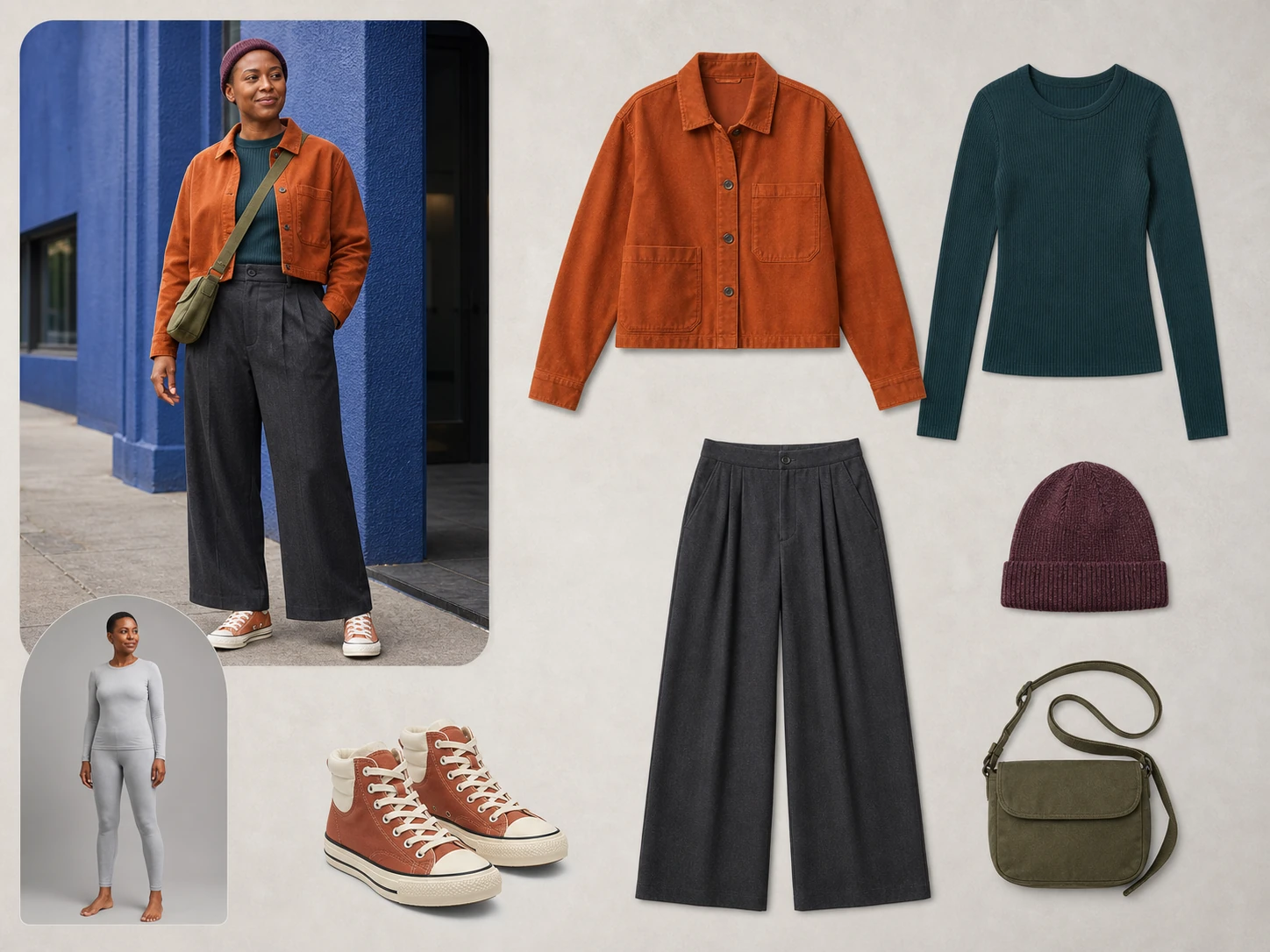
Original synthetic modelWhat it separates
AI Outfit Extractor focuses on clothes that can already be seen: tops, bottoms, dresses, outerwear, shoes, accessories, and clear layered pieces. It is made for safe outfit separation—not for revealing covered body details or replacing the person.
Use the result to inspect a look, compare pieces, or create a cleaner reference for the next step. Crowded poses, shiny materials, tiny logos, and covered items deserve an extra review.
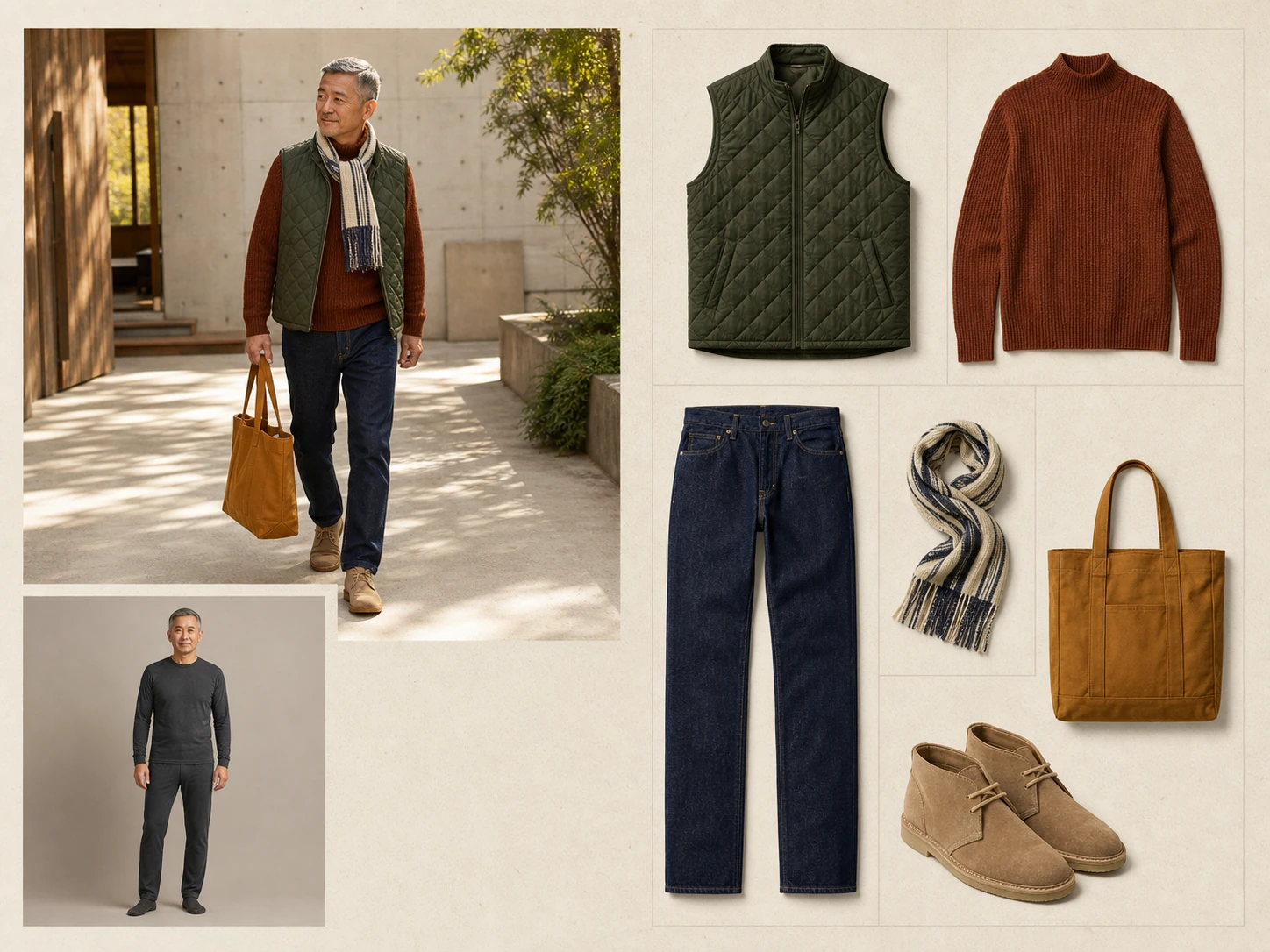 Original synthetic model
Real examples
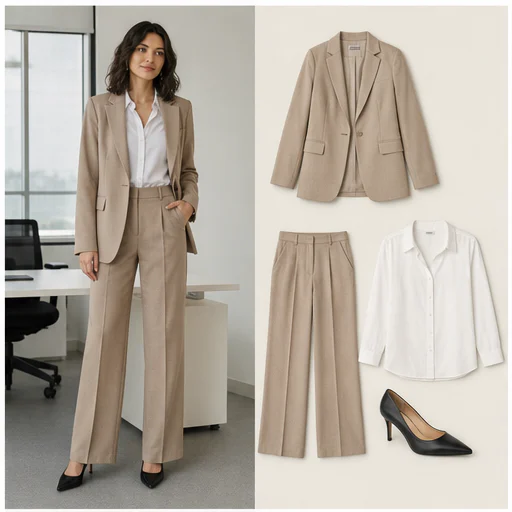
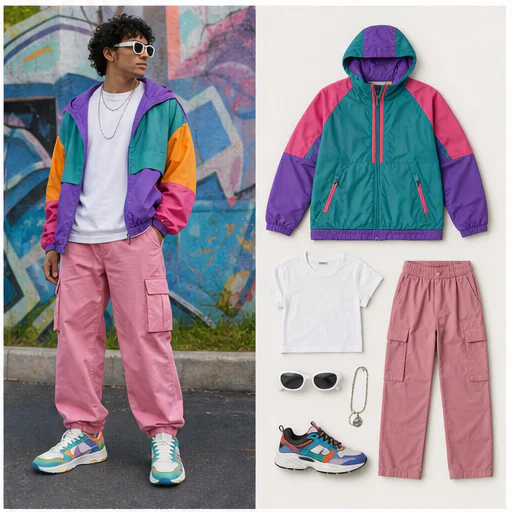
These original synthetic examples cover different people, poses, layers, fabrics, shoes, and accessories. Each image keeps the complete source model and extracted outfit layout visible.
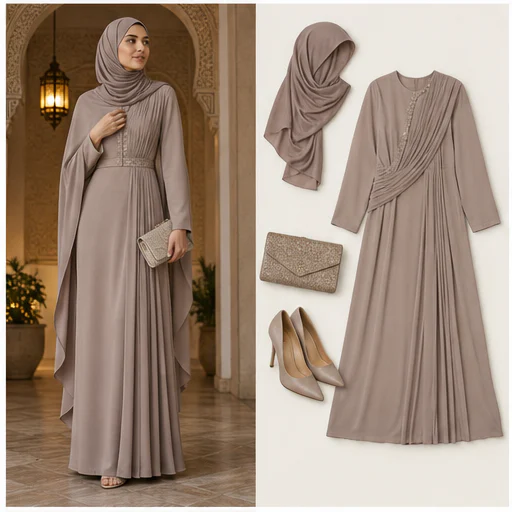
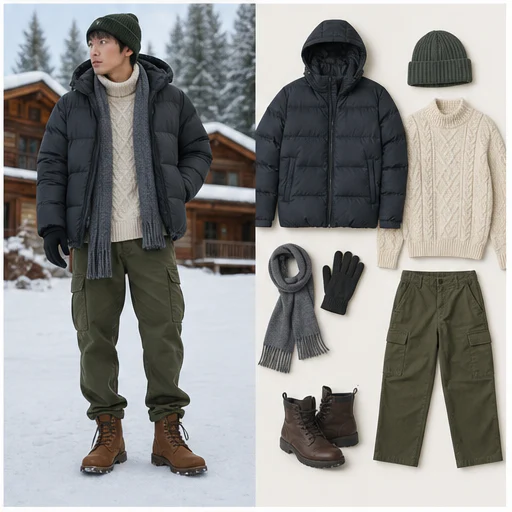
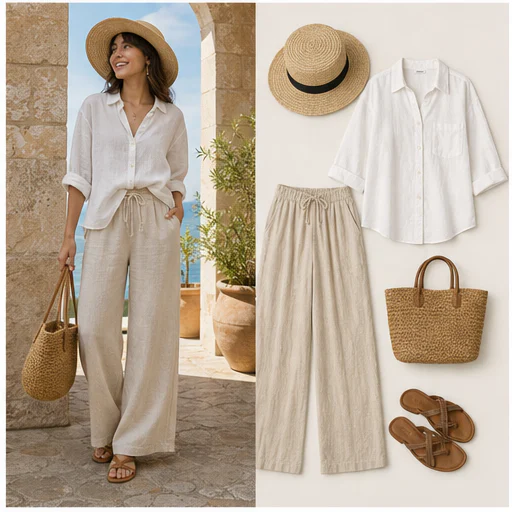
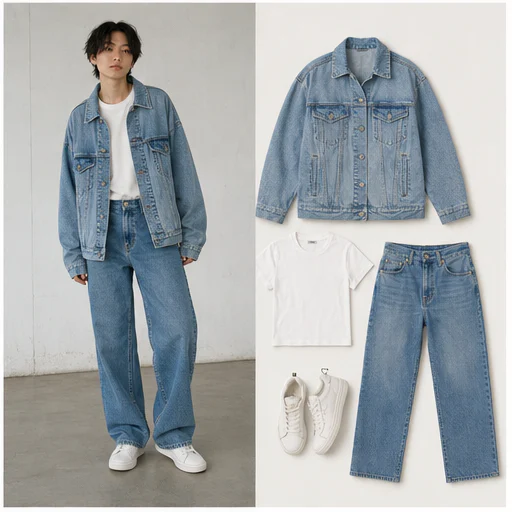
How it works
The workflow is short: upload a person image, choose the output ratio, generate the extraction, and review the result before using it.
Use a clear image where the outfit is visible. Avoid heavy occlusion when garment detail matters.
Pick the ratio that fits your mood board, listing draft, or visual planning workflow.
The AI builds a clothing layout and a safe separated-person preview from your source photo.
Inspect edges, fabric texture, shoes, accessories, folds, and small details before using it.
Fashion workflows
When an outfit already exists in a photo, extraction turns the reference into something easier to compare, plan, and reuse.
Listing prep
Turn a person-worn reference into a cleaner visual for review before preparing a marketplace listing.
Design
Compare garment shapes, colors, and combinations without losing the context of the original look.
Styling
Review a look as individual visible pieces instead of only as a posed person photograph.
Try-on prep
Create a reference asset that can feed into a later clothing edit or virtual try-on workflow.
Review notes
Pose, shadows, motion blur, overlapping arms, cropped footwear, shiny fabric, dense patterns, and hidden layers can all affect the generated result.
Original synthetic modelgarment edges, hems, and visible seams
fabric texture, patterns, folds, and pleats
shoes, bags, belts, hats, and jewelry
layered pieces such as a jacket over a shirt
small text, logos, labels, and decorations
a safe, neutral separated-person preview
Use photos you have permission to edit, especially when an image includes a real person, a brand mark, or a recognizable design.
FAQ
Practical answers about visible garment extraction, review, safety, and next-step fashion work.
It turns a person photo into a generated fashion board that separates the clothing already visible in the image. The result is useful for garment review, styling references, mood boards, and follow-up fashion edits.
Upload one clear person image, choose an output ratio, and generate. When the result appears, inspect garment edges, materials, shoes, accessories, and small details before using the image elsewhere.
No. Virtual try-on places a garment onto a target person. Outfit extraction starts with someone already wearing the look and creates a cleaner visual of the visible clothing pieces.
Yes. A visible outfit can include tops, bottoms, dresses, outerwear, shoes, and accessories. Results still depend on image clarity, pose, overlap, and how much of each item is visible.
The model tries to retain visible details, but small logos, text, jewelry, straps, folds, and dense patterns may change. Review important brand and construction details before relying on the output.
Commercial use depends on your rights to the source photo, the clothing design, visible trademarks, and the photographed person's consent. Confirm those permissions before publishing.
Use photos you have permission to edit and avoid sensitive images. The tool is designed to extract only visible garments and to keep the separated-person preview opaque, neutral, and non-suggestive.
Related tools
After extracting the outfit, move into the tool that matches the next visual job.
Start with your photo
Upload one clear person image, choose the ratio, and create a fashion visual you can review for pieces, details, and next steps.