

Clean illustrative painting with clear shapes
Example preview
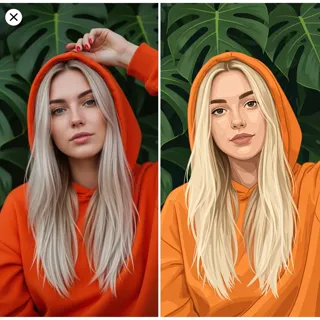
A clean vector-like painting direction helps a colorful story image stay readable without heavily textured surfaces. A starting point for creating and refining an image in LlamaGen.
Choose a task with a recognizable object and a simple silhouette.
When to use this template
- Children’s activity image
- Simple story scene
- Colorful editorial illustration
Build your first draft
Choose the story moment
Describe who is present and what changes before adding decorative details. Choose a task with a recognizable object and a simple silhouette.
Direct the composition
Separate foreground shapes with color rather than busy shading.
Review the first draft
Check that the watering stream reaches the plant. Check the focal point at a small size, then revise one issue at a time.
Try a complete example
Worked example — Clean illustrative painting with clear shapes
A child in orange overalls waters a towering sunflower from a blue watering can. Clean illustrative digital painting, broad leaf shapes, pale garden background, three-quarter view, no text.
The blue can and orange clothing separate the action from the green leaves. Use this direction as a draft brief; inspect the result before relying on fine details.
Before you publish
- Vector-like rendering does not mean the output is an editable vector file.
- Small overlapping leaves can obscure the water stream.
- Add captions after reviewing the image so the story remains readable.
Questions about this template
- Can I change the subject?
- Yes. Replace the example subject while retaining the visual choices described above; too many competing actions make the result harder to read.
- Is this a blank downloadable file?
- This is a creation preset, not a blank worksheet. Open it, describe a scene, and refine the generated draft.
- Will the prompt reproduce every detail exactly?
- No. The prompt gives direction. Layout, lettering, anatomy, and repeated character details can need correction.