01Page structure
Design the sequence before the details
Start with panel templates, portrait or landscape pages, and a visible page strip. The whole sequence stays close enough to inspect pacing while one page remains active for precise work.
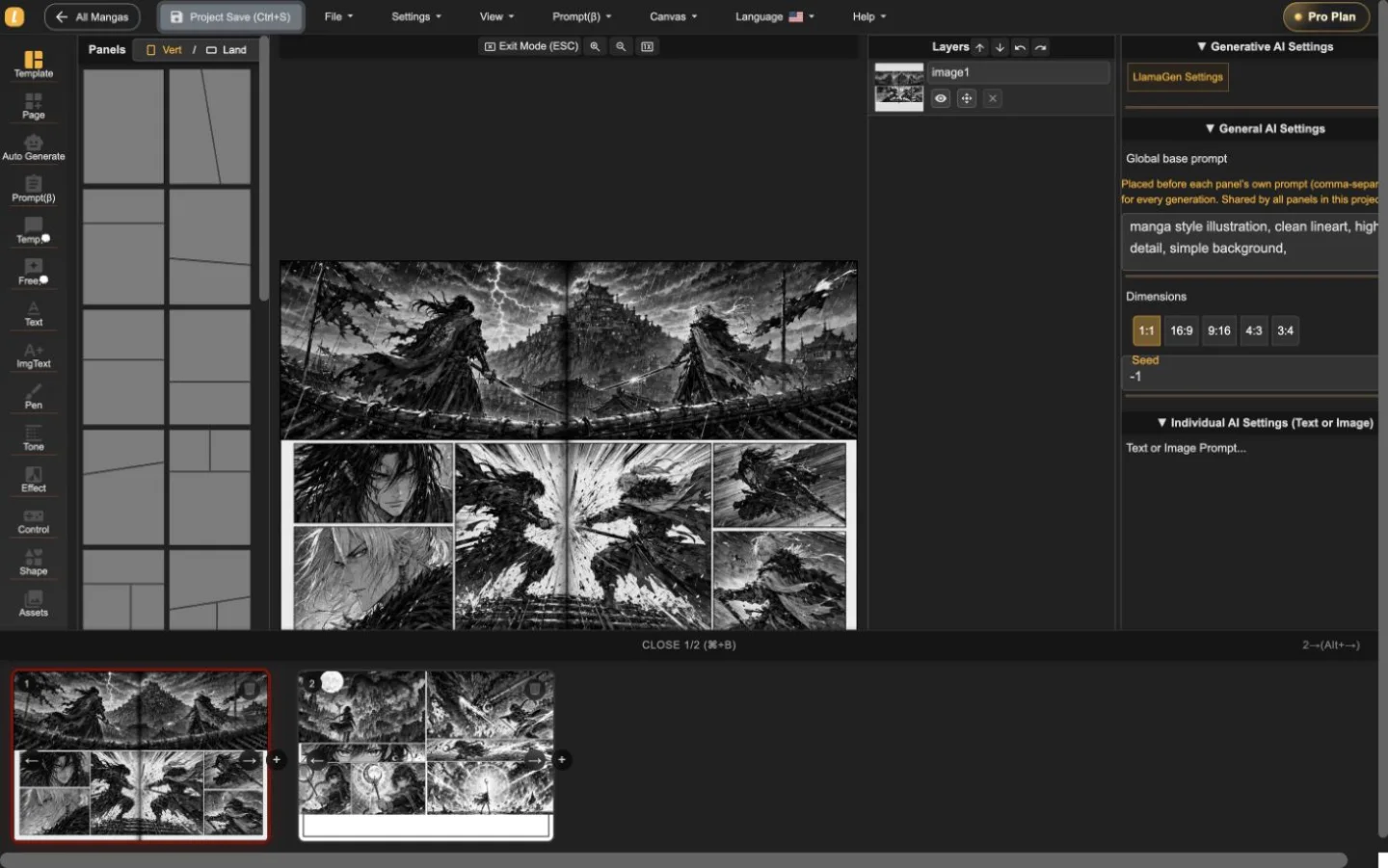
LlamaGen Manga Editor
Plan a multi-page chapter, place or generate artwork inside panels, edit dialogue and layers, and save each revision without splitting the story across separate tools.
22-second interface tour
Built from real editor captures, this guided tour shows where page order, panel composition, layers, and generation controls live. It is an interface overview, not a recording of interaction speed.
A guided still-sequence of two real project pages. Press play only when you want it; the video does not delay the initial page load.
Keep page turns visible while one page stays active.
Work on artwork without losing the surrounding page.
Revise the selected panel with its controls in view.
Use the tour to understand the workspace, then test interaction speed with your own page before choosing a plan.
Verify the workflow in the editorThree working levels
Start with panel templates, portrait or landscape pages, and a visible page strip. The whole sequence stays close enough to inspect pacing while one page remains active for precise work.
Place generated or uploaded artwork inside panel boundaries, select objects directly, adjust composition, and keep the surrounding page visible instead of sending every correction through a separate generator.
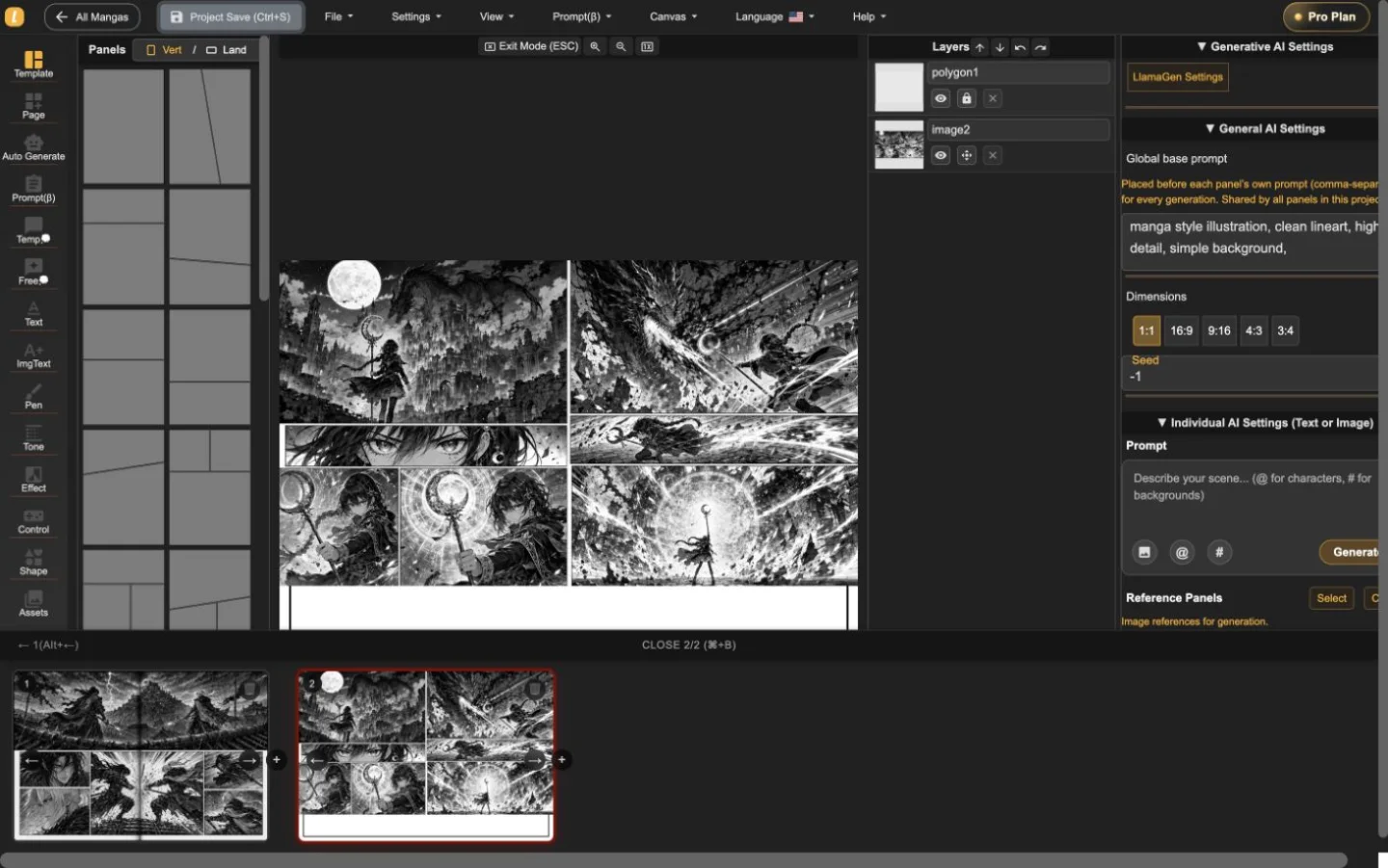
The layer list, panel selection, prompt controls, dimensions, and generation settings live alongside the page. That makes targeted revisions easier to understand and safer to repeat.
A real two-page project
The action and fantasy spreads were imported, switched, and saved in Manga Editor. The screenshots show the product at work—not a studio photo or decorative mockup.
A useful first session
Use the editor to answer three practical questions before you compare plans: can you structure a page, revise a panel without losing context, and export the format you need?
Start a manga projectSet the page direction and establish the panel rhythm.
Select a panel, inspect its layer, and adjust artwork or dialogue in context.
Test the current-page download and keep an editable project backup before committing to a longer chapter.
Manga Editor plans
Standard supports multi-page drafting. Pro is the relevant comparison when a series needs character consistency or the plan's general commercial terms.
Before you publish
Keep an editable backup, confirm the output you need, and review the rights attached to every source asset before release.
How to use Manga Editor
Start with structure, make image changes in context, and save a stable version before the next major revision.
Choose a vertical or landscape page, add panels, and arrange the sequence before you polish individual images.
Generate or place images inside a selected panel, refine prompts, and edit dialogue, shapes, layers, and composition in context.
Move through page thumbnails while keeping the project together, then save a recoverable version before major revisions.
Reference
Practical details about pages, images, generation controls, recovery, and publishing review.
LlamaGen Manga Editor is a browser-based workspace for composing multi-page manga, comics, and webtoons. It combines panel layouts, image placement, AI-assisted generation, text tools, layers, page navigation, and project history in one editor.
Yes. The page strip keeps multiple pages in one project so you can add, reorder, open, and review the sequence without exporting every page as a separate document.
Yes. Import or paste your own image files, then place them on the canvas or inside a selected panel. The editor keeps the surrounding page visible while you adjust the composition.
Yes. AI controls can generate or refine images for the selected panel. The editor keeps the page, panel, prompt, and layer context visible while you work.
The editor currently supports a current-page image download using the selected DPI, supported vector content as SVG, and an editable project backup. Download access depends on your plan. PDF is not currently listed as an editor export.
Standard and Pro include single-page and multi-page editing. Standard currently includes 15,000 monthly credits and up to 20 panels per prompt. Pro currently includes 45,000 monthly credits, character consistency, and up to 40 panels per prompt.
Pro currently lists general commercial terms. Commercial use also depends on the rights to your prompts, reference images, fonts, characters, and other source material, so review the current plan and terms before publishing or selling a project.
Project history shows saved versions with page previews, timestamps, and page counts. Review the selected snapshot before choosing whether to restore it.
Start a project
Choose a page format, establish the panel rhythm, and place the first piece of artwork.