Natural scene reconstruction
The prompt asks AI to restore the background texture, lighting, perspective, and geometry.


AI object remover
Upload a photo, paint over the person, object, text mark, or clutter that should go, and let AI rebuild the selected part of the scene naturally.
Clean up your photo
Mark one clear target at a time and optionally describe it. Only edit images you own or are authorized to change.
Upload an image to clean
Travel, product, portrait, social, or property photo
Add a description for extra precision, or use this field instead of the brush for keyboard-only input.
Output framing
Matches the first source image to protect the original crop.
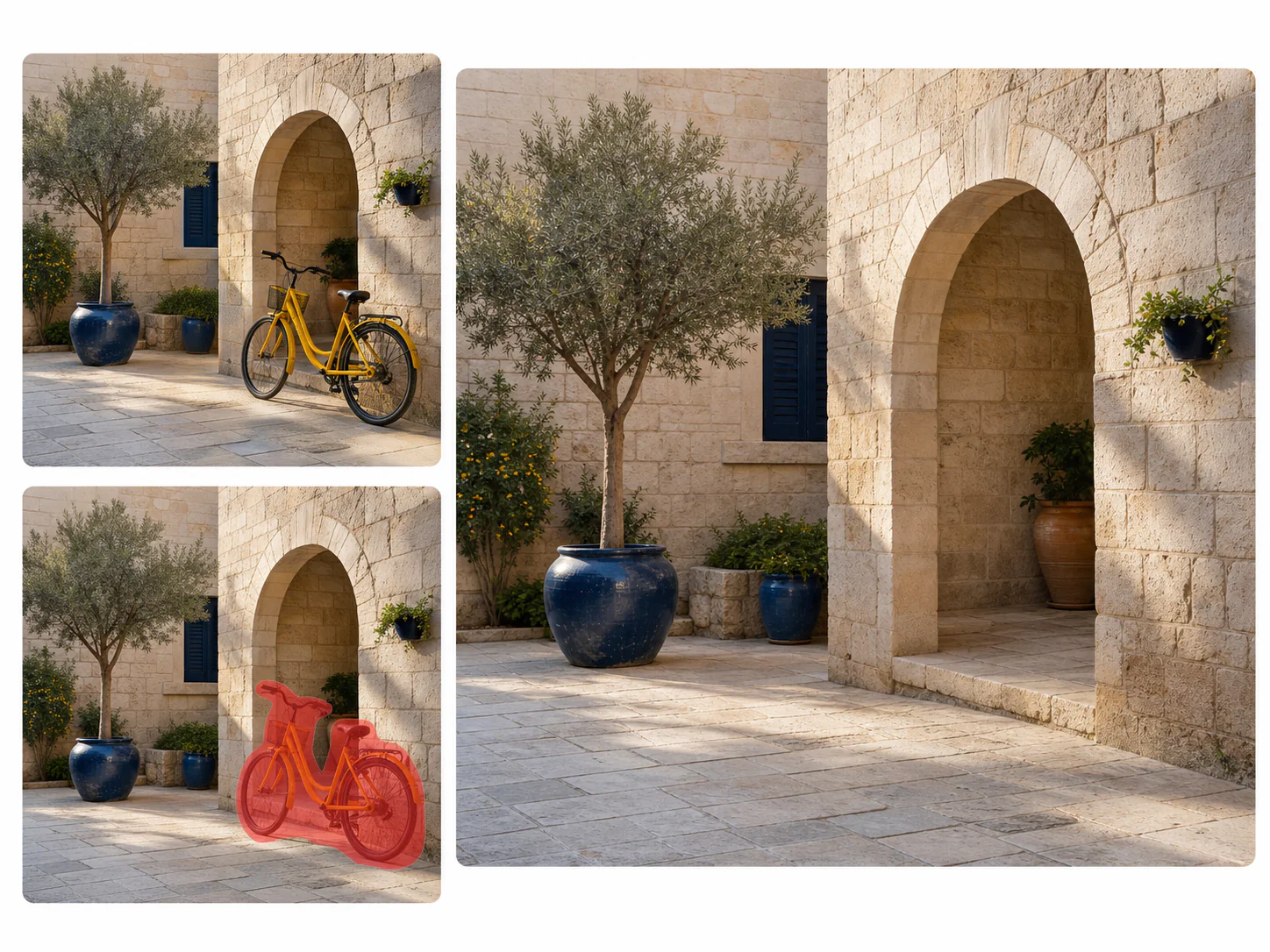
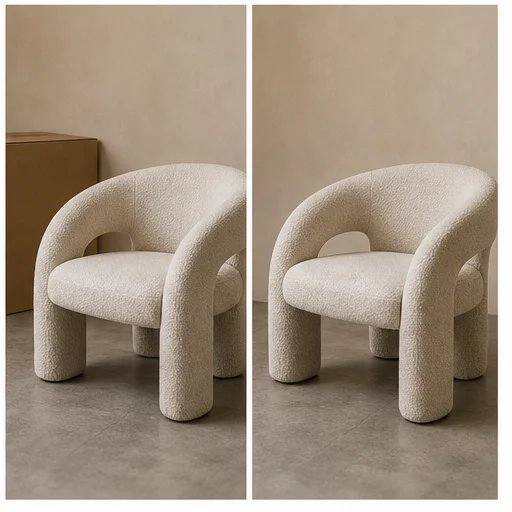
Before, target, cleaned
Object removal works best when the marked region is precise and the surrounding area contains enough visual context for reconstruction. Paint over the whole object and any attached shadow or reflection that should also disappear.
After generation, compare the original and cleaned image. Check repeated patterns, straight lines, textures, faces, hands, and nearby edges before saving.
The prompt asks AI to restore the background texture, lighting, perspective, and geometry.
Use the brush to select one distraction, then add an optional description for extra precision.
The edit protects the main subject, framing, color, and all unselected scene details.
Built-in guidance reminds users to edit marks and content only when they have permission.
Real examples
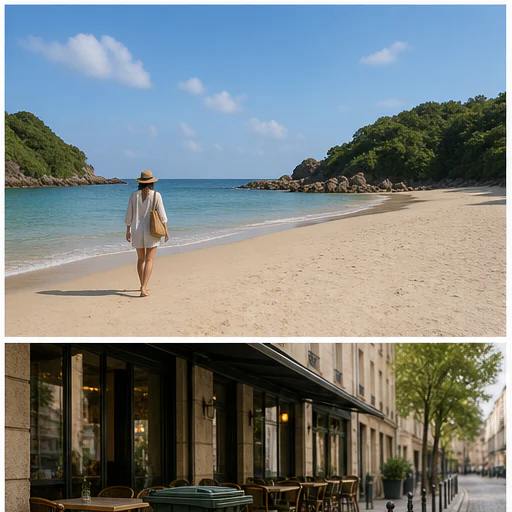
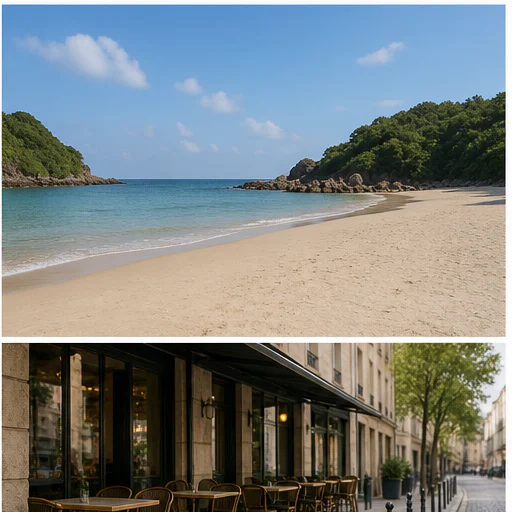
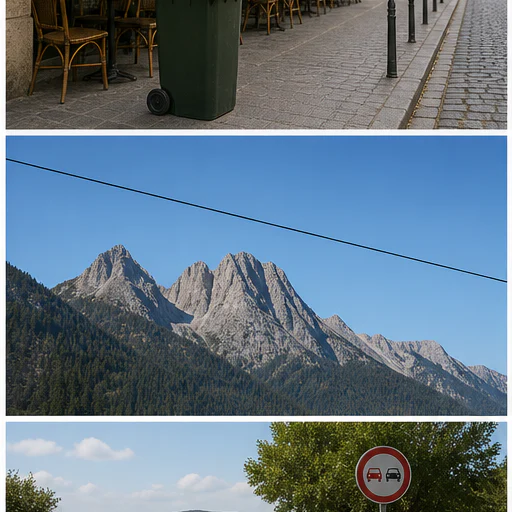
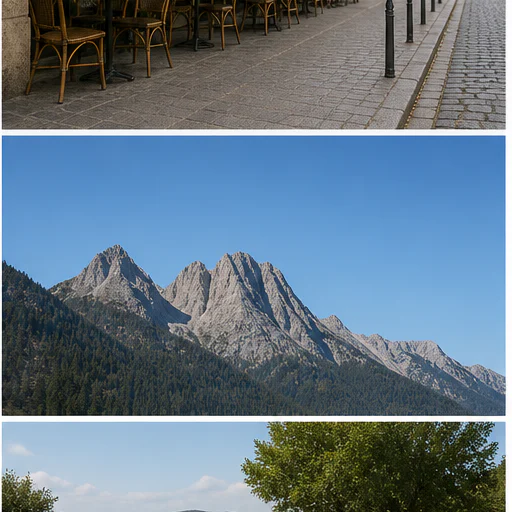
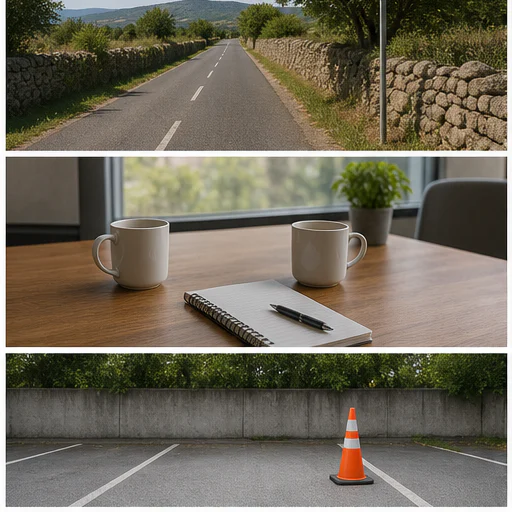
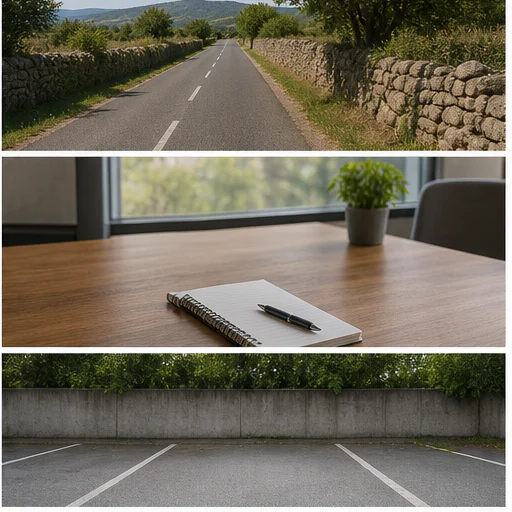
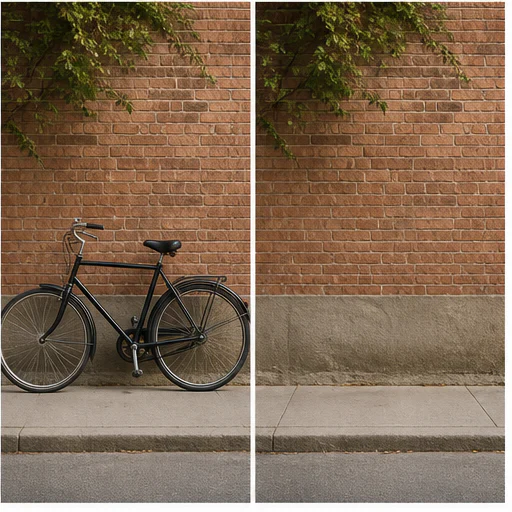
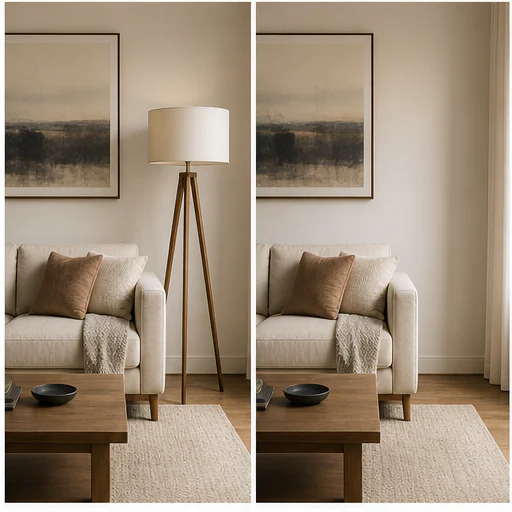
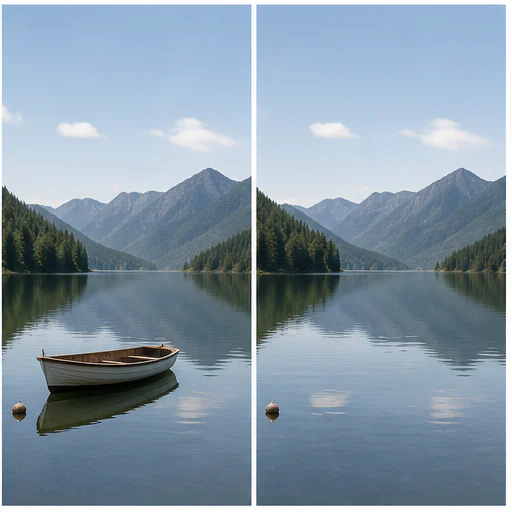
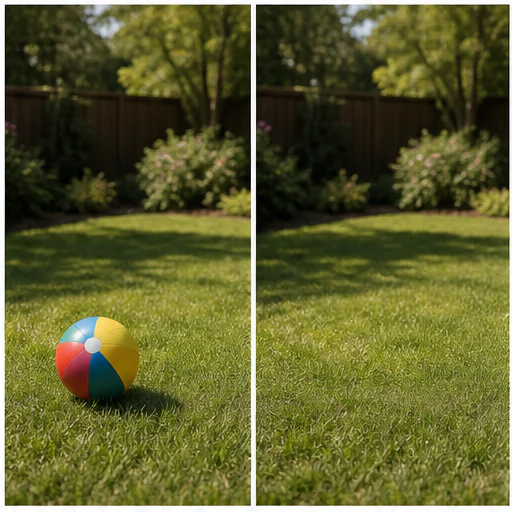
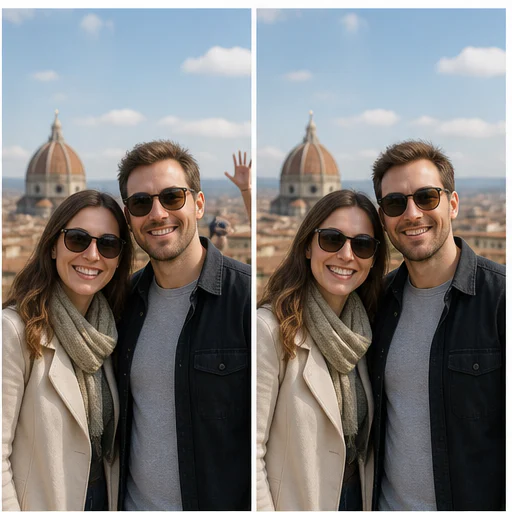
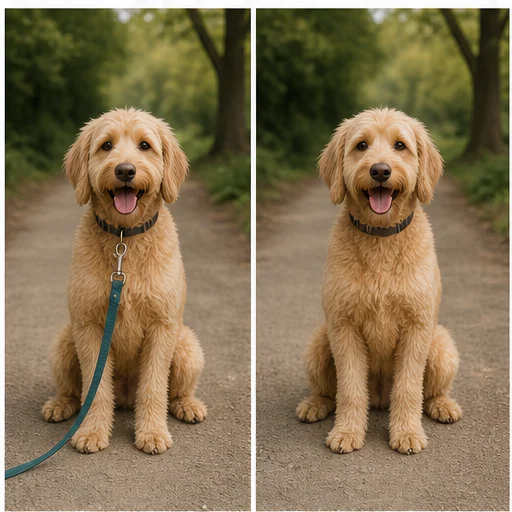
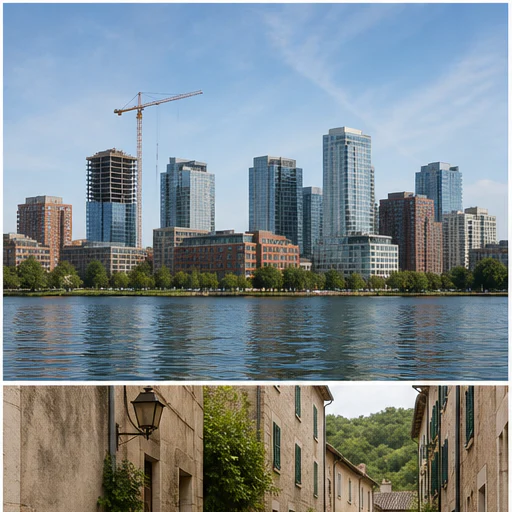
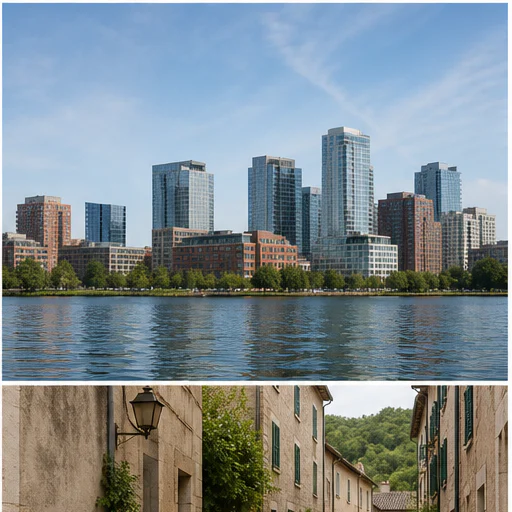
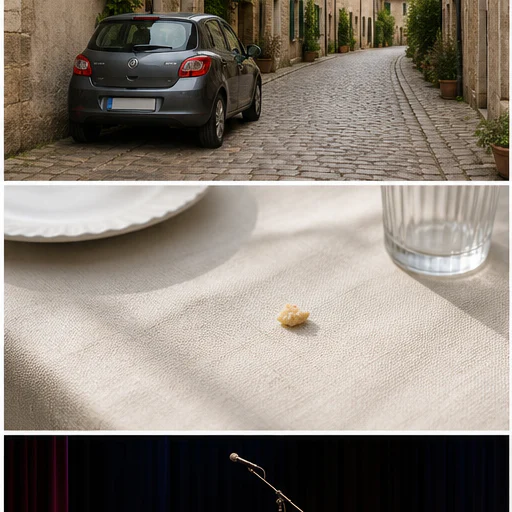
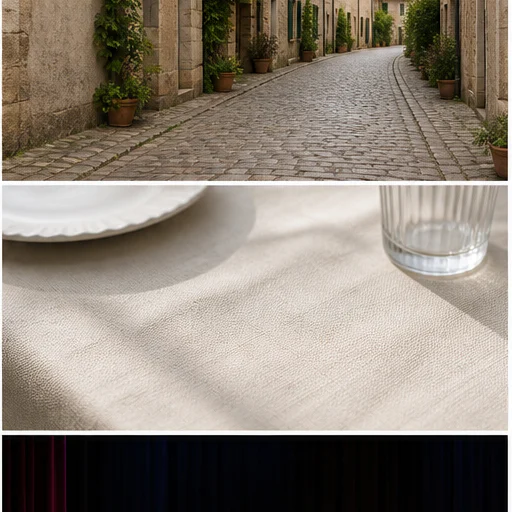
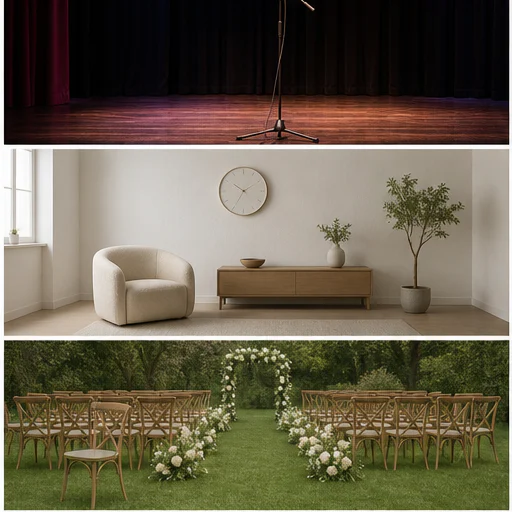
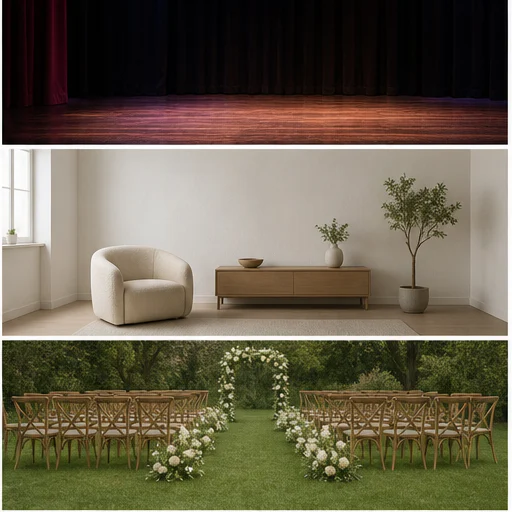
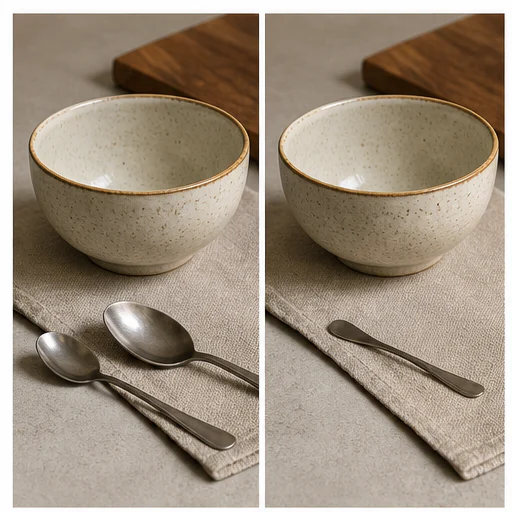
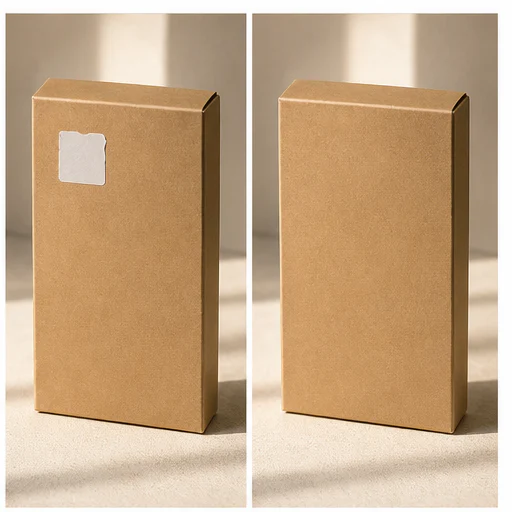
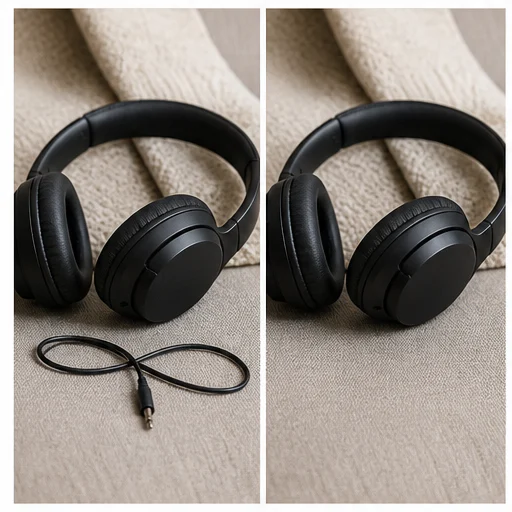
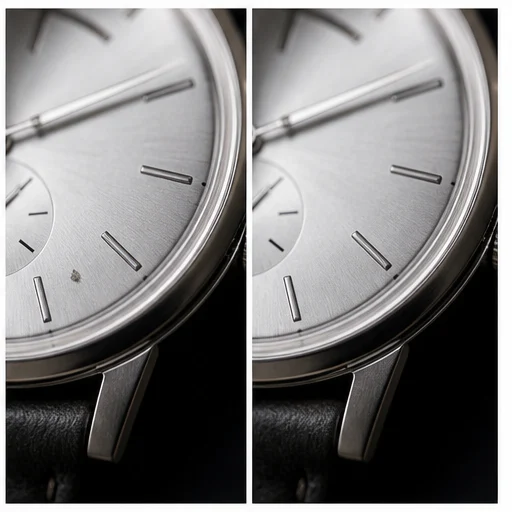
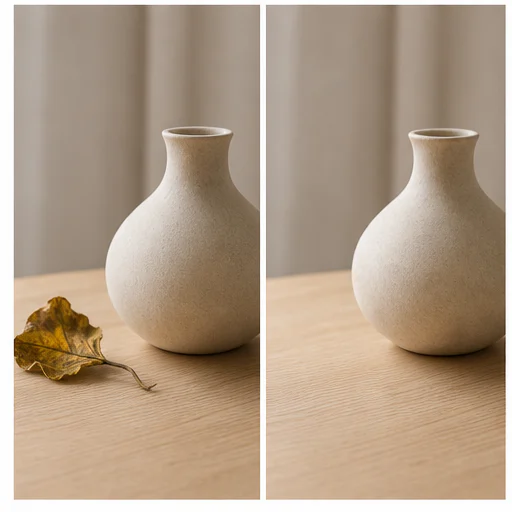
Twenty-four independent cases show how removal should preserve the surrounding structure, lighting, texture, and subject. Each card contains the complete before-and-after scene.
How it works
Follow the short workflow, then inspect the generated details before using or publishing the result.
Choose the image containing the person, object, text, or clutter you want removed.
Paint over the full target and connected shadows, then optionally describe the selection.
The model removes the target and reconstructs the surrounding scene.
Inspect background texture and nearby edges, then save or retry with a clearer instruction.
Real creator feedback
Read what creators shared about making comics, characters, and visual stories with LlamaGen.

@jake-m
As an avid creator of comic book style graphics, I've struggled to find a tool that truly allows me to unleash my creativity at scale. llamagen.ai not only breaks limits but shatters them, offering endless possibilities for my projects. It's the ultimate AI-powered solution I've been waiting for!
@sarah-l
I've tried numerous AI tools for image generation. And they are quite fun to play with but llamagen.ai is the first app I've actually saw a potential use-case. The character consistency really grabbed my attention as it's something I hadn't seen before and I can see the appeal for professionals and amateurs alike. Truly a game-changer!
@michael-b
llamagen.ai has reignited my passion for storytelling. As a busy professional, finding time to pursue creative projects can be challenging. But this app has proven so easy to use... It's like having a creative companion by my side!

@alex-t
Being part of the creative industry demands efficiency without sacrificing quality. llamagen.ai not only meets but exceeds these expectations. Really loved playing with the storyboarding and having an AI to help with not only image generation, but also the text content - it's really a nice way to help enhance the overall experience.
@maya-s
I enjoy a great comic book and have been very sceptical about AI. For example the criticisms of the Batman AI comic saga where not without merit. But through the scepticism I do see a place for such tools. While I still value an authentic man-made production, the ability for me to create something on my own (with a little help from AI) is really empowering and exciting.
@taylor-h
Maintaining character consistency is a challenge that I did not expect to be overcome so fast. While not perfect at times, the results are impressive and I’m really looking forward to the chance to further customize my workflow and AI generation.
Practical workflows
Keep the generated image as a reviewable draft, reference, or finished asset according to the needs of the job.
Travel
Remove photobombers, bins, signs, poles, or temporary clutter from an otherwise useful photo.
Product
Remove extra props, dust, loose labels, or messy background details from authorized product photos.
Portrait
Reduce small distractions behind the subject without replacing the entire scene.
Property
Remove temporary objects from rooms, yards, and property photos while preserving the actual space.
Review notes
AI fills removed regions by interpreting nearby pixels. Structured backgrounds require the closest inspection.
the entire unwanted object and attached shadow are gone
lines, tiles, walls, and horizons remain straight
repeated patterns continue naturally
nearby people and important objects are untouched
lighting and color match the surrounding scene
logos or watermarks were removed only with authorization
FAQ
Practical answers about source images, generated results, rights, and review.
Common targets include people in the background, street clutter, small props, signs, dust, stickers, date marks, and other clearly described distractions.
Cover the full object and any attached shadow without painting over nearby details. Add its position or color in the description when the scene contains similar objects.
Only when you own the image, created the mark, licensed the asset, or otherwise have explicit permission to modify it.
Faces, hands, text, grids, brickwork, railings, repeating patterns, and highly reflective surfaces need extra review.
Yes. Paint over the unwanted area to create a visual selection guide. A text description remains available for extra precision and keyboard-only workflows.
Related tools
Move from this focused edit into the next photo or fashion task.
Upload a blurry portrait, product, document, or memory and recover cleaner edges and natural detail without changing the original composition.
Upload a portrait, selfie, or group photo and reconstruct naturally open eyes while preserving identity, expression, lighting, people, and the original crop.
Upload a noisy low-light, compressed, scanned, or generated image and reduce grain while preserving edges, texture, and the source atmosphere.
Upload a faded, scratched, blurry, or timeworn photo and create a clearer restoration that protects faces, clothing, history, and the original composition.
Start with your image
Mark one unwanted object and create a cleaner version without opening a full editor.