

Recommended
Quick Mode
Recommended first. One clear PNG layer sheet from one image.
Upload a clean image and split it into background, subject, text, objects, comic characters, anime art, props, or product graphics. Start with a free online Quick Mode layer sheet, then use PRO when the source needs cleaner production separation.
First pass · 300 credits
Generates one reviewable PNG asset sheet. It is not an editable set of transparent PNG layers.
First pass · 600 credits
Uses a higher-quality model to produce a cleaner PNG asset sheet, still delivered as a single image.
Paid second pass · +600 credits
Once the sheet is ready, a paid user can extract individual transparent PNG layers, download them or a ZIP, and export a starter PSD.
The extracted PNGs are actual second-pass outputs, not a crop of the sheet. Occluded regions or complex edges can need manual cleanup; PSD is an editable starting file.
or drop a file,
paste image or
No image? Try one of these:
Start with the loaded sample or replace it with your own image. Quick Mode gives you a fast, reviewable image-to-layers result; PRO is the upgrade path for cleaner background, subject, text, object, and character separation when the source is production-ready.
Recommended first. One clear PNG layer sheet from one image.
Advanced model. Cleaner separation inside the asset sheet.
After creating a sheet, paid plans can extract real transparent PNG layer files and download individual PNGs, a ZIP, or an editable starter PSD. Complex images may need manual cleanup.
Each card shows a generated layer sheet so visitors can inspect separated characters, props, backgrounds, and design parts in one clear, result-focused view.
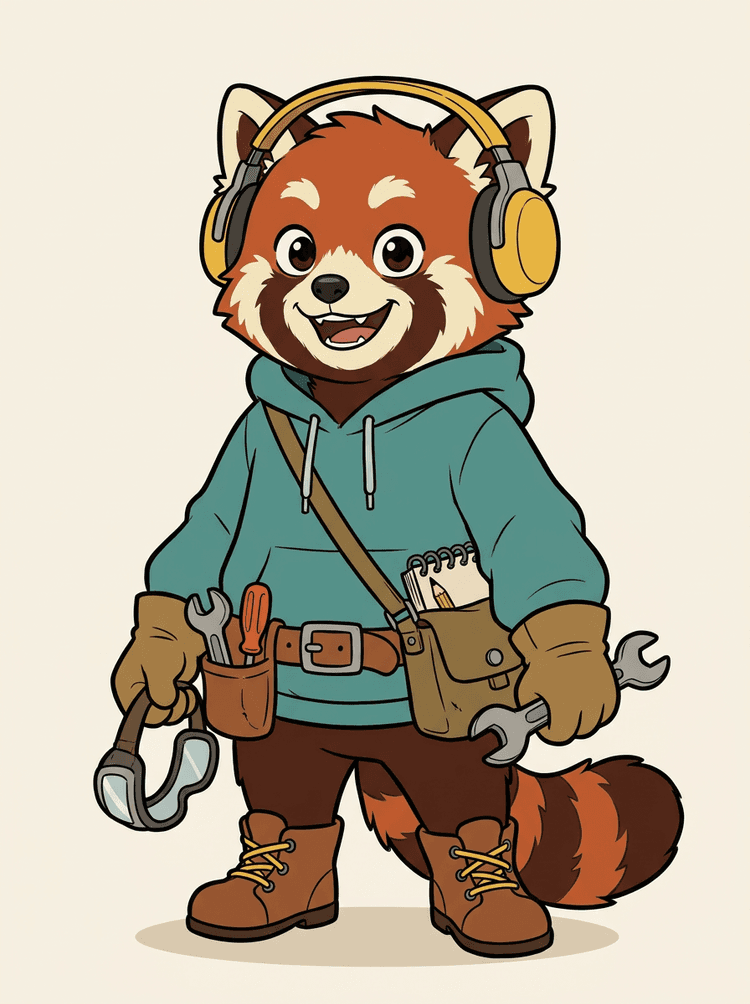
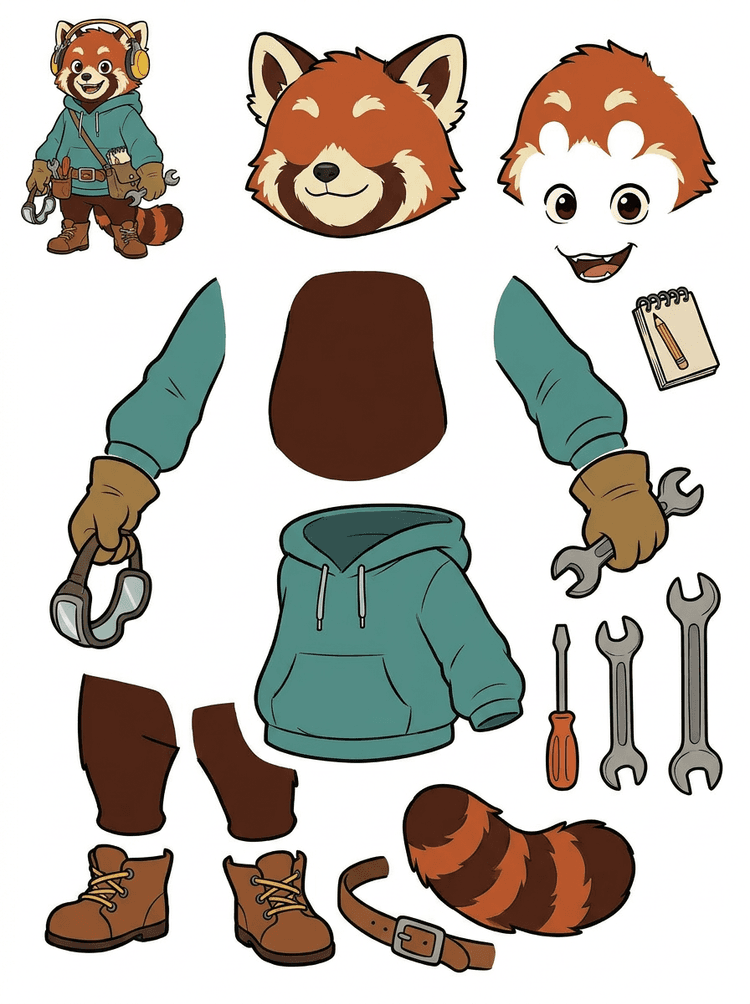
A character mascot with headphones, hoodie, satchel, tail, shoes, and drawing tools becomes a practical sheet for animation review.
Visible parts in this real result
Production handoff
The generated sheet is the review step. Continue in the live tool to extract suitable visible regions as separate transparent PNG layers, then package them as a ZIP or editable starting PSD.

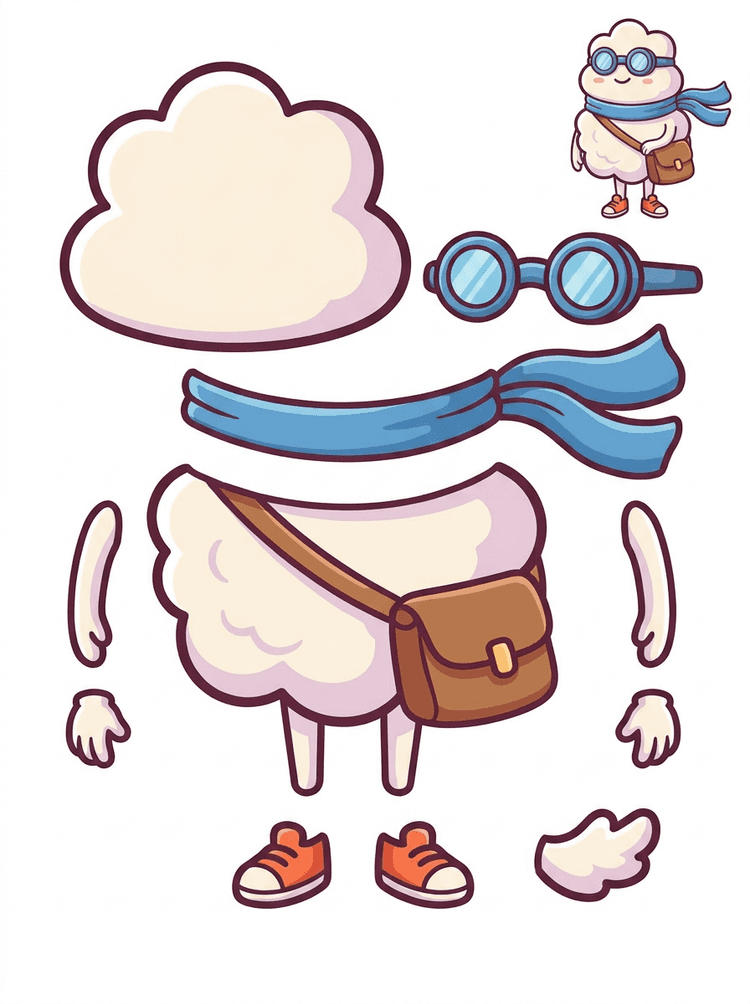
A sticker-style cartoon hero becomes a parts sheet with scarf, bag, shoes, goggles, hands, and rounded body components.
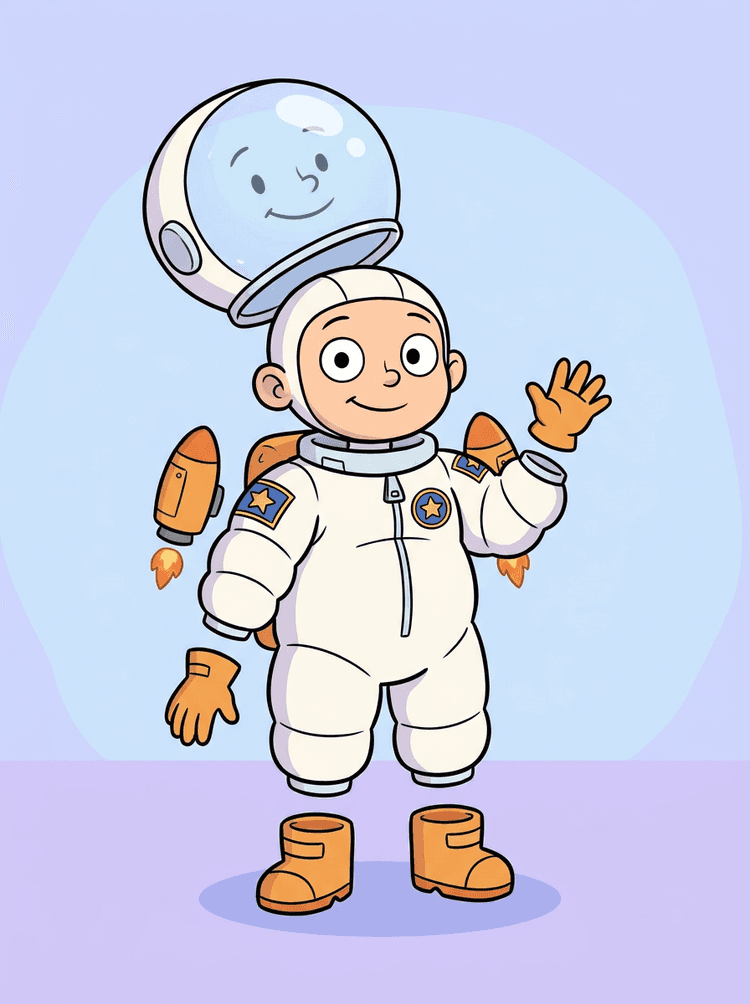
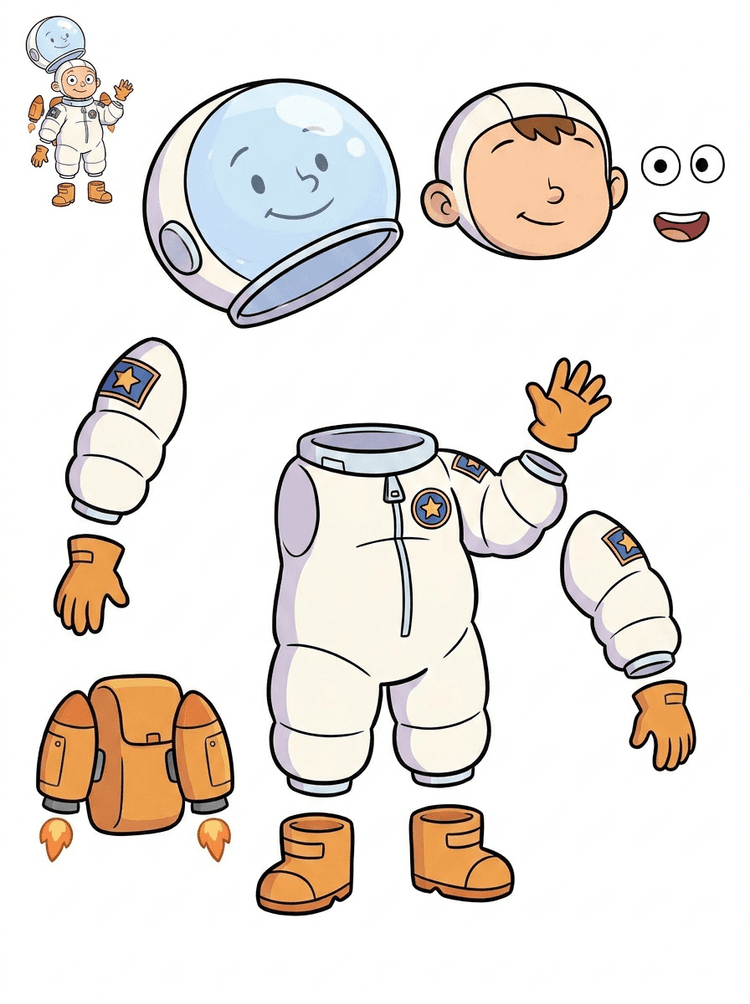
A kid astronaut illustration becomes a sheet for helmet, suit, gloves, boots, patches, backpack, and motion-comic pieces.
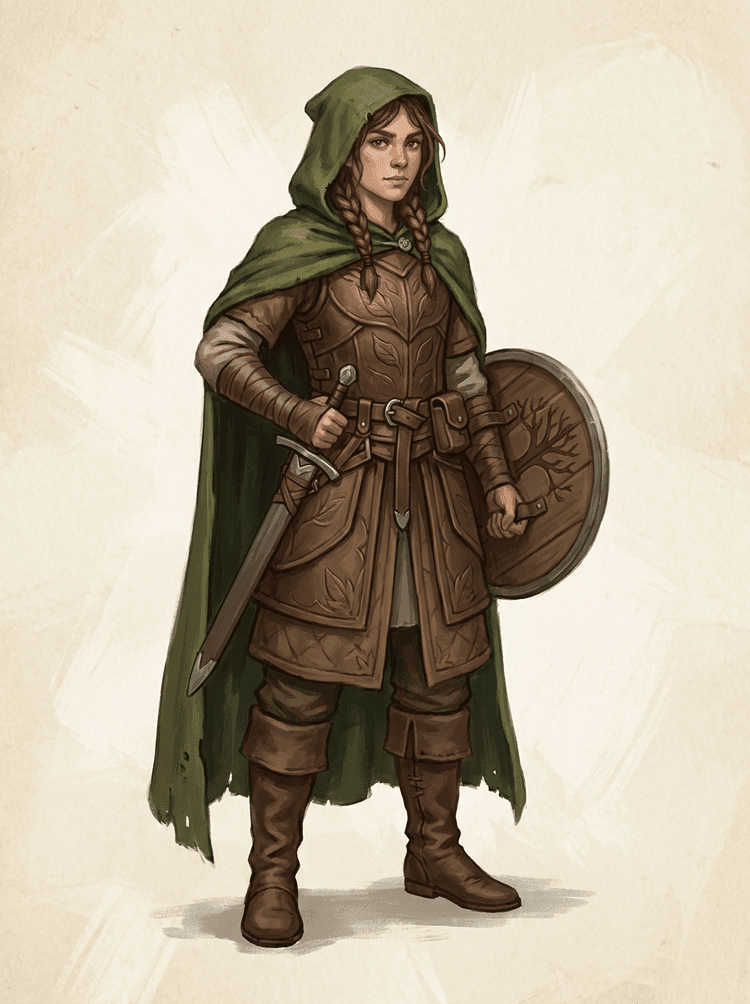
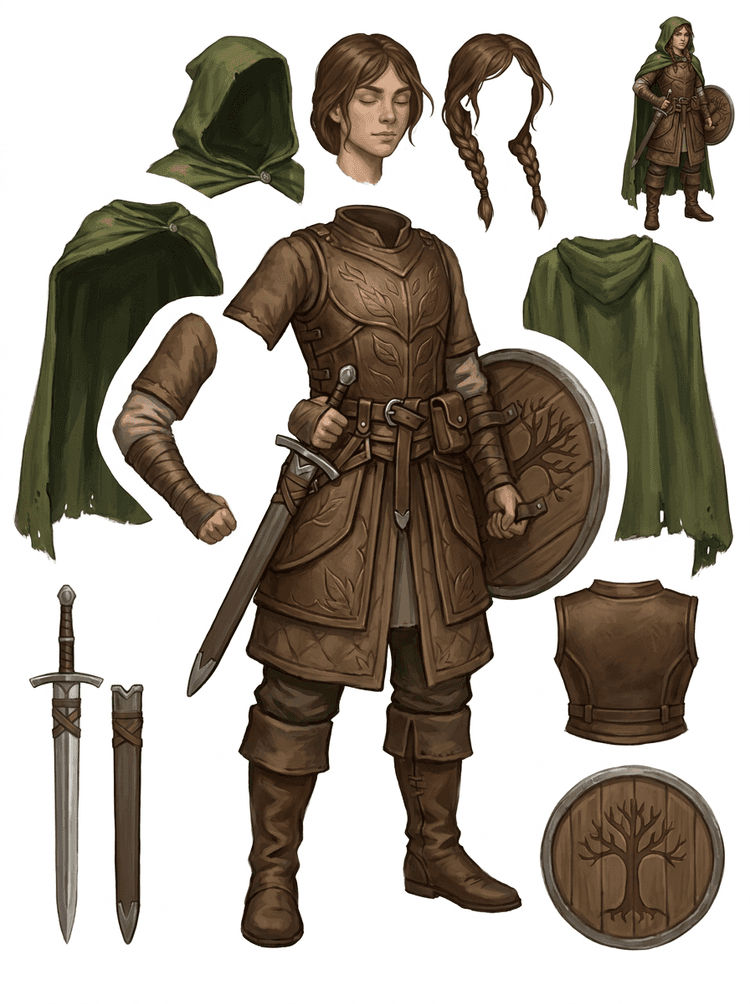
A fantasy game character is split into armour, cloak, sword, shield, pouches, boots, limbs, and reusable sprite references.
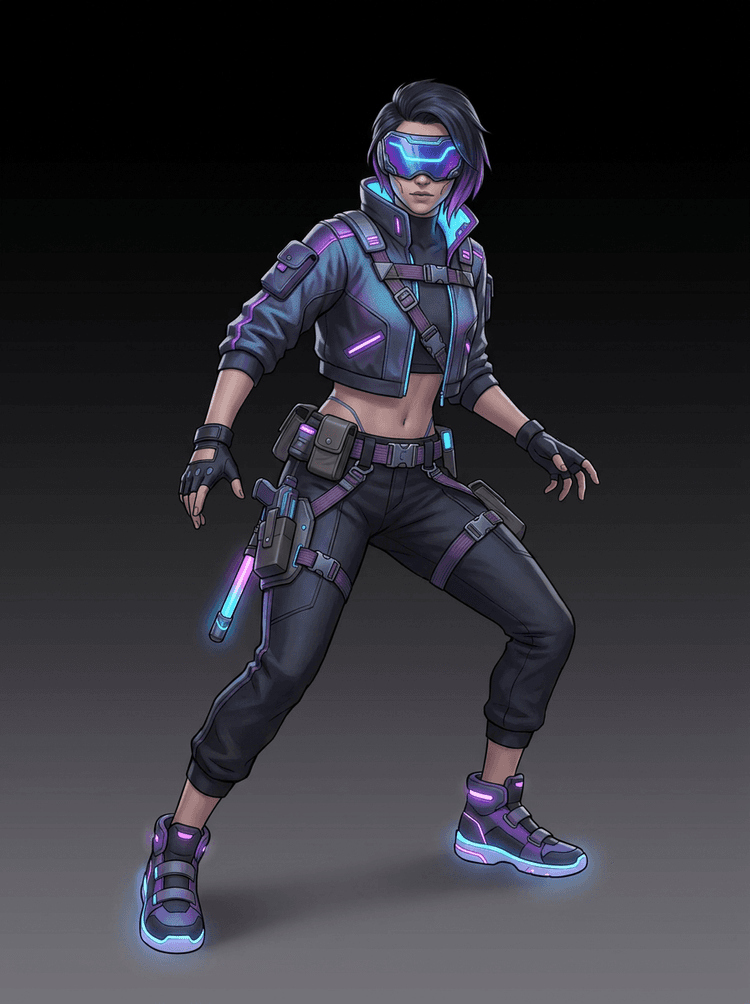
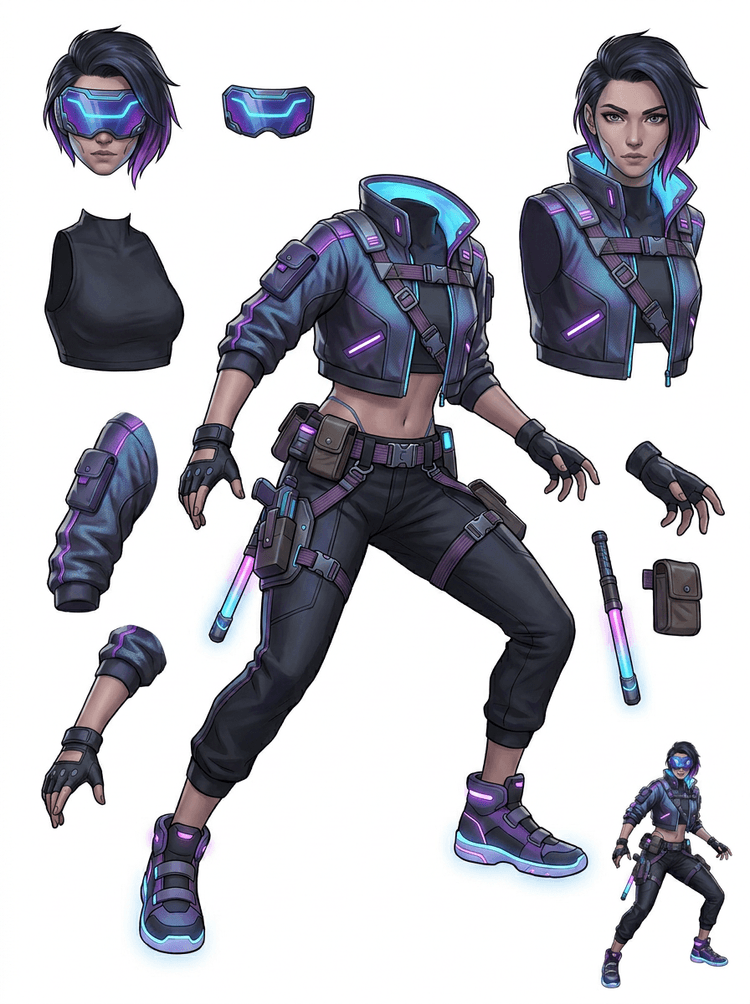
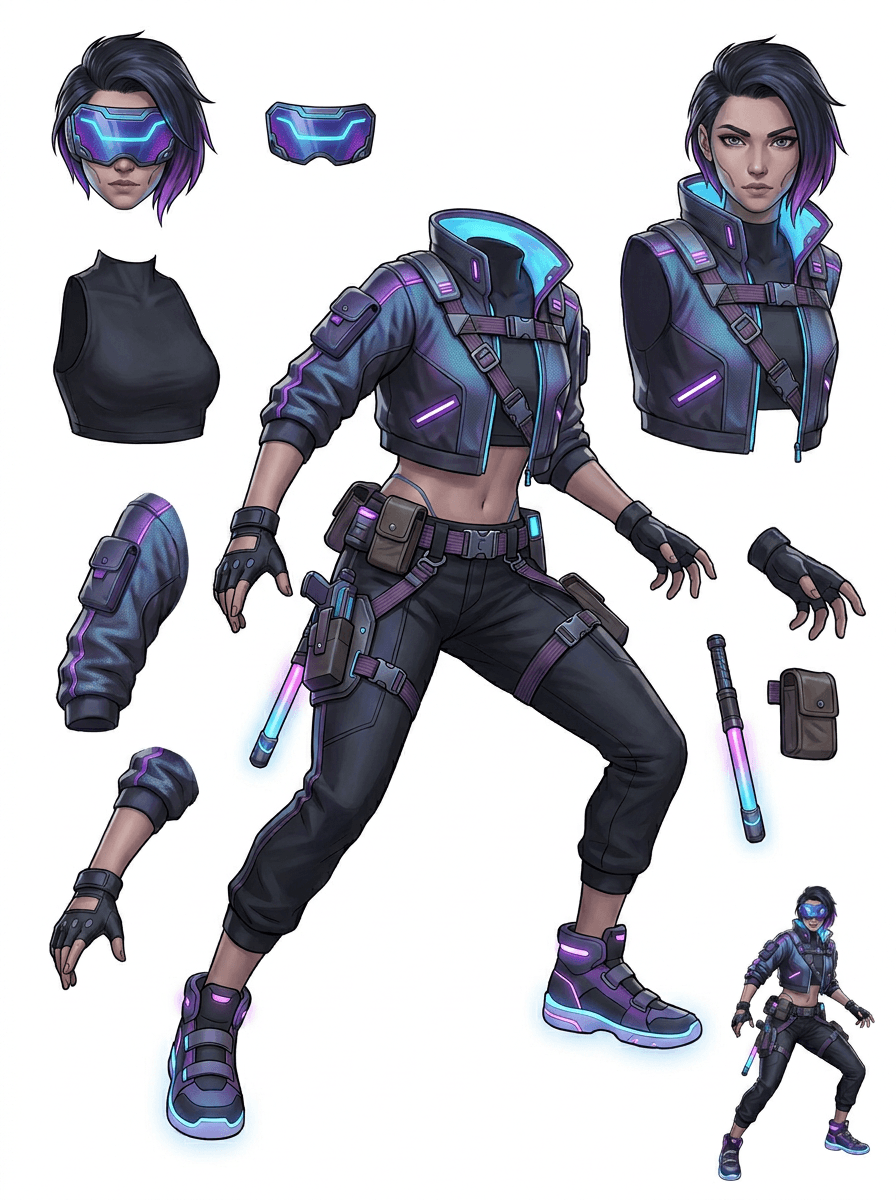
A cyberpunk action character becomes a high-detail parts reference for jacket, visor, gloves, shoes, straps, baton, and body pieces.
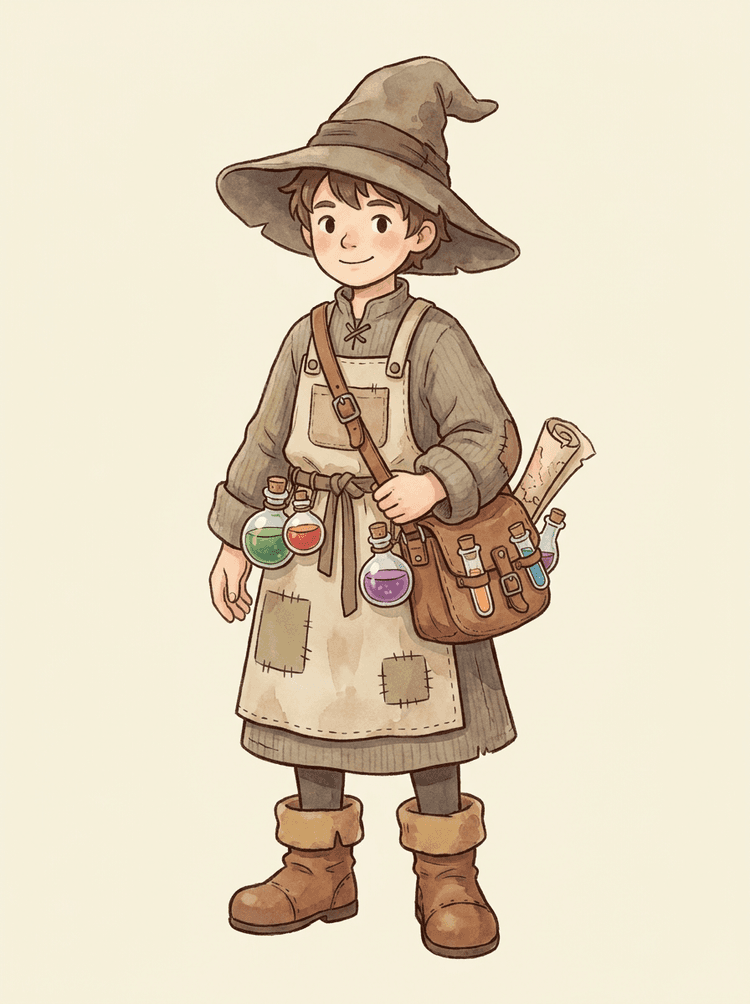
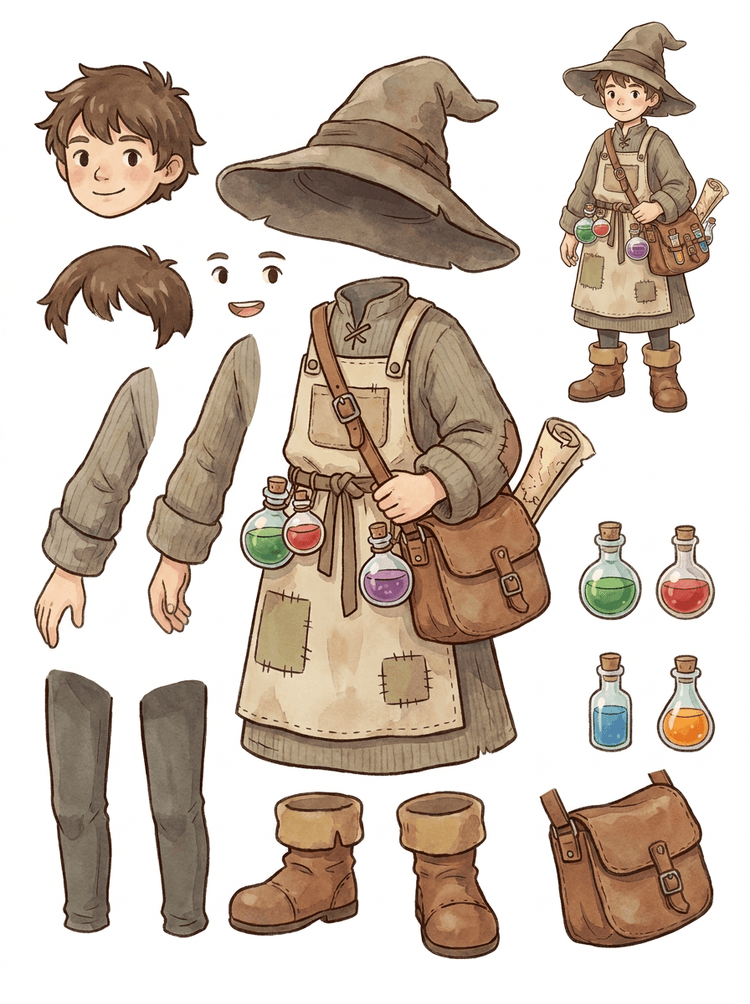
A cozy NPC with hat, apron, potion satchel, bottles, map, boots, and warm clothing becomes a reusable game production sheet.
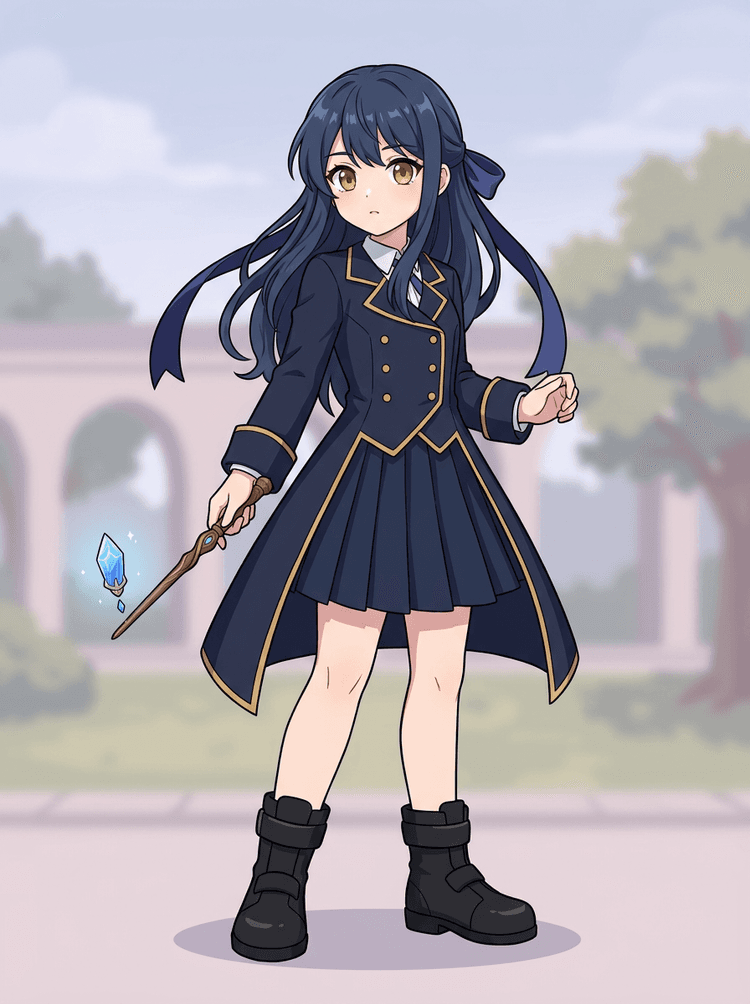
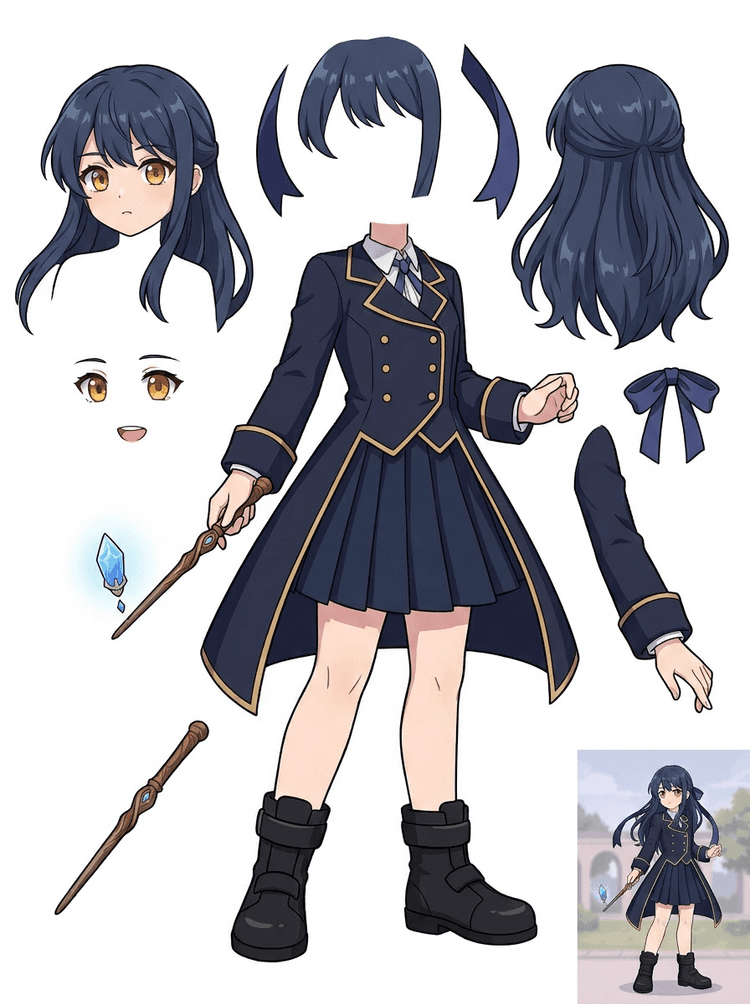
Anime key art with uniform, ribbon, wand, hair, charm, gloves, and boots becomes a parts sheet for edits and motion tests.
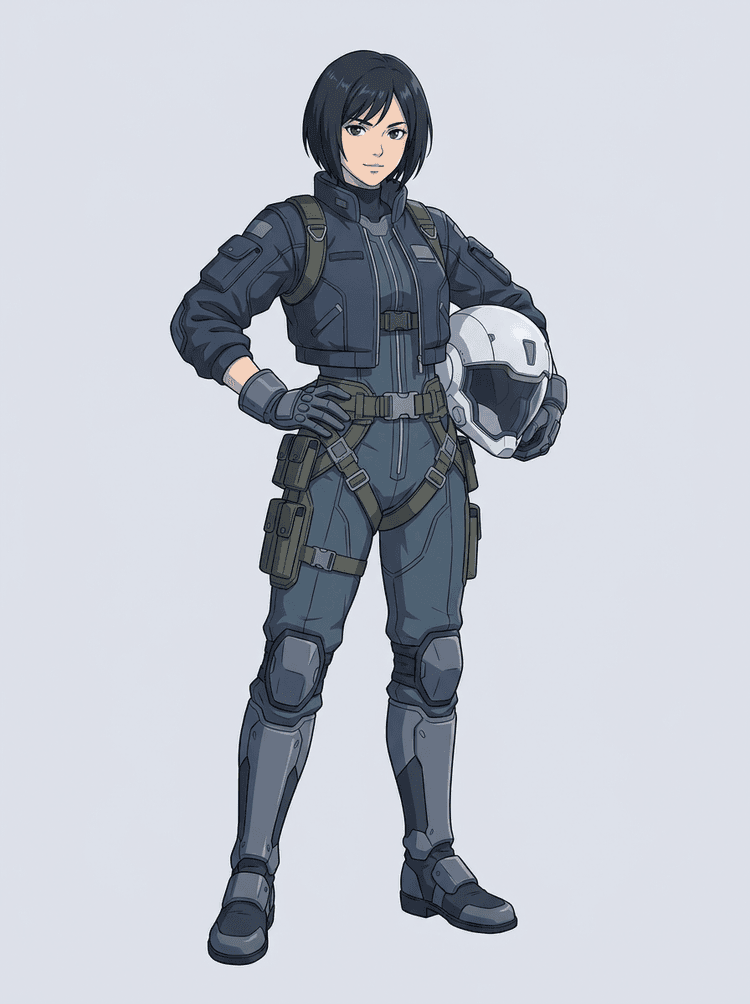
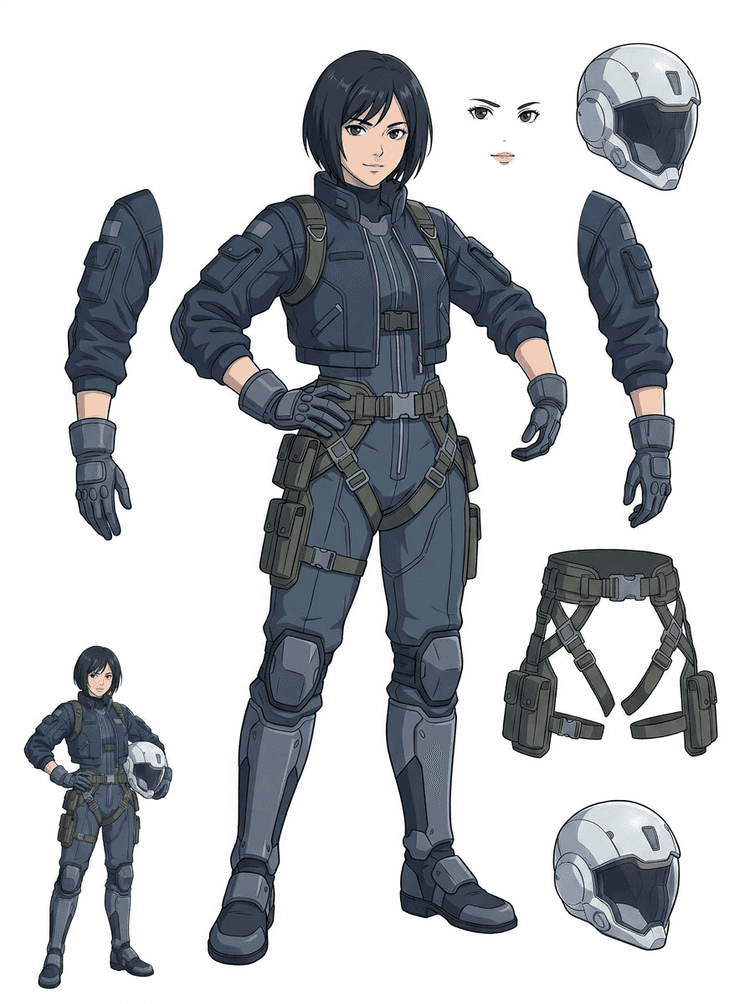
A sci-fi anime pilot is separated into hair, face, jacket, gloves, harness, boots, helmet, and body components.
AI Layer Splitter is an image-to-layers tool for creators who already have a source image but need the practical production pieces behind it: foreground, background, subject, characters, hair, face, outfit, limbs, text, objects, props, product details, and accessories.
Built for artists, indie game teams, animators, marketers, e-commerce teams, and ACG creators who need to turn one flat image into reusable production assets without spending the whole session masking.
A polished PNG cannot blink, create parallax, swap props, isolate products, or become a sprite until the main pieces are separated.
Selection tools, edge cleanup, and layer naming can take longer than the first animation test.
Changing one glove, bag, shoe, tail, helmet, or ribbon can turn into a full repaint when every part is fused together.
Before
One polished character image that looks complete, but is still locked as a single flat bitmap.
After
A clear asset sheet with foreground, background, characters, text, and objects separated so artists can plan motion, edit details, and hand off production references.
Create a reviewable separation pass before opening a full manual masking workflow.
Move from a single character image into parts for animation, game work, and editing handoff.
Case study
A brand mascot can move from one static illustration into separated head, tail, shoes, bag, clothing, and accessory references for fast animation planning.
Result
Artists can review which parts are usable, decide whether to rerun with PRO, and start cleanup from a concrete sheet instead of a blank masking session.
LlamaGen layer workflow
cartoon, anime, and game asset prep
Use AI Layer Splitter as the first clean pass: upload one image, generate a layer sheet, then use the result in your editor, animation workflow, or game asset pipeline.
Use full-body character art, mascot art, anime key art, game concepts, product shots, graphic designs, props, or product-style illustrations with visible edges.
Quick Mode creates a fast visual checkpoint so the team can see hair, face, clothing, hands, props, shoes, background, text, objects, and accessories in context.
PRO Mode works best after the first sheet shows the source is readable and the project needs a cleaner model pass.
Use the downloaded sheet for motion blocking, rig planning, sprite references, repainting, or creative compositing.
The goal is a reviewable production starting point, not a vague AI demo.
The AI layer splitter tool analyzes your artwork and identifies different elements like characters, backgrounds, and objects, creating separate layers. It uses AI to break down images while preserving layout, hierarchy, and design intent, and works best with graphic design, illustrated products, character art, and clean game assets.
The gallery is organized around the main production scenarios: cartoon mascots, game characters, anime characters, and object-based image-to-layers workflows. Each example uses an original AI-generated source image and a matching split asset sheet.
Mascots, kids' characters, sticker-style heroes, and motion-comic characters with expressive props and accessories.
RPG heroes, cyber runners, cozy NPCs, equipment layers, weapons, inventory references, and sprite-prep sheets.
Modern anime key art with hair, uniform, ribbon, helmet, glove, boot, harness, and charm separation.
AI Layer Splitter is most useful when the output has a destination. These scenarios explain what source image to upload, which parts to inspect, and how the sheet fits into animation, games, comics, e-commerce, or brand production.
Mascot animation
Use a clean mascot pose when you need social stickers, short ads, landing page motion, or simple rig planning.
Source to upload
A full-body mascot with visible face, hands, shoes, tail, props, and clothing edges.
Useful layers to inspect
Production handoff
Give animators a reviewable parts sheet before they trace, redraw, or rig the final motion.
Indie game asset prep
Use approved game art when the team needs equipment variants, inventory icons, profile art, or fast pose exploration.
Source to upload
A readable character concept with clear armour, weapons, bag, cape, hair, boots, and silhouette.
Useful layers to inspect
Production handoff
Use the sheet as a starting reference for sprite cleanup, equipment swaps, and gameplay-facing art.
Anime and ACG edits
Use anime-style character art when you need hair, face, uniform, ribbon, glove, helmet, or accessory control.
Source to upload
A single anime character with strong outlines, visible outfit details, and minimal background noise.
Useful layers to inspect
Production handoff
Review the sheet before expression edits, outfit variations, character cards, or short animatic tests.
Comic and ad iteration
Use campaign characters, props, or illustrated products when last-minute revisions keep affecting small visual details.
Source to upload
A polished illustration with the object centred, visible edges, and the main revision targets unobscured.
Useful layers to inspect
Production handoff
Give designers a clear sheet for prop swaps, copy-safe variants, and compositing experiments.
The tool works best when the subject is clean, complete, and clearly separated. It is not a shortcut for every crowded photo, sketch sheet, blocked pose, or dense layout where foreground, background, text, and objects overlap heavily.
A generated sheet should be judged like a first production pass, not a magic final file. Use the checklist to decide whether to download, rerun, crop the source, or move to PRO after the image layer separator identifies usable foreground, background, subject, object, and text areas.
Weak result
Important parts are melted together, randomly duplicated, or hidden under visual clutter.
Production-useful result
The sheet makes the main visible parts easy to identify at a glance: head, limbs, clothing, props, accessories, and background pieces.
Weak result
The character looks like a new design with different proportions, colours, line quality, or personality.
Production-useful result
The separated parts still feel connected to the original art direction, with recognizable silhouette, palette, and character identity.
Weak result
The sheet is interesting, but the team cannot tell what to trace, redraw, mask, or test next.
Production-useful result
Artists can immediately choose parts for cleanup, rig blocking, sprite reference, prop swaps, or compositing tests.
Weak result
A poor split gives no clue whether the issue came from the model or the uploaded image.
Production-useful result
The result shows what to fix next: crop closer, remove sketch marks, add more margin, simplify the background, or use PRO.
Turn one finished image into separated visual parts that are easier to review, edit, animate, or rebuild.
Upload a clean image and create a clear PNG layer sheet with foreground, background, subject, objects, text, clothing, props, and accessories in one result.
An image layer separator helps designers, marketers, animators, and game teams identify which parts of a source image can become editable assets. Instead of redrawing every element from scratch, teams can generate a PNG layer sheet, compare the original with the separated result, and decide whether the source needs cropping, cleanup, Quick Mode, or a PRO pass.
Create a downloadable sheet for sprite prep, rig planning, motion comics, e-commerce edits, sticker variants, or character handoff. It works best when one clear subject has visible edges and minimal overlap.
The best layer-splitting workflow preserves context. Keep the source, the generated sheet, and a short review note so the next artist knows what to use and what still needs cleanup.
The original image explains intent when an animator, game artist, or designer reviews the separated sheet later.
A first sheet becomes more valuable when the team knows which parts are ready and which still need manual finishing.
Use the sheet as a practical bridge into animation, sprite prep, comic edits, or compositing instead of treating it as a final PSD replacement.
AI Layer Splitter gives teams a faster first pass; final production assets still benefit from human review and cleanup.
AI Layer Splitter turns a single flat image into a clear PNG layer sheet with visible backgrounds, subjects, text, props, objects, product details, and character parts separated for editing, animation, game art, motion comics, e-commerce, and compositing workflows.
Yes. Quick Mode is the free online starting point for a reviewable image-to-layers result. Use it to test whether the source image separates well before spending time on manual masking or upgrading for a cleaner PRO pass.
Yes. AI Layer Splitter works as a web-based AI image layer separator: upload one image, let the model identify subjects, backgrounds, text, props, and objects, then download a reviewable image-to-layers sheet. It works best for clean photos, graphic design, illustrated products, game assets, and character art; complex images may still need manual cleanup in Photoshop, Figma, or another editor.
Upload a clean image, run Quick Mode, and review the generated image-to-layers sheet. The result separates visible foreground, background, subject, text, props, and objects into a practical reference you can use for editing, compositing, animation blocking, sprite prep, or manual cleanup.
The current workflow creates a downloadable PNG layer sheet rather than a finished layered PSD. Use it as the first AI image layer separation pass, then recreate, mask, or polish the strongest parts in Photoshop, Figma, Procreate, After Effects, or your game asset pipeline.
Layer Decomposition is an AI agent capability that separates a single image into logical, editable visual layers such as foreground, background, subjects, text, and objects. It helps teams move from a flat image to a practical layer sheet for review, editing, animation, and production handoff.
Yes. LlamaGen AI Layer Splitter separates the background, text, subjects, and visible objects in the browser and provides a downloadable asset sheet for follow-up editing.
Clean illustrated subjects work best: cartoon mascots, anime characters, game characters, product-style graphics, props, and full-body designs with visible hair, clothing, limbs, shoes, weapons, bags, tails, text, objects, or accessories.
Yes. Cartoon characters and mascots are one of the strongest use cases because the outlines, props, clothing, hands, shoes, and facial parts are often clear enough to become a useful sheet.
Yes. AI Layer Splitter for game assets can turn clean character concepts into a starting point for sprite references, pose variants, inventory icons, equipment edits, UI portraits, and animation blocking.
Yes. Anime-style characters can be split into visible hair, face, outfit, ribbon, glove, boot, prop, helmet, and accessory references when the source image is clean.
Quick Mode creates a fast, reviewable asset sheet. PRO Mode uses an upgraded model for cleaner separation when the source image is readable and the project needs a higher-quality pass.
No. Very crowded scenes, hidden body parts, overlapping subjects, sketch marks, heavy shadows, cropped limbs, or tiny accessories may still need source cleanup or manual finishing.
You can use generated outputs according to your LlamaGen plan and terms. Make sure you also have the rights to the source image you upload.
Start with the preloaded sample, upload your own cartoon, anime, or game character, and create a reviewable layer sheet in minutes. Use the first result to decide whether Quick is enough or a PRO pass is worth it.