
Turn a product image into a short reveal
Add a smooth camera move, controlled lighting, and social-ready framing to one product visual.
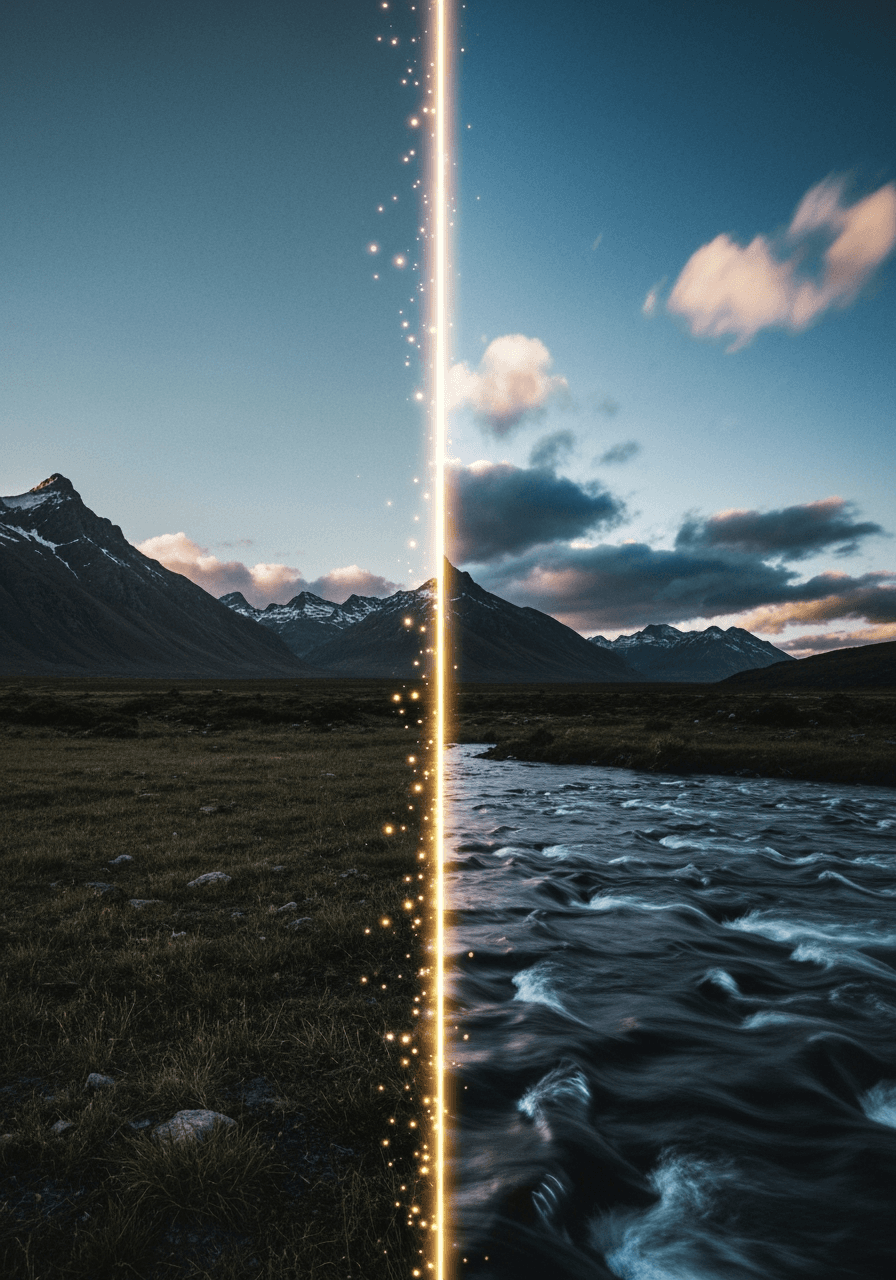
Image to video AI generator
Upload a photo, anime image, product visual, or storyboard frame. Describe the motion, choose the format, and generate a short video without opening a video editor.
Built-in generator
This is the actual image-to-video tool, not a doorway to another page. Choose the image tab, upload a source image, describe the motion, then set aspect ratio, duration, resolution, and style.
Outcomes
Image-to-video is strongest when you already have the look you want and need controlled motion, camera movement, and social-ready framing.
Add a smooth camera move, controlled lighting, and social-ready framing to one product visual.
Create subtle expression, hair, clothing, and background motion without redrawing the image.
Test camera direction, pacing, and scene energy before committing to a longer video workflow.
Workflow
The workflow is built around one clear image, one focused motion prompt, and practical output controls.
Use a clean image with a clear subject, visible composition, and enough room for motion.
Say what moves, what stays stable, and how the camera should behave.
Pick duration, resolution, and aspect ratio for landscape, square, or vertical output.
Review the result, save the strongest version, and generate another pass when the motion needs refinement.
Examples
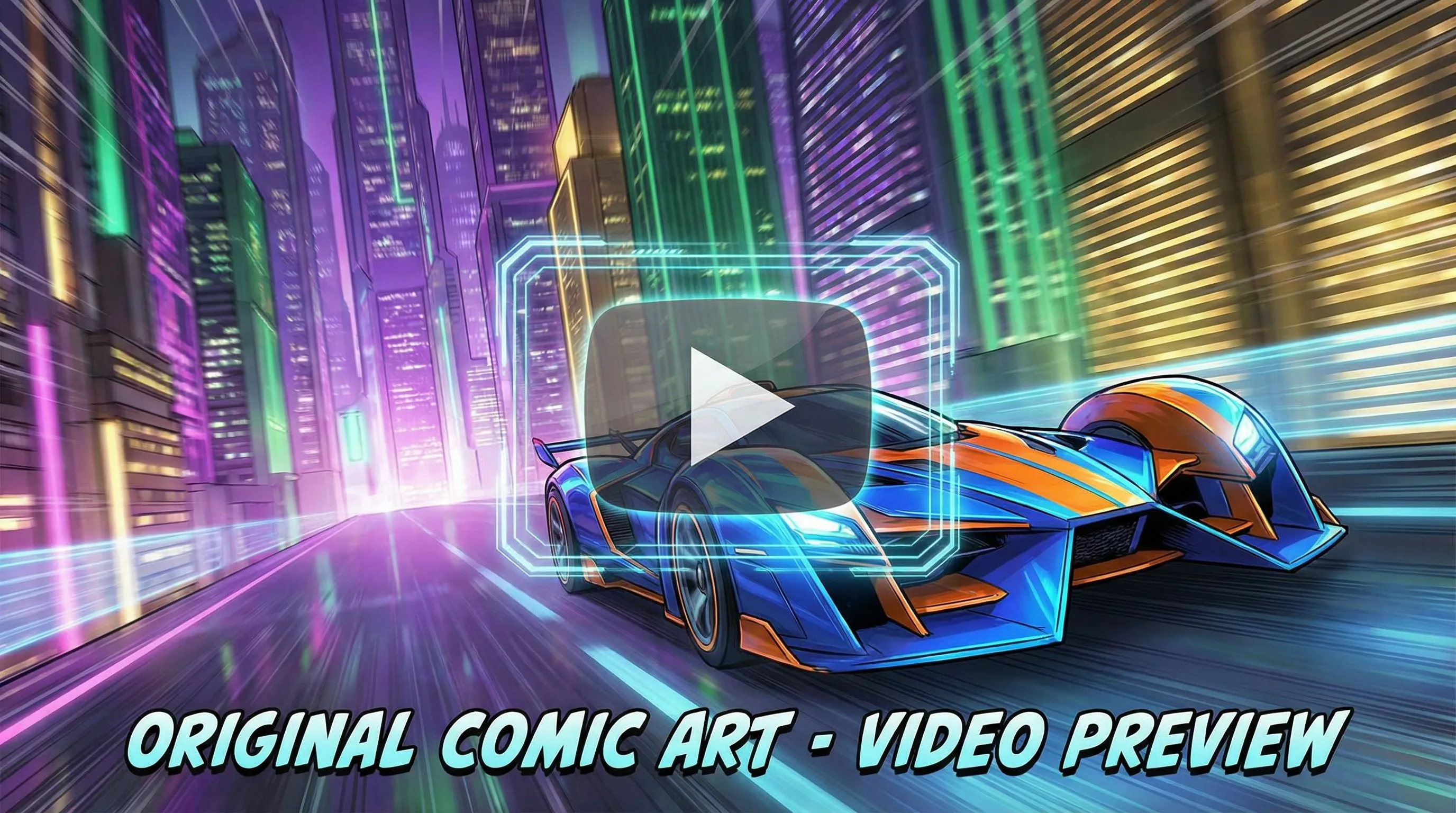
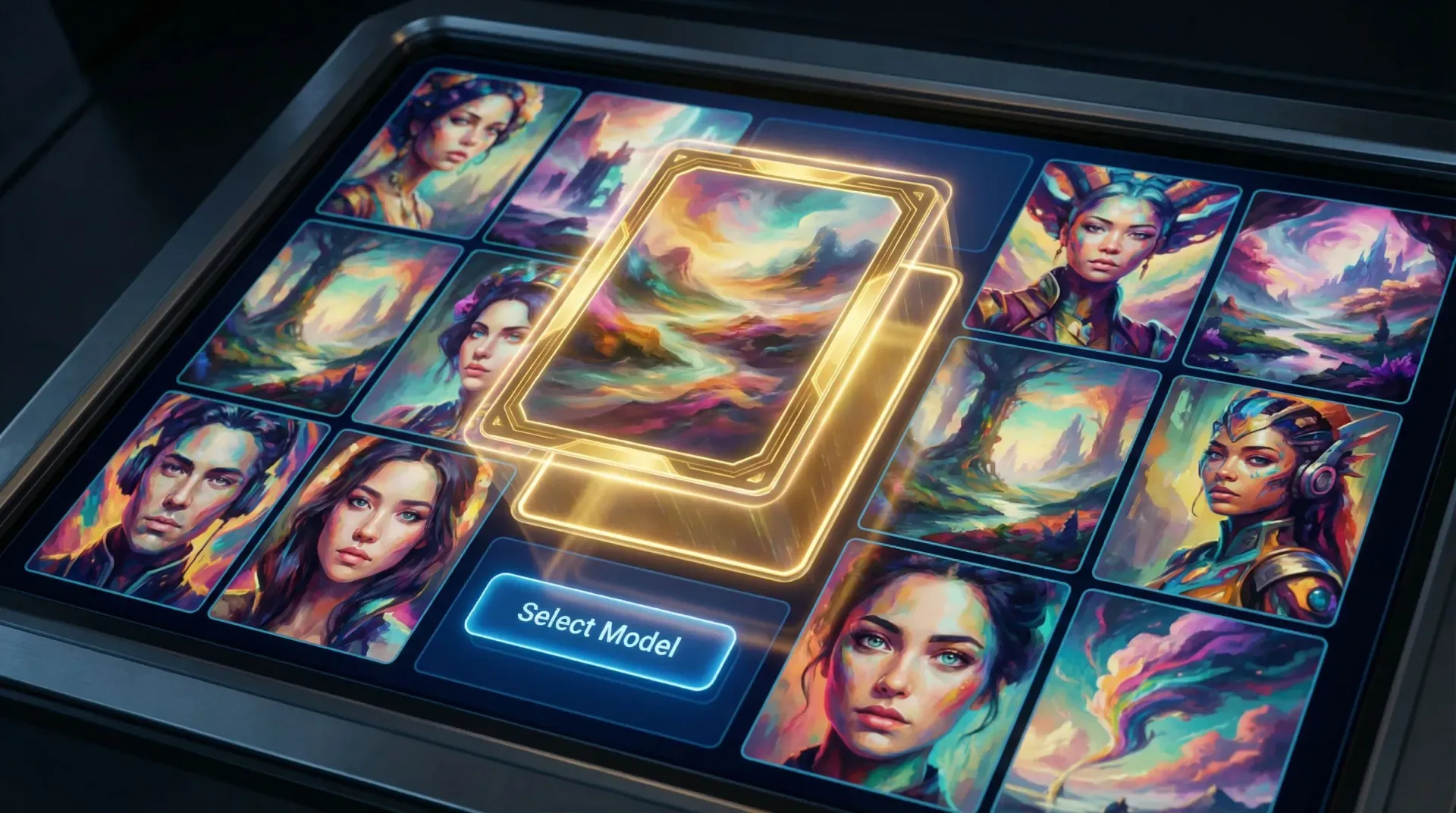
These examples show the kind of source image and motion prompt pairing that works well for short generated clips.
Prompting tips
Most weak image-to-video results come from unclear motion direction or asking one clip to change too many things at once.
Mention one main camera move, such as push-in, pan, tilt, orbit, or handheld drift.
Keep identity-critical details stable: face, product shape, logo, outfit, or pose.
Use motion words for the scene, not just style words: swaying, drifting, blinking, turning, floating.
Choose the aspect ratio before generating if the output is for TikTok, YouTube, or a product page.
Start with five seconds for testing, then generate longer versions after the motion direction works.
Avoid asking for too many changes in one pass when the source image has a complex subject.
FAQ
An image to video AI generator turns a still image into a short video clip. You upload a photo, anime image, product visual, or storyboard frame, then describe the motion, camera move, mood, and output format you want.
Yes. The workflow supports realistic photos, anime art, illustrations, product images, character art, and storyboard frames. Clear subjects and simple compositions usually produce cleaner motion.
No. Short motion prompts usually work best. Describe the subject movement, camera direction, scene mood, and any details that must stay stable.
Yes. The generator includes common aspect ratios such as landscape, portrait, and square so you can create clips for YouTube, TikTok, Instagram, product pages, and storyboards.
Image to video starts from an existing visual and adds motion to it. Text to video starts from a prompt alone. Image input is better when you need to preserve a character, product, pose, artwork, or brand visual.
You can start from the free plan. Some models, longer durations, higher resolutions, or watermark removal may require credits or an upgraded plan.
Upload a source image, describe the motion, and generate a short AI video with practical controls for format, style, duration, and resolution.
Start image to videoRelated writing workflow
Use the AI Screenplay Editor when a script, fiction draft, storyboard brief, video idea, or canvas note needs proper scene headings, action, dialogue, parentheticals, cover pages, outlines, beats, and collaboration-ready revisions.
INT. COMMUNITY CENTER - NIGHT
Folded chairs. A storm outside. MAYA stands at the microphone with a page of notes she no longer needs.
MAYA
If the city will not read the record, we will read it out loud.