

Working beat-cut video maker · browser-only export
Cut your photos to the pulse of your music
Choose a song you own and 2–8 of your own images. The browser analyzes approximate percussive attack points, changes pictures every 1, 2, 4 or 8 detected attacks, and records a slideshow with the original audio. You can review the timing before downloading.
This page includes a working, local audio/video creator. It processes rights-cleared files in your browser and offers video export where supported. For AI-generated cinematic scenes, the separate Studio workflow is also available below.
Try the beat-cut slideshow
Use your own track and 2–8 original images. Detect approximate audio attacks locally, cut between images and record a short video with sound.
Try a 12-second synthetic percussion demo with three original geometric pictures. These files are provided for trying this tool; no artist recording or third-party song is included. Confirm permission above, then load the files and use the preview or record controls.
0 images · 0 approximate attacks
All processing remains in your browser; no audio is uploaded to this page.
Exports use your browser's supported WebM or MP4 MediaRecorder format. Beat detection is approximate, not frame-accurate BPM analysis; video may not loop perfectly. Browser compatibility and export limits vary.
The creator's challenge
A basic slideshow changes images at arbitrary times instead of reacting to the energy of an original song.
The browser tool above only opens your own local files, without downloading songs from music platforms or sending your audio to our server. For cinematic generated scenes, you can separately upload your music in LlamaGen Studio.
Published by the LlamaGen product team · About us
Start with your visual brief
See the finished idea in everyday life
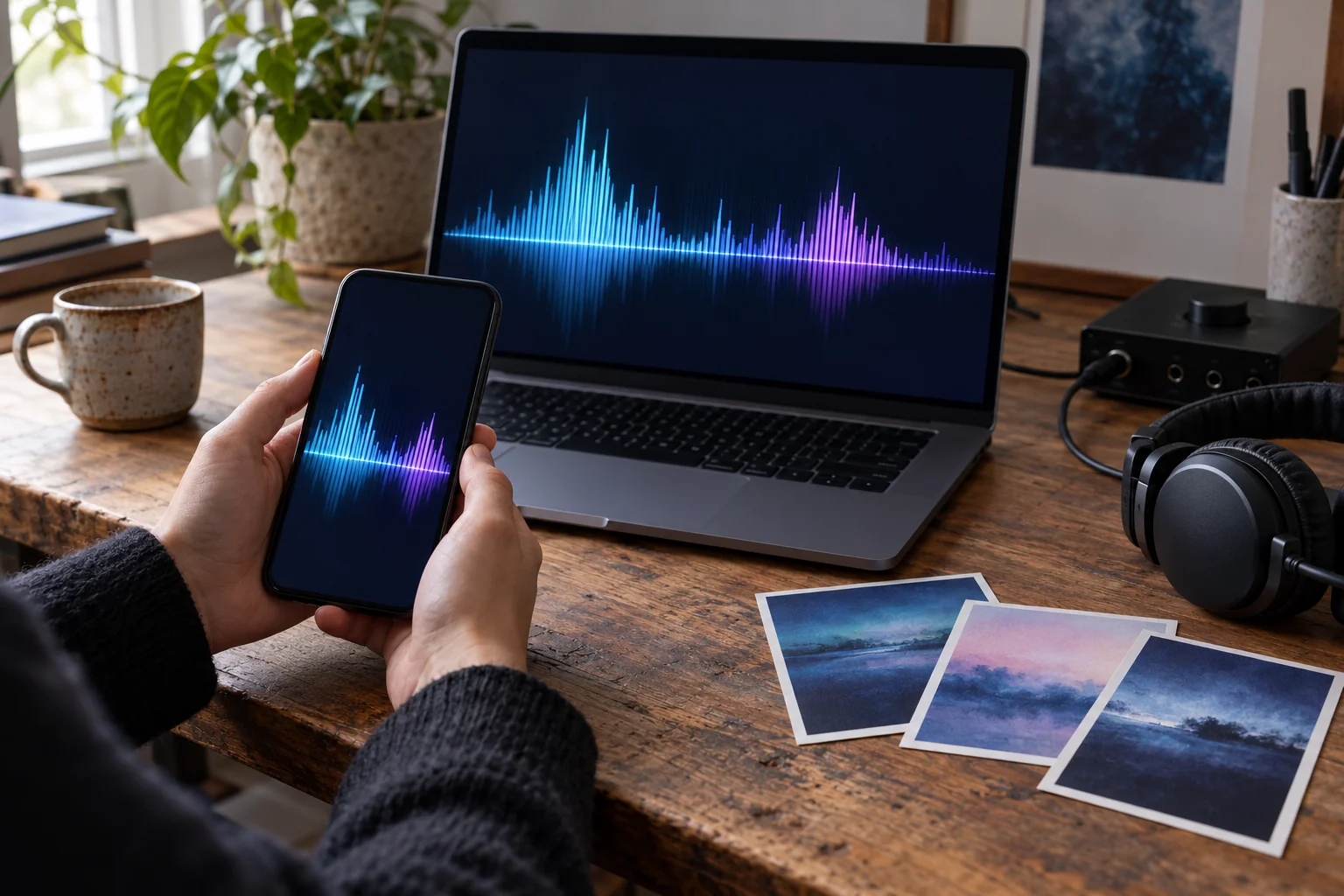
Check the finished visual on a phone as well as a laptop
What to check on your own result
- Use your own short audio clip, export it, then reopen the downloaded video to confirm that it contains sound.
- For beat cuts, listen through several transitions and adjust your images if estimated attack points do not match the musical phrase.
AI-generated use-case illustrations, not customer photos or verified tool outputs. Physical items show presentation ideas; printing and delivery are not included.
A practical workflow for this project
The steps below describe production decisions, not unverified one-click product promises.
- Step 1
Add licensed audio and images
Confirm ownership or use rights, upload an audio track under three minutes and 2–8 original PNG, JPG or WebP images.
- Step 2
Inspect locally detected transients
Audio samples are decoded in your browser. The estimator looks for energy attacks and reports its count; with weak transients it falls back to even spacing.
- Step 3
Set cuts per detected attack
Try 1, 2, 4 or 8 attacks per image and listen to how the cuts align with the song. They are approximations, not guaranteed BPM-perfect edits.
- Step 4
Record and review the result
Download the browser-recorded audio/video clip, check boundaries and timing, and transcode if your publishing service needs a different codec.
Before you start
Compare detected attacks with the cuts you actually hear
The local tool uses changes in audio energy to estimate attacks and advance through your images. An attack estimate is not a tempo map, bar count or editable beat grid.
The examples below are authored planning exercises. They are not customer testimonials or completed Studio-generated music videos. The browser-tool demonstrations use synthetic audio and original geometric pictures.
Have these ready
- A complete authorized audio file within the displayed size and duration limits.
- Two to eight permitted PNG, JPG or WebP images, each suitable for a centered landscape crop.
- An excerpt with audible percussive changes if you want to assess attack-based timing.
- A browser able to decode the chosen audio and record the canvas with its audio track.
What to check yourself
- Wait for audio analysis to finish, inspect any decode error and confirm that the preview is advancing through the intended images.
- The controls change images every 1, 2, 4 or 8 estimated attacks; they do not set a precise BPM or let you drag a cut onto a waveform.
- The portrait/landscape choice in the separate Studio brief below does not change this local canvas's landscape output.
Hypothetical planning example: four rehearsal pictures
Assume four original rehearsal images and a creator-owned excerpt with clear drum attacks. No measured tempo, detection rate or finished montage is claimed.
| Stage | Plan | Review |
|---|---|---|
| Prepare · order the pictures | Place the rehearsal-room wide view before the instrument detail, performer close-up and final group image. | Check each centered 16:9 crop; this tool does not offer a per-image focal-point editor. |
| Preview · choose a cut interval | Begin with four detected attacks per image, then compare the one-attack option. | Listen for cuts that miss the intended pulse; attack counts may differ from musical beats. |
| Fallback · make a decision | If the tool reports evenly spaced timing, review it as a timed slideshow rather than a beat-synced result. | Keep that disclosed fallback or choose a different excerpt; no manual beat-marker correction is offered here. |
This is an authored inspection plan, not an analysis of a real track or proof of beat-perfect output. The original pictures and recording remain the creator's responsibility.
What this preparation gives you
- On compatible browsers, a local music-backed slideshow using the chosen detected-attack interval or disclosed even-timing fallback.
- The current recording is a 960 × 540 landscape canvas at a requested 24 frames per second, with a frame counter and LlamaGen footer included.
- A WebM or MP4 download to check for audio, image order, cropping and timing before publication.
References for this workflow
- MDN: decodeAudioData()
Describes asynchronous decoding of complete audio files; it does not establish the accuracy of this tool's attack estimator.
- MDN: MediaRecorder
Documents the browser API used to record the combined media stream; destination compatibility is a separate check.
Workflow notes reviewed:
Creative decisions that help
- Select an excerpt with clear drums for more reliable attack estimation.
- Use four attacks per photo for fewer hard cuts, or one or two for more active montages.
- Choose images that remain legible when center-cropped to 16:9; avoid small text at the edges.
What this does not promise
- This is a lightweight transient-driven slideshow editor, not a professional frame-accurate BPM or multi-track nonlinear timeline.
- Weak or ambient percussion can trigger evenly spaced fallback cuts; check the result before publishing.
- Recording duration is capped at three minutes and browser-supported WebM/MP4 export formats vary.
Rights, costs and a real team behind the tool
Only supply audio, lyrics, images and references you own or have the permissions needed to modify and publish. A subscription or AI-generated output does not grant licenses to third-party music. Check the current plan and expected credit use inside Studio before generation; output may require manual review.
In many cases, the musical composition (including lyrics) and the sound recording are different rights. See the U.S. Copyright Office explanationThis is general information, not legal advice or a license clearance service.
Frequently asked questions
- Does this page really analyze my audio?
- Yes. Audio is decoded locally and approximate attacks are detected from the waveform; the estimated points determine image changes.
- Will cuts land on every beat perfectly?
- Not guaranteed. The detector responds to energy attacks, which may differ from the musical beat grid; review and adjust the result.
- What happens with ambient music?
- If too few confident onsets are found, the slideshow uses evenly spaced cuts and tells you about the fallback.
- Can I use stock photos or somebody else's song?
- Only if your licenses cover the video creation and distribution you intend. Upload files you own or are permitted to use.