

Music video production · original audio
Give your original song a visual story
An independent artist's track can become a sequence of performance shots, locations and recurring imagery. Build the visual direction here, then bring the audio you own to LlamaGen's existing Music to Video Studio.
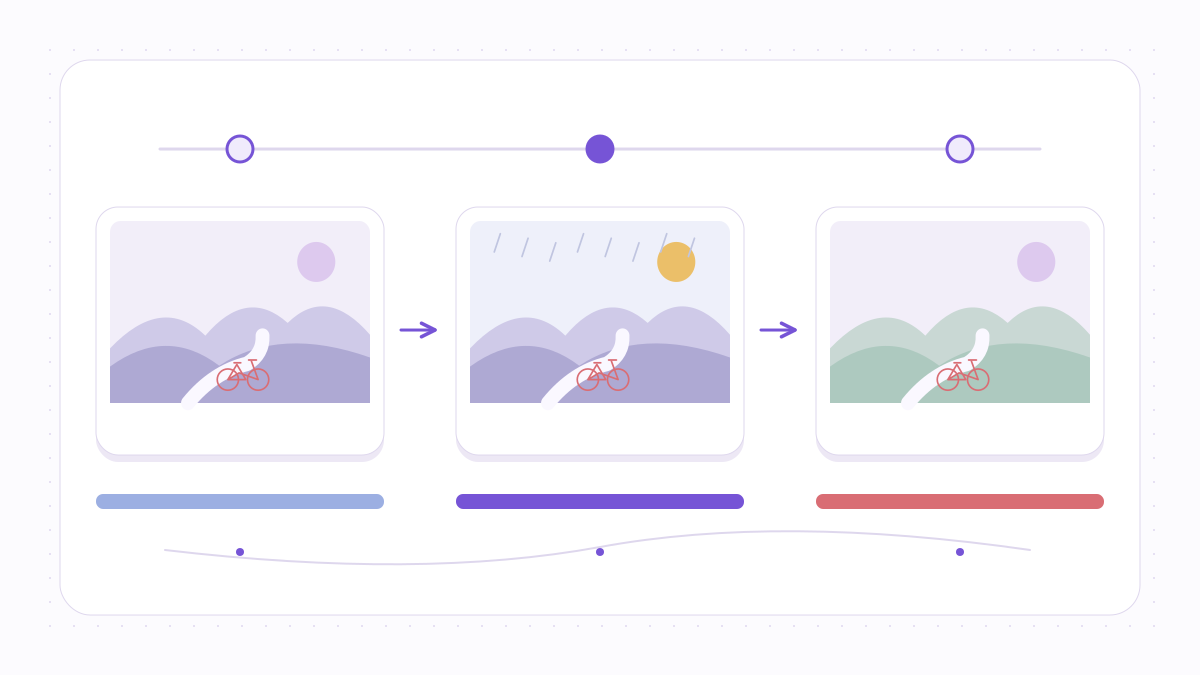
The creator's challenge
You have a finished track but no director's treatment, visual references or simple way to turn the verses and chorus into scenes.
This workflow starts with your creative direction. No music is copied from Suno, Spotify, YouTube or other streaming sites. Audio is uploaded later through the existing authenticated LlamaGen Studio.
Published by the LlamaGen product team · About us
Start with your visual brief
See the finished idea in everyday life
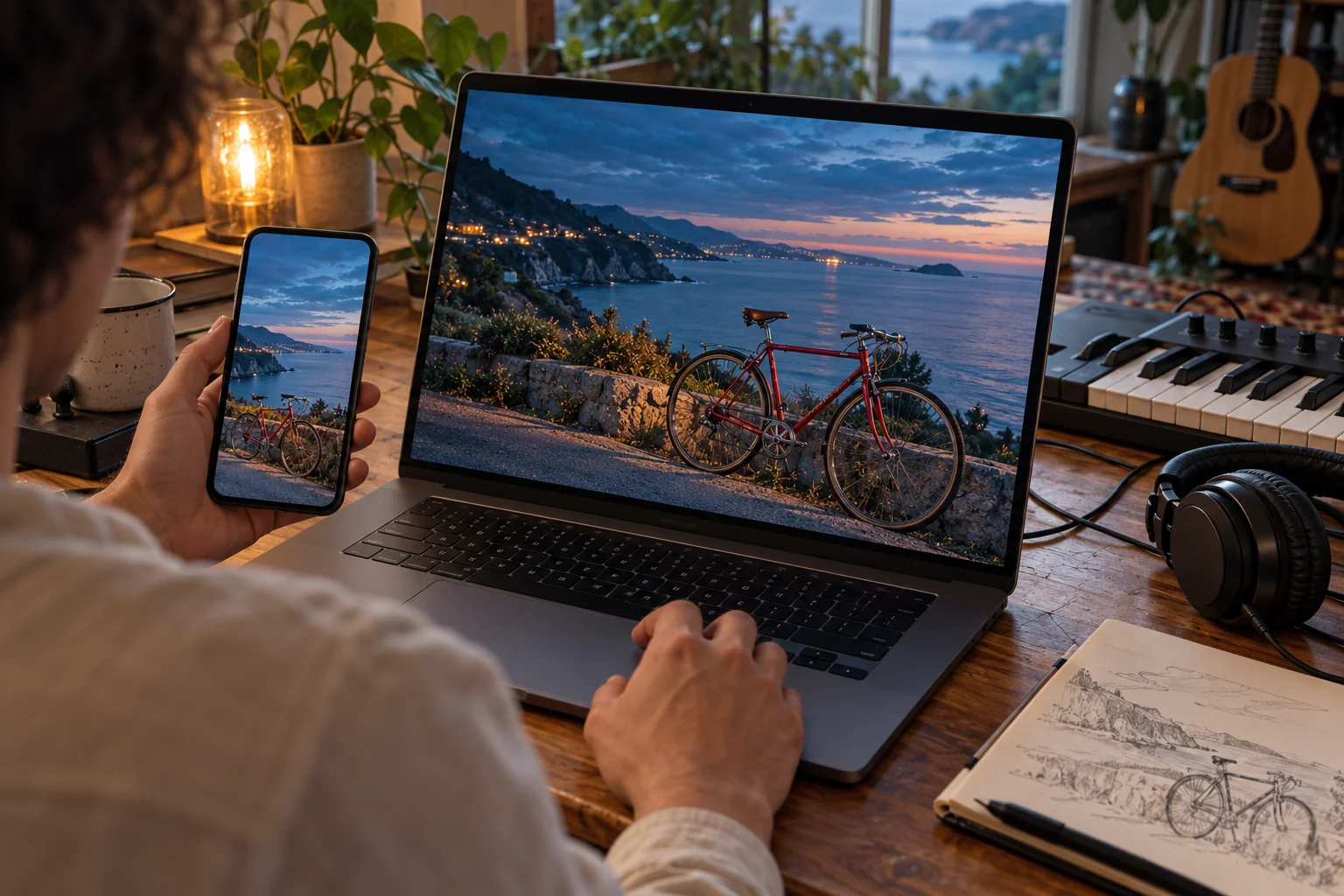
Review a release on the screens your audience uses
What to check on your own result
- Watch your own exported video on a phone to inspect vertical cropping and any caption placement.
- Replay the opening, chorus and ending with sound; check timing and continuity on the exported file itself.
AI-generated use-case illustrations, not customer photos or verified tool outputs. Physical items show presentation ideas; printing and delivery are not included.
A practical workflow for this project
The steps below describe production decisions, not unverified one-click product promises.
- Step 1
Start with your track's narrative
Outline what changes between verses, chorus and bridge. Describe the singer's story without pasting third-party lyrics.
- Step 2
Choose a visual direction
Specify location, palette, camera movement and a recurring object or character.
- Step 3
Bring your own audio into Studio
Open the existing Music to Video workflow, check the available model inputs and credit estimate, then supply your authorized recording.
- Step 4
Review and export
Check lyric accuracy, shot order, total cost and publishing rights before final export.
Before you start
Plan a song section before requesting scenes
A short treatment makes the audio, recurring subject and scene changes explicit before you open Studio. This page prepares that brief; it does not upload or render your song.
The examples below are authored planning exercises. They are not customer testimonials or completed Studio-generated music videos. The browser-tool demonstrations use synthetic audio and original geometric pictures.
Have these ready
- An authorized recording, plus notes on where your verse, chorus and bridge begin.
- One sentence describing the change in the song's story or emotion.
- A recurring visual detail and any original character or location references you are permitted to use.
- Your intended viewing format and a list of details that must survive the final crop.
What to check yourself
- Treat the selected orientation as a prompt direction; confirm the actual output dimensions in Studio.
- Check continuity in the rendered frames rather than assuming a repeated character description guarantees it.
- Keep evidence of permission for both the recording and the underlying song; a generated visual does not clear those rights.
Hypothetical planning example: a return-home chorus
Assume a creator-owned 24-second excerpt: a quiet opening, a stronger chorus and a final held note. The timings below are authored planning choices, not detected song sections.
| Stage | Plan | Review |
|---|---|---|
| 0–8 seconds · establish | Wide view of an empty station at dusk; the original performer holds a red bicycle. | Establish the bicycle, wardrobe and travel direction before the scene changes. |
| 8–16 seconds · change | Move to a closer street-level view as the chorus arrives; keep the bicycle and coat unchanged. | Compare subject appearance and screen direction against the opening reference. |
| 16–24 seconds · resolve | Hold on a familiar doorway as the music settles, with enough room for a later release title. | Listen through the transition and inspect whether the final framing still communicates arrival. |
This is a proposed shot plan. No music video was generated from this example, and these timings are not a promise of Studio timing controls.
What this preparation gives you
- A compact treatment identifying the song section, recurring subject and intended scene changes.
- A Studio brief with visual directions; choose and verify the actual model, assets and credit estimate in Studio.
- A review checklist for the eventual video, including continuity, music timing and distribution rights.
References for this workflow
- Adobe: storyboarding and shot planning
Explains how planned shots communicate a sequence to a production team; it does not verify LlamaGen's rendering capabilities.
- U.S. Copyright Office: music and sound recordings
Distinguishes a musical work from its recorded performance. This reference is general information, not clearance for a particular track.
Workflow notes reviewed:
Creative decisions that help
- A chorus is a good place for a repeated visual motif; let verses introduce changing environments.
- Use one performer reference and stable wardrobe notes when continuity matters.
- The generated film is a starting cut: review scene pacing, subtitles and platform crop before publishing.
What this does not promise
- The page does not download music from third-party streaming links.
- Music timing and exact scene/word alignment must be checked in Studio; a perfect automatic sync is not guaranteed.
- Generation length, resolution, credits and rights follow the current Studio and pricing terms.
Rights, costs and a real team behind the tool
Only supply audio, lyrics, images and references you own or have the permissions needed to modify and publish. A subscription or AI-generated output does not grant licenses to third-party music. Check the current plan and expected credit use inside Studio before generation; output may require manual review.
In many cases, the musical composition (including lyrics) and the sound recording are different rights. See the U.S. Copyright Office explanationThis is general information, not legal advice or a license clearance service.
Frequently asked questions
- Can I start with a Spotify or YouTube link?
- No. Upload an audio file you created or have sufficient rights to use. Streaming links are not imported.
- Can I edit the visual concept after starting?
- Yes. The Studio workflow is designed for reviewing prompts, scenes and generated artwork; check the available controls in your account.
- Will it automatically clear music copyright?
- No. You remain responsible for the rights to your music, lyrics, artwork and distribution.