

Image preparation
Image Cropper Free image cropper for the part that matters.
Crop images for free in your browser. Choose a square, portrait or custom frame, check the resulting pixel dimensions and download PNG without AI generation credits.
Free browser tool. Your crop is processed on this device.
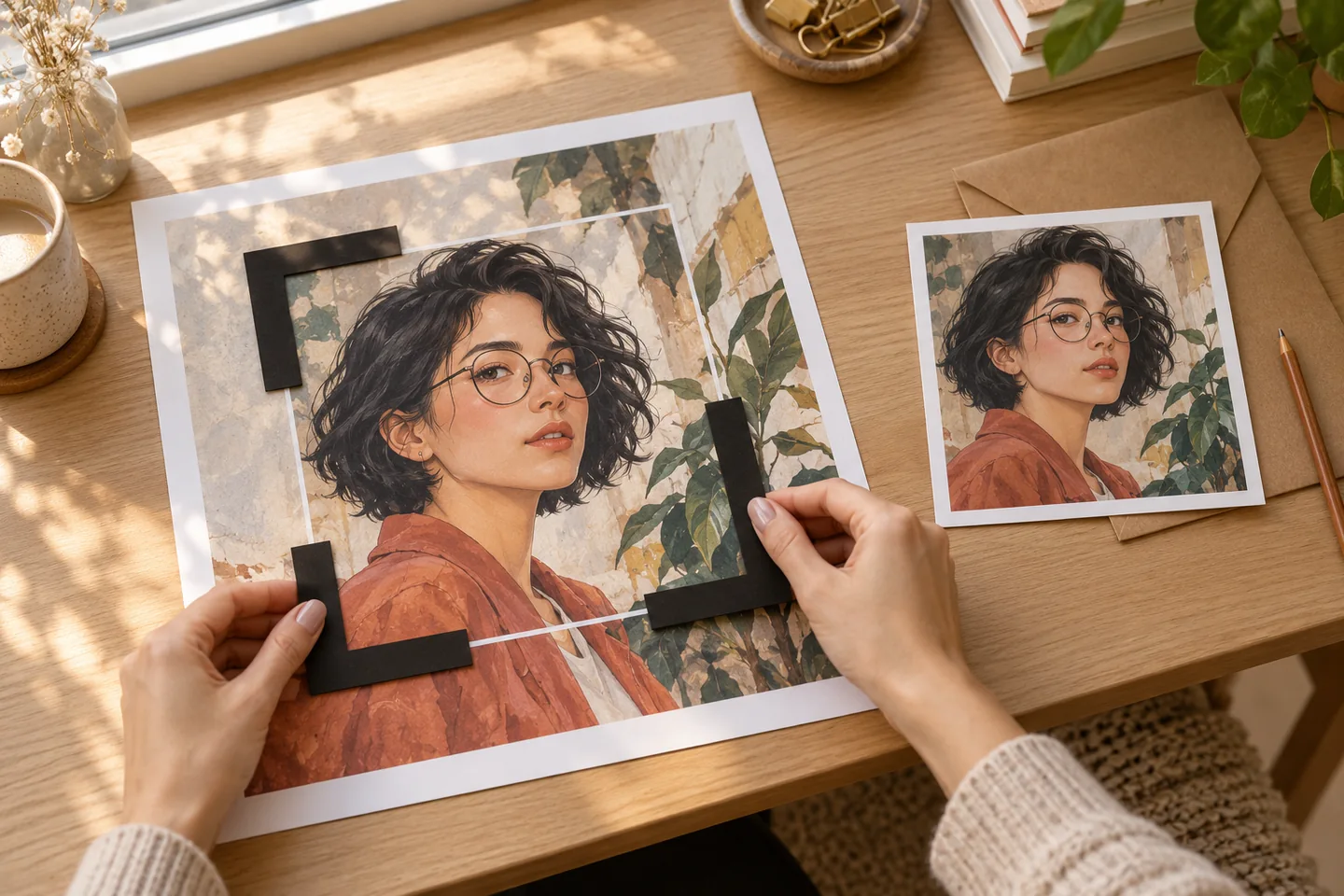
Your workspace
Use the image cropper
Free browser tool. Your crop is processed on this device.
or drop an image here
Recorded browser example
One input. An output you can inspect.
The 600 × 400 source produced a 400 × 400 square PNG. Cropping changes framing; it does not promise a smaller file.
Synthetic test input

Recorded output

Settings: Square (1:1) crop; PNG export.
Recorded in Chromium 133 using the current browser processing component and a generated colour-chart source. This isolated component check is not a cross-browser benchmark or a customer project.
01 / A more useful starting point
Choose the frame before the details
A square avatar and a widescreen story cover ask for different compositions. Set the target shape first, then move the crop until the subject, hands and important props remain readable.
Try Image Cropper02 / A more useful starting point
Cropping changes the frame, not the scene
A crop removes the pixels outside your selection. It does not invent extra background or restore missing detail. Use an image extender when the composition needs more space rather than a tighter cut.
Try Image CropperThree practical starting points
Try a brief. Check the result. Tweak one thing.
Try these exercises for Image Cropper, with concrete details to inspect. These are suggested exercises, not recorded customer projects.
A square profile image
Suggested brief
Start with a 3000 × 2000 landscape photo. A 2000 × 2000 square can fit within that source without enlarging it. Place the eyes above the centre.
- What to inspect
- After downloading, verify 2000 × 2000 pixels if you selected that source area. Check the hair, chin and shoulders at the avatar’s actual display size; this is a suggested exercise, not the recorded 600 × 400 example below.
- What to change next
- Move the selection instead of stretching the face to fit.
A vertical story card
Suggested brief
Use a 9:16 frame around one character, leaving enough room for a title or caption outside the face.
- What to inspect
- Check that a hand, prop or speech bubble is not clipped by the edge.
- What to change next
- If the source is too narrow, return to a wider original or extend the image first.
A clean comic panel
Suggested brief
Remove an unwanted border from an existing panel while keeping the lettering and full speech-bubble tails.
- What to inspect
- Read every line of dialogue in the preview before downloading.
- What to change next
- Use a slightly larger crop if a bubble or action line touches the edge.
From input to a useful output
How to use Image Cropper
Start with a small task first, then keep the steps that help your project.
- 01
Select your source
Choose a still image from your device. Keep the original file as a backup.
Check: Use the original resolution rather than a screenshot of the image.
- 02
Pick a shape
Choose a ratio preset or draw a free crop around the area you want.
Check: Compare a square and a portrait frame before committing.
- 03
Refine the selection
Drag the crop and inspect its dimensions. Reposition it around the subject.
Check: The selected area must contain every detail you need.
- 04
Download and check
Save the crop, reopen it and verify the dimensions and framing.
Check: Reopen the PNG and compare its pixel width and height with your selection; file size can increase after re-encoding.
Choose the approach for your task
| Your goal | Start with | Before you finish |
|---|---|---|
| Profile picture | 1:1 square | Leave breathing room around the face. |
| Phone story | 9:16 portrait | Check upper and lower safe areas. |
| Wide scene | 16:9 landscape | Keep the subject and the setting together. |
Know the boundaries
What to check before you rely on the output
- Cropping cannot increase the amount of detail in a low-resolution source.
- The browser draws the selected image to a canvas and exports PNG. An animated source should not be treated as a preserved animation.
- Large files can use substantial browser memory. If the device struggles, try a smaller source copy.
Image Cropper: your questions, answered
Can I crop for free?
Yes. The browser crop tool does not require a generation model or credits.
Does cropping resize or stretch my image?
Cropping selects an area. It removes surrounding content; it does not reshape the subject or add missing background.
What file does the crop download?
The current implementation exports a PNG image from the selected crop.
Will it preserve an animated GIF?
Do not rely on this canvas workflow to preserve animation. Use a dedicated animation editor for multiple frames.
Can I get pixels back after downloading?
Keep the original. The downloaded crop contains the selected area; pixels outside it are not recoverable from that file.
Where is the image processed?
The crop and PNG export run in your browser. The crop operation does not send the source to a generation API.
Sources and further reading
Check the guidance behind the workflow
Each source is linked with its scope. An external reference is not an endorsement or performance certification.
MDN: exporting images from a browser canvas
Explains browser image encoding and quality settings. It is a technical reference, not a review of LlamaGen.
LlamaGen plans, credits and account support
First-party plan information. Check the selected tool for model access and the cost of each generation; contact [email protected] for account questions.
Continue your creative project
Image Cropper
Start with one clear idea.
Free browser tool. Your crop is processed on this device.
Try Image Cropper