

Image preparation
Image Compressor Free image compression with a result you can review.
Compress JPEG, PNG, WebP or SVG inputs for free in your browser. Compare actual bytes and visual detail before keeping a JPEG, WebP or PNG raster export.
Free browser compression. Compare the exported file before replacing your original.
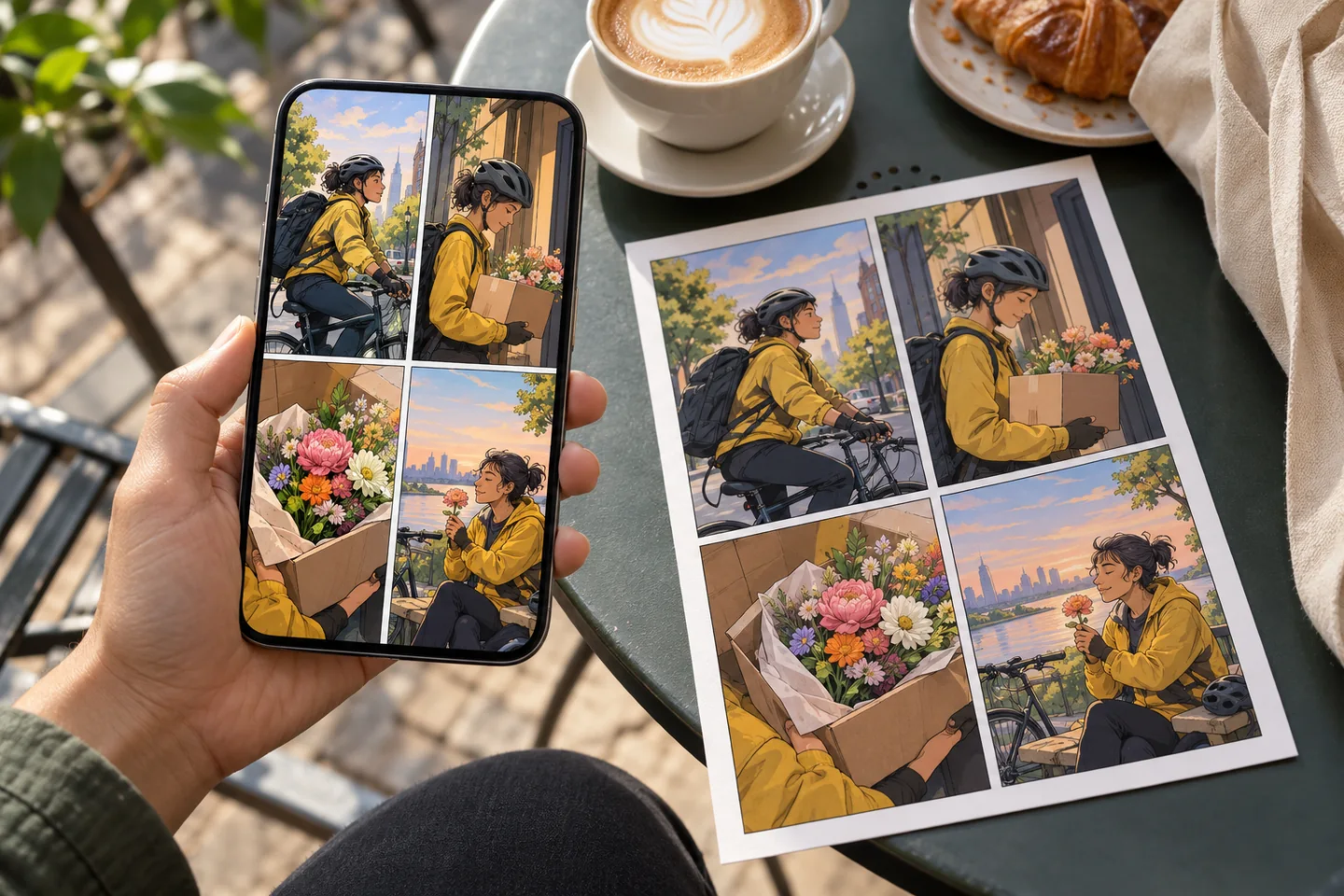
Your workspace
Use the image compressor
Free browser compression. Compare the exported file before replacing your original.
or drop images here
Recorded browser example
One input. An output you can inspect.
For this source only, the file changed from 1,612 to 1,224 bytes while retaining 600 × 400 dimensions. Other images can save more, less or no space.
Synthetic test input

Recorded output

Settings: Automatic output from a PNG source: WebP, quality 0.72, no dimension reduction.
Recorded in Chromium 133 using the current browser processing component and a generated colour-chart source. This isolated component check is not a cross-browser benchmark or a customer project.
01 / A more useful starting point
Optimise for what the image contains
Photographs and detailed paintings can tolerate different settings from comic lettering or a flat-colour logo. Inspect small text, hair and thin outlines while adjusting quality, rather than judging only the file-size number.
Try Image Compressor02 / A more useful starting point
Choose the format deliberately
Automatic output keeps JPEG or WebP sources in that format and converts PNG or SVG sources to WebP. Choose a format explicitly when transparency or lossless raster output matters. The JPEG export uses a pale opaque background; WebP or PNG is the useful comparison for alpha edges.
Try Image CompressorThree practical starting points
Try a brief. Check the result. Tweak one thing.
Try these exercises for Image Compressor, with concrete details to inspect. These are suggested exercises, not recorded customer projects.
A comic page for the web
Suggested brief
Compress a copy of a page with speech bubbles. Compare the original and the export at 100% zoom.
- What to inspect
- Look at the smallest lettering and the thin outlines around faces.
- What to change next
- Raise quality or choose PNG if text edges become noisy.
A product photo for an upload limit
Suggested brief
Start with an opaque product photo and compare JPEG with WebP at the same quality setting.
- What to inspect
- Record the actual exported bytes; the same setting need not produce the same size for every image.
- What to change next
- Change format or quality gradually instead of assuming a fixed percentage saving.
A transparent sticker preview
Suggested brief
Use a source with transparent edges and export to a format that supports alpha.
- What to inspect
- Place the output against a dark background and check for a rectangle or pale halo.
- What to change next
- Keep WebP or PNG rather than flattening transparency into JPEG.
From input to a useful output
How to use Image Compressor
Start with a small task first, then keep the steps that help your project.
- 01
Add images
Select supported JPEG, PNG, WebP or SVG source files.
Check: An SVG input is rasterised for this image-compression workflow.
- 02
Set format and quality
Choose an output format and adjust quality where the format supports it.
Check: PNG does not use the JPEG/WebP lossy-quality slider in the same way.
- 03
Compare results
Run compression and inspect the exported size and preview.
Check: Record source bytes, output bytes, dimensions, format and quality. A small or already optimised source may become larger.
- 04
Download your files
Save a single result or download the selected results as a ZIP.
Check: Reopen a file from the download before deleting the originals.
Choose the approach for your task
| Your goal | Start with | Before you finish |
|---|---|---|
| Photographic image | JPEG or WebP | Check gradients and facial details. |
| Transparent artwork | WebP or PNG | Verify the alpha edge. |
| Text and line art | Compare PNG and high-quality WebP | Read the smallest text at 100%. |
Know the boundaries
What to check before you rely on the output
- No fixed compression percentage is promised; results depend on dimensions, detail, source encoding and output format.
- SVG inputs are rendered to a raster output. This does not optimise or preserve editable SVG paths.
- This workflow is for still images. GIF animation is not an accepted source type in the current tool.
Image Compressor: your questions, answered
Is compression free?
The local browser compression tool does not use AI generation credits.
Can I choose the output format?
The current tool offers automatic selection, JPEG, WebP and PNG. Verify the downloaded file type before publishing.
Will every file become smaller?
No. An already optimised image can stay similar in size or become larger when re-encoded.
Does JPEG preserve transparency?
No. Use PNG or a suitable WebP export for transparent artwork and inspect the result.
Does SVG stay editable?
No. SVG sources are drawn to a canvas in this tool and exported as a raster image.
Are source files uploaded for compression?
The compression and encoding operation runs in your browser. The local compressor does not require a generation API upload.
Sources and further reading
Check the guidance behind the workflow
Each source is linked with its scope. An external reference is not an endorsement or performance certification.
MDN: exporting images from a browser canvas
Explains browser image encoding and quality settings. It is a technical reference, not a review of LlamaGen.
LlamaGen plans, credits and account support
First-party plan information. Check the selected tool for model access and the cost of each generation; contact [email protected] for account questions.
Continue your creative project
Image Compressor
Start with one clear idea.
Free browser compression. Compare the exported file before replacing your original.
Try Image Compressor