

Image preparation
Grayscale Converter Free grayscale conversion for light and shadow.
Convert an image to grayscale for free in your browser. Preserve the composition, inspect tonal separation and download PNG without an AI model redrawing the scene.
Free browser conversion. One image at a time; PNG output.
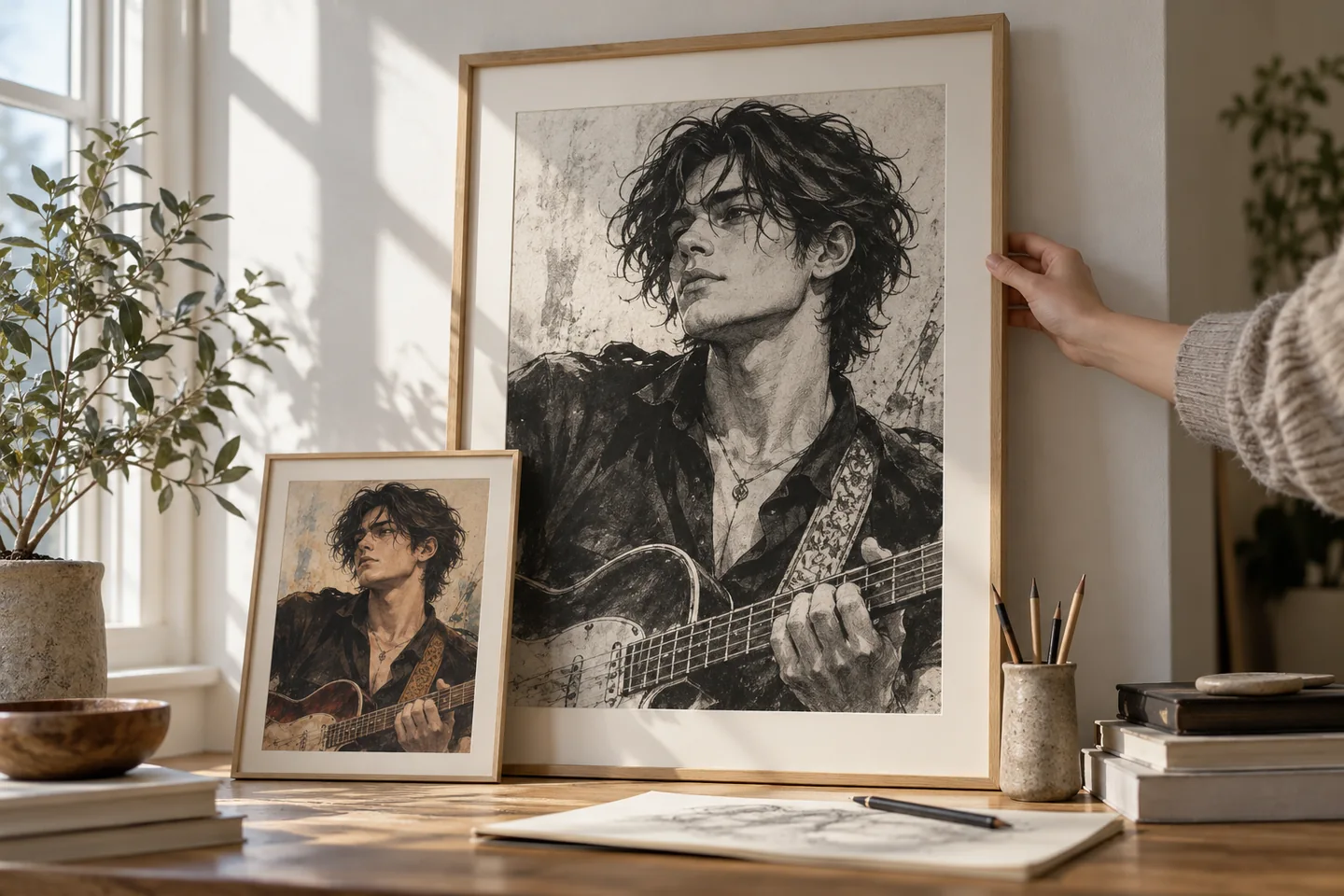
Your workspace
Use the grayscale converter
Free browser conversion. One image at a time; PNG output.
Original image
Upload JPG, PNG, GIF, or WebP files
Click to upload your image
Choose a file from your device
Grayscale result
Your converted black and white image
Your result will appear here
Upload an image to get started
Recorded browser example
One input. An output you can inspect.
The output stayed 600 × 400. A pixel in the left colour patch changed from RGB (235, 101, 72) to RGB (138, 138, 138).
Synthetic test input

Recorded output

Settings: Browser grayscale conversion; PNG export.
Recorded in Chromium 133 using the current browser processing component and a generated colour-chart source. This isolated component check is not a cross-browser benchmark or a customer project.
01 / A more useful starting point
Check value before changing style
Grayscale makes light and dark relationships easier to inspect. If a jacket and its background merge into the same grey, colour alone may have been keeping the character readable.
Try Grayscale Converter02 / A more useful starting point
Keep the drawing, change the colour information
The converter rounds 0.299 × red + 0.587 × green + 0.114 × blue and writes that value into all three colour channels. It keeps the canvas dimensions and leaves alpha unchanged. This is a pixel conversion, so it does not invent ink outlines or recover detail.
Try Grayscale ConverterThree practical starting points
Try a brief. Check the result. Tweak one thing.
Try these exercises for Grayscale Converter, with concrete details to inspect. These are suggested exercises, not recorded customer projects.
A readable comic panel
Suggested brief
Convert a colour panel with a character in front of a busy background.
- What to inspect
- Check the outline of the head and whether the face separates from the setting.
- What to change next
- Improve the source lighting or background contrast if the silhouette disappears.
A classroom handout
Suggested brief
Prepare a monochrome copy of a diagram or illustrated worksheet before printing.
- What to inspect
- Check coloured labels and pale lines in the preview and on a test print.
- What to change next
- Change the original labels if their meaning depended only on colour.
An illustration value study
Suggested brief
Convert a scene to inspect its foreground, middle ground and distant shapes.
- What to inspect
- Look for distinct light and dark masses rather than just more detail.
- What to change next
- Adjust the source values if every plane lands in the same middle grey.
From input to a useful output
How to use Grayscale Converter
Start with a small task first, then keep the steps that help your project.
- 01
Choose an image
Select a still image from your device.
Check: Keep a colour original for future editing.
- 02
Convert the pixels
Let the browser produce the grayscale preview.
Check: This does not generate new line art or add shading.
- 03
Inspect readability
Compare the source and the grayscale version.
Check: Compare similarly bright colours, thin labels and transparent edges. A valid grey pixel has equal red, green and blue values; that alone does not prove print readiness.
- 04
Download PNG
Save the result and reopen it in your target app.
Check: The export is a raster PNG, not an editable colour adjustment layer.
Choose the approach for your task
| Your goal | Start with | Before you finish |
|---|---|---|
| Print preparation | Check labels and pale lines | Make one physical test print. |
| Comic readability | Inspect silhouettes | Separate the subject from the background. |
| Art study | Compare value groups | Judge the composition at thumbnail size. |
Know the boundaries
What to check before you rely on the output
- Grayscale removes colour distinctions. Two differently coloured objects can become a similar grey.
- The current tool converts one image at a time and downloads PNG.
- This conversion is not a guarantee of printer calibration, accessibility compliance or professional colour proofing.
Grayscale Converter: your questions, answered
Is the conversion an AI generation?
No. The current converter processes image pixels in your browser; it does not ask a model to reinterpret the scene.
Is it free?
Yes. This browser conversion does not require generation credits.
Will the composition change?
The operation changes colour values, not the scene layout. Keep the original colour file if you want to revise it later.
Can I convert a batch?
The current interface works with one image at a time. Repeat the conversion for additional images.
Which file do I download?
The result is exported as PNG.
Is grayscale the same as line art?
No. Grayscale keeps continuous grey tones. A line-art or threshold workflow reduces the image in a different way.
Sources and further reading
Check the guidance behind the workflow
Each source is linked with its scope. An external reference is not an endorsement or performance certification.
MDN: manipulating image pixels
Explains direct image-pixel processing in a browser. It is not a certification of print quality.
LlamaGen plans, credits and account support
First-party plan information. Check the selected tool for model access and the cost of each generation; contact [email protected] for account questions.
Continue your creative project
Grayscale Converter
Start with one clear idea.
Free browser conversion. One image at a time; PNG output.
Try Grayscale Converter