

Motion & animation
AI Motion Designer Plan a shot with the AI motion designer.
Explore the AI motion guide and keyframe examples for free. In the motion editor, add a required start image, an optional end image and one action; check sign-in and generation credits before running it.
The guide and existing demonstrations are free to explore. Video generation is a separate signed-in action with model and credit requirements.
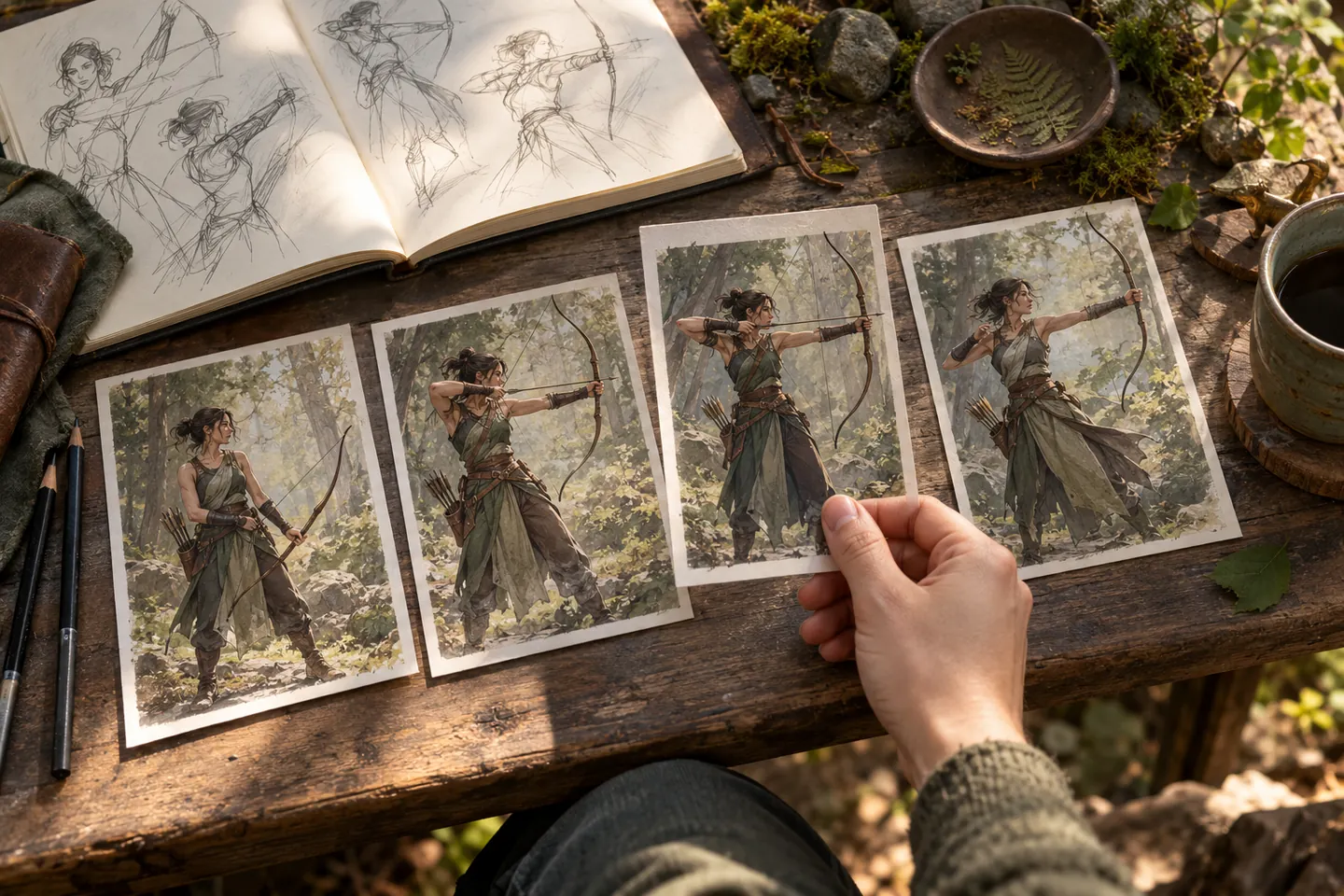
Existing product demonstration
Watch the motion between the keyframes
Archery Motion
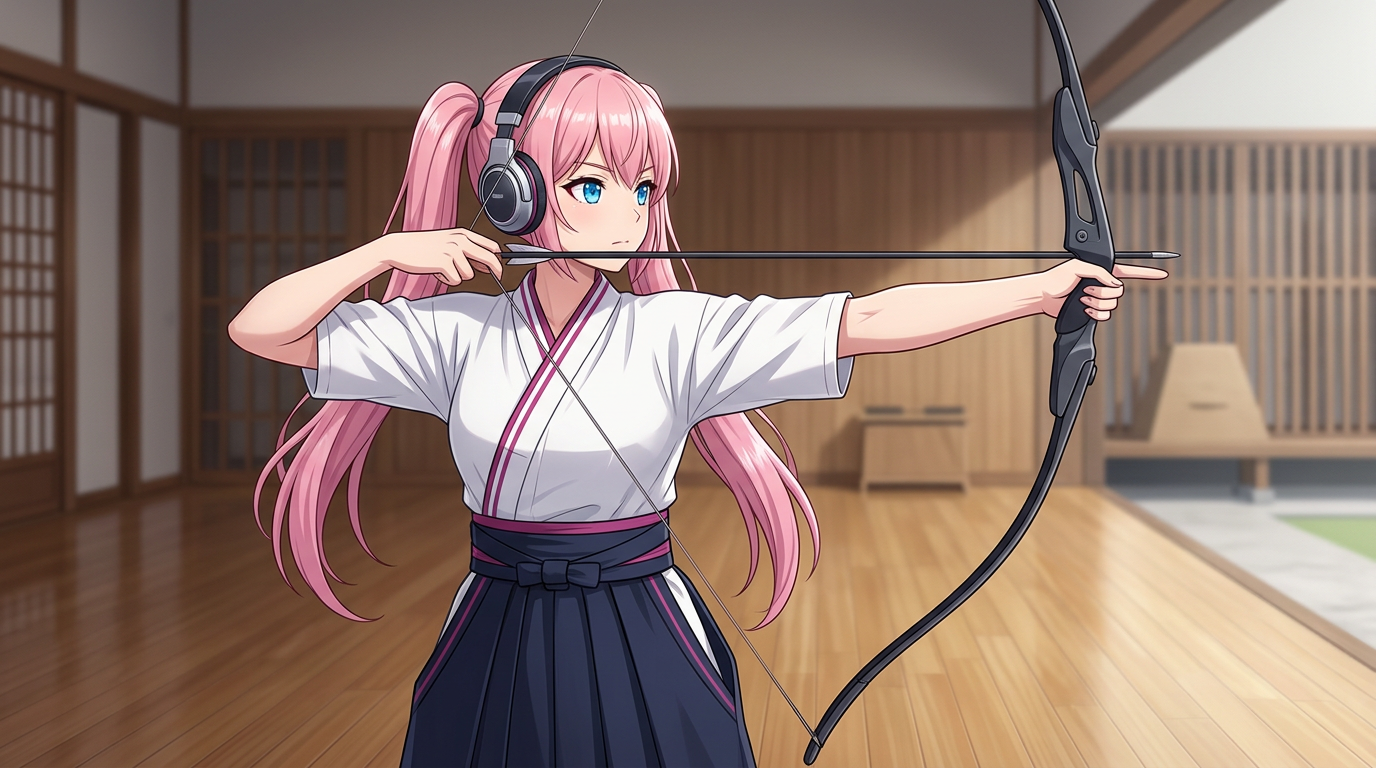
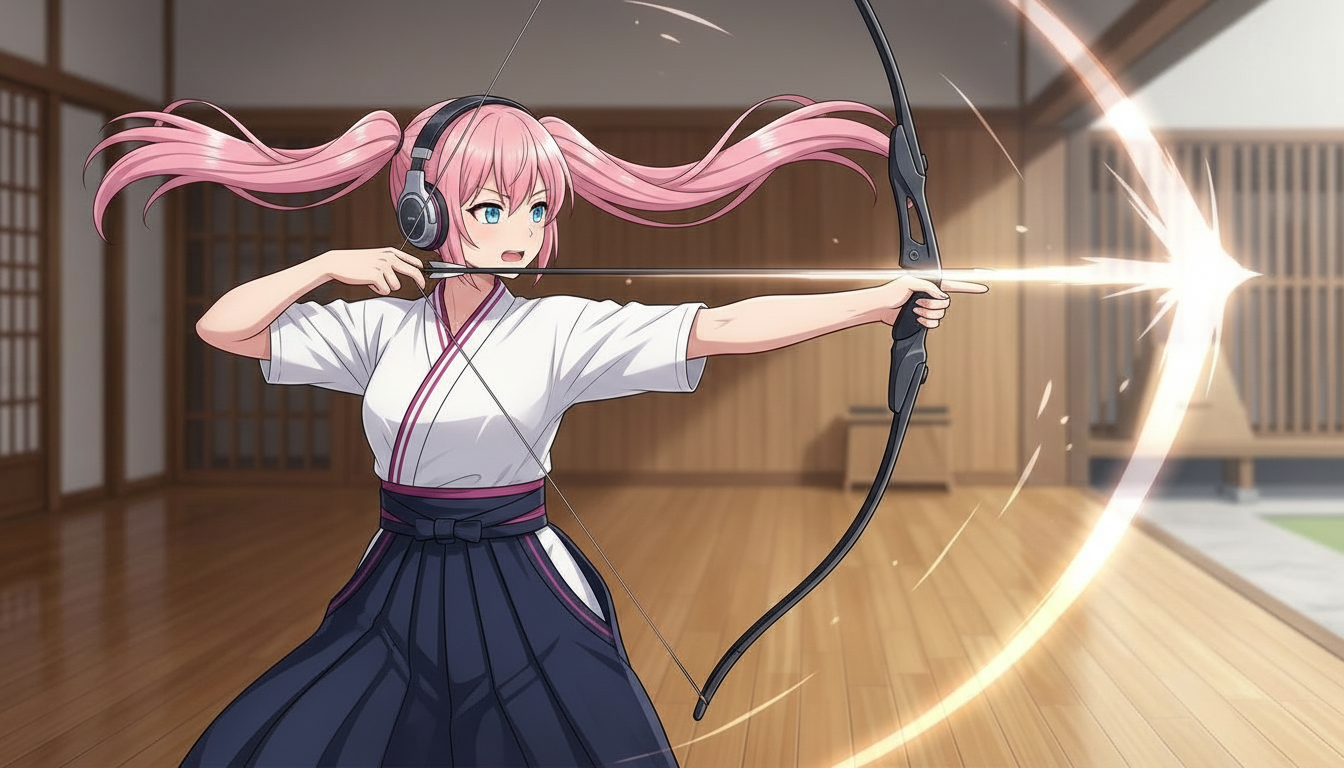
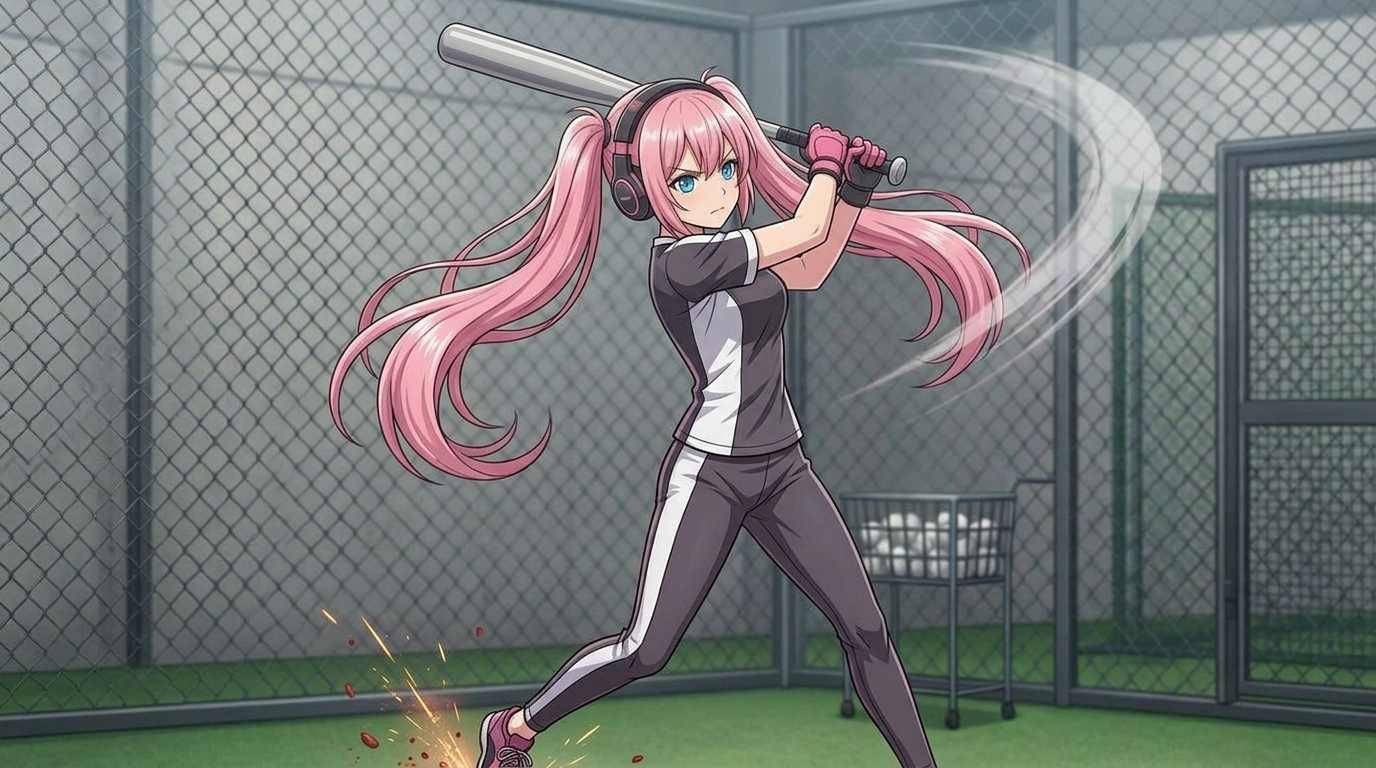
Baseball Motion
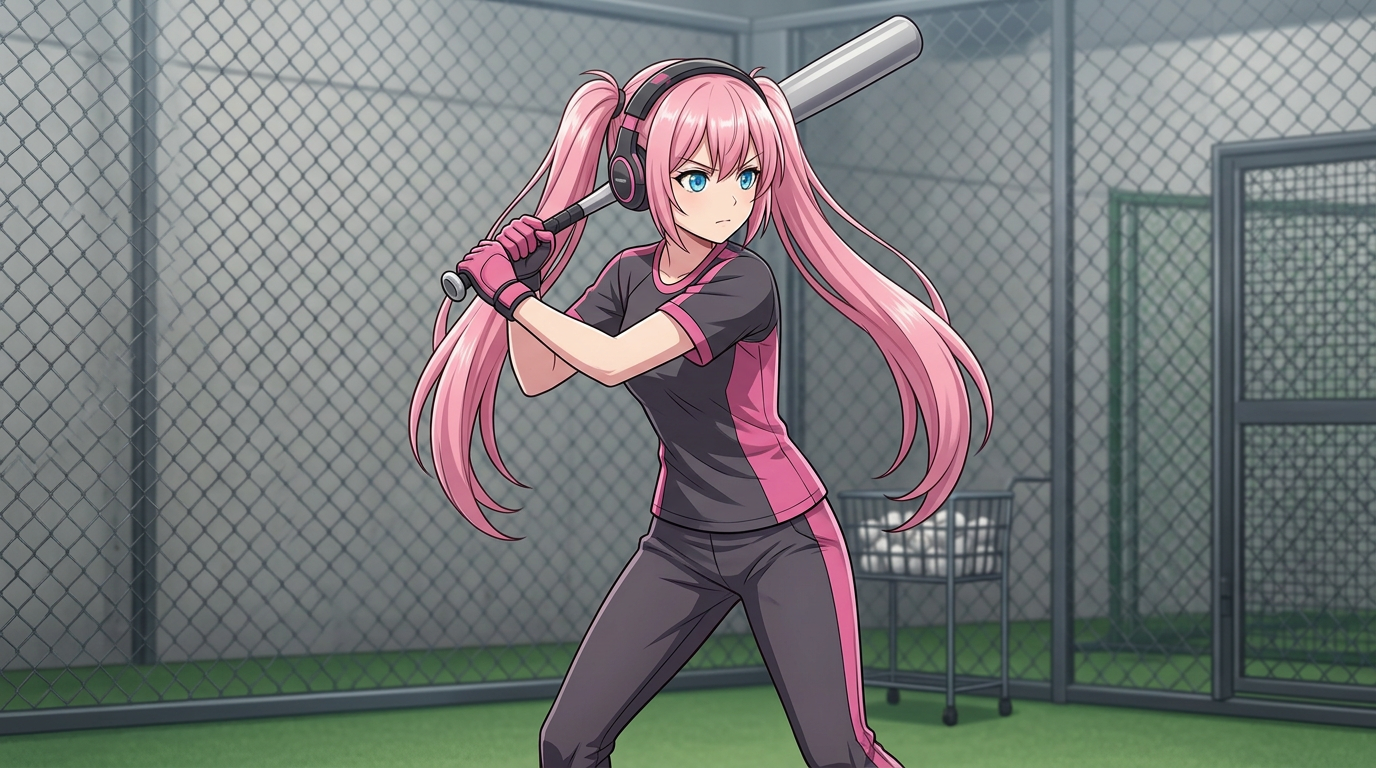
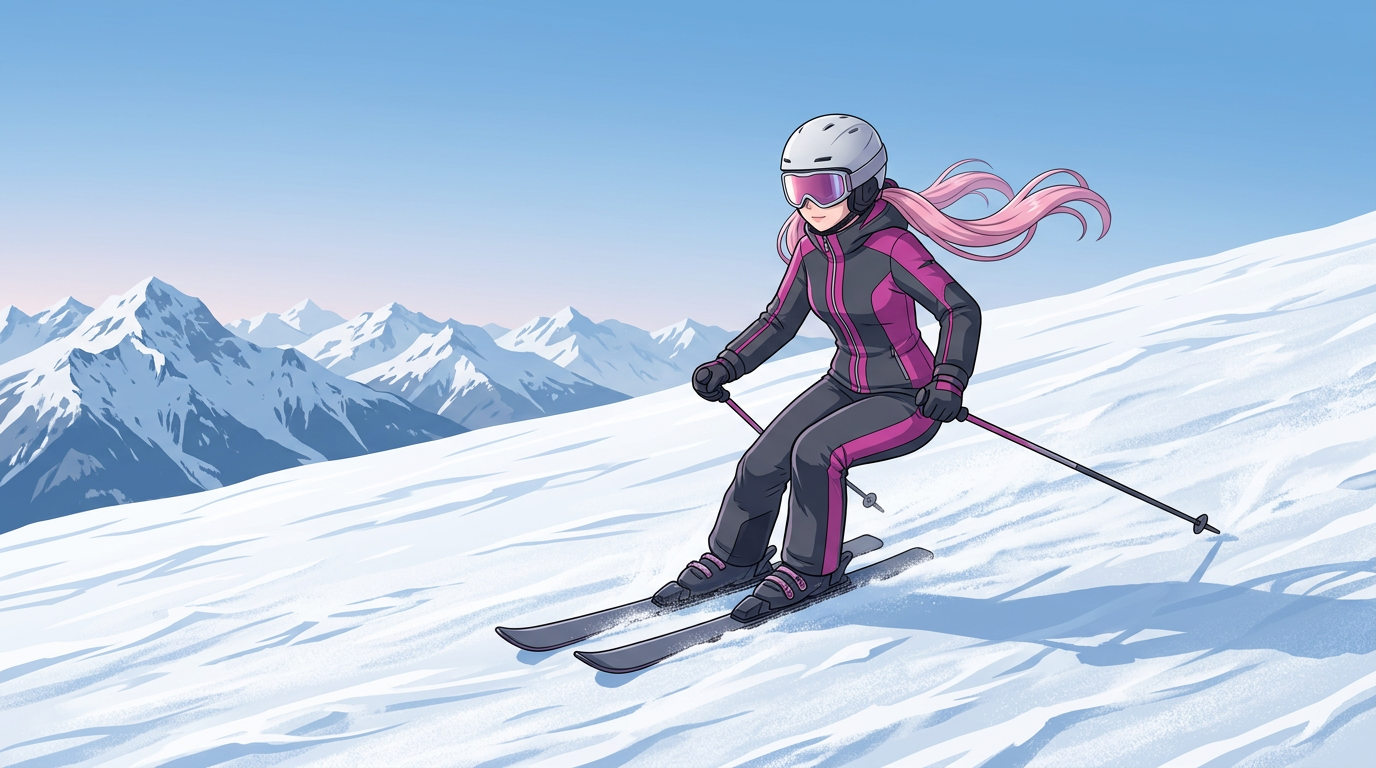
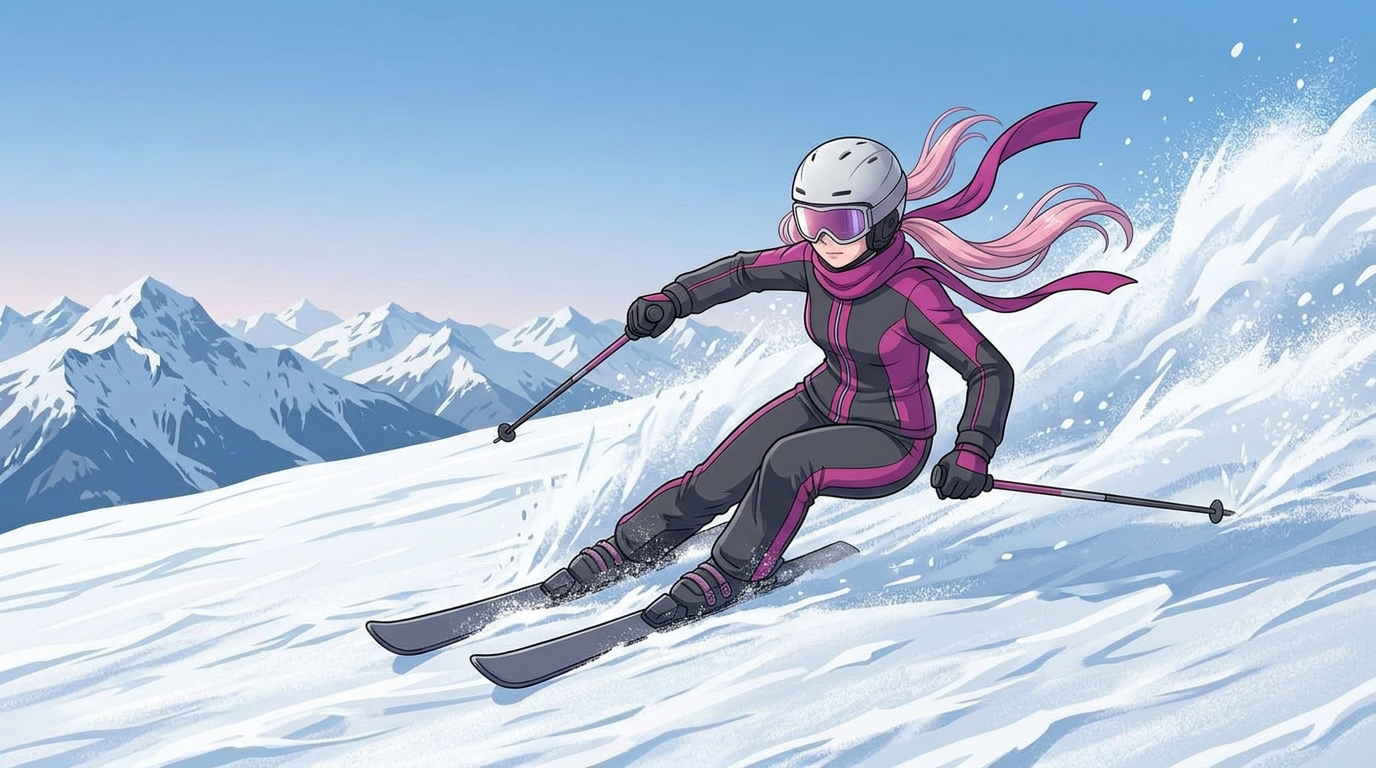
Skiing Motion
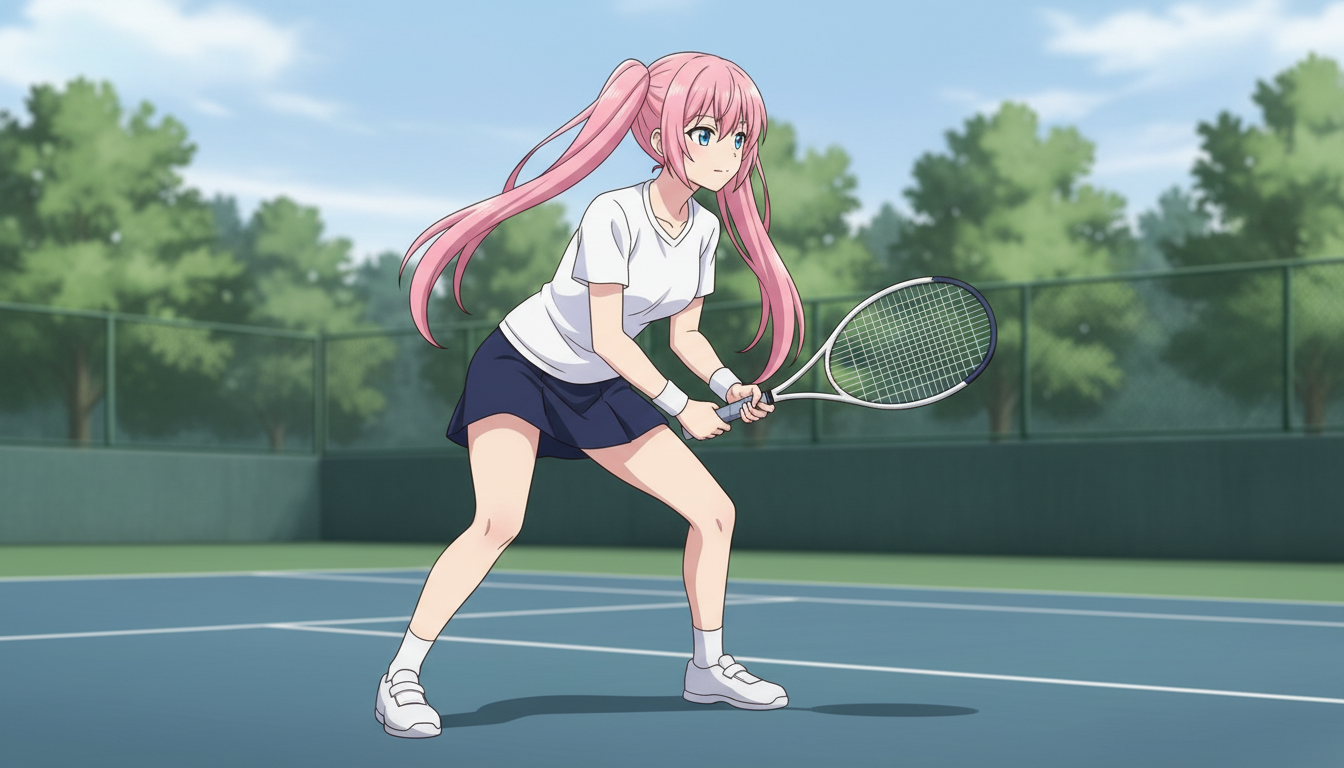
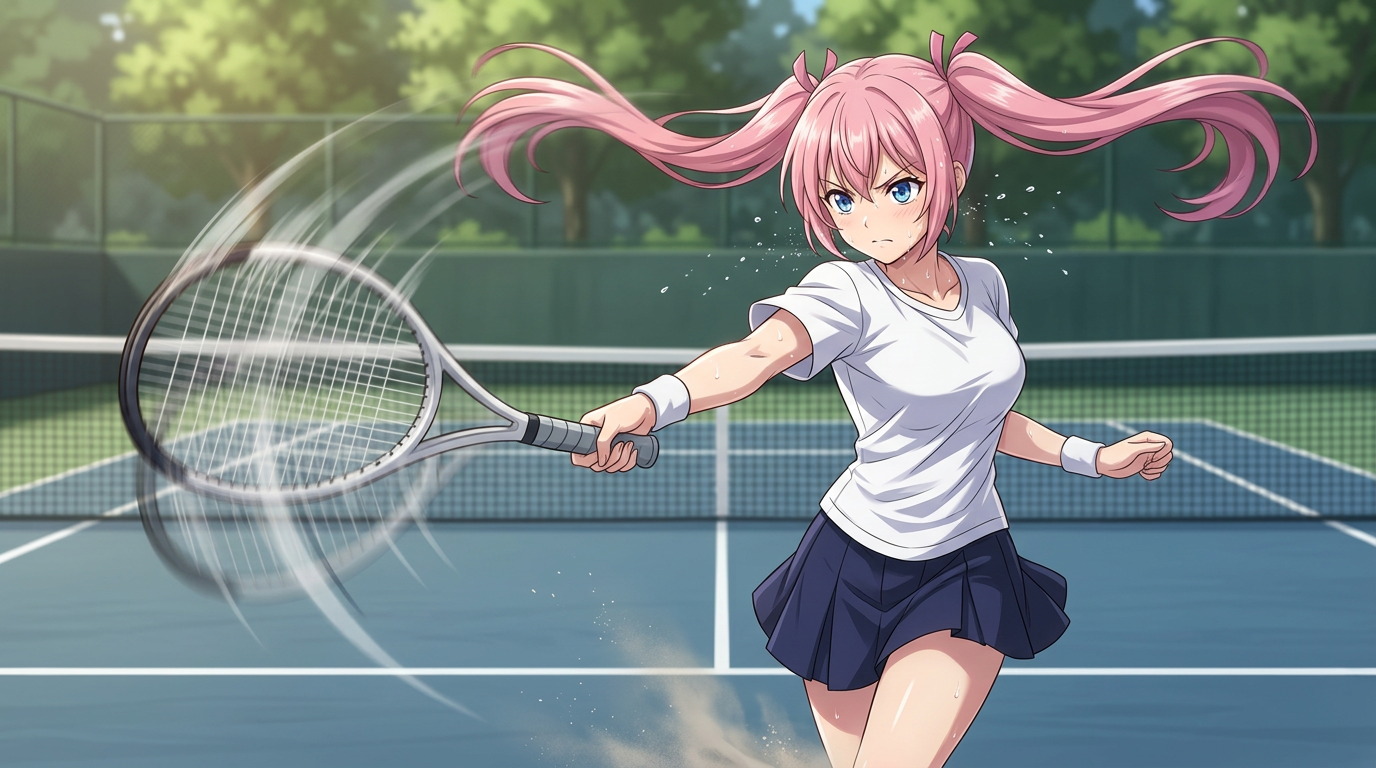
Tennis Motion
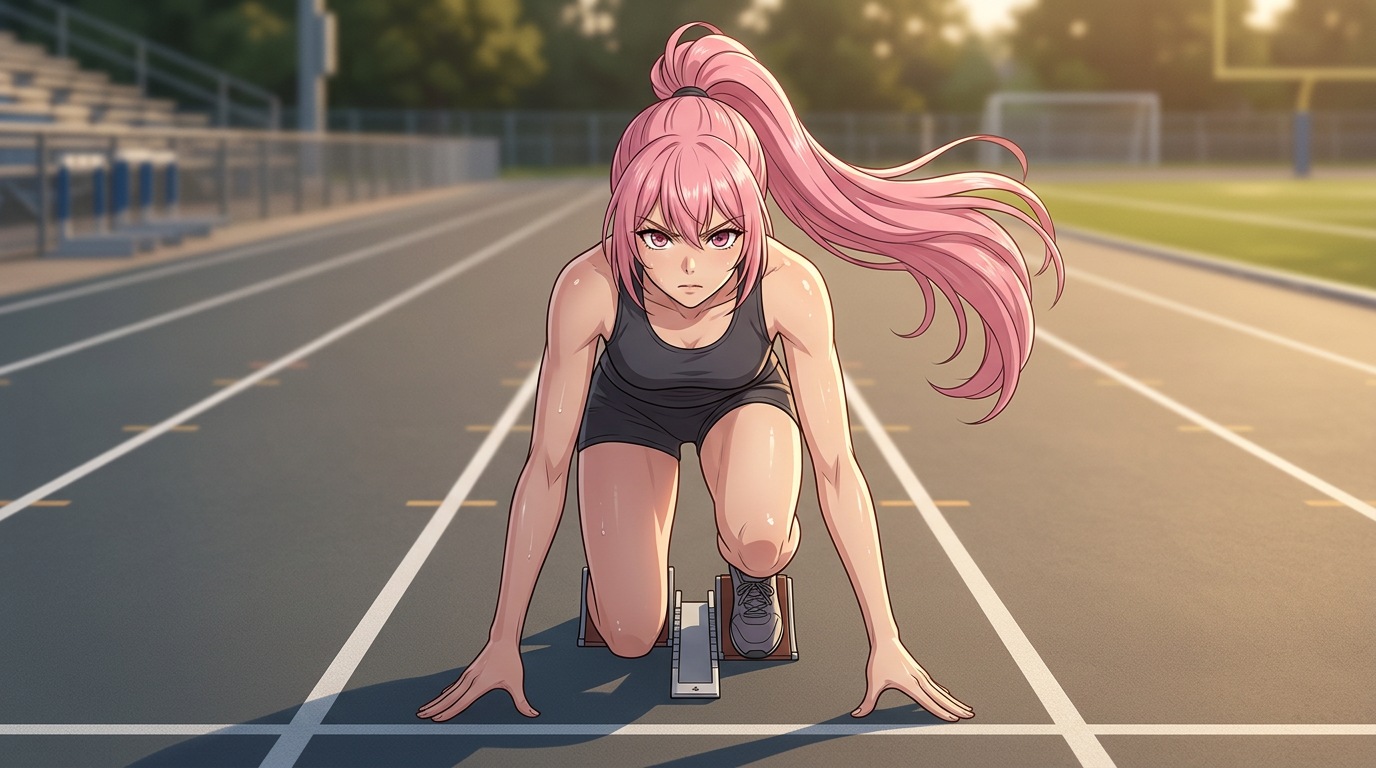
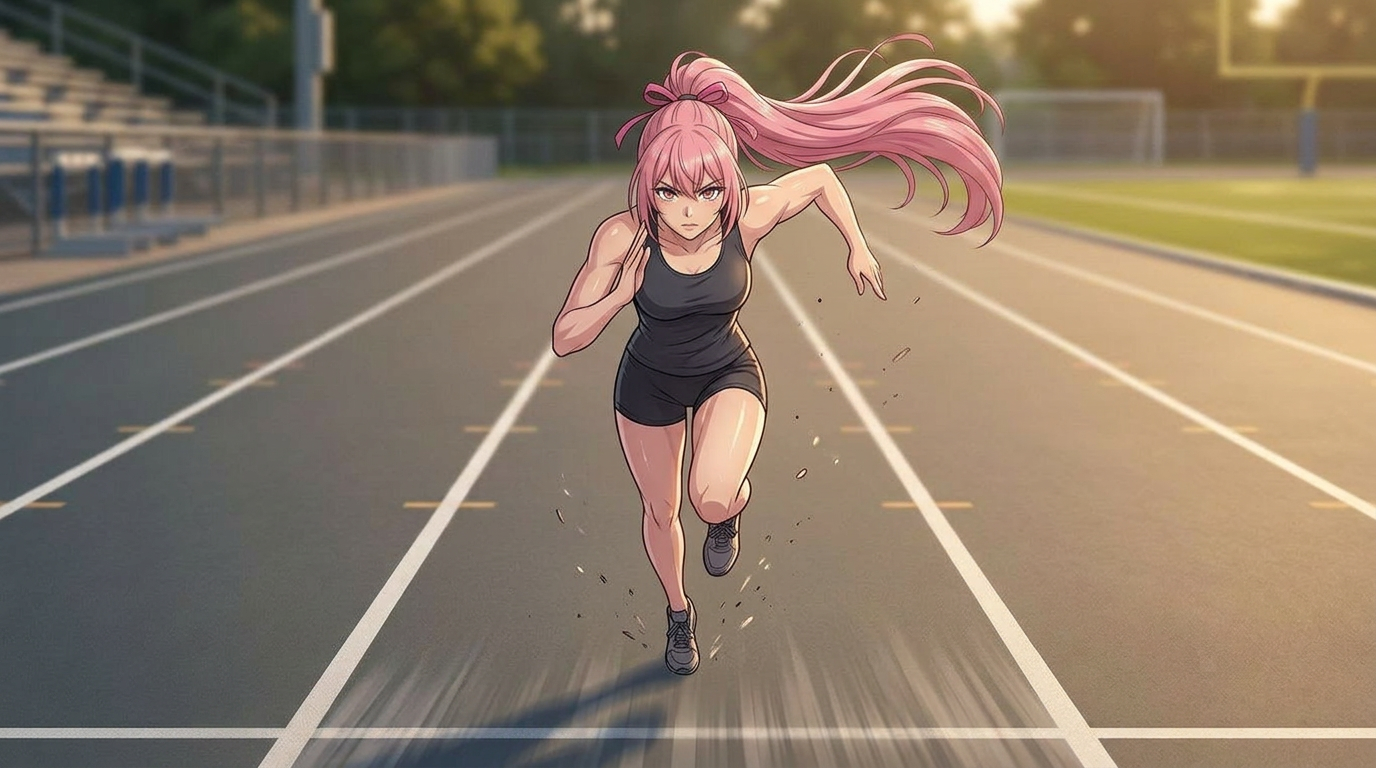
Running Motion
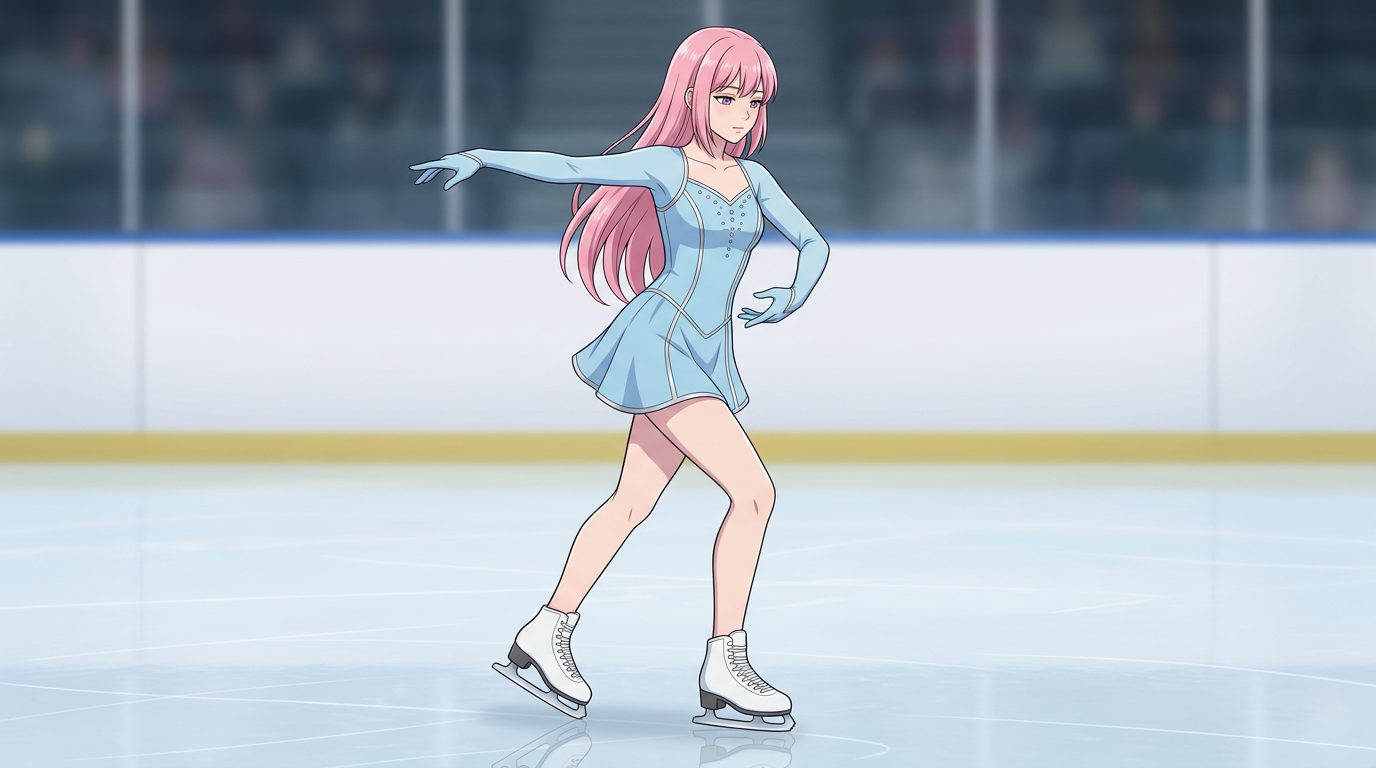
Skating Motion
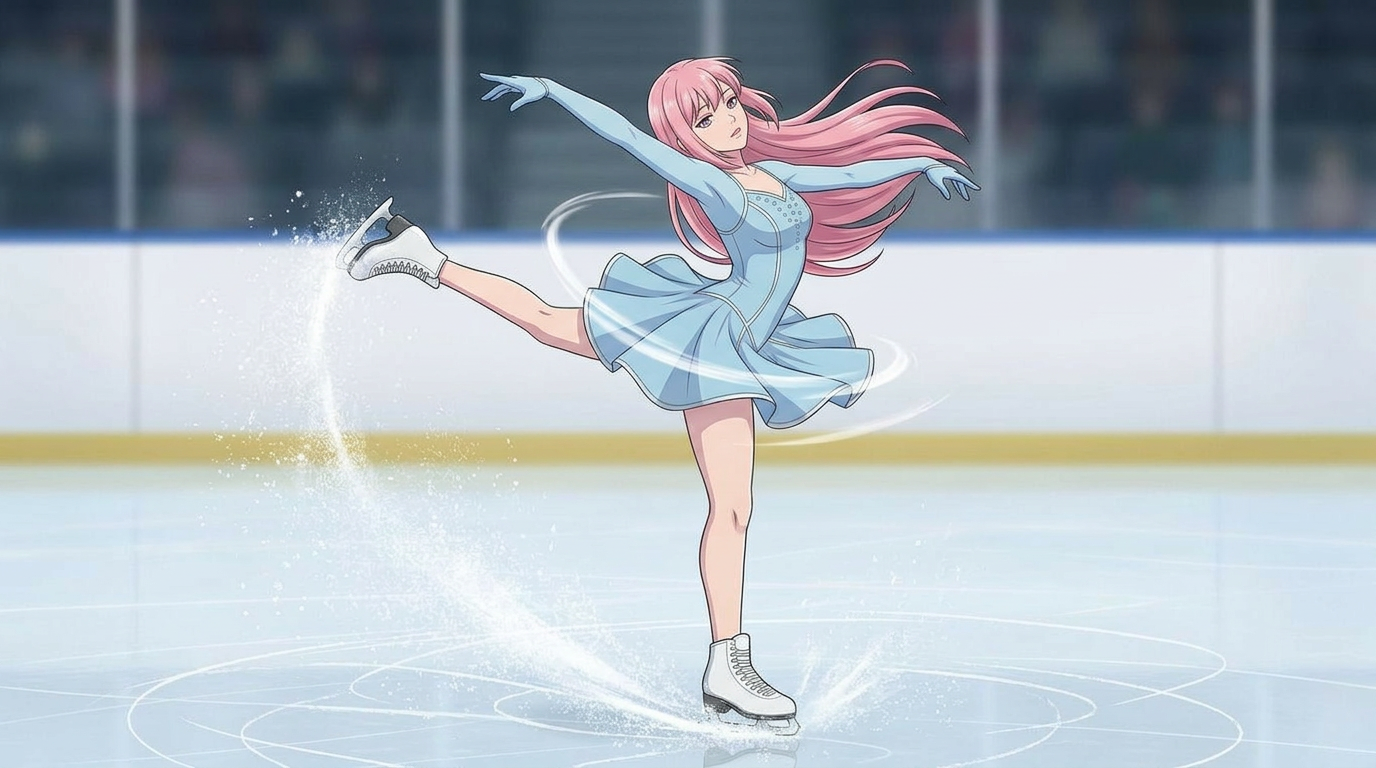
Soccer Motion
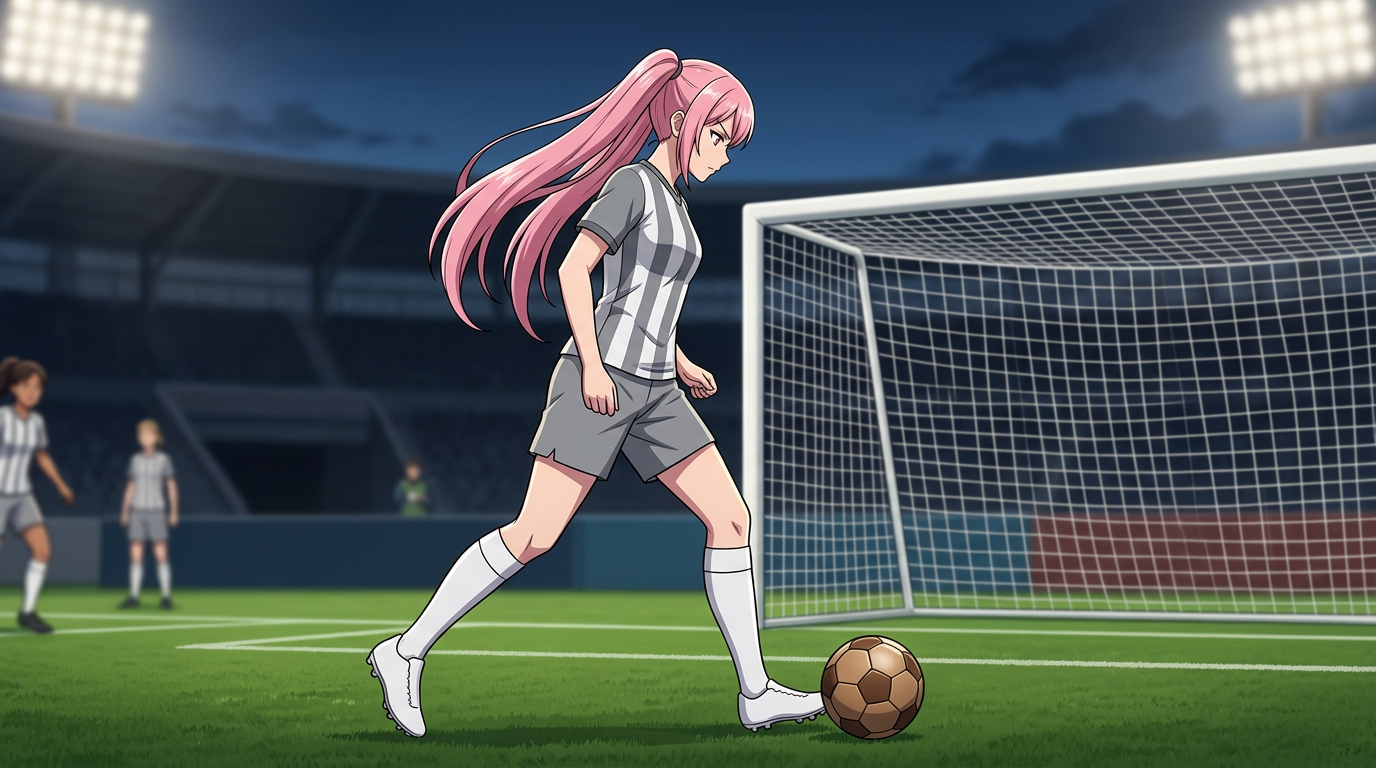
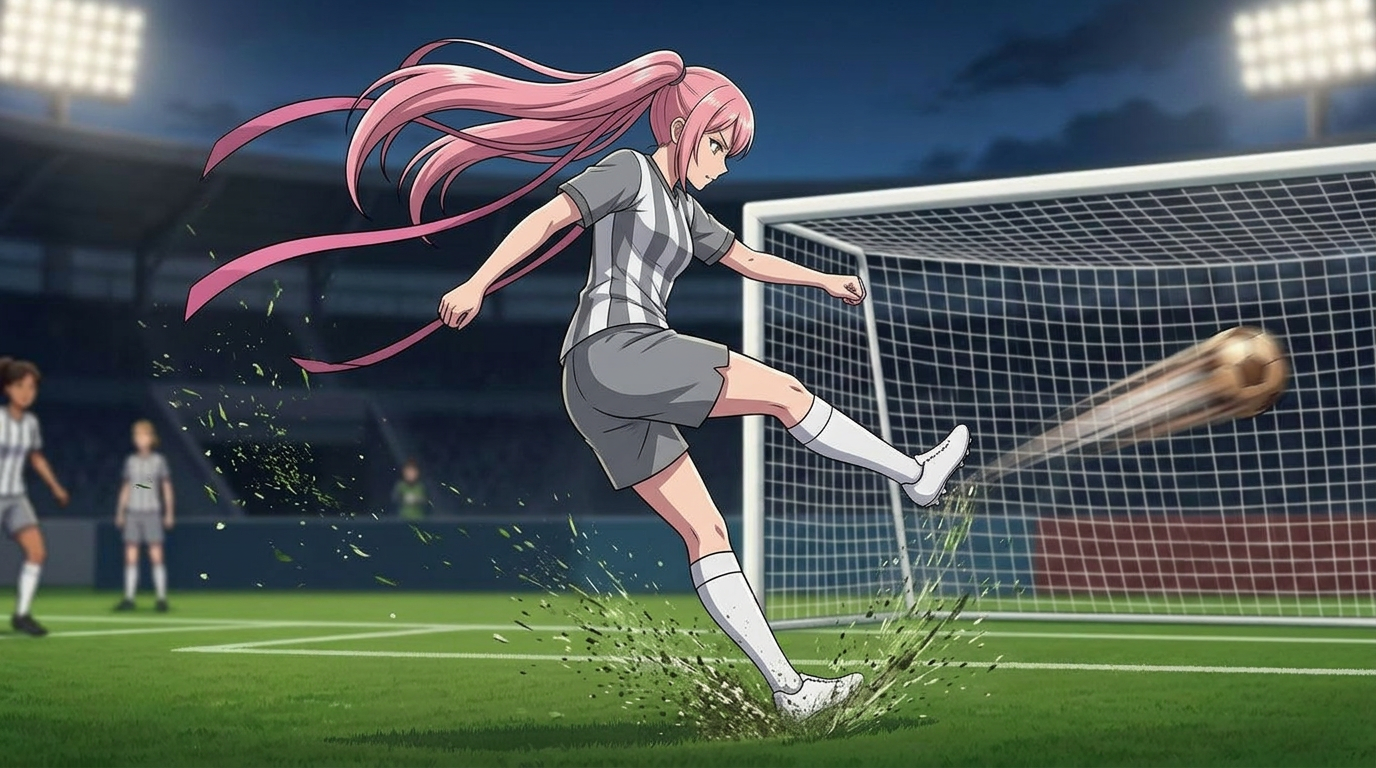
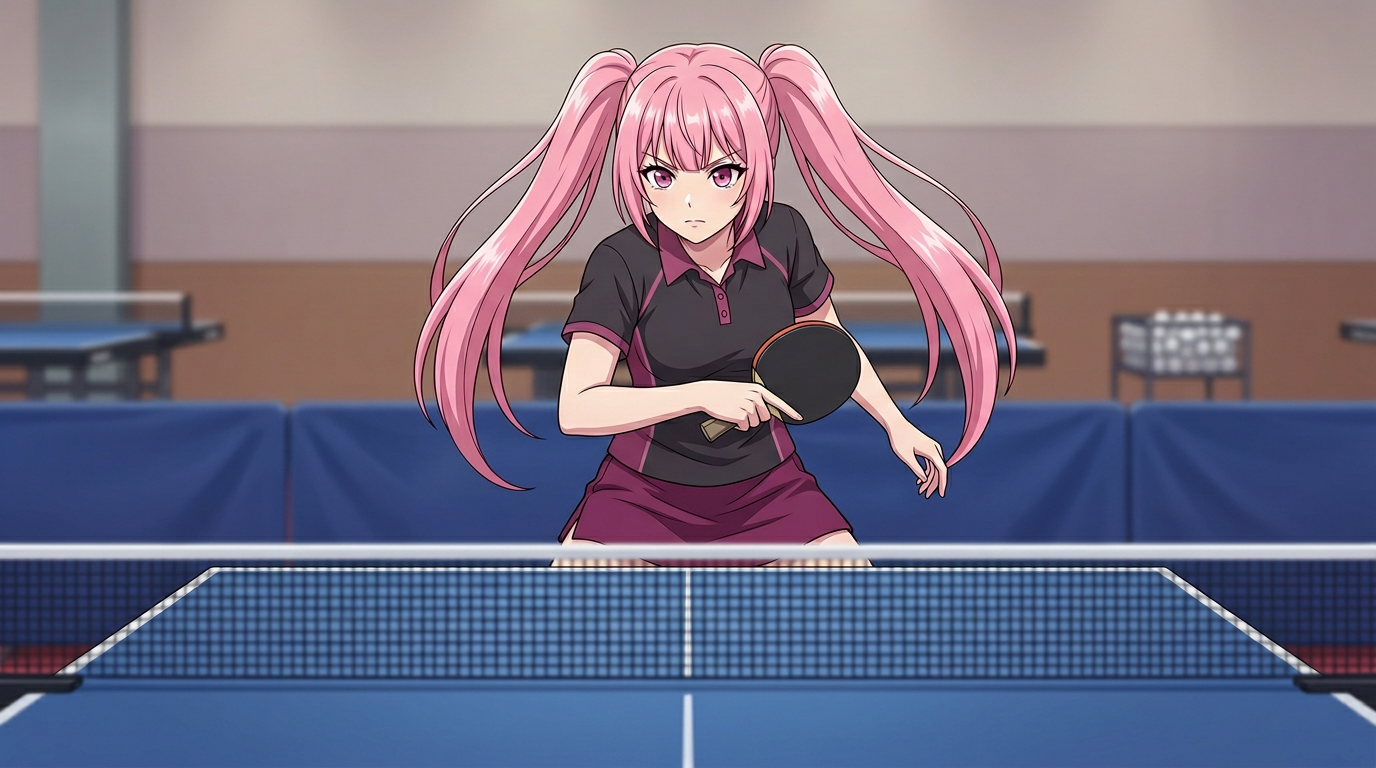
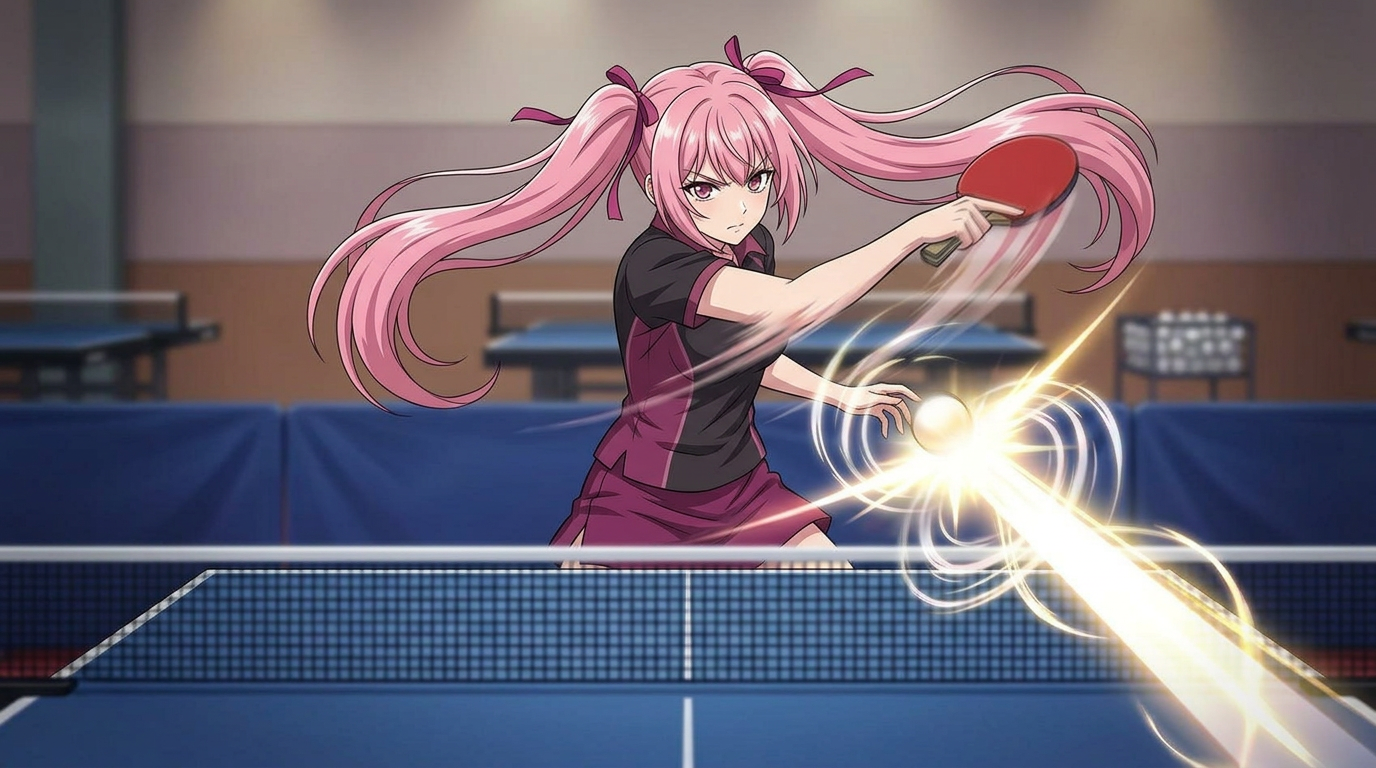
Ping Pong Motion
01 / A more useful starting point
Begin with a readable first and last frame
The start should explain the setup and the ending should explain the action. Keep the subject, outfit and environment compatible across the pair so the requested movement has a clear visual path.
Open AI Motion Designer02 / A more useful starting point
Separate subject movement from camera movement
A fixed camera and a turning subject are different directions from a camera orbit. Describe the motion you need in plain terms and check whether the selected model supports the inputs you intend to use.
Open AI Motion DesignerThree practical starting points
Try a brief. Check the result. Tweak one thing.
Try these exercises for AI Motion Designer, with concrete details to inspect. These are suggested exercises, not recorded customer projects.
An archery release
Suggested brief
Plan a wide shot with a full draw followed by a release. Keep the camera still and the archer’s clothing consistent.
- What to inspect
- Look for a plausible transition around the bow hand, string and arm.
- What to change next
- Simplify the camera direction before asking for additional motion.
A clear running beat
Suggested brief
Plan a side-view running pose with an uncluttered background and a consistent ground line.
- What to inspect
- Check foot placement, body proportions and direction of travel.
- What to change next
- Use a shorter or simpler movement when limbs change unpredictably.
A product gesture
Suggested brief
Plan one character lifting a plain unbranded object from a table, without a scene change.
- What to inspect
- Check hand contact and whether the object keeps a recognisable shape.
- What to change next
- Remove extra props or overlapping actions before repeating the request.
From input to a useful output
How to use AI Motion Designer
Start with a small task first, then keep the steps that help your project.
- 01
Choose the action
Describe one movement with a clear beginning and end.
Check: Avoid several unrelated actions in a short request.
- 02
Prepare permitted references
Add a permitted start image. Add an optional compatible end image when you want to describe the final state.
Check: Keep framing and clothing coherent.
- 03
Set the motion direction
State subject movement and camera behaviour separately.
Check: Check the selected model’s current input support.
- 04
Review the sequence
Watch hands, limbs, props and scene continuity.
Check: Use the available export options only after inspecting the result.
Choose the approach for your task
| Your goal | Start with | Before you finish |
|---|---|---|
| Sports motion | One action and a stable camera | Inspect limbs and equipment. |
| Character gesture | A clear hand-object relationship | Inspect contact and shape continuity. |
| Scene movement | One camera direction | Inspect the environment between frames. |
Know the boundaries
What to check before you rely on the output
- The existing sports clip is a demonstration, not a guarantee of the timing, quality or model used for a new request.
- Not every video model accepts two keyframes. Use only the controls exposed by the selected workflow.
- Animation generation can change anatomy, identity and object shapes.
AI Motion Designer: your questions, answered
What should my motion brief include?
Specify the subject, one action, the beginning and ending positions, and the intended camera behaviour.
Can I keep the camera fixed?
Request a fixed camera and inspect the result. Model behaviour can still introduce movement.
Can I provide start and end images?
The linked motion editor has a required start frame and an optional end frame. Other video workflows can expose different inputs. Review the chosen options before generation.
Are the sports examples customer projects?
They are existing product demonstration assets, not customer testimonials or measured case studies.
What can I explore for free?
You can study the guide, keyframe examples and existing demonstration for free. Creating a video uses the account, model and credit conditions shown in the motion editor; this is not unlimited free generation.
How do I improve an unstable result?
Reduce simultaneous actions, simplify the camera request and check reference compatibility before generating again.
Sources and further reading
Check the guidance behind the workflow
Each source is linked with its scope. An external reference is not an endorsement or performance certification.
YouTube: uploading Shorts
Official upload guidance for square and vertical videos. Platform rules are separate from the video options available in LlamaGen.
LlamaGen: animation and video workflow help
First-party entry to video setup and review guidance. Available models, inputs, duration and credits must be checked in the chosen studio; this is not an independent video benchmark.
LlamaGen plans, credits and account support
First-party plan information. Check the selected tool for model access and the cost of each generation; contact [email protected] for account questions.
Continue your creative project
AI Motion Designer
Start with one clear idea.
The guide and existing demonstrations are free to explore. Video generation is a separate signed-in action with model and credit requirements.
Open AI Motion Designer