

Photo to anime · Practical workflow
How to turn a photo into anime
Choose a clear portrait, plan the anime look, and review likeness with a practical photo-to-anime workflow for selfies, glasses and group photos.
By LlamaGenPublished
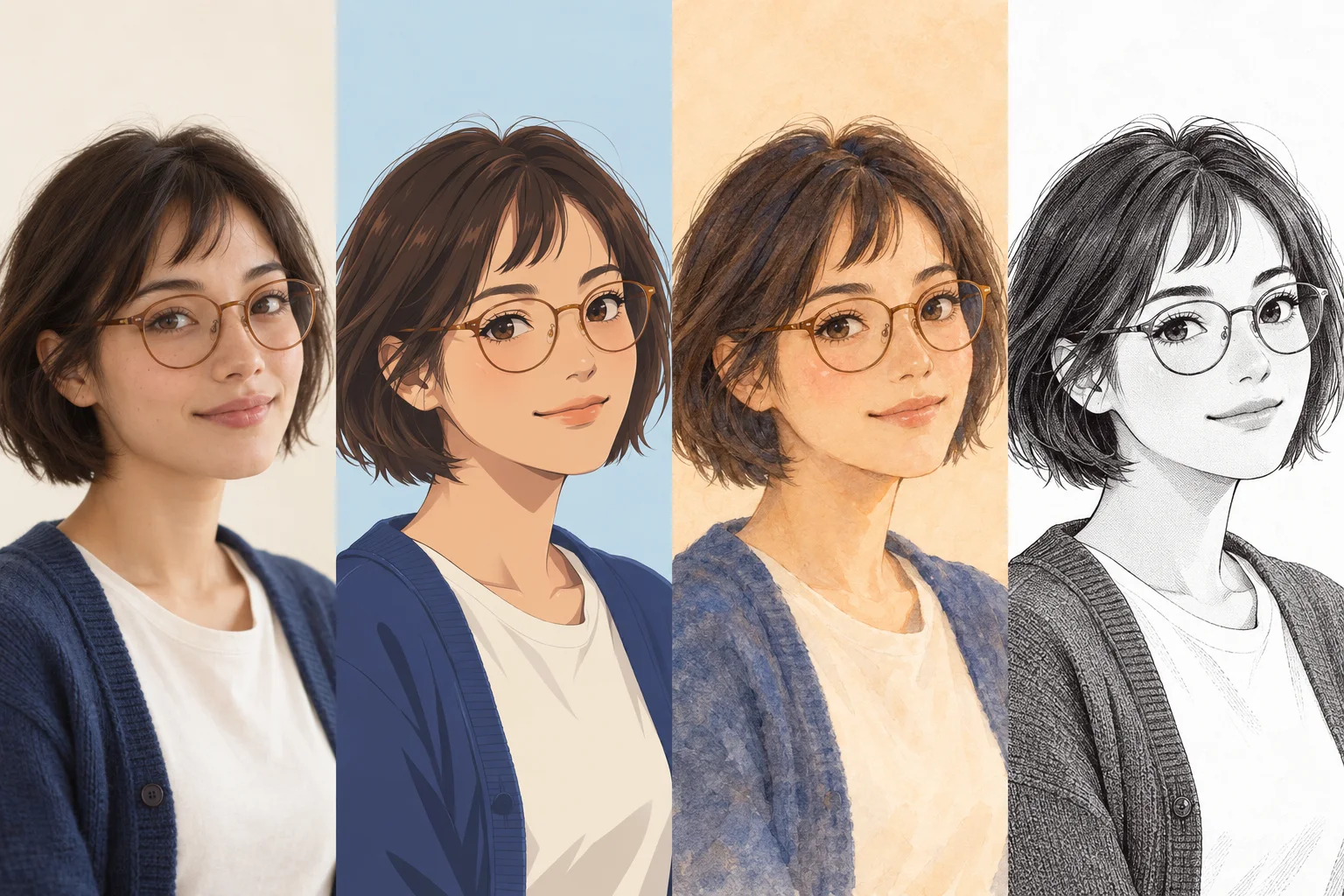
1. Choose a reference with visible facial detail
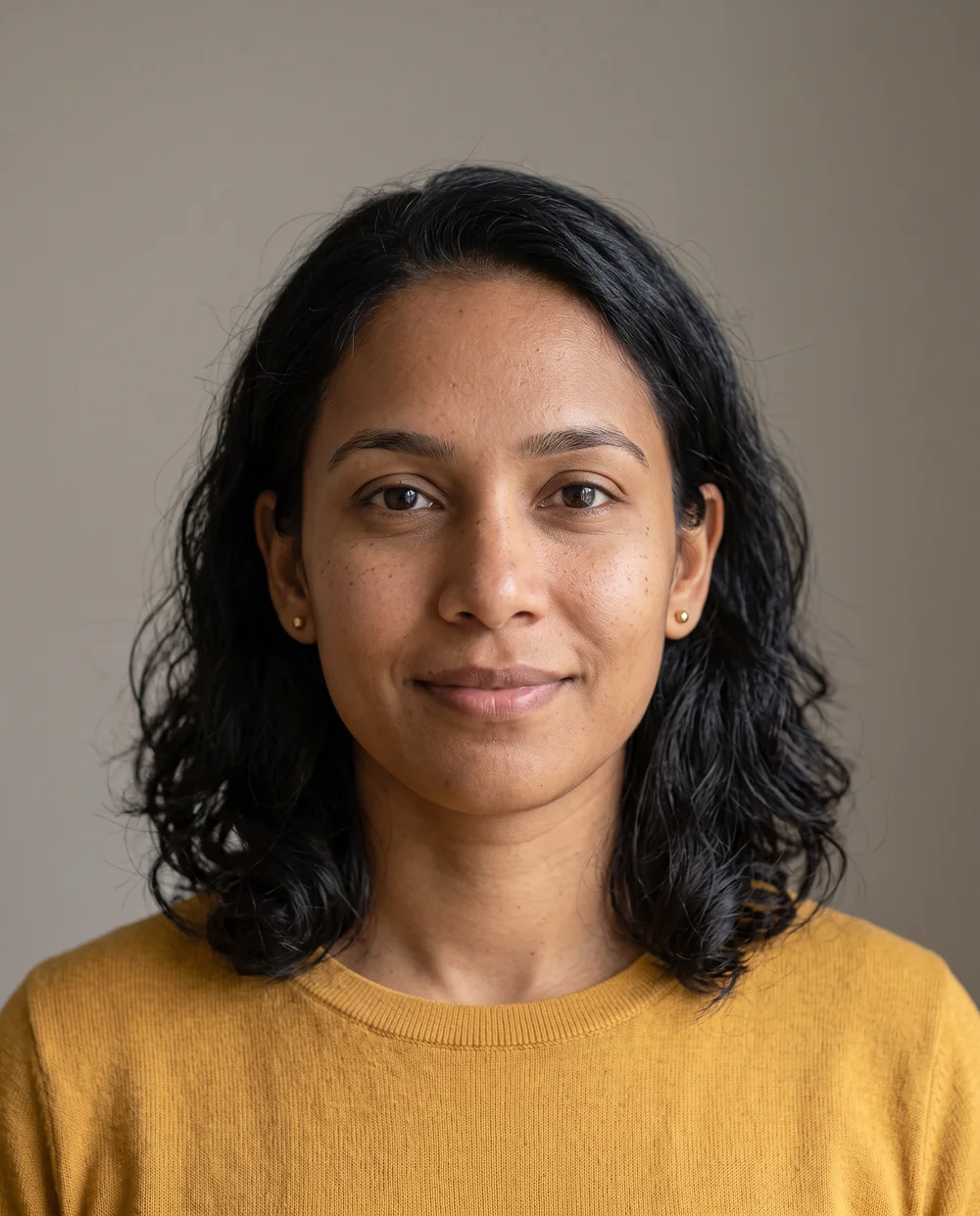
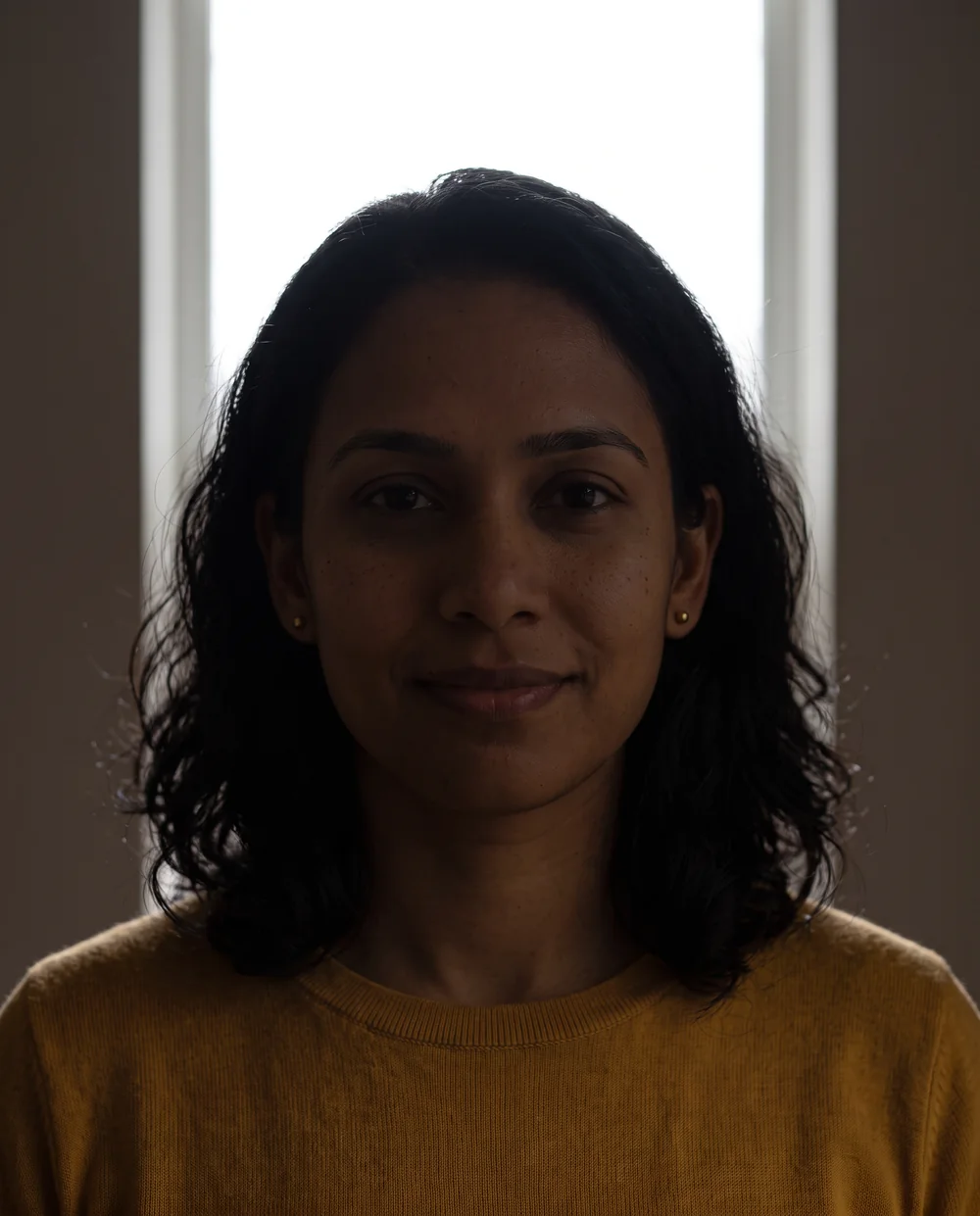
For a first portrait, choose one person with visible eyes, a readable expression and enough space around the hair. Soft daylight or even indoor light is easier to judge than a face divided between strong light and deep shadow. Adobe’s portrait photography guidance provides background on lighting and composition; it does not evaluate or endorse this converter.
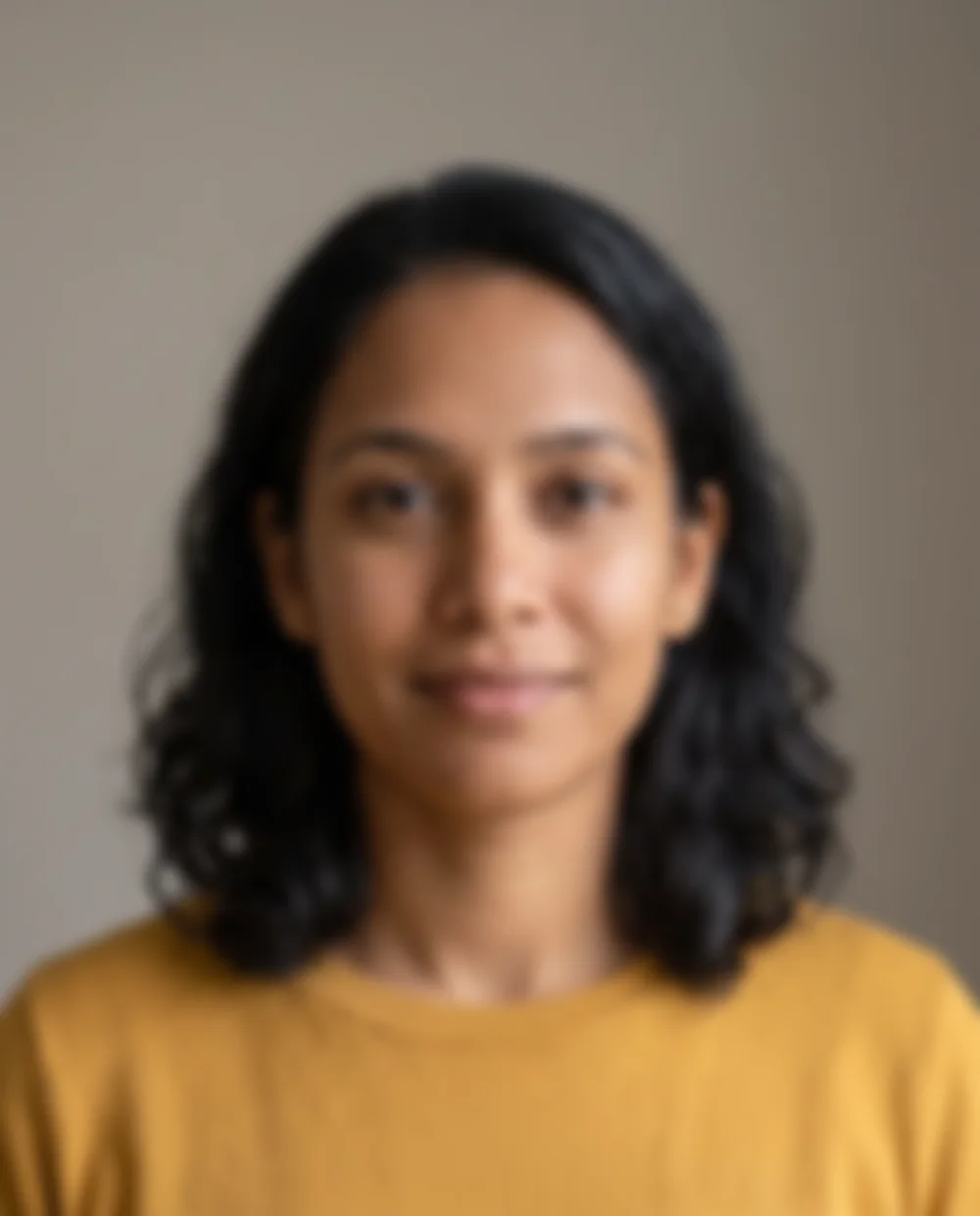
Start from the original image when available. A screenshot, beauty filter or compressed social download can remove the detail you want to preserve. Crop distracting surroundings, but keep the full hairstyle and any accessory that helps identify the person. Do not expect a style conversion to reconstruct a face hidden by blur or obstruction.
2. Decide what should stay and what can change
Write a short visual brief before generating: keep the hairstyle, glasses and expression; change the shading and background. This gives you concrete review criteria instead of asking only whether the picture looks “more anime.” A clean cel look, watercolor illustration and monochrome manga treatment lead to different results.
Open LlamaGen’s Photo to Anime tool from the product page’s embedded tool section. At publication (October 25, 2026), the page lists JPG, PNG and WebP uploads up to 10 MB; follow the current on-screen requirements if they change. The service terms require an account. The brief below is a planning aid, not a claim that the tool accepts custom prompts. If a text field is available, follow that control’s instructions.
Reusable creative brief
Create an anime portrait direction with clean linework and restrained cel shading. Preserve the short dark hairstyle, round glasses, relaxed expression and blue cardigan. Use a simple warm background. Keep the face readable at a small avatar size.
3. Adjust the workflow for your actual photo
These are suggested editing situations, not recorded product tests. Each gives you a specific decision to make and something visible to check.
- A square selfie for a profile picture
- Prepare a square crop with room above the hair and around the chin. After conversion, preview the image inside a circle at the size you will use. If the face is too small or the hair is clipped, adjust the crop before changing the style.
- A portrait with glasses
- Choose a source where both rims and the eyes are visible, with limited lens reflections. Compare the bridge, rim shape and eye positions in the result. If the frames merge with the eyebrows, try a clearer source or a simpler visual direction before adding decorative detail.
- A group photo
- Check whether every person has enough facial detail at the original size. Review the head count, left-to-right order and overlapping arms or hair. If one person occupies only a few pixels, a closer source is a more useful next step than repeatedly regenerating the same group.
4. Review before you share
Compare the source and result for expression, hair silhouette, glasses and clothing. Then inspect eyes, ears and accessories for distortions. For an avatar, repeat the check at small size; for a print, inspect the downloaded file at the intended dimensions. An attractive preview alone does not establish print quality.
Keep a note of the source, crop and chosen direction so the next attempt is purposeful. Upload only photos you have permission to use, obtain consent before using someone else’s portrait, and read the current privacy policy for how uploads are handled. Review pricing and terms in the linked official pages rather than assuming a particular free allowance or usage right.
What a useful reference makes visible
These synthetic portraits illustrate input-quality differences. They are not uploaded customer photos or measured conversion results.
Frequently asked questions
What kind of photo is a useful starting point?
A sharp portrait with visible eyes, even lighting and an uncluttered background gives you clearer features to compare. A face hidden by blur, deep shadow or strong reflections leaves less dependable source information.
Will the anime portrait look exactly like the person?
Exact likeness is not guaranteed. Anime stylization can change eye size, facial proportions and fine detail. Identify the features that matter to you and compare each result with the original.
Can I use a group photo?
You can plan a group conversion, but inspect each person individually. Small faces and overlapping bodies make review harder. Use a closer source or separate portraits when the group image does not show enough detail.
Can I upload another person’s photo?
Use photos you are authorized to upload and get the person’s consent when appropriate. Read LlamaGen’s current privacy policy and terms before uploading, especially when a photo contains someone else or sensitive information.
How this guide was prepared
LlamaGen prepared this guide using its published product information and general portrait and illustration principles. The scenarios are practical editing suggestions, not documented hands-on tests. Illustrations are synthetic and do not demonstrate converter performance. Check the current tool, pricing and policies before uploading.
Sources and policies
Keep exploring
Choose an anime direction for your portrait
Compare cel anime, watercolor and monochrome manga directions, with creative briefs and practical criteria for portraits, avatars and group images.
Fix the starting point before repeating a conversion
Diagnose photo-to-anime issues such as lost likeness, blurry faces, distorted glasses and group-photo mistakes with specific, observable adjustments.