Understand the difference between a generated PNG layer sheet and extracted transparent PNG parts, with checks for edges, missing detail and editable raster output.


Mascot animation preparation
Prepare a mascot for simple cutout motion
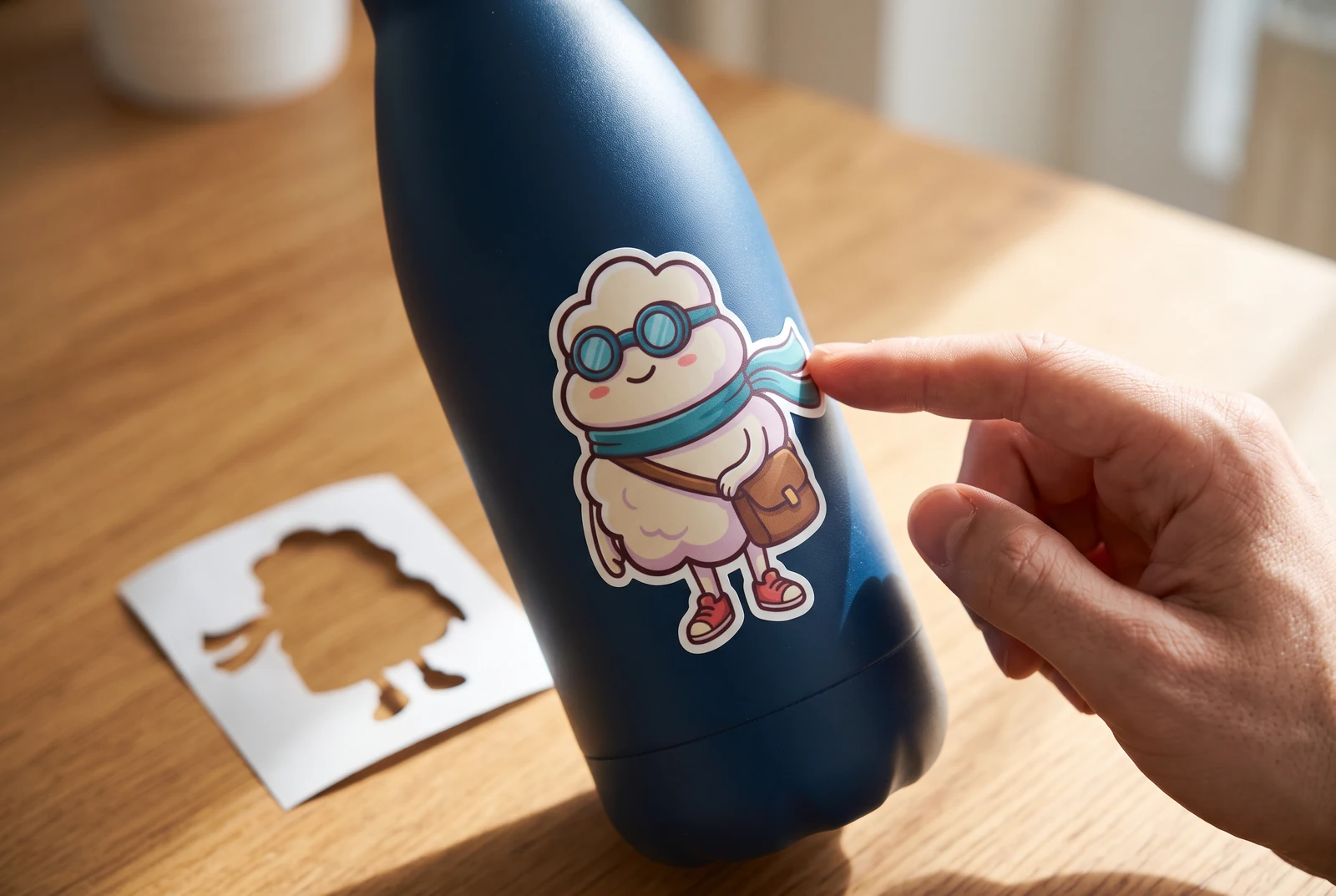
AI-generated lifestyle concepts. Printed pieces and device scenes illustrate possible downstream uses after manual preparation; they are not customer photos or verified export or rigging results.
A scarf sway or a small wave can give a mascot useful motion without redrawing an entire scene. The first step is deciding which pieces should move and which should stay together. A generated layer sheet helps you review those boundaries. It does not produce animation, movement frames or a timeline, so keep the initial motion modest and inspect every overlap.
For brand designers and content creators preparing a mascot illustration for simple manual cutout animation.
← Back to all layer splitting guidesSee the finished artwork in everyday life
Explore how prepared character artwork could appear on personal prints, devices and coordinated creative sets.

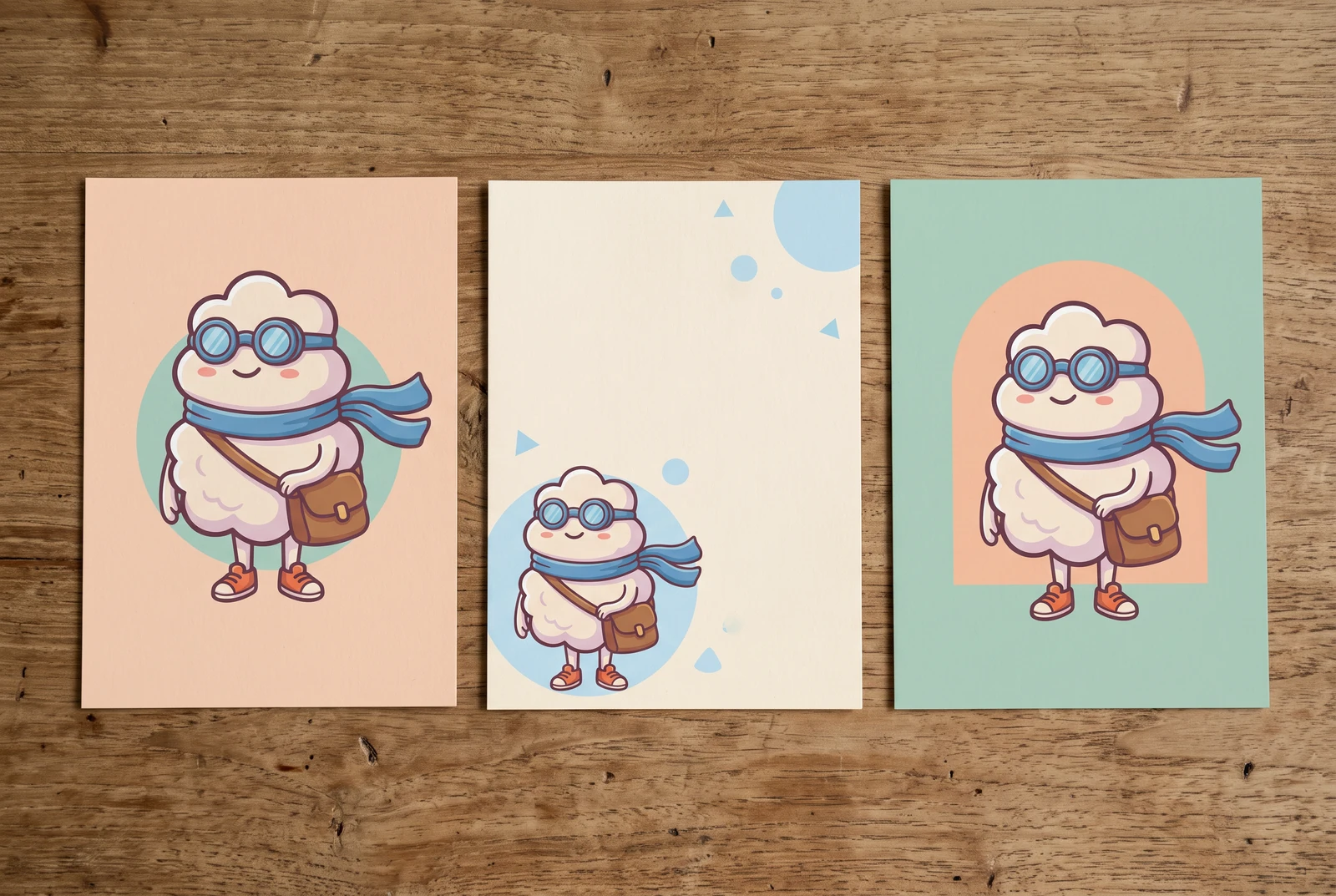
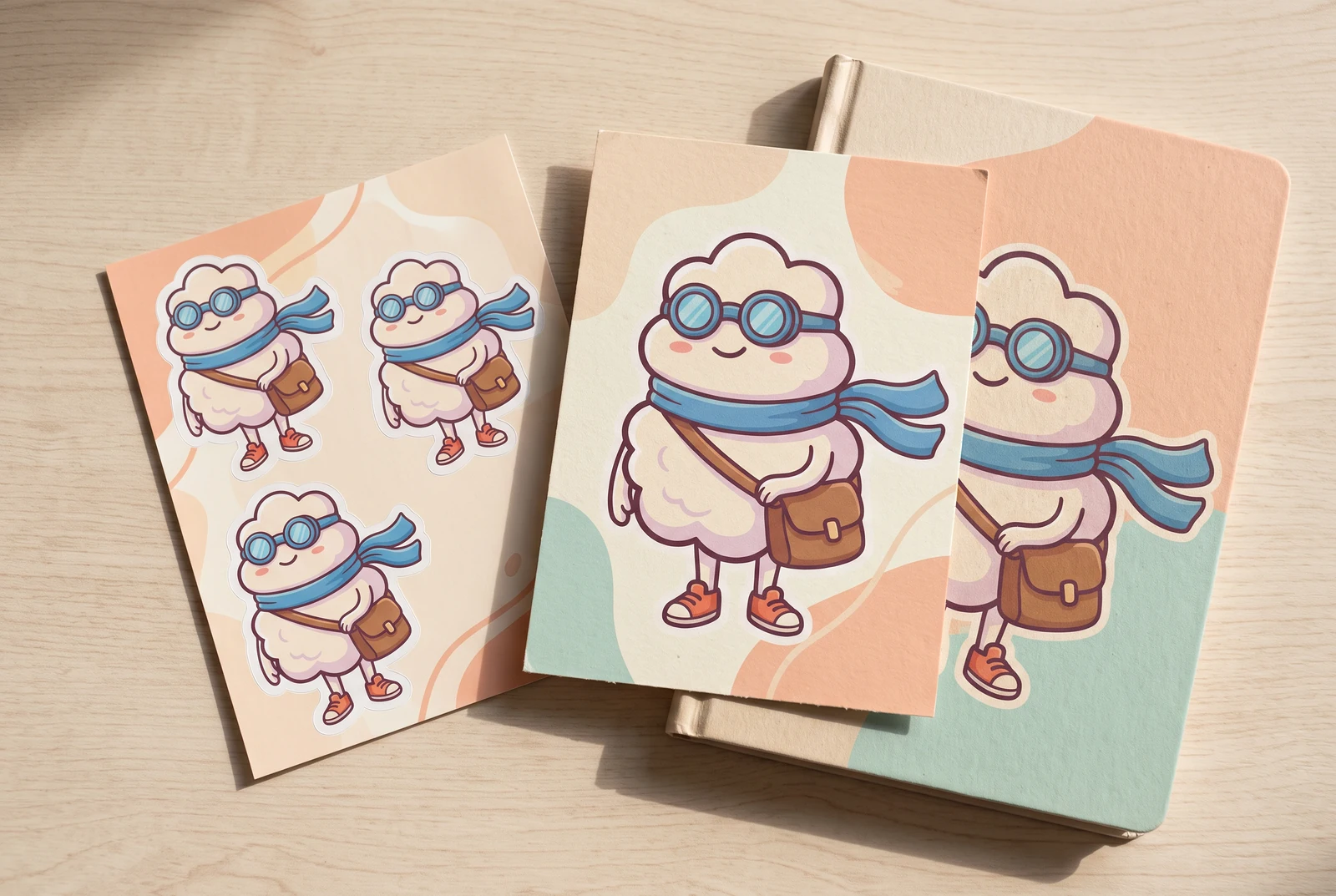
AI-generated lifestyle concepts. Printed pieces and device scenes illustrate possible downstream uses after manual preparation; they are not customer photos or verified export or rigging results.
Inspect the published layer-sheet example
Gallery example: this comparison shows a source image and one generated PNG sheet. It does not demonstrate individual extracted PNG files, a ZIP, or a PSD.

Original character image
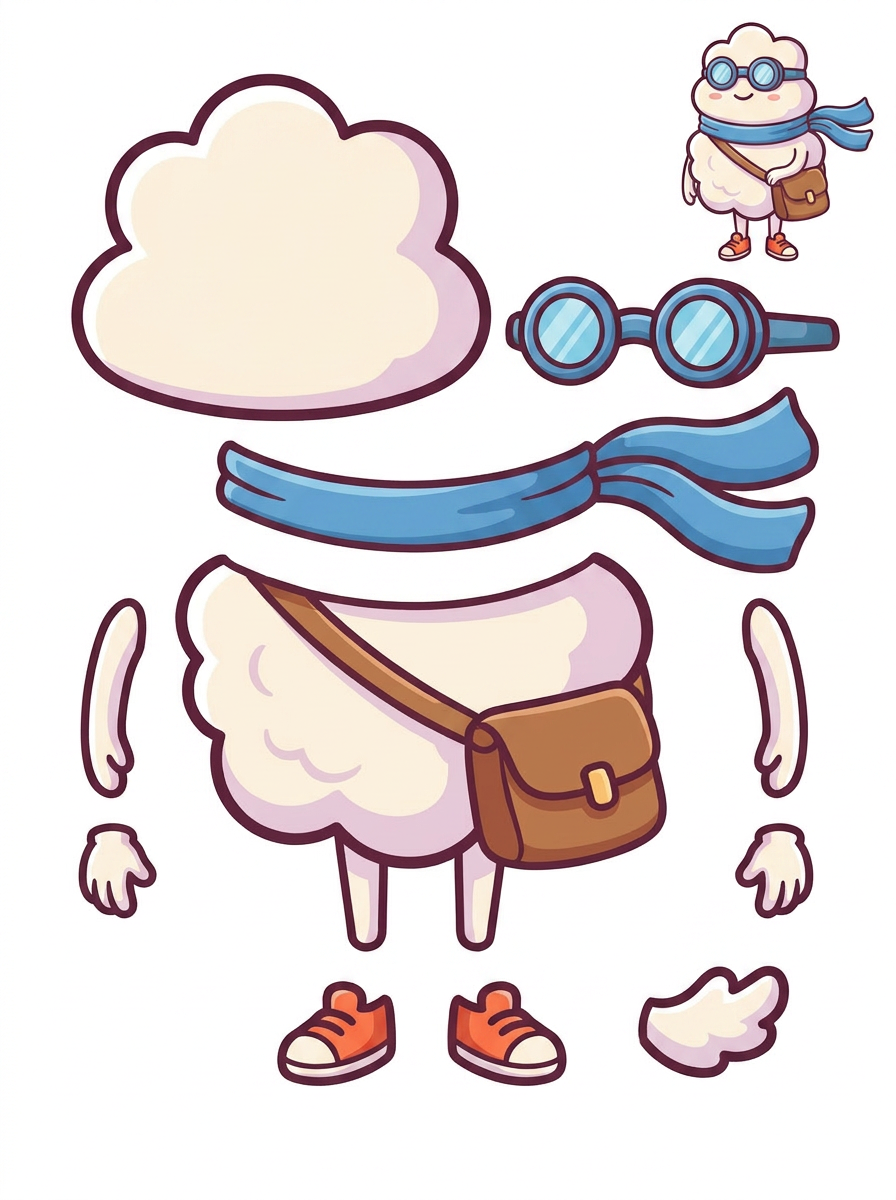
Generated single PNG layer sheet
A practical workflow
Choose one readable gesture
Start with a wave, a gentle body bounce or a scarf sway. For a wave, locate the arm and hand pieces and inspect their joining points. For a body bounce, decide whether the satchel should follow the torso, since this sheet keeps those shapes together.
Check the mascot's outline and attachment points
Compare the isolated scarf and goggles with the source. Look for altered outline thickness or gaps where a hand meets an arm. Decide where a rotation anchor should sit and whether the separated part extends far enough under the neighboring piece to avoid an exposed seam.
Build and preview the motion in your editor
After reviewing the single sheet, check eligibility for the paid extraction pass to individual transparent raster PNGs, ZIP and starter PSD. Align the parts, add your own anchors and animate in your preferred application. Preview the full movement and adjust seams before exporting.
What to inspect
- The scarf stays visually attached while it moves, without revealing a gap at the neck.
- The mascot's thick outline remains consistent around extracted hands and shoes.
- The joined satchel moves with the body unless you manually separate and repair that area.
- The largest movement still looks correct when paused at both ends of the motion.
Know the limits
- A part sheet does not include motion, animation frames, a rig, an animation timeline or export presets.
- Parts can remain fused, and concealed areas may be incomplete. More expressive movement can require manual drawing or a redesigned source illustration.
Related workflows
Prepare character artwork for a game asset workflow. Inspect equipment, fused limbs, overlap and alignment before exporting raster parts to your preferred tools.
Review AI-separated character artwork for a Live2D workflow. Check facial parts, hair overlap, fused clothing and PSD structure before manual material preparation.
Inspect character edges, ground shadows and missing areas before background replacement. Understand where a layer sheet helps and where manual masking is needed.
Questions before you start
Does the tool animate the mascot for me?
No. It generates proposed parts and offers eligible extraction options. You add movement, timing and any rigging in another application, after checking and cleaning the artwork.
Can I animate the satchel independently in this example?
The visible sheet keeps the satchel attached to the torso. Independent movement would require additional manual separation and completion of the body underneath; this example does not demonstrate that result.