

Vector artwork
Image Vectorizer Use the AI image vectorizer, then inspect the SVG.
Read the SVG conversion guide for free, then use the paid-plan image vectorizer with a clean source. Inspect paths, embedded raster content and small edges in the downloaded SVG.
Vectorisation uses a paid-plan gate in the current product. Review access before uploading.
Your workspace
Use the image vectorizer
Vectorisation uses a paid-plan gate in the current product. Review access before uploading.
Trace Pixels To Vectors in Full Colour
Convert your PNG and JPG images to SVG vectors quickly and easily.
Fully automatically. Using AI.
DRAG IMAGE HERE TO BEGIN
01 / A more useful starting point
Simple shapes give you a clearer comparison
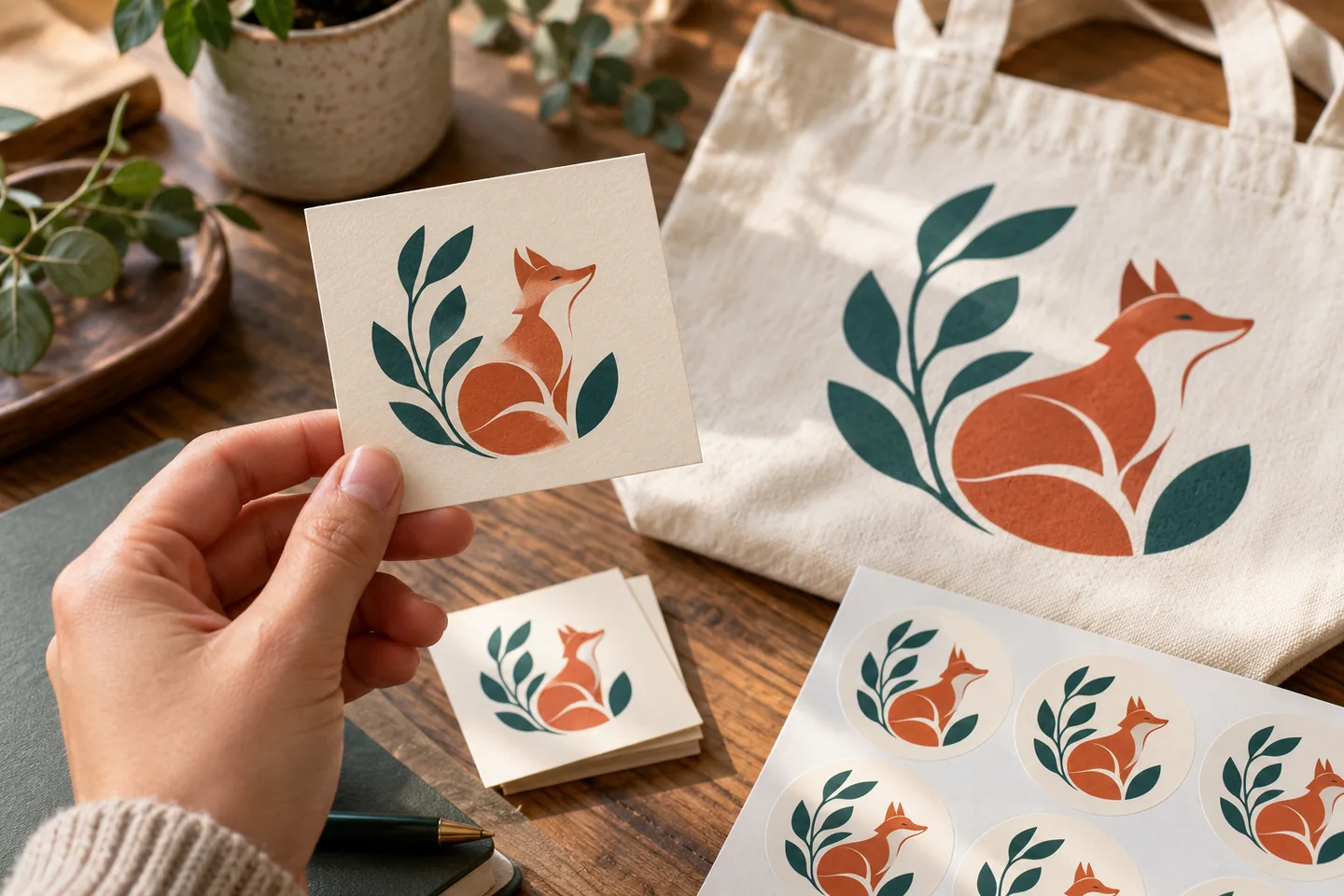
A flat-colour badge or clean line drawing makes it easier to judge whether edges and small shapes were represented usefully. Detailed photographs contain texture that may not translate into a compact set of editable paths.
Try Image Vectorizer02 / A more useful starting point
Check the file as well as the preview
An SVG file can contain vector paths, text and embedded raster images. Open the export in a suitable editor and inspect what was produced rather than assuming the file extension guarantees a fully traced design.
Try Image VectorizerThree practical starting points
Try a brief. Check the result. Tweak one thing.
Try these exercises for Image Vectorizer, with concrete details to inspect. These are suggested exercises, not recorded customer projects.
A flat-colour badge
Suggested brief
Use an original badge with a simple outer shape and a small set of colours.
- What to inspect
- Inspect corners, gaps and the boundary between neighbouring colours.
- What to change next
- Simplify small decorations in the source if they become noisy.
A line-art icon
Suggested brief
Use a clean monochrome icon on a plain background.
- What to inspect
- Zoom into curves, intersections and isolated marks in the exported file.
- What to change next
- Clean the source before converting again instead of repeatedly tracing a noisy result.
A print design handoff
Suggested brief
Convert an original graphic, then open the SVG in the application that will prepare the print file.
- What to inspect
- Check whether the needed parts are actual editable paths and whether text remains usable.
- What to change next
- Use a dedicated vector editor for final cleanup; do not assume this export is print-ready.
From input to a useful output
How to use Image Vectorizer
Start with a small task first, then keep the steps that help your project.
- 01
Choose a clean source
Upload an image you are permitted to convert.
Check: Check paid-plan access first.
- 02
Run the conversion
Use the current vectorisation controls.
Check: Keep a copy of the original image.
- 03
Inspect the preview
Compare edges, corners and important small shapes.
Check: A clean preview is only the first check.
- 04
Download SVG
Open the SVG in your intended editor.
Check: Confirm the contents and perform final cleanup before production.
Choose the approach for your task
| Your goal | Start with | Before you finish |
|---|---|---|
| Flat graphic | Use a clean low-noise source | Inspect colour boundaries. |
| Line drawing | Use high-contrast strokes | Inspect intersections and curves. |
| Photograph | Expect a more complex conversion | Decide whether a vector is the appropriate output. |
Know the boundaries
What to check before you rely on the output
- The current download handler produces SVG. This page does not promise PDF, EPS or DXF exports.
- An SVG extension alone does not prove that every part of the file is a vector path. Inspect the file contents.
- No particular neural-network architecture, proprietary geometry engine or print certification is claimed here.
Image Vectorizer: your questions, answered
What is free, and what requires a paid plan?
This guide and the suggested comparison exercises are free to read. The current vectorisation tool checks for a paid plan before uploading and converting. Check any displayed generation charge as well; a free account alone does not unlock conversion.
What format can I download?
The current download action saves SVG. Use another application if you need a different production format.
Is every SVG a pure vector drawing?
No. SVG supports paths as well as other content, including images. Inspect what your exported file contains.
Will a photograph become a simple icon?
Not automatically. Photographic texture can produce complicated results; use a source close to the design you need.
Can I use it for a print job?
Review and clean the export in your production editor, then follow your printer’s specifications.
What should I do with rough edges?
Clean the source, simplify small details and compare a new conversion. Final path editing may still be necessary.
Sources and further reading
Check the guidance behind the workflow
Each source is linked with its scope. An external reference is not an endorsement or performance certification.
W3C: Scalable Vector Graphics
Defines SVG graphics and scalability. The specification does not certify this tool or guarantee the quality of a conversion.
LlamaGen plans, credits and account support
First-party plan information. Check the selected tool for model access and the cost of each generation; contact [email protected] for account questions.
Continue your creative project
Image Vectorizer
Start with one clear idea.
Vectorisation uses a paid-plan gate in the current product. Review access before uploading.
Try Image Vectorizer