

Creative production
Creative Workflows Organise your next asset in an AI creative workflow.
Read the AI creative-workflow guide for free, then open your signed-in project list. Map a brief, references and expected outputs before using the current workflow editor and its connected services.
Read the planning guide for free. The workflow project list requires sign-in; inspect the current editor, integrations and generation charges before running a project.
01 / A more useful starting point
Start from the project you can actually open
The current entry opens a signed-in workflow project list, where you can create a project or reopen one you already have. Check the editor’s available steps and supported inputs instead of assuming a public template library or a particular node type is present.
Open Creative Workflows02 / A more useful starting point
Review one stage before scaling the job
Write down one input, the asset you expect next and the point at which you will inspect it. Keep each returned file with its prompt or reference. The exercises below are planning patterns, not recordings of a completed automated pipeline.
Open Creative WorkflowsThree practical starting points
Try a brief. Check the result. Tweak one thing.
Try these exercises for Creative Workflows, with concrete details to inspect. These are suggested exercises, not recorded customer projects.
A character-to-scene pipeline
Suggested brief
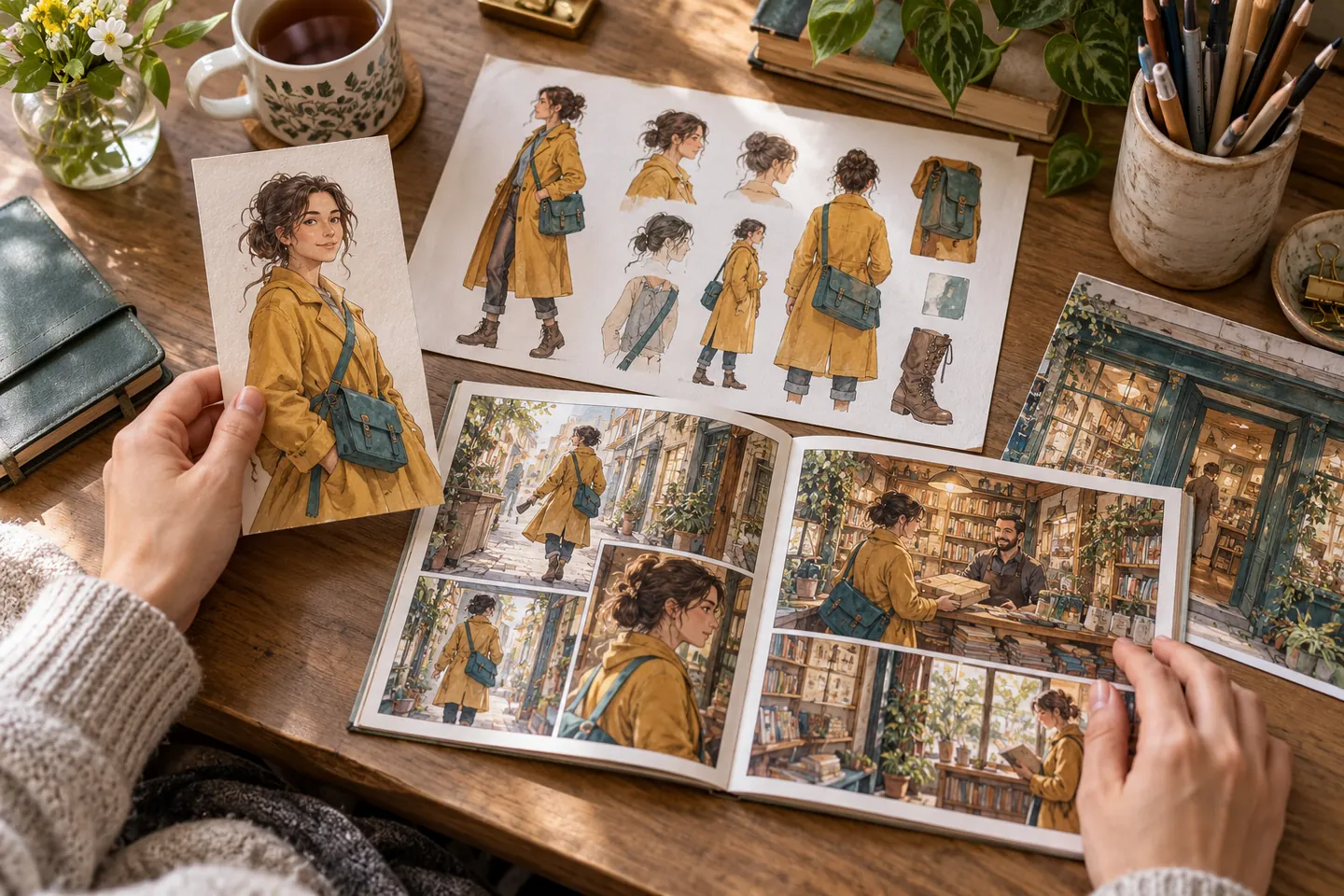
Start with an original character description, select a clear reference and use it to brief a simple bookshop encounter.
- What to inspect
- Check whether the scene step receives the intended character image and description.
- What to change next
- Fix the source reference rather than rewriting every downstream prompt.
A script-to-storyboard exercise
Suggested brief
Use four beats: arrival, discovery, reaction and decision. Inspect how each beat maps to the planned image request.
- What to inspect
- Look for one visible action per beat and a clear camera change where needed.
- What to change next
- Split an overloaded beat before generating more images.
A reusable setting workflow
Suggested brief
Create one environment brief with a chosen camera angle and palette, then adapt it to morning and evening scenes.
- What to inspect
- Compare the camera and major landmarks in the outputs.
- What to change next
- Keep the shared brief stable and change the lighting request separately.
From input to a useful output
How to use Creative Workflows
Start with a small task first, then keep the steps that help your project.
- 01
Open or create a project
Sign in to the workflow project list and choose the current create or reopen action.
Check: This entry is /workflows, not the removed /workflows/templates library.
- 02
Review the available steps
Check the current editor and define the prompt, references and intended output for each step.
Check: Confirm that a downstream step accepts the file or data produced upstream.
- 03
Check access and run a small task
Review required integrations, account access and any generation charges before execution.
Check: Only run the capabilities actually exposed by the current editor.
- 04
Review before reusing
Inspect each useful output and keep its source brief or reference alongside it.
Check: A saved project does not establish a measured speed or consistency gain.
Choose the approach for your task
| Your goal | Start with | Before you finish |
|---|---|---|
| Character continuity | A stable reference before scene generation | Inspect identity at each image step. |
| Storyboard draft | One visible beat per request | Check scene order and framing. |
| Setting variations | A shared environment brief | Change light without replacing the composition. |
Know the boundaries
What to check before you rely on the output
- The suggested input-to-output patterns below are not a verified run or a promise that the current editor includes every proposed connection. Inspect supported steps before building the project.
- Template availability and controls can change. Inspect the current workflow before running it.
- This page does not claim measured time savings, a particular node count or an unverified approval system.
Creative Workflows: your questions, answered
Where should I start?
Sign in at /workflows, create a project or reopen an existing one, and inspect the editor’s current options. The former public /workflows/templates entry is no longer available.
Should I run a long chapter first?
A small task makes it easier to spot mismatched references or overloaded scene descriptions before scaling up.
Why review intermediate results?
An early error can affect later steps. Fix the source stage when a character, setting or framing begins to drift.
Can I reuse a workflow?
Reopen an existing project and inspect its current inputs and available steps before adapting the brief. Do not assume that an old template or integration is still available.
Does a workflow guarantee consistent characters?
No. Use stable references and review the result at each relevant step.
What can I do for free?
Read this planning guide and draft an input-to-output checklist for free. Access to the project list requires sign-in, and connected generation or external services can have their own charges. Review those costs in the editor.
Sources and further reading
Check the guidance behind the workflow
Each source is linked with its scope. An external reference is not an endorsement or performance certification.
LlamaGen: create and review a first comic
First-party instructions for reviewing panels, correcting a draft and checking available exports. Model costs and controls differ across workspaces; this guide is not a result from this page.
LlamaGen plans, credits and account support
First-party plan information. Check the selected tool for model access and the cost of each generation; contact [email protected] for account questions.
Continue your creative project
Creative Workflows
Start with one clear idea.
Read the planning guide for free. The workflow project list requires sign-in; inspect the current editor, integrations and generation charges before running a project.
Open Creative Workflows