

Working music visualizer · browser-only export
Turn your own music into a live visualizer
Upload a recording you own, play it to animate a live frequency spectrum, and record the animation as a downloadable video containing the original audio. A lightweight creator tool runs locally in your browser, with an optional path into LlamaGen's AI music-video Studio for cinematic scenes.
This page includes a working, local audio/video creator. It processes rights-cleared files in your browser and offers video export where supported. For AI-generated cinematic scenes, the separate Studio workflow is also available below.
Try the audio-reactive visualizer
See your own music drive a frequency spectrum in real time. Record a video with your audio directly in the browser.
Try a 12-second synthetic percussion demo. These files are provided for trying this tool; no artist recording or third-party song is included. Confirm permission above, then load the files and use the preview or record controls.
No account, upload server or paid credits needed for the simple browser export. For cinematic generated scenes, use LlamaGen Music to Video Studio below.
All processing remains in your browser; no audio is uploaded to this page.
Exports use your browser's supported WebM or MP4 MediaRecorder format. Beat detection is approximate, not frame-accurate BPM analysis; video may not loop perfectly. Browser compatibility and export limits vary.
The creator's challenge
An independent musician needs an immediately usable visual accompaniment without managing a heavyweight timeline or licensing someone else's song.
The browser tool above only opens your own local files, without downloading songs from music platforms or sending your audio to our server. For cinematic generated scenes, you can separately upload your music in LlamaGen Studio.
Published by the LlamaGen product team · About us
Start with your visual brief
See the finished idea in everyday life
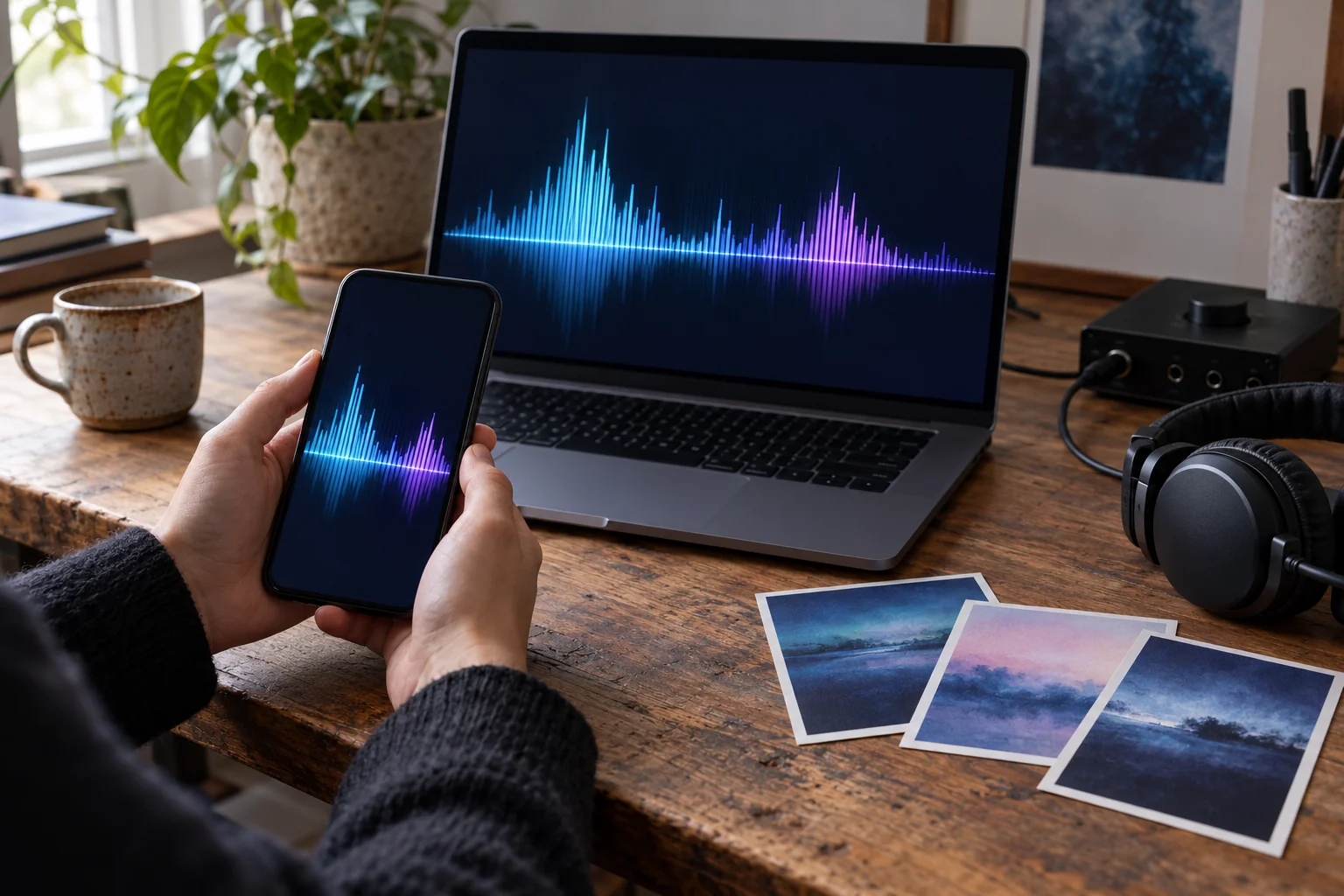
Check the finished visual on a phone as well as a laptop
What to check on your own result
- Use your own short audio clip, export it, then reopen the downloaded video to confirm that it contains sound.
- For beat cuts, listen through several transitions and adjust your images if estimated attack points do not match the musical phrase.
AI-generated use-case illustrations, not customer photos or verified tool outputs. Physical items show presentation ideas; printing and delivery are not included.
A practical workflow for this project
The steps below describe production decisions, not unverified one-click product promises.
- Step 1
Choose your original recording
Confirm you have permission to use and distribute the audio, then select a supported audio file smaller than 25 MB and under three minutes.
- Step 2
Preview audio-reactive motion
Press Play live preview. The browser's Web Audio analyser turns changing frequency energy into animated spectrum bars.
- Step 3
Record and download the result
Use Record video with audio; the canvas recording and your audio are encoded locally using the browser's supported MediaRecorder format.
- Step 4
Check distribution requirements
Review audio sync, text, final video playback and the target service's accepted format before publishing. Open LlamaGen Studio for AI-generated story scenes.
Before you start
Check a local spectrum recording before sharing it
The on-page renderer turns frequency data into moving bars. Its visual response is a browser-audio operation; AI-generated story scenes use the separate Studio workflow.
The examples below are authored planning exercises. They are not customer testimonials or completed Studio-generated music videos. The browser-tool demonstrations use synthetic audio and original geometric pictures.
Have these ready
- A local audio recording you may use, within the displayed 25 MB and three-minute limits.
- A supported browser with working audio playback, canvas capture and MediaRecorder encoding.
- Headphones or speakers so you can check the downloaded video's audio as well as the preview.
What to check yourself
- The free browser tool needs no account or paid generation credits; opening Studio is a separate workflow with its own settings and costs.
- Select an accepted audio file rather than a streaming link, and review the exported file rather than relying only on the live preview.
- Treat the format name as a container choice, not a guarantee that every device or publishing service supports its codecs.
Hypothetical check plan: a ten-second original instrumental
Assume a creator-owned ten-second instrumental with a quiet opening and a stronger middle. This describes checks to perform, not a published browser-compatibility result.
| Stage | Plan | Review |
|---|---|---|
| Preview · compare sections | Play the opening and the stronger middle in the local spectrum preview. | Look for changing bar activity; spectral motion does not establish accurate beat tracking. |
| Record · keep the page active | Start the local recording from the beginning and let the chosen excerpt play. | Recording follows playback in real time; keep the page active and watch for interruptions. |
| Replay · inspect the file | Download and open the resulting file in a separate player. | Confirm there is audible music, moving video and a usable ending before sharing or converting the file. |
This is a reproducible review procedure, not a claim that this exact recording was tested. Device, browser and output compatibility must be verified on the actual file.
What this preparation gives you
- On compatible browsers, a local audio-backed recording of the standard spectrum design.
- The current local canvas is 960 × 540 landscape at a requested 24 frames per second and includes a LlamaGen footer; it is not a selectable vertical export preset.
- A browser-selected WebM or MP4 file, which may need conversion for your publishing destination.
References for this workflow
- MDN: AnalyserNode
Explains the real-time frequency data used for audio visualization; it does not provide a machine-learning or beat-accuracy claim.
- MDN: MediaRecorder
Documents browser recording, container selection and varying API support; actual output still needs playback verification.
Workflow notes reviewed:
Creative decisions that help
- Choose a recording with clear dynamic changes to see more interesting spectral movement.
- Preview the full track before exporting; loudness normalization can affect how spectrum bars appear.
- Some services need an MP4 transcode if your browser exported WebM; this tool does not promise platform-ready encoding for every distributor.
What this does not promise
- WebM or MP4 export depends on your browser's MediaRecorder and canvas-capture support; browser compatibility is not universal.
- The built-in spectrum is audio-reactive, but not a perfect beat detector or a one-click Spotify Canvas publisher.
- The free local renderer uses a standard visualizer style. AI-generated cinematic scene creation remains a separate LlamaGen Studio workflow.
Rights, costs and a real team behind the tool
Only supply audio, lyrics, images and references you own or have the permissions needed to modify and publish. A subscription or AI-generated output does not grant licenses to third-party music. Check the current plan and expected credit use inside Studio before generation; output may require manual review.
In many cases, the musical composition (including lyrics) and the sound recording are different rights. See the U.S. Copyright Office explanationThis is general information, not legal advice or a license clearance service.
Часто задаваемые вопросы
- Does the visualizer actually respond to my uploaded track?
- Yes. The browser reads the audio frequencies during playback and animates the spectrum bars in real time.
- Can I export the video with my own audio?
- Yes, in compatible browsers. The browser records a video canvas with the original audio track and offers a local WebM or MP4 download.
- Does the tool upload my music to LlamaGen?
- No. The on-page visualizer handles the file locally. Only if you separately open the LlamaGen Studio and upload audio there does the Studio upload workflow apply.
- Can I use a streaming song link?
- No. Select an audio file you own or have sufficient permissions to use.