

Photo to anime · Troubleshooting
Fix the starting point before repeating a conversion
Diagnose photo-to-anime issues such as lost likeness, blurry faces, distorted glasses and group-photo mistakes with specific, observable adjustments.
By LlamaGenPublished
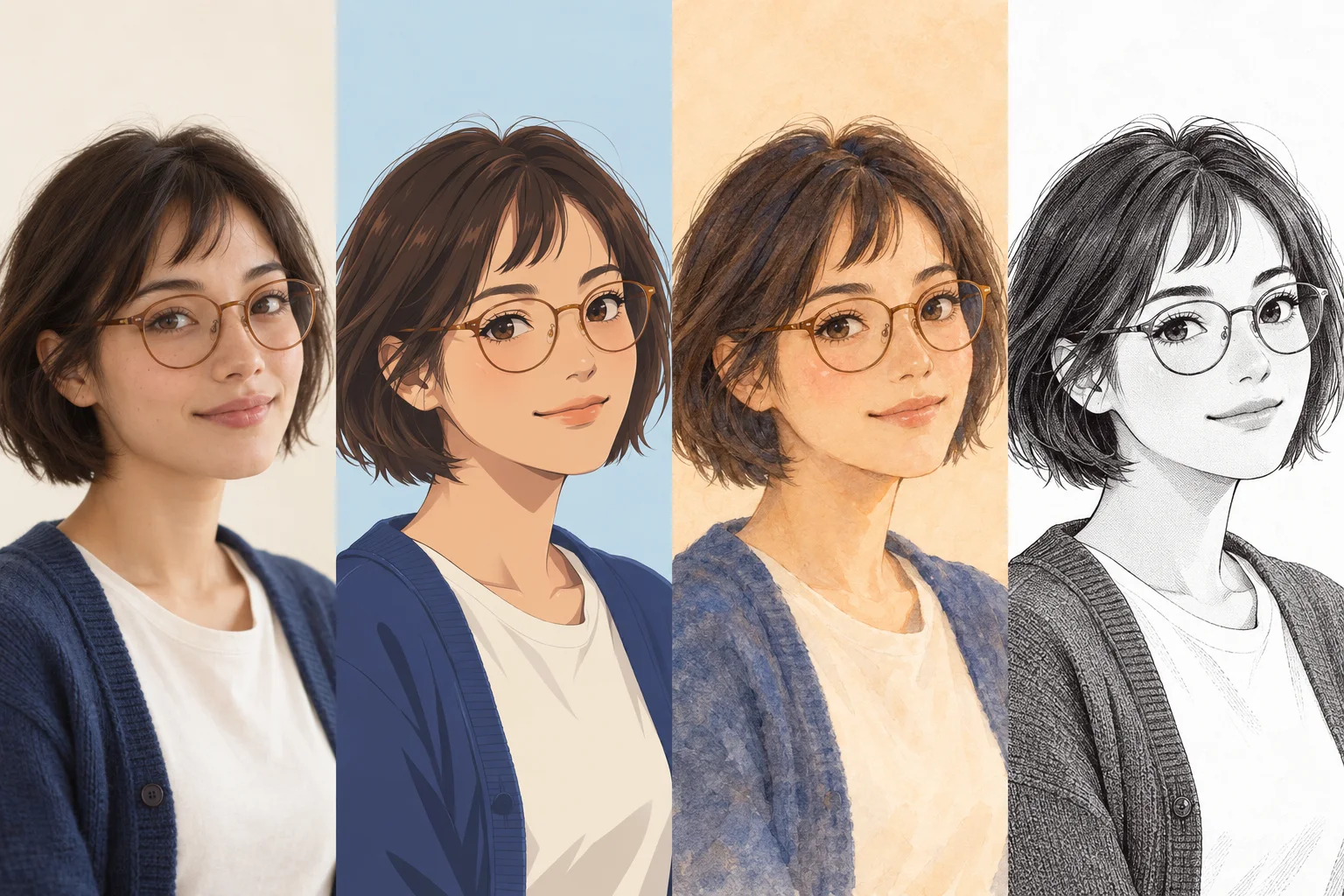
Start with a comparison you can describe
Keep the original photo visible beside the result. Replace “it looks wrong” with a specific observation: the glasses lost one rim, the eyes face different directions, the hair is cropped, or a person is missing from the group. Pick the most important issue first.
Note the reference, crop and style direction. Change only one of those for the next attempt and inspect the same feature again. This is a practical review method, not a guarantee that a particular edit will fix every output. These scenarios have not been presented as measured tool tests.
Match the visible issue to a useful next change
Check the source before assuming the problem comes from the style. If the original does not show a detail clearly, the result cannot reliably establish what it should have been.
- The face no longer resembles the person
- Name the lost cue: hairstyle silhouette, jaw shape, eye spacing or expression. Keep the crop, then try a simpler style direction or a clearer source, one at a time. Compare that cue directly; more decorative detail is not proof of better likeness.
- The face is blurry or looks smeared
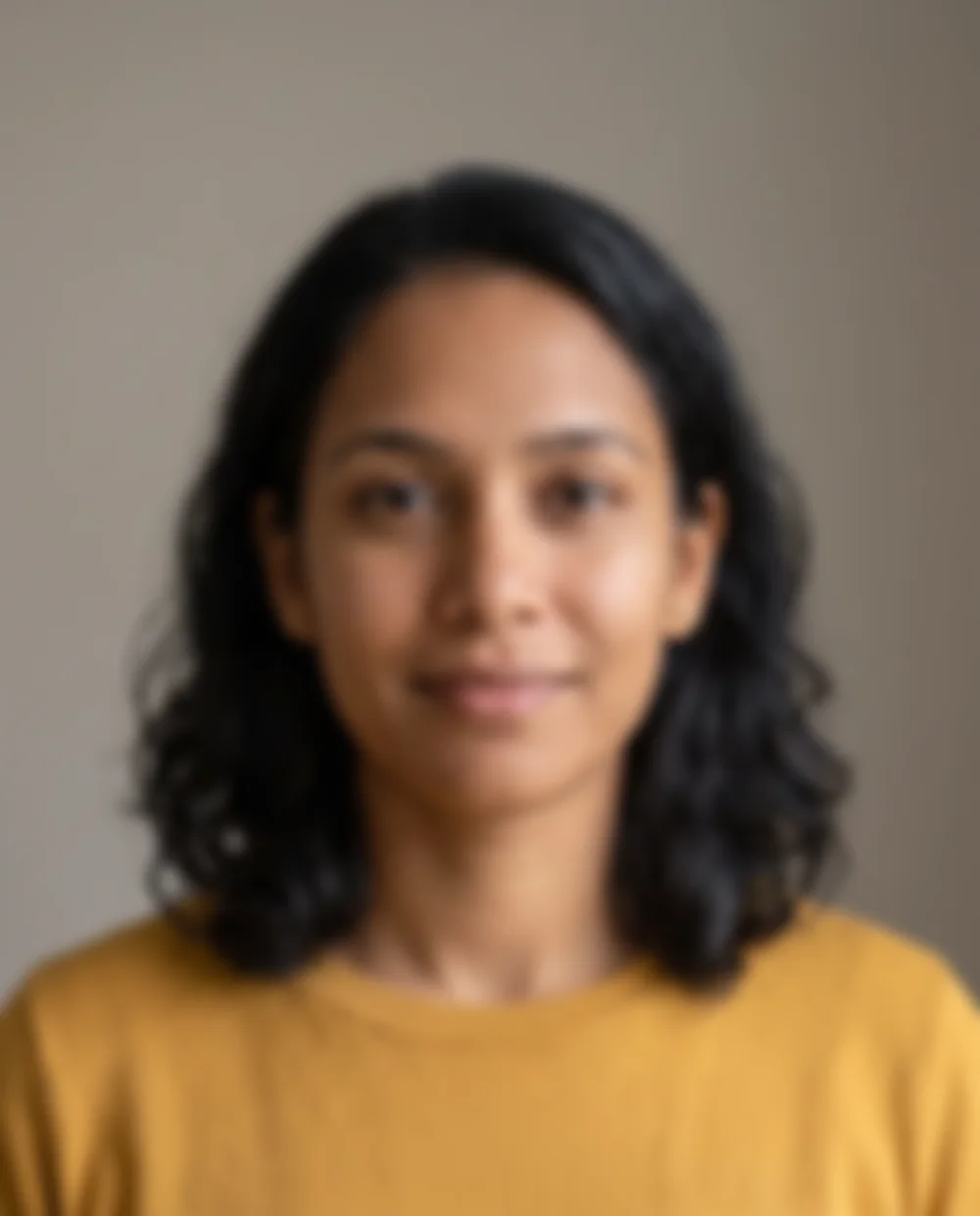
- Inspect the original at full size. If the eyes and mouth are already soft, replace the source with a sharper original. If the source is clear, compare a tighter crop that gives the face more space, without cutting off the hair or chin.
- Glasses or earrings are distorted
- Look for lens glare, hair covering the frames, or accessories merging into shadows. Try a reference where the whole accessory is visible. Review both sides, the bridge and the contact points with the face before accepting the result.
- A group has the wrong people or overlaps
- Count the people and check their left-to-right order. Use a closer group source if faces are tiny, or work from separate authorized portraits if the intended composition allows it. Inspect shared boundaries such as shoulders, arms and overlapping hair.
- The avatar crop cuts off the subject
- Preview the result in its actual circular or square frame. Add space around the source crop and keep the eye line centered appropriately. Recheck the outer hair and chin rather than choosing solely from a large rectangular preview.
Separate lighting issues from background choices
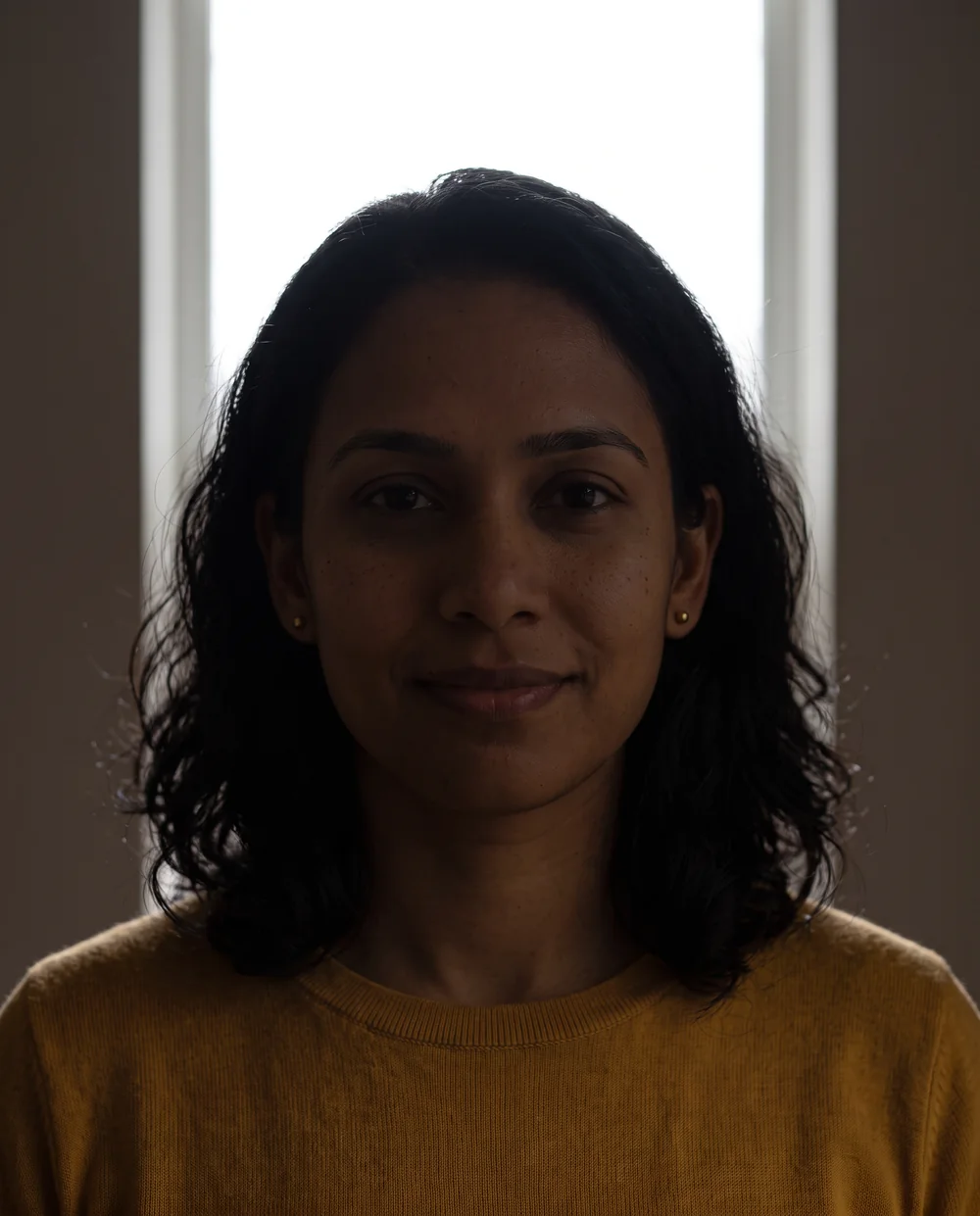
For a backlit portrait, first check whether the eyes and facial contour are visible in the original. A different, evenly lit photo is often a more informative reference than aggressively brightening a dark face. Heavy edits may expose noise without recovering dependable detail.
If dark hair disappears into a dark background, try a simpler, lighter background direction while keeping the portrait crop. If the face is readable but the picture feels too busy, remove background demands before changing facial features. Adobe’s portrait guidance offers general composition and lighting context, not product-specific troubleshooting.
Reusable creative brief
Observation: the dark hair blends into the background. Keep: face, glasses, expression and crop. Change only: a simpler, lighter background. Review next: a clear outer hair edge and readable glasses. Use this as a planning brief if the interface has suitable controls.
Know when to change the source or stop
If the same important detail remains unclear across attempts, return to the reference instead of adding more requests. Try another authorized photo with a more visible face, fewer obstructions or a closer composition. Keep the previous result so you can judge whether the source change helped.
For a failed upload, check the format, size and displayed error. At publication (October 25, 2026), the Photo to Anime product page lists JPG, PNG and WebP up to 10 MB; follow current on-screen requirements if they change. The service terms require an account. If the issue persists, contact LlamaGen with the error and triggering steps; do not send sensitive photos unnecessarily. Check current pricing, upload handling and usage terms on the linked official pages.
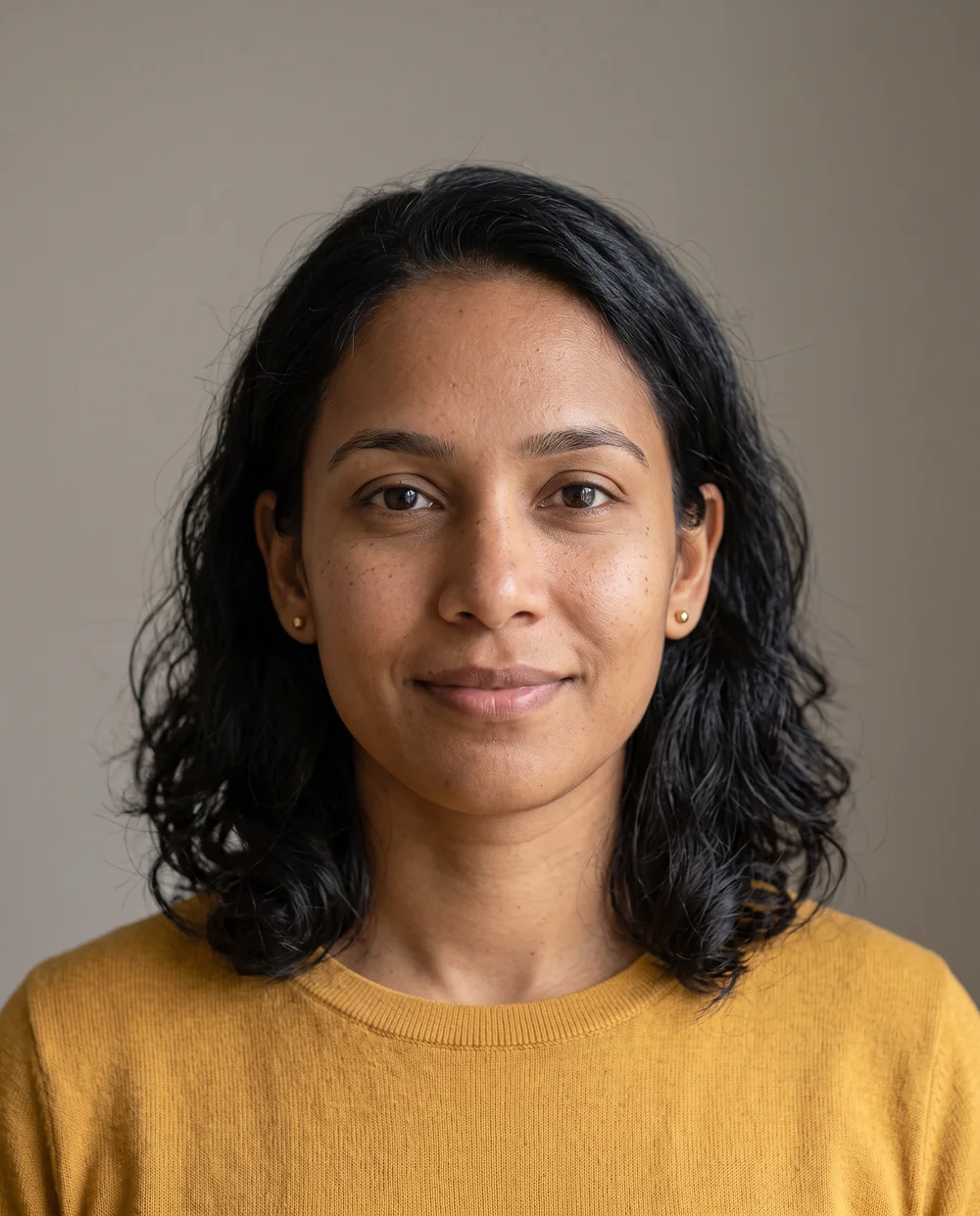
What a useful reference makes visible
These synthetic portraits illustrate input-quality differences. They are not uploaded customer photos or measured conversion results.
Frequently asked questions
Why do the glasses look different after conversion?
Reflections, occlusion and fine frame lines can make glasses hard to interpret. Anime stylization can also simplify them. Start with a source showing both rims and the eyes, and review the bridge and symmetry in the result.
Can I fix a blurry photo just by choosing another style?
Another style may change how blur looks, but it cannot reliably recover missing facial information. Prefer a sharper original and compare the face at full size before trying a new visual direction.
What should I change if the person does not look recognizable?
Choose the specific feature that changed most. Keep the crop consistent and try either a clearer source or a simpler direction. Compare that feature after each attempt rather than changing the source and style together.
What if the upload fails?
Check the file and error message. On October 25, 2026, the Photo to Anime page lists JPG, PNG and WebP up to 10 MB; current on-screen requirements take precedence if changed. The service terms require an account. If it still fails, contact LlamaGen with the error text and reproduction steps.
How this guide was prepared
LlamaGen prepared this guide using its published product information and general portrait and illustration principles. The scenarios are practical editing suggestions, not documented hands-on tests. Illustrations are synthetic and do not demonstrate converter performance. Check the current tool, pricing and policies before uploading.
Sources and policies
Keep exploring
How to turn a photo into anime
Choose a clear portrait, plan the anime look, and review likeness with a practical photo-to-anime workflow for selfies, glasses and group photos.
Choose an anime direction for your portrait
Compare cel anime, watercolor and monochrome manga directions, with creative briefs and practical criteria for portraits, avatars and group images.