Prepare character artwork for a game asset workflow. Inspect equipment, fused limbs, overlap and alignment before exporting raster parts to your preferred tools.


Transparent PNG workflow
Prepare transparent PNG parts from a layer sheet
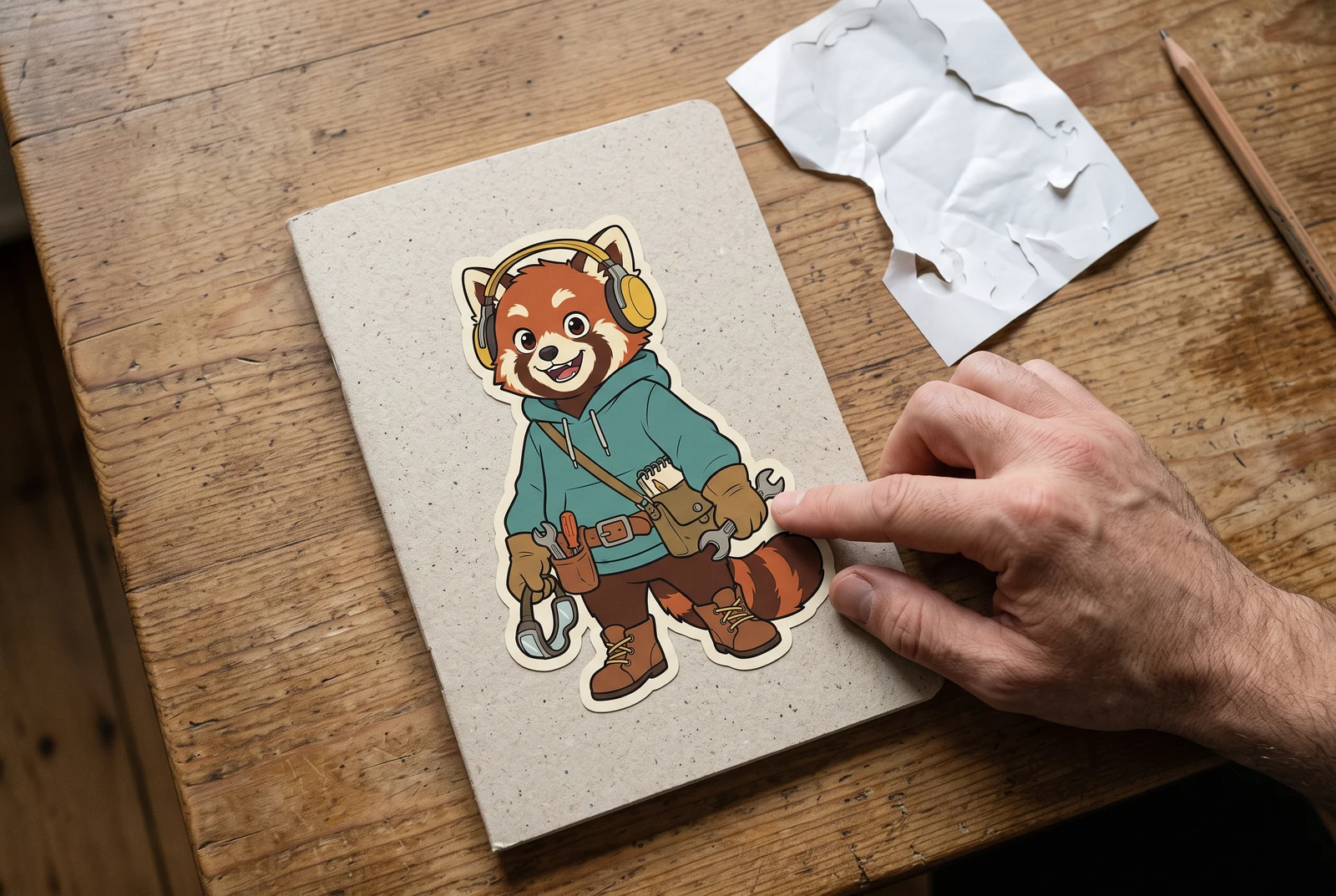
AI-generated lifestyle concepts. Printed pieces and device scenes illustrate possible downstream uses after manual preparation; they are not customer photos or verified export or rigging results.
Use transparent PNG parts when you need to move a character's accessories, replace a prop or build a simple composition in an image editor. Start by checking whether the generated sheet contains the parts you need. A sheet that visually separates a head, sleeve and tail is still one image; it is not yet a folder of independent assets with verified alpha transparency.
For illustrators, designers and creators who need reusable raster parts from a flattened character image.
← Back to all layer splitting guidesSee the finished artwork in everyday life
Explore how prepared character artwork could appear on personal prints, devices and coordinated creative sets.
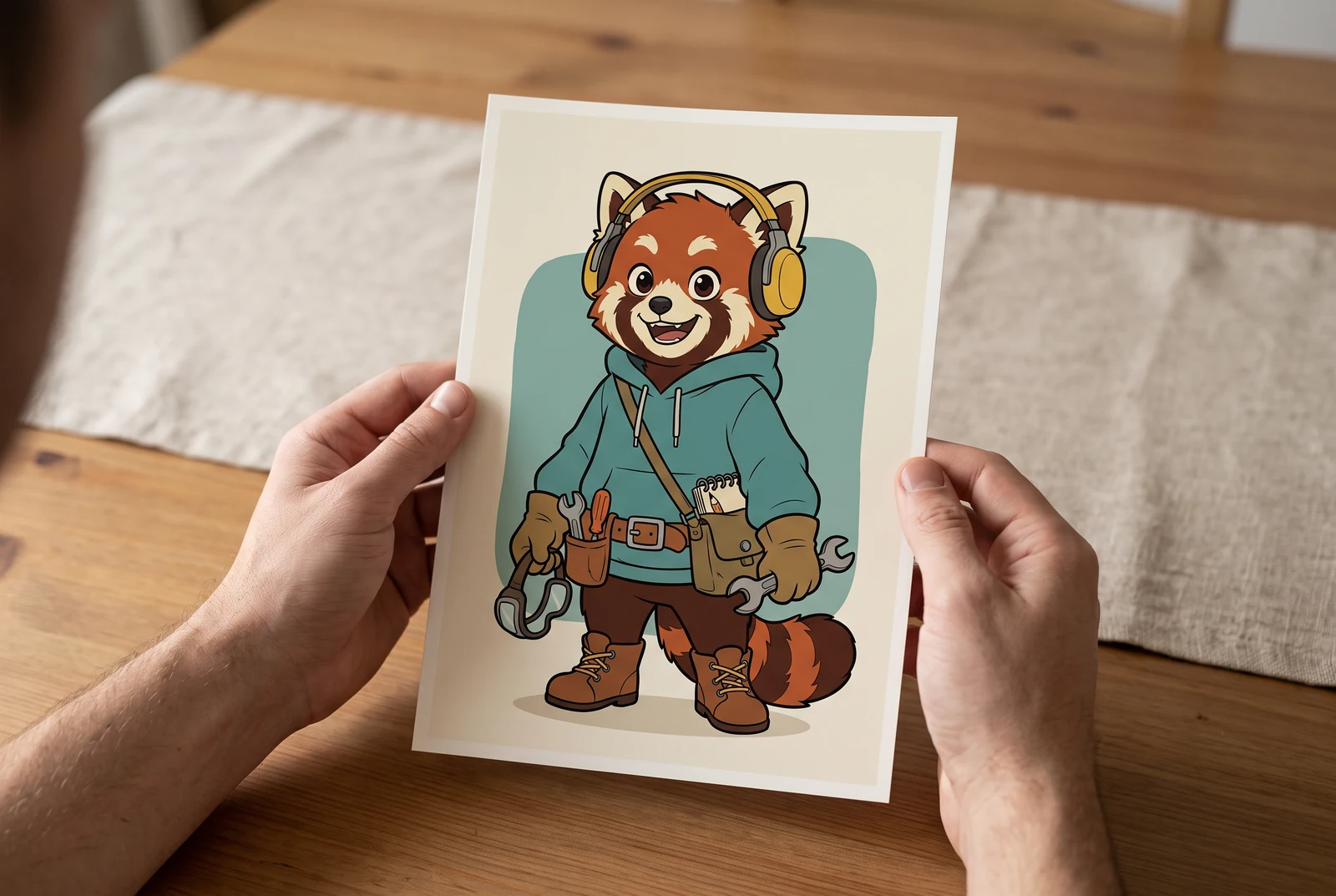
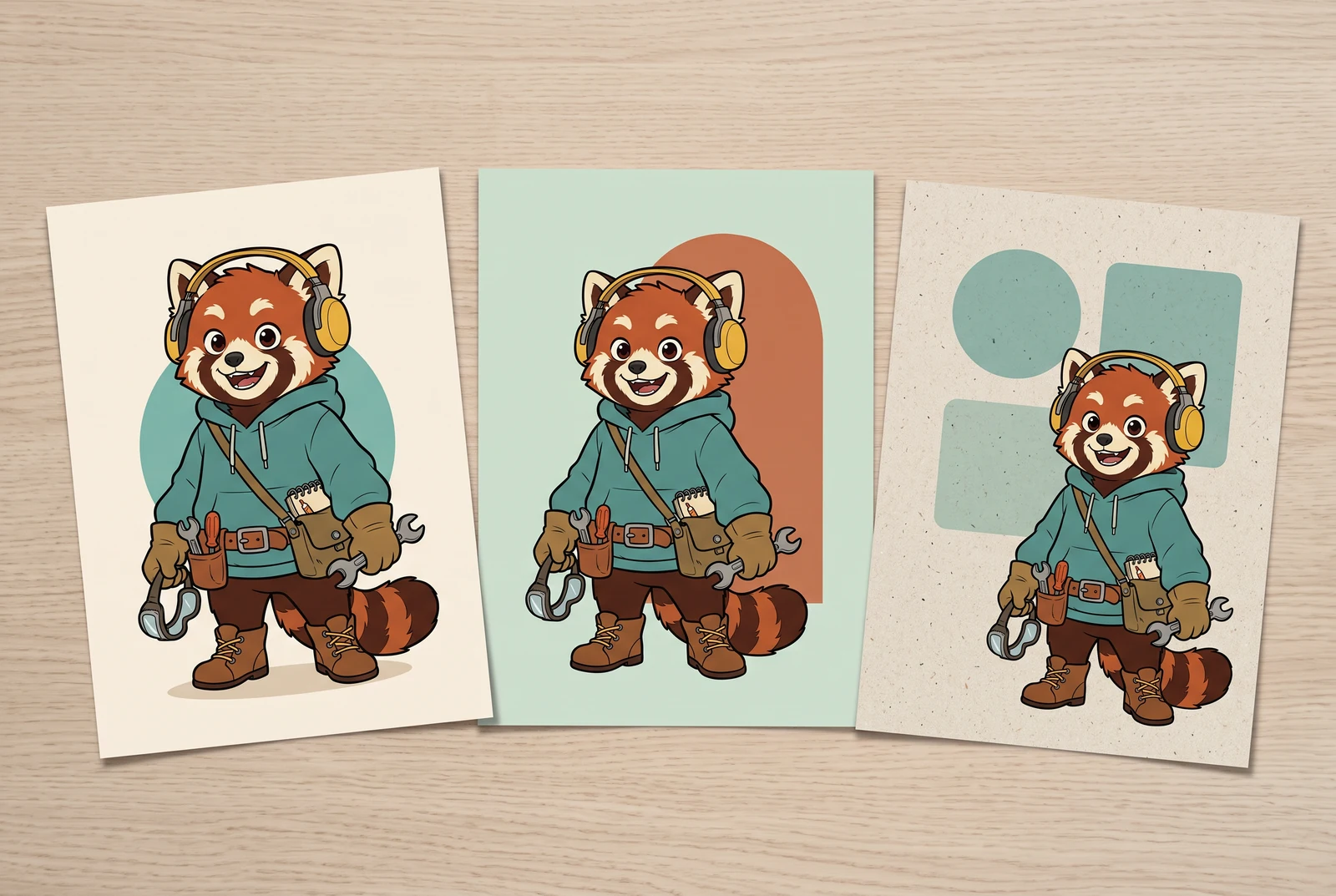
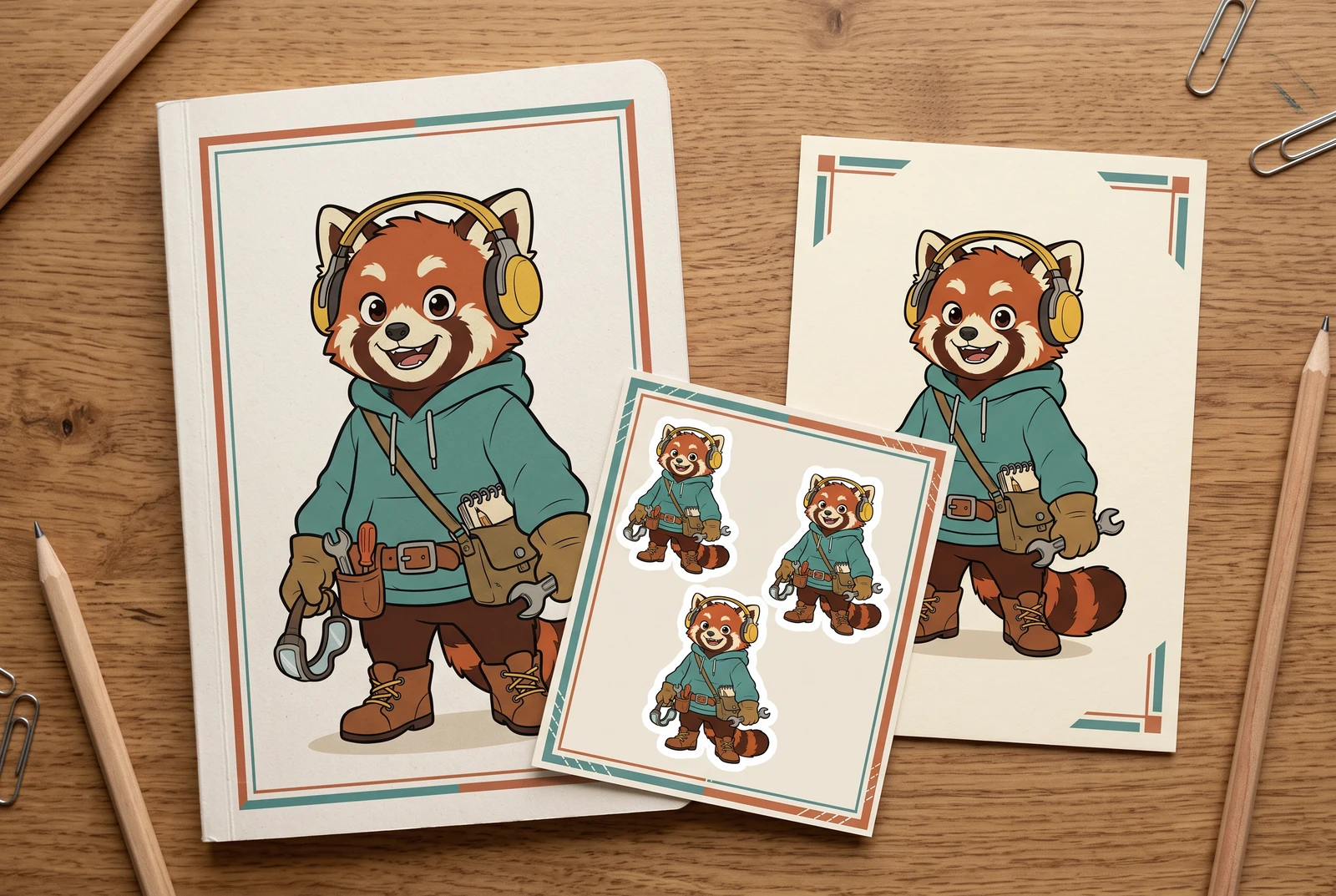
AI-generated lifestyle concepts. Printed pieces and device scenes illustrate possible downstream uses after manual preparation; they are not customer photos or verified export or rigging results.
Inspect the published layer-sheet example
Gallery example: this comparison shows a source image and one generated PNG sheet. It does not demonstrate individual extracted PNG files, a ZIP, or a PSD.
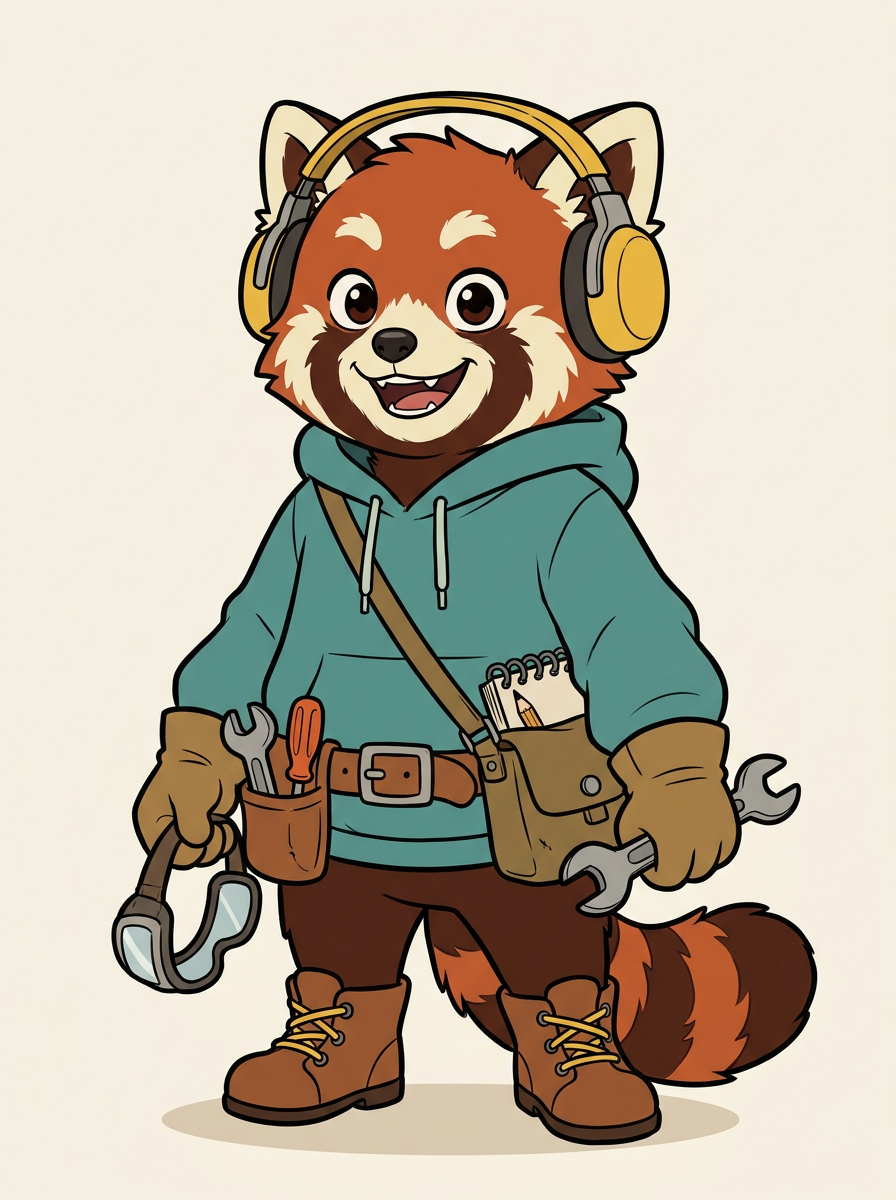
Original character image
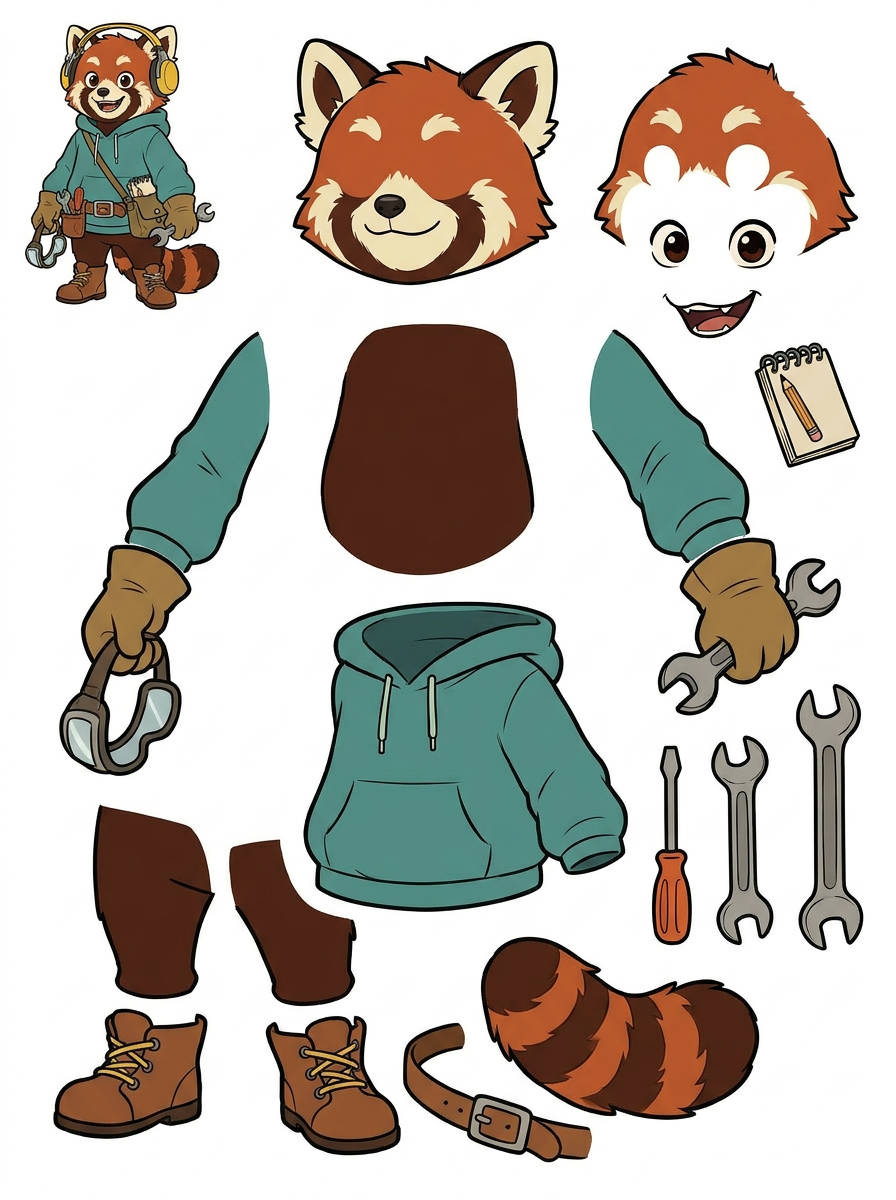
Generated single PNG layer sheet
A practical workflow
List the pieces you actually need
Before generation, name the edits you want: move the tail, replace a wrench or place the head over a new body. Compare that list with the sheet. Do not count a tool held inside a glove as an independent prop until you inspect the boundary.
Review the sheet, then choose extraction
The first result is one PNG sheet. Free-plan generation uses credits, and PRO offers an improved sheet option. If the arrangement is useful, an eligible paid second extraction pass can create individual transparent raster PNGs, a ZIP and a starter PSD. Confirm eligibility in the live tool.
Inspect the actual files on contrasting backgrounds
After extraction, place each useful PNG over light and dark backgrounds in your editor. Zoom in around fur, laces and tool handles. Fix halos, stray pixels or clipped edges, then place the parts together to check whether their shapes and relative scale still match.
What to inspect
- The PNG has real transparent pixels, rather than a white or patterned background baked into the image.
- Thin wrench handles and headphone edges survive extraction without unwanted gaps.
- Parts that overlap in the source have enough artwork to support the intended edit.
- The rebuilt character has consistent scale, color and alignment before you export a composition.
Know the limits
- A flattened image does not reveal the original hidden artwork. Moving an arm can expose a missing area that needs manual painting.
- PNG and starter PSD outputs contain raster artwork, not recovered source layers, native text or editable vector paths.
Related workflows
Review AI-separated character artwork for a Live2D workflow. Check facial parts, hair overlap, fused clothing and PSD structure before manual material preparation.
Plan simple mascot motion using separated raster parts. Inspect scarf, arms, shoes and body overlap before extraction, cleanup and animation in your editor.
Inspect character edges, ground shadows and missing areas before background replacement. Understand where a layer sheet helps and where manual masking is needed.
Questions before you start
Is a PNG layer sheet the same as a transparent PNG export?
No. The sheet is one image containing proposed parts. Review transparency in the files from the separate extraction step; the gallery comparison alone cannot establish export quality.
Can I edit each part in Photoshop?
You can place raster PNGs into separate layers, or continue from the starter PSD when available. You still need to check placement and edges. Text and vector objects are not recreated as native editable objects.