

AI Sketch to Image
Give your drawing a new finish. Upload a sketch or line drawing, choose a style, and explore images shaped by your original idea.

Source sketch
Upload a sketch
JPG, PNG, or WebP. Use a rough drawing, line art, or layout sketch you own.
Finished image
Your finished image appears here.
Choose a model
300 creditsStyle preset
Outputs
Sample sketches
Start with the shapes you already have
A sketch gives your image a starting point: a pose, a silhouette, or the layout of a scene. Upload your drawing and use sketch fidelity to guide how closely the AI follows it. Keep the main shapes clear, then review the result for changes to proportions and details.
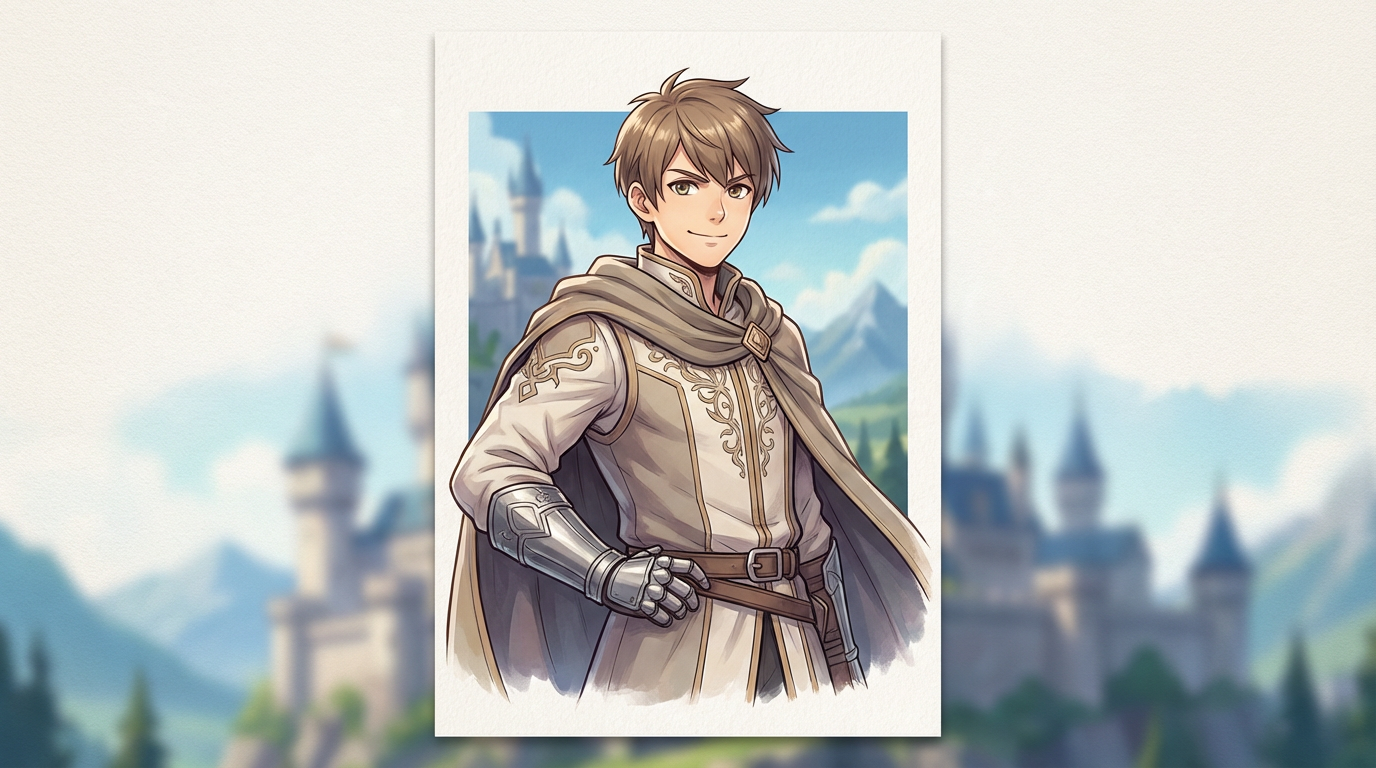
Explore the finish you have in mind
Try anime concept art, comic panel artwork, a product render, or storybook color. Add a direction for lighting, materials, or mood, and use creative finish to guide the amount of detail. The illustration shown here is a style reference, not the result of converting the sample drawing.
Review, refine, and download
Your original drawing stays beside the generated image so you can check the composition. Zoom in, download the result, or adjust your direction and generate again. Paid plans also let you request multiple outputs to compare in one run.
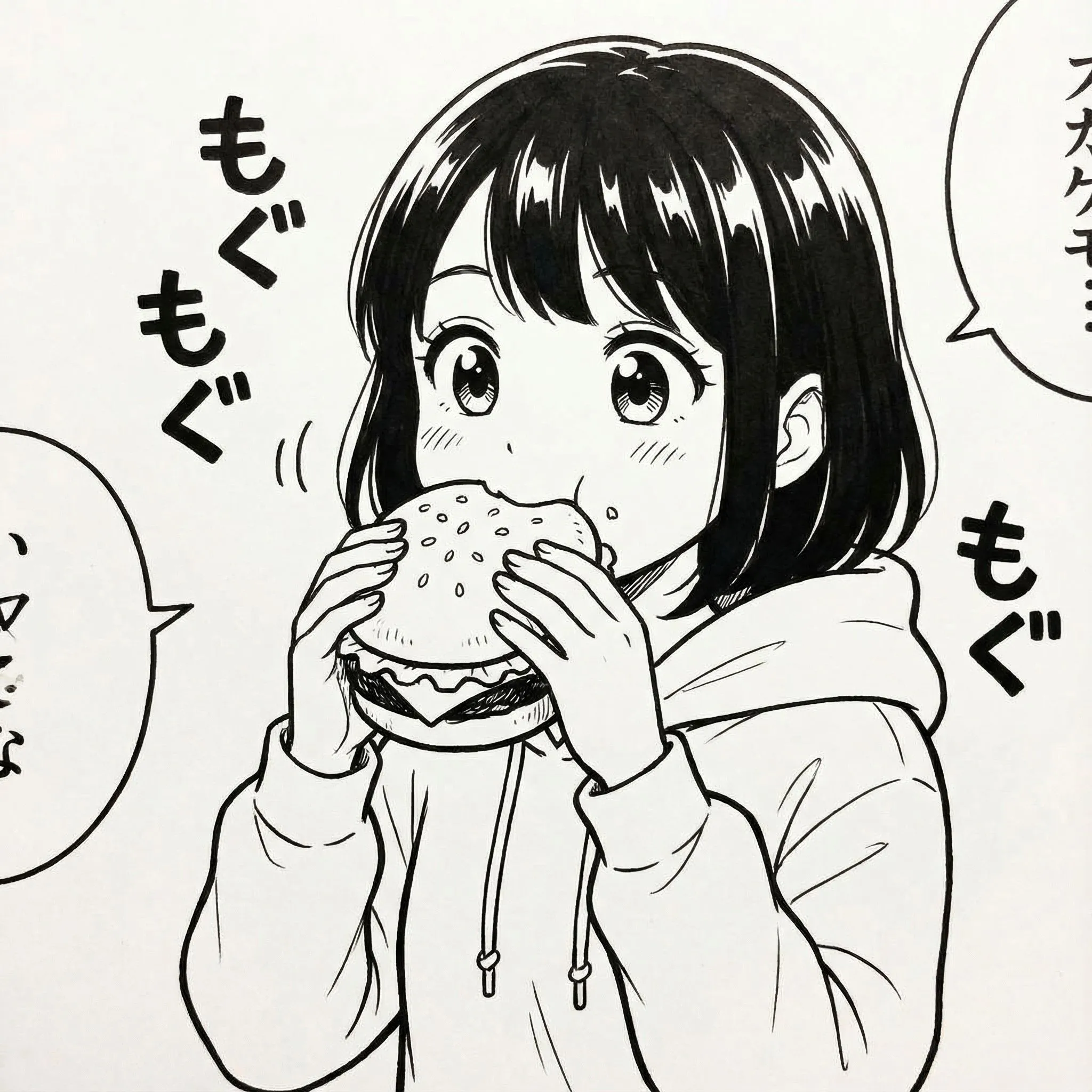
Make room for your next visual idea
Explore a character's appearance, test the mood of a scene, or develop an object sketch for a concept presentation. Use the image as a visual draft for your next illustration, comic, or design project. This manga artwork is an example of a character-focused project.
How to turn a sketch into an image
1Upload your sketch
Sign in and upload a JPG, PNG, or WebP drawing up to 16MB. You can also choose a sample to explore the controls.
2Choose the finish
Choose an anime, comic, product, or storybook style. Describe the result you have in mind, then adjust sketch fidelity and creative finish.
3Generate and review
Select a model, check the credit cost, and generate your image. Review it beside the original sketch and zoom in to inspect the details.
4Download your image
Use the download button on the result. To explore another direction, adjust the style or description and generate again; each run uses credits.
Frequently asked questions
What is Sketch to Image?
Sketch to Image uses an uploaded drawing as a reference for an AI-generated image. Choose a visual style, describe the finish you want, and review the result beside your source. Upload an existing drawing or choose a sample; this page does not include a drawing canvas.
Will the result keep my sketch's composition?
The tool requests an image with the same aspect ratio and uses your sketch to guide pose, silhouette, framing, and object placement. Sketch fidelity changes how strongly the instructions emphasize those details. AI results can still change proportions or add details, so compare the output with your drawing.
Which drawings and file types can I use?
Upload a JPG, PNG, or WebP image up to 16MB. Rough sketches, clear line drawings, character poses, scene layouts, and product drafts are useful starting points. Sign in to upload your own image.
Which styles can I choose?
The available presets are Anime concept, Comic panel, Product concept, and Storybook color. Add a description for the colors, lighting, materials, or mood you want. Creative finish changes the instructions for added detail and style exploration; it does not guarantee an exact result.
What do Pro models unlock?
Pro Fast and Pro are additional model choices available on paid plans. Paid plans also allow multiple outputs per run. Check the selected model and total credit cost before generating.
How many credits does Sketch to Image use?
Basic uses 300 credits per output, Pro Fast uses 700 credits per output, and Pro uses 1200 credits per output. Generating more than one image multiplies the cost by the number of outputs. The tool shows the total before you generate, and you need enough credits to continue.
How do I download or change the result?
Use the download button on the generated image to save the image file, or open the preview to inspect it at a larger size. To change the result, update the style, description, or guidance controls and generate again. Each new generation uses credits.
Can I draw directly on this page?
No. Create or photograph your sketch first, then upload it as a JPG, PNG, or WebP image. You can also start with one of the sample images in the tool.