
We independently review every app we recommend.
Pixel art is having a very strange second golden age.
It still looks retro. It still depends on readable silhouettes, limited palettes, clean grids, tiny gestures, and that magical "one pixel changes everything" discipline. But in 2026, the workflow around pixel art has changed completely.
You no longer have to draw every idle frame, attack pose, item icon, tile, background, and NPC variation from scratch. AI pixel art generators can now help with first drafts, sprite concepts, image-to-pixel conversion, animation previews, palette exploration, and even export-ready sprite sheets.
That does not mean AI replaces pixel artists. For polished hero characters, final animation frames, commercial games, and distinctive art direction, human cleanup still matters. But for prototypes, game jams, placeholder assets, indie RPGs, pitch decks, web games, and fast iteration, AI pixel art tools can save a painful amount of time.
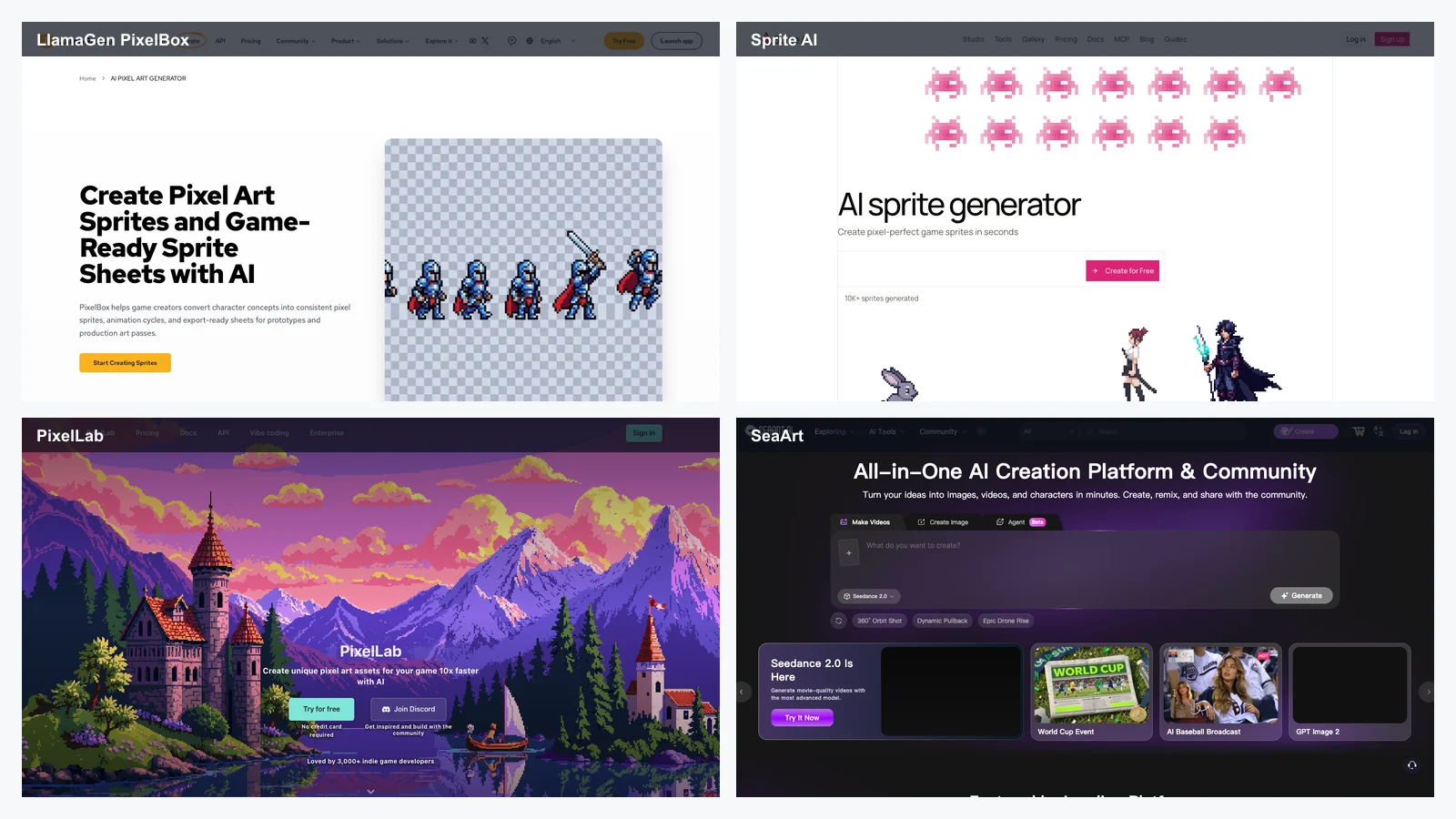
This guide compares the best AI pixel art generators in 2026, including LlamaGen PixelBox, Sprite AI, PixelLab, SeaArt, OpenArt, Adobe Firefly, DeepAI, Perchance, AI Pixel Art Generator, Pixelicious, Pixel It, Aseprite, Piskel, Pixilart, GraphicsGale, and LibreSprite.
The best AI pixel art generator depends on what you are making.
| Use Case | Best Tool |
|---|---|
| Best overall for character-to-pixel sprites and animation sheets | LlamaGen PixelBox |
| Best for game-ready sprite generation with built-in editing and animation | Sprite AI |
| Best for isometric sprites and directional character variants | PixelLab |
| Best general AI art platform for text-to-pixel and image-to-pixel experiments | SeaArt |
| Best general AI art platform with pixel and sprite styles | OpenArt |
| Best for commercial-friendly Adobe ecosystem workflows | Adobe Firefly |
| Best simple prompt-based pixel art tool | DeepAI Pixel Art Generator |
| Best lightweight free prompt tool | Perchance |
| Best image-to-pixel converter | Pixelicious |
| Best browser image pixelation tool | Pixel It |
| Best manual pixel art editor | Aseprite |
| Best free browser-based pixel editor | Piskel |
| Best pixel art editor with community features | Pixilart |
| Best open-source Aseprite-style editor | LibreSprite |
For most serious pixel art workflows, the best answer is not one tool. It is a stack:
Most AI image generators are built for large illustrations. That is a problem for pixel art.
A beautiful 1024x1024 fantasy character is not automatically useful as a 32x32 RPG sprite. Pixel art has stricter constraints:
That is why the best AI pixel art tools in 2026 are not just "AI art tools with a pixel style." The strongest options understand sprites, sprite sheets, animation cycles, tilemaps, pixel density, and game asset handoff.
![]()
A useful AI pixel art generator should be evaluated by production criteria, not only image quality.
| Criterion | Why It Matters |
|---|---|
| True pixel readability | The output must look good at 1x, 2x, and actual in-game scale. |
| Sprite size control | Game assets often need 16x16, 24x24, 32x32, 48x48, 64x64, or 128x128 outputs. |
| Character consistency | Idle, walk, run, attack, jump, and death frames should still look like the same character. |
| Sprite sheet export | Developers need PNG sprite sheets, GIF previews, atlases, or transparent assets. |
| Animation support | A single sprite is useful; animated cycles are much more useful. |
| Palette control | Pixel art often depends on limited palettes and consistent color ramps. |
| Manual editing | AI drafts still need cleanup, especially for hero characters. |
| Game engine handoff | Unity, Godot, GameMaker, RPG Maker, and web games need predictable asset formats. |
| Commercial rights | Game assets, Steam releases, mobile apps, client work, and marketplaces require clear terms. |
Best for: indie developers, game jams, RPG makers, web games, prototypes, pixel character animation, sprite sheets, and creators who want to convert character concepts into playable pixel assets.
LlamaGen PixelBox is the best overall choice if your main goal is to turn a character concept into pixel sprites and animation sheets.
Many AI image tools can make a pixel-style picture. PixelBox is more specific: it is built around the workflow of converting a character drawing, sketch, or image into pixel sprites, animation cycles, GIF previews, and PNG sprite sheets.
That difference matters. If you are building a game, you usually do not need one pretty image. You need a character that can idle, walk, run, attack, jump, die, and still look consistent.
Use LlamaGen PixelBox when you need:
Start with a strong character concept. The input matters.
A clean character image with clear pose, costume, silhouette, and simple background will usually work better than a cluttered illustration.
Input concept:
A small fantasy rogue with a green hood, short cape, leather boots, silver dagger, and sharp triangular silhouette.
Sprite goal:
32x32 RPG character, readable at 1x scale, idle and run animation, transparent background, limited green-brown palette.
Then use PixelBox to generate the sprite direction and animation sheet. After that, open the exported PNG sprite sheet in Aseprite, Piskel, Photoshop, or another editor for frame-level cleanup.
PixelBox is especially useful if you are already using LlamaGen for character design, comics, manga, or story worlds.
A practical workflow looks like this:
This makes LlamaGen more than a one-off pixel image generator. It can support a story-to-character-to-sprite workflow.
![]()
PixelBox is strongest for generating sprite directions and animation sheets quickly. For final commercial game art, still review every frame manually. Check silhouette, contact points, palette consistency, frame timing, transparency, and engine import settings.
Best for: game developers who need fast sprite generation, built-in editing, animation, palette tools, background removal, and export formats.
Sprite AI is one of the most game-focused tools in this category. It is designed around the practical problem that many AI art tools generate large images when game developers actually need small, clean sprites.
Sprite AI supports game-ready sprite sizes, a browser-based pixel editor, animation tools, palette transfer, background removal, guided character generation, and exports such as PNG, sprite sheet, GIF, atlas, and SVG.
![]()
Use Sprite AI when you need:
Generate multiple variations, keep the sprite with the clearest silhouette, then refine it in the built-in editor or export to Aseprite for more precise cleanup.
Like most AI tools, not every prompt will land on the first try. Generate multiple directions and evaluate them at real game scale, not only in the preview window.
Best for: top-down RPGs, isometric games, pixel characters, directional rotations, tilesets, maps, UI assets, and indie game production.
PixelLab is one of the strongest AI pixel art tools for game developers because it focuses on asset production rather than only single-image generation.
It is especially useful for isometric and top-down workflows. One of its most important advantages is directional character generation, including 4-direction and 8-direction variants.
Anyone who has drawn an 8-direction walk cycle by hand knows how much time that can save.
Use PixelLab when you need:
Use PixelLab when your game needs more than one hero sprite. It is especially useful for building a consistent set of characters, environments, tiles, and UI pieces.
![]()
If you want full manual pixel-level editing inside the same workflow, you may still need to export assets into Aseprite, Piskel, or another pixel editor.
Best for: creators who want a broad AI art platform with pixel art models, text-to-image generation, image filters, community discovery, and quick visual experimentation.
SeaArt is a broader AI image platform rather than a dedicated sprite production tool. Its pixel art workflow is useful for creators who want to experiment with different pixel styles, search models, generate text-to-pixel images, or apply pixel-style filters to uploaded images.
SeaArt is especially useful when you are exploring the visual direction of a project before committing to a strict game asset pipeline.
![]()
Use SeaArt for:
Search for pixel-related models, test a few style directions, generate multiple images, then keep the best output as concept art or convert it into a more controlled sprite workflow.
SeaArt is flexible, but it is not primarily a sprite sheet production tool. If you need animation cycles, exact game-ready dimensions, transparent sprite sheets, and engine handoff, use PixelBox, Sprite AI, PixelLab, or a manual pixel editor afterward.
Best for: creators who need pixel-style characters, props, icons, creatures, and visual concepts inside a broader AI art workflow.
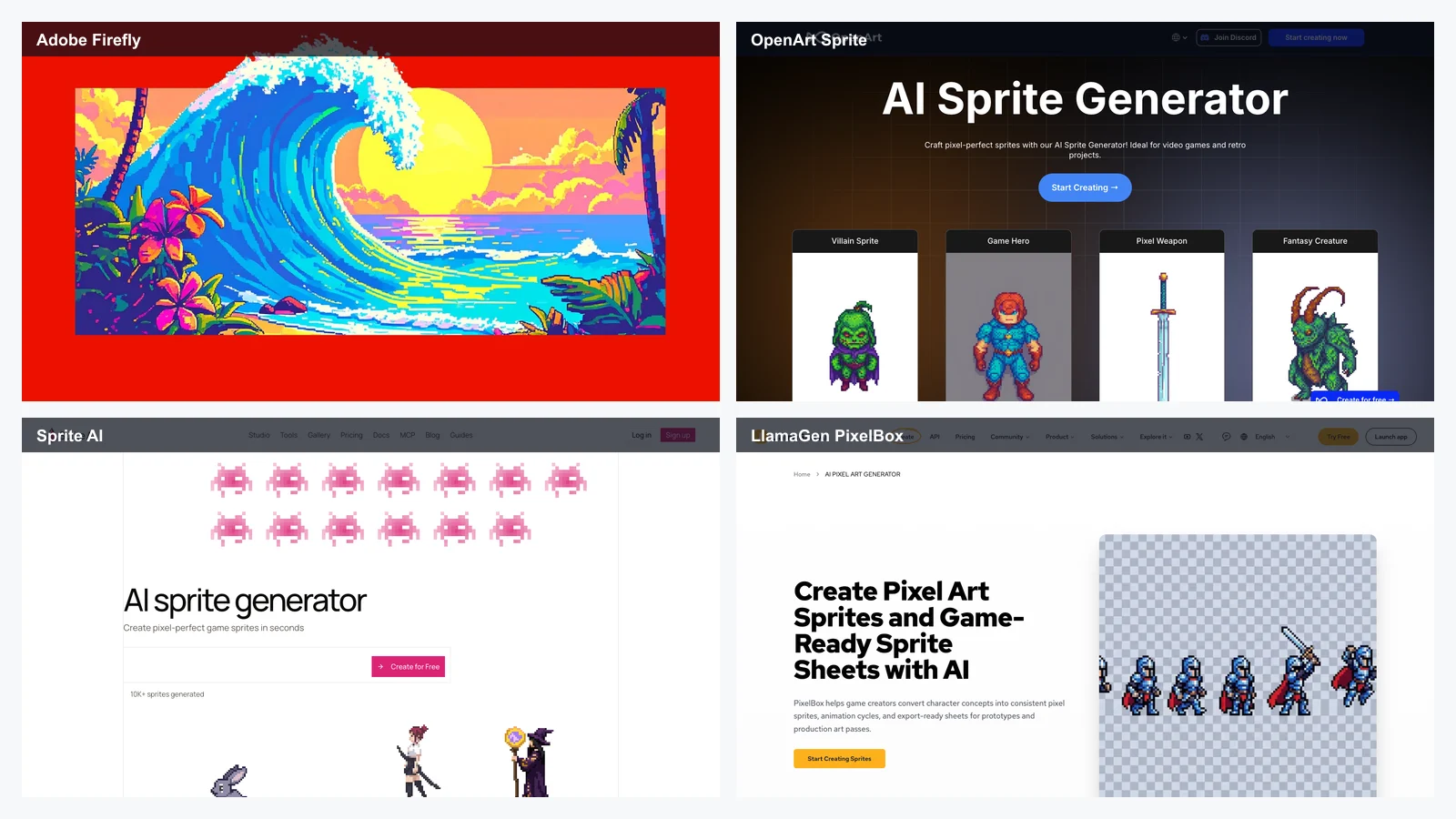
OpenArt AI Sprite Generator is useful when you want prompt-based sprite or pixel-style visuals without committing to a dedicated pixel art production pipeline.
It is especially useful for visual ideation.
![]()
Use OpenArt for:
OpenArt is a general AI art platform. For final game assets, you may need cleanup, resizing, background removal, palette correction, and sprite sheet assembly.
Best for: creators already using Adobe tools, commercial visual work, marketing graphics, concept art, and image-to-pixel style transformations.
Adobe Firefly can generate pixel-style images from text or image references. It is especially relevant for users who care about Adobe ecosystem workflows and commercial safety.
Firefly is best treated as a pixel-style image generator rather than a dedicated in-game sprite tool.
![]()
Use Firefly for:
Firefly is not ideal when you need exact 16x16, 32x32, or 64x64 sprite assets. For game sprites, use a tool focused on small pixel dimensions or finish the asset manually.
Best for: quick experiments, simple text prompts, hobby projects, placeholder visuals, and fast pixel-style images.
DeepAI Pixel Art Generator is one of the simplest tools in this space. You describe what you want, choose a style, and generate an output.
Use DeepAI for:
Quality can be inconsistent. Use it for ideation or placeholders rather than final game assets.
Best for: users who want a simple, free, browser-based tool for casual AI pixel art experiments.
Perchance is useful because it is lightweight and easy to access. It is a good option when you want to quickly test an idea without setting up a complex creative workflow.
Use Perchance for:
It is not a professional sprite production pipeline. Use it for brainstorming, then move promising outputs into a real pixel editor or sprite workflow.
Best for: simple prompt-based pixel art, isometric or non-isometric styles, and creators who want a dedicated pixel art page without complex settings.
AI Pixel Art Generator is a focused tool for generating pixel-style images with simple prompts. It is useful if you want a straightforward experience without navigating a large AI art platform.
Use it for:
For production sprites, evaluate whether the output has consistent size, transparency, palette control, and animation support.
Best for: converting existing images into pixel art, adjusting palette, grid size, and pixelated style.
Pixelicious is not mainly a text-to-image AI generator. It is better understood as an image-to-pixel converter. Upload an image, adjust settings, and turn it into pixel art.
Use Pixelicious for:
Start with a clean image, reduce unnecessary detail, choose a pixel size and palette, then export and refine manually.
Image converters can produce noisy or muddy pixel art if the input is too detailed. Simple shapes work best.
Best for: quick browser-based image pixelation, palette experiments, grayscale conversion, and adjustable block size.
Pixel It is a simple and useful browser tool for converting images into pixelated versions. It gives you direct control over block size and palette-style effects.
Use Pixel It for:
Pixel It is an image converter, not a complete sprite animation tool. Use it for static images and experiments.
AI can generate the first draft, but manual pixel art editors still matter. In many workflows, the best approach is:
AI generation -> select best output -> manual cleanup -> animation polish -> sprite sheet export -> engine test
![]()
Best for: serious pixel artists, indie game developers, sprite animation, palette control, tilemaps, onion skinning, and final asset polish.
Aseprite is one of the most important tools in pixel art. It is not an AI generator, but it is often where AI-generated sprites become production-ready assets.
Use Aseprite for:
Aseprite requires manual skill. But if you are serious about pixel art, this is a tool you will probably use sooner or later.
Best for: beginners, students, quick sprite edits, browser workflows, and simple animations.
Piskel is free, browser-based, and easy to start using. It is a good companion tool for AI-generated pixel art because you can quickly clean frames or preview simple animations.
Use Piskel for:
Piskel is simpler than Aseprite. For advanced palette work, scripting, layered production, or professional animation workflows, Aseprite may be stronger.
Best for: learning pixel art, sharing work, joining challenges, getting feedback, and practicing in a social environment.
Pixilart combines a pixel art editor with a community. This makes it useful for beginners who need motivation and feedback, not only tools.
Use Pixilart for:
Community platforms can be distracting. Use them for learning and practice, but keep your production files organized outside the platform.
Best for: creators who want free desktop pixel art editors and lightweight manual tools.
GraphicsGale and LibreSprite are useful free alternatives for manual pixel work. GraphicsGale is older and Windows-focused, while LibreSprite is an open-source Aseprite-style editor.
Use them for:
They may feel less polished or less actively modern than Aseprite, but they can still be useful for budget-conscious creators.
| Tool | Best For | AI Generation | Manual Editor | Animation | Game-Focused | Main Limitation |
|---|---|---|---|---|---|---|
| LlamaGen PixelBox | Character-to-sprite animation sheets | Yes | Export for external editing | Yes | Yes | Final frames still need review |
| Sprite AI | Game-ready sprites with built-in tools | Yes | Yes | Yes | Yes | Some prompts need retries |
| PixelLab | Isometric sprites and game asset sets | Yes | Limited | Yes | Yes | May need external manual editor |
| SeaArt | General text-to-pixel and image-to-pixel art | Yes | Image edit tools | Limited | No | Not a dedicated sprite sheet pipeline |
| OpenArt | Sprite concepts and general AI art | Yes | Limited | No | Partial | Needs cleanup for game use |
| Adobe Firefly | Commercial-friendly pixel-style visuals | Yes | Adobe ecosystem | No | No | Not built for exact sprite sizes |
| DeepAI | Simple prompt-based pixel art | Yes | No | No | No | Hit-or-miss quality |
| Perchance | Free casual generation | Yes | No | No | No | Not production-focused |
| Pixelicious | Image-to-pixel conversion | Conversion | No | No | Partial | Input quality matters a lot |
| Pixel It | Browser pixelation | Conversion | No |
Choose LlamaGen PixelBox, Sprite AI, PixelLab, and Aseprite.
A strong indie game workflow is:
LlamaGen or Sprite AI for sprite direction
-> PixelLab for isometric or asset sets
-> Aseprite for final frame cleanup
-> Unity, Godot, GameMaker, or RPG Maker for testing
Choose LlamaGen PixelBox, Sprite AI, or Piskel.
Speed matters more than perfection. Generate fast, test in-engine, and polish only the sprites players see most often.
Choose LlamaGen PixelBox, PixelLab, Sprite AI, or Aseprite.
Prioritize readable silhouettes, idle/walk cycles, and consistent scale across the party.
Isometric assets are harder than flat side-view sprites because angle, perspective, and tile compatibility matter.
Choose SeaArt, OpenArt, Adobe Firefly, or DeepAI.
These tools are better for static images, posters, profile pictures, thumbnails, and retro-style visuals.
Choose Pixelicious, Pixel It, or SeaArt's image filter workflow.
Start with a simple image. High-detail photos usually become noisy when converted into pixel art.
A beginner-friendly workflow is:
Generate a simple idea with AI
-> redraw or clean it in Piskel
-> test animation with 3 or 4 frames
-> export a GIF
Choose Aseprite and use AI only for references, idea generation, or non-hero assets.
For hero characters, manual art direction still wins.
The most reliable workflow combines AI speed with manual control.
Do not start by asking for "pixel art." Start by naming the asset.
Asset type: 32x32 side-view player character
Game type: Cozy platformer
Actions needed: idle, run, jump
Palette: warm autumn colors
Background: transparent
Export: PNG sprite sheet
A pixel icon, RPG character, platformer hero, isometric tree, UI button, boss enemy, and animated attack all need different prompts.
If your sprite is based on a recurring character, lock the design first.
Use a character sheet, concept image, or clean reference.
Character:
A tiny mushroom knight with a red cap helmet, wooden shield, short sword, round body, tiny boots, and friendly expression.
Fixed traits:
red mushroom cap
round body
wooden shield
short sword
tiny boots
friendly silhouette
This is where LlamaGen is useful. You can generate the character concept first, then convert it into pixel sprites with PixelBox.
Use a tool like LlamaGen PixelBox, Sprite AI, PixelLab, SeaArt, or OpenArt.
Prompt example:
Create a 32x32 pixel art RPG character sprite.
Character:
A small mushroom knight with a red mushroom cap helmet, wooden shield, short sword, round body, tiny boots, and friendly expression.
Style:
Clean retro pixel art, limited color palette, readable silhouette, transparent background, game-ready sprite.
Requirements:
Front-facing idle pose, no text, no watermark, simple shape language, strong outline, readable at 1x scale.
Generate multiple outputs. Do not judge only the prettiest image. Judge the one that reads best at actual size.
For game characters, create at least:
PixelBox and Sprite AI are especially useful here because they focus on sprite animation workflows rather than only single static images.
![]()
Open the output in Aseprite, Piskel, LibreSprite, Photoshop, or another editor.
Check:
This step is what turns an AI draft into usable pixel art.
Do not ship a sprite just because it looks good in a preview.
Test it in:
Check:
If you are making more than one asset, write down rules.
Sprite style guide:
Base character size: 32x32
Boss size: 64x64
Outline: 1 px dark purple
Palette: 24 colors maximum
Light direction: top-left
Idle animation: 4 frames
Walk animation: 6 frames
Export: transparent PNG sprite sheets
Scale in engine: 3x
A style guide prevents every AI-generated asset from looking like it came from a different game.
Create a [size] pixel art sprite.
Subject:
[Character, object, enemy, item, building, environment]
Game type:
[RPG, platformer, roguelike, farming sim, tactics game, isometric sim, mobile game]
Visual identity:
[Silhouette, outfit, colors, props, face, body shape]
Style:
[8-bit, 16-bit, Game Boy, SNES-inspired, cozy, dark fantasy, cyberpunk, chibi, isometric]
Technical requirements:
[Transparent background, limited palette, strong outline, readable at 1x scale, no text, no watermark]
Animation:
[Idle, walk, run, attack, jump, hit, death, 4 frames, 6 frames, 8 frames]
Export goal:
[PNG sprite, GIF preview, sprite sheet, atlas]
Convert this character concept into a pixel art sprite sheet.
Character:
A small mushroom knight with a red cap helmet, wooden shield, short sword, round body, tiny boots, and friendly expression.
Sprite style:
32x32 retro RPG sprite, limited warm palette, strong outline, readable silhouette, transparent background.
Animation needed:
Idle, walk, run, attack, and jump.
Output:
GIF preview and PNG sprite sheet.
Quality rules:
Preserve the red mushroom cap, round body, shield, short sword, and tiny boots across all animation frames. Test readability at 1x and 2x scale.
Create a 32x32 pixel art item icon.
Item:
A glowing blue crystal potion bottle with a cork stopper and tiny golden string.
Style:
Clean fantasy RPG pixel art, limited palette, strong silhouette, transparent background, readable at 1x scale.
Requirements:
No text, no watermark, centered object, simple shading, top-left light source.
Create a pixel art forest tileset for a cozy RPG.
Assets:
Grass tile, dirt path tile, small bush, large tree, stump, flower patch, stone, wooden sign.
Style:
16-bit cozy fantasy, warm greens and browns, top-down perspective, consistent palette, tileable edges.
Requirements:
Game-ready tiles, clean outlines, no text, no watermark, consistent lighting.
A 1024x1024 pixel-style illustration is not the same thing as a 32x32 game sprite.
Better prompt:
Create a 32x32 pixel art RPG character sprite, readable at 1x scale, transparent background, limited 16-color palette.
Pixel art rewards clarity. A tiny sprite cannot carry every buckle, necklace, scar, embroidery pattern, and weapon engraving.
Keep only the design anchors:
red hood
silver dagger
green cloak
round shield
glowing blue eyes
Before judging colors or shading, turn the sprite into a black shape. If it is not recognizable as a silhouette, it will probably fail in-game.
Many AI sprites look good when zoomed in. The real test is whether the asset reads at the size players will actually see.
If every enemy, item, and tile comes from a different prompt style, the game will look inconsistent.
Write down:
AI can generate useful directions, but final animation often needs manual fixes.
Check:
Different tools have different commercial rules. Always check terms before using generated art in:
LlamaGen PixelBox -> Piskel -> Godot
Use PixelBox to generate the first sprite sheet, Piskel for quick cleanup, and Godot for testing.
Sprite AI -> Built-in editor -> GIF / PNG export
Use Sprite AI when speed matters and you need generation, editing, and animation in one browser workflow.
LlamaGen PixelBox or PixelLab -> Aseprite -> Unity / Godot / GameMaker
Use AI for the first direction, then polish in Aseprite.
PixelLab -> Aseprite -> Tiled -> Game engine
Use PixelLab for directional and isometric asset generation, then assemble maps with a tile workflow.
SeaArt or OpenArt -> Pixelicious -> Canva / Photoshop
Use general AI tools for static visuals and polish them for social posts or thumbnails.
The best overall choice for character-to-sprite workflows is LlamaGen PixelBox, especially if you need pixel sprites, animation cycles, GIF previews, and PNG sprite sheets. For game-ready sprite generation with built-in editing, Sprite AI is also strong. For isometric sprites and game asset sets, PixelLab is a strong option.
Yes. Tools such as LlamaGen PixelBox and Sprite AI can help generate sprite sheets or animation-ready pixel assets. However, final commercial game sprites should still be checked and cleaned manually.
Good free or beginner-friendly options include SeaArt, Perchance, DeepAI, and free tiers from specialized tools. For manual editing, Piskel is one of the best free browser-based pixel editors.
Yes. LlamaGen PixelBox is designed for converting character concepts into pixel sprites and animation sheets. It is especially useful for indie developers, game jams, RPG makers, prototypes, and teams that need quick sprite directions before manual polish.
SeaArt is useful for text-to-pixel art, image-to-pixel filters, pixel-style experiments, and community model discovery. It is better for visual exploration than strict game-ready sprite sheet production.
Yes. AI can generate first drafts quickly, but Aseprite is still one of the best tools for final cleanup, animation timing, palette control, and professional pixel art polish.
Common sprite sizes include 16x16, 24x24, 32x32, 48x48, 64x64, and 128x128. The right size depends on your game camera, tile size, visual style, and target platform.
It depends on the tool. Always check the current terms for commercial rights, attribution, export limits, model restrictions, and generated asset ownership before using AI pixel art in a paid game or client project.
The safest workflow is:
Generate with AI
-> choose the clearest output
-> clean manually in a pixel editor
-> test at actual scale
-> export sprite sheets
-> check licensing
-> import into the game engine
The best AI pixel art generator in 2026 depends on the output you actually need.
Choose LlamaGen PixelBox if you want to turn character concepts into pixel sprites, animation cycles, GIF previews, and PNG sprite sheets.
Choose Sprite AI if you want a game-focused AI sprite workflow with built-in editing, animation, palette tools, and export options.
Choose PixelLab if you are building isometric games, RPGs, directional character variants, maps, tilesets, and broader pixel game asset sets.
Choose SeaArt if you want a flexible AI art platform for text-to-pixel, image-to-pixel filters, and visual exploration.
Choose OpenArt if you want general AI sprite concepts and pixel-style character ideas.
Choose Adobe Firefly if you want Adobe ecosystem workflows and commercial-friendly pixel-style visuals.
Choose Pixelicious or Pixel It if you want to convert existing images into pixel art.
Choose Aseprite if you want the strongest manual pixel art editor for final production.
Choose Piskel if you need a free browser-based pixel editor.
The practical takeaway is simple: AI is excellent for generating pixel art directions quickly, but the best shipped assets still come from a hybrid workflow. Use AI to move faster. Use manual pixel editing to make the art yours.
Get productivity tips delivered straight to your inbox
We'll email you 1–3 times per week—and never share your information.
Use your favorite design tools—then import the assets into LlamaGen to create comics, images, and animations.
| No |
| Partial |
| Static conversion only |
| Aseprite | Professional manual pixel art | No | Yes | Yes | Yes | Requires drawing skill |
| Piskel | Free browser editing | No | Yes | Yes | Yes | Simpler than pro editors |
| Pixilart | Pixel editor and community | No | Yes | Yes | Partial | Social platform distractions |
| LibreSprite | Open-source pixel editing | No | Yes | Yes | Yes | Less polished than Aseprite |


友達、フォロワー、顧客を紹介するだけで、生涯にわたって最大30%の継続的なコミッションを稼ぐことができます!