

Manga coloring walkthrough · Independent creator guide
GPT-6 Manga Coloring: Preserve Line Art, Character Colors & Panels
Learn a repeatable GPT-6-assisted manga coloring workflow with a precise prompt, reference palette, quality checklist and an alternative manga colorizer.
Independent educational content. GPT-6 and Astra are OpenAI products; Claude is an Anthropic product; Gemini and Nano Banana are Google products. LlamaGen is not endorsed by those companies. Updated October 15, 2026
Quick answer
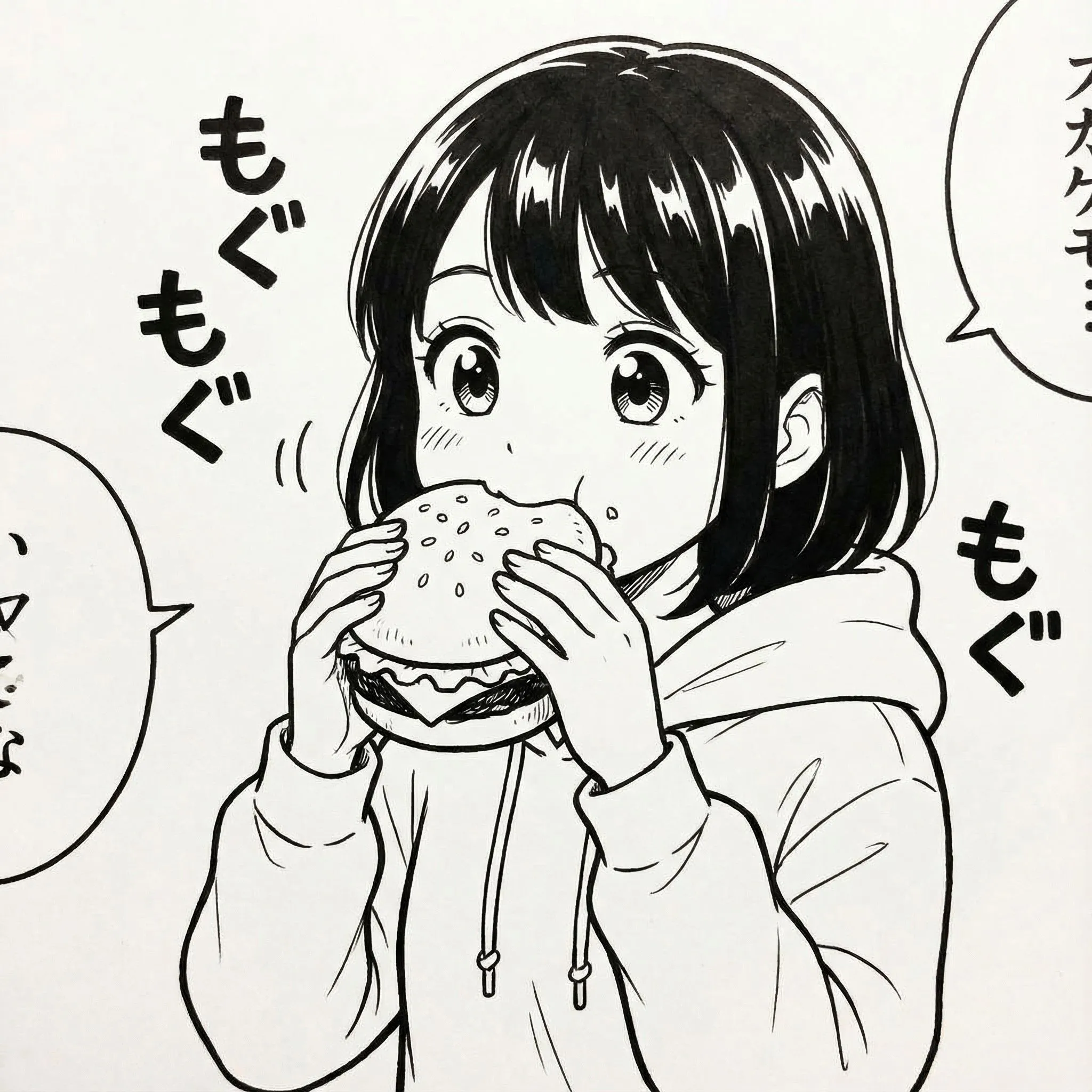
Use GPT-6 to inspect the panel, identify regions and plan a color palette. Pass that specification and the original line art to an image-editing model or manga colorizer. Compare both images at full resolution before accepting the edit.
Reddit creators have shared convincing manga-coloring examples with GPT-6, but a polished screenshot does not reveal which image tool actually rendered the pixels. This guide separates visual analysis from image editing and shows you how to verify whether a result preserves your artwork.
What the evidence supports Creator discussion illustrates the user task, not an audited model benchmark. Reproduce on your own authorized artwork and record the real image-edit model. Verify the source ↗
Try it here · local browser tool
Check your manga coloring before and after
Choose two images from your device to compare linework, panel borders and character color drift. Images remain in your browser; this page does not upload them. No model is run and no quality score is inferred.
Tip: compare the same crop at full resolution. This manual overlay is not a pixel-accurate benchmark, alignment algorithm or model performance measurement.
Worked example · editable production brief
Color-lock worksheet for an original manga panel
This is an editorial palette specification to copy into an image editor—not a GPT-6-rendered result. A consistent palette lets you detect redrawn or incorrectly recolored clothing.
Navy hair · #1F304B
Cream jacket · #F4E7CF
Green scarf · #2C826C
Skin shadow · #CB9C78
| Locked element | Illustrative constraint | Inspect after edit |
|---|---|---|
| C01 · Hair | #1F304B navy; preserve silhouette | No black-only fill or changed fringe |
| C01 · Jacket | #F4E7CF warm cream | Keep ink folds and zipper lines |
| C02 · Scarf | #2C826C muted green | Same hue across adjacent panels |
| Lettering & gutters | Color-free white regions | No changed glyphs or bleed |
Run a visual diff against the original before accepting the colorization. Hex values are fictional sample palette choices.
Practical walkthrough
Follow the sequence using an original or authorized project. The workshop above is an editorial plan, not output falsely attributed to a model.
Step 1
Start with authorized black-and-white line art
Use a panel you created or have permission to color. Export a lossless original at its native resolution; keep a separate untouched backup and note its dimensions.
Step 2
Create a reference color sheet
For every recurring character list hair, eye, outfit, skin and prop colors. Attach your own colored character sheet when available; do not rely on the model guessing canon colors.
Step 3
Instruct the assistant to preserve structure
Tell GPT-6 to analyze the picture and produce a locked palette and explicit regions to color. Specify that gutters, speech bubbles, ink contours and panel layout must remain untouched.
Step 4
Perform the color edit and compare
Apply the prompt in an image-edit tool that actually supports image output. Overlay the original and edited versions to look for redrawn fingers, changed line weight, altered text and lost halftones.
Step 5
Finish for your intended output
For print, review color mode and export size separately. For a webcomic, inspect small-screen readability and keep each revised panel consistent with the chapter palette.
Copy-ready prompts
Replace placeholder details with your own original story and reference assets. Paste into a compatible model or workflow; available tools and results differ.
1. Conservative manga color edit
Colorize this original black-and-white manga panel. Preserve every line, panel border, facial expression, object position, screentone, speech balloon and word exactly. Character A: navy hair, amber eyes, cream jacket. Character B: auburn hair, green scarf. Use flat cel shading with subtle shadows. Do not redraw, crop, add lettering, or change the composition.
2. When the image tool keeps redrawing
Compare the proposed edit against the input. Identify every changed contour, face detail, text glyph or panel border. Return a correction list ordered by severity, then create a stricter edit prompt limited to color regions only.
Failure → Cause → Fix
When your comic workflow goes wrong
Specific failure patterns matter more than a generic 'try again'. These fixes target the output you can inspect.
1. An outfit becomes a dark silhouette
Likely cause Global shading was applied without locking fabric color.
What to do Specify exact clothing colors separately from lighting; reject panels where the base fill changes.
2. Linework or speech text is rewritten
Likely cause The image tool regenerated content instead of making a constrained edit.
What to do Compare full-resolution input and output; separate color pass from manual lettering.
3. Colors look good in one frame but not the next
Likely cause No shared character reference or canonical color sheet.
What to do Reuse the same sheet, assign stable IDs and inspect adjacent panels side by side.
What to check before publishing
Review progress: 0 of 4 checks complete
A personal QA worksheet, not an automated pass/fail evaluation of your image.
Frequently asked questions
Can GPT-6 itself color manga?
GPT-6 can analyze images and coordinate supported image-generation tools. The image tool used by your product or workflow determines the actual pixel output.
Can I color copyrighted manga?
Use artwork you own or have permission to edit and distribute. A third-party Reddit example does not grant reuse rights.
How do I stop the tool changing the drawing?
Ask for color-only changes, supply reference palettes and compare against the original; some image editors still regenerate details, so manual correction may be necessary.
Sources and further reading
Primary documentation and public creator discussions; not a substitute for hands-on results.