

1
Collect the scenes
Add scene titles, notes, or stills you already use in planning.
AI Generated • Storyboard to Video
Scene planning board
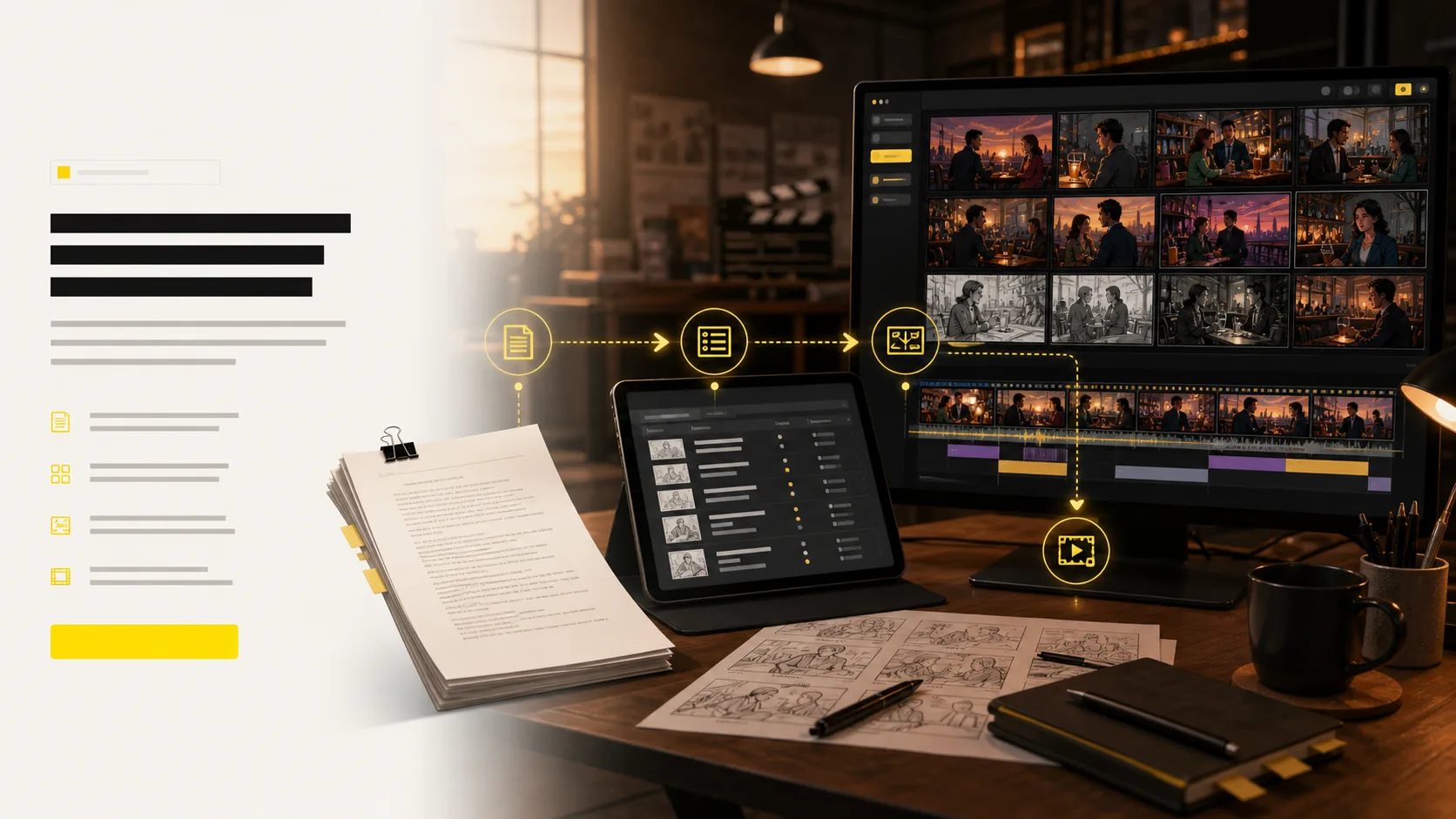
A story board is the shared surface a crew looks at before production. LlamaGen helps you pin scenes, check order, and mark missing beats without jumping between slides and chat threads.
Use this when you need a board the room can point at: scene order, framing notes, and the next shot to discuss.
Notes, stills, and comments sit in different docs, so nobody agrees on the current order.
Moving one scene means rebuilding a slide deck or reprinting a paper grid.
Teams debate coverage in meetings instead of looking at the same sequence.
Before
A pile of scene notes and reference stills with no shared board.
After
One story board with ordered scenes, visual beats, and room for notes.
Writers, directors, and clients look at the same scene order.
Move a card instead of rebuilding a deck.
Case study
A teacher drops five scene cards onto one story board so students can argue shot order before anyone draws final frames.
Result
The class reviews pacing on the board, not in a long verbal recap.
LlamaGen story board, scene planning
Related writing workflow
Use the AI Screenplay Editor when a script, fiction draft, storyboard brief, video idea, or canvas note needs proper scene headings, action, dialogue, parentheticals, cover pages, outlines, beats, and collaboration-ready revisions.
INT. COMMUNITY CENTER - NIGHT
Folded chairs. A storm outside. MAYA stands at the microphone with a page of notes she no longer needs.
MAYA
If the city will not read the record, we will read it out loud.
Start with the scenes you already have. Place them on the board, mark missing beats, and keep the sequence in one place.
Add scene titles, notes, or stills you already use in planning.
Put cards in story order or shooting order so the room can see the path.
Mark framing, missing coverage, and questions before review.
Tune angles in 3D and convert approved frames into animatic motion.
Share shot lists, boards, animatics, and pitch-ready files with the team.
Use this story board when the job is planning, not generating a full package from a prompt. Pin scenes, check sequence, and hand the same board to the next review.
Choose an approved OUTFIT asset, preview it on the character, and decide whether the change belongs in one scene, every following scene, or the entire project. The story gets a clear wardrobe timeline without identity drift.
Create character outfits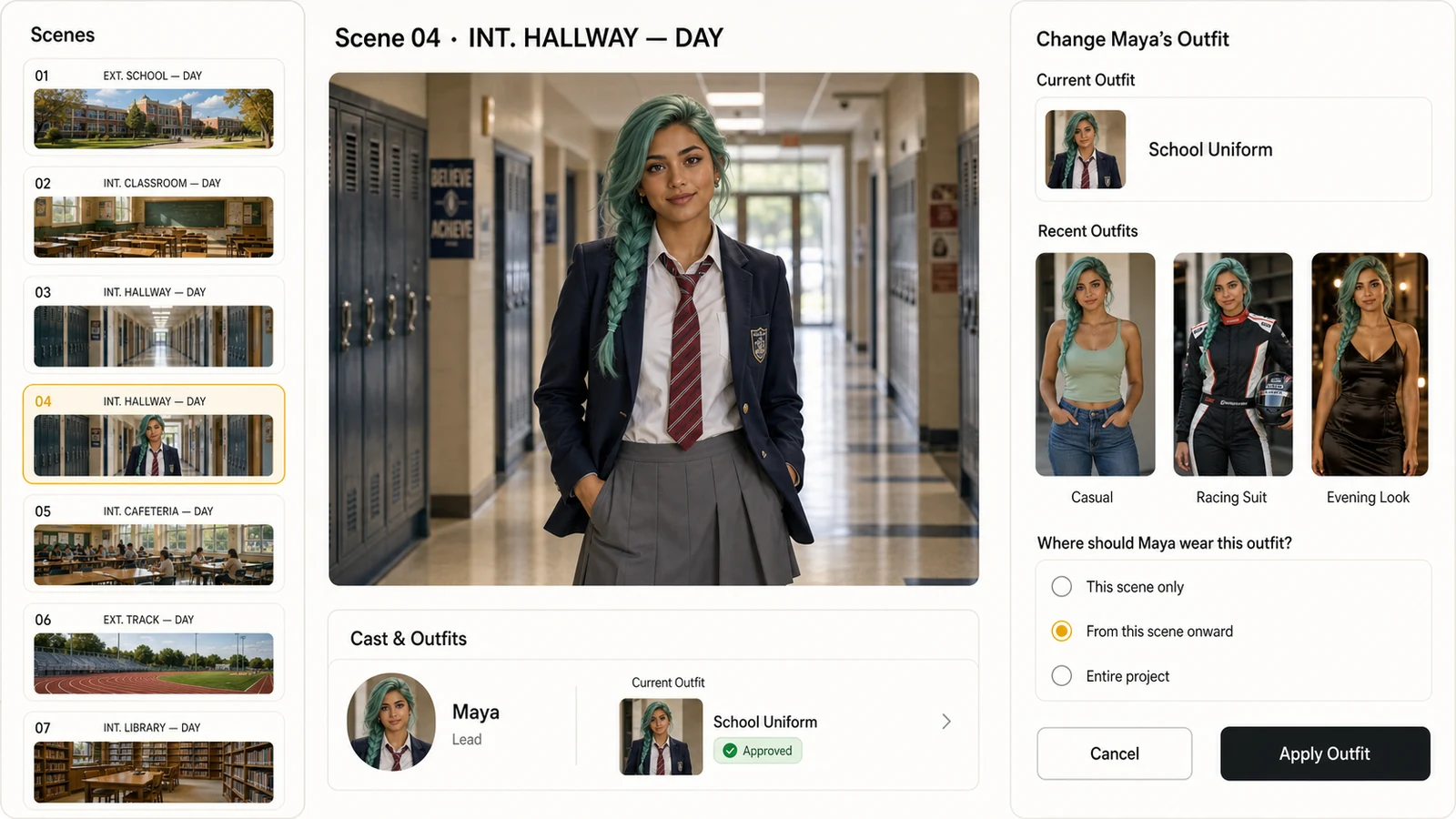
Select from approved character outfits instead of recreating the wardrobe inside every shot.
Apply a look to one scene, all following scenes, or the whole project with an explicit range.
Keep the same face, hair, body proportions, and visual identity while the clothes change.
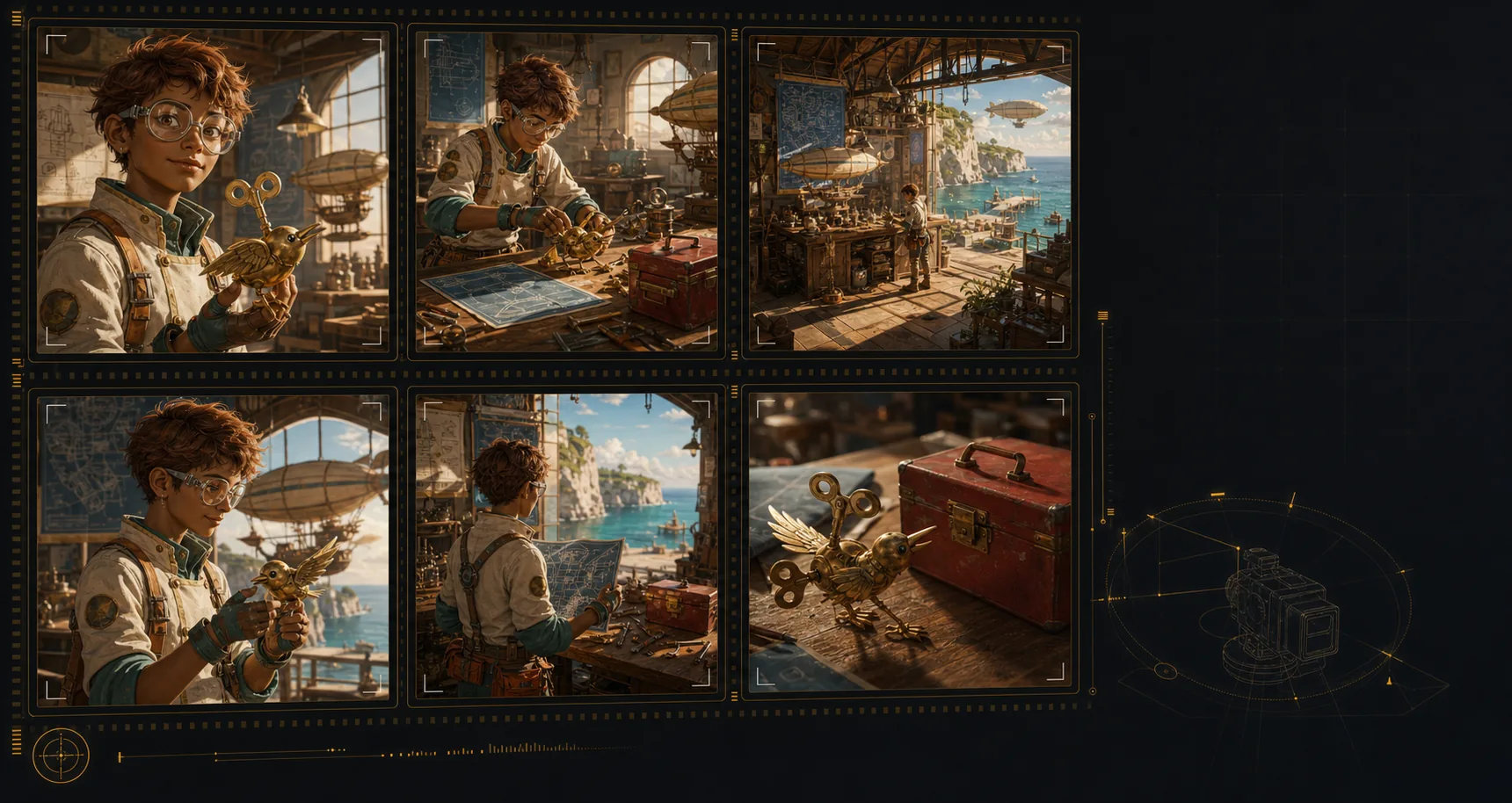
Create an AI storyboard where the same characters, environments, wardrobe, and hero objects remain recognizable across the sequence. That continuity makes each shot feel planned, connected, and ready for review.
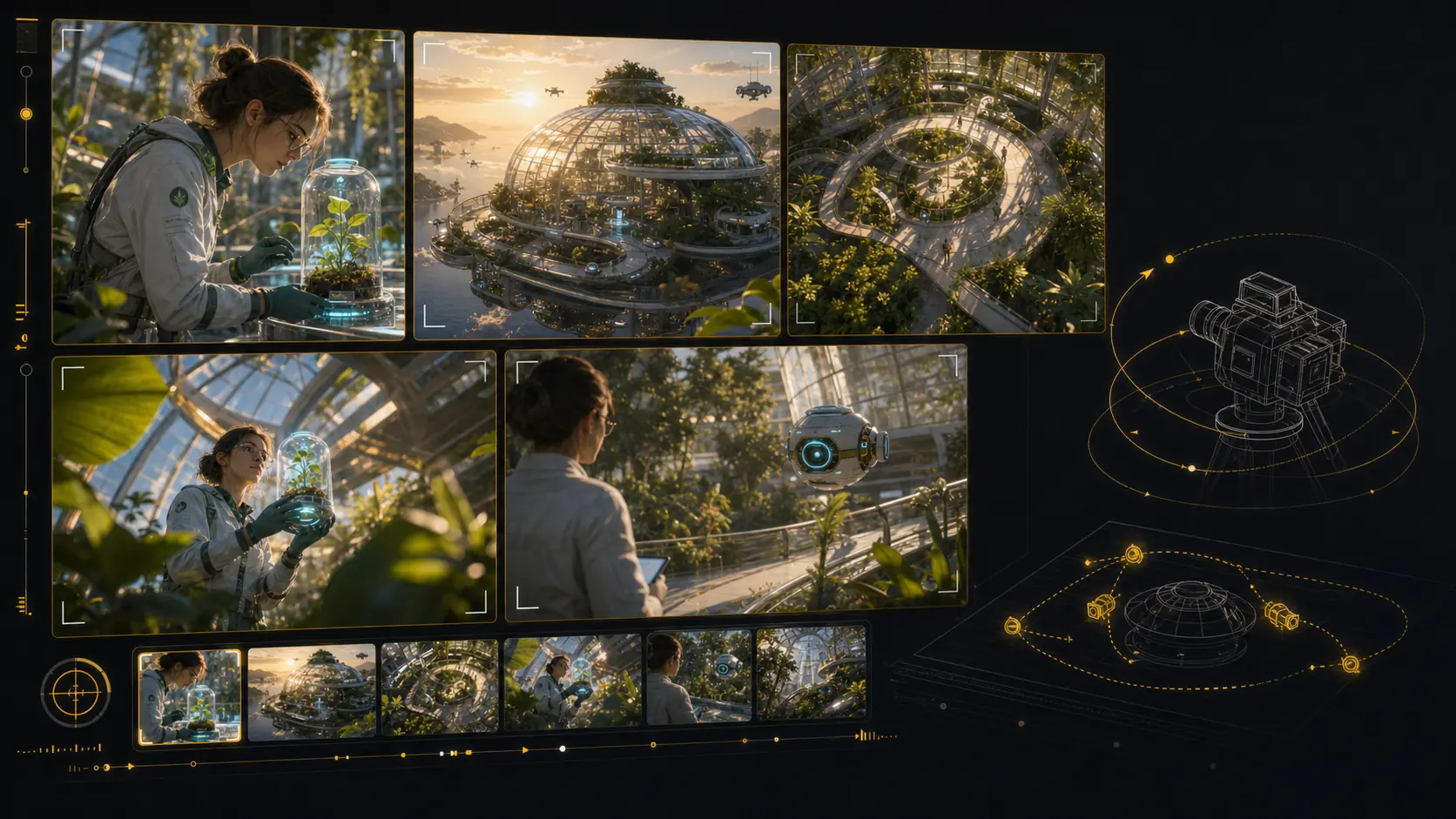
Test camera angles for an AI storyboard without rebuilding the scene from scratch. Reframe the setup, compare shot sizes, and give your director, DP, editor, or client a clearer visual decision.
Use LlamaGen as an AI storyboard video generator: choose a frame, describe the camera move and duration, then create a motion test that stays anchored to the approved shot. Static boards become pitch-ready animatics and multi-shot reviews without leaving the storyboard workflow.
Start from an approved storyboard frame so the clip keeps the same composition.
Add a push-in, tracking move, orbit, hold, or timing beat before generation.
Compare generated clips with shot notes, scene order, and edit intent in one place.
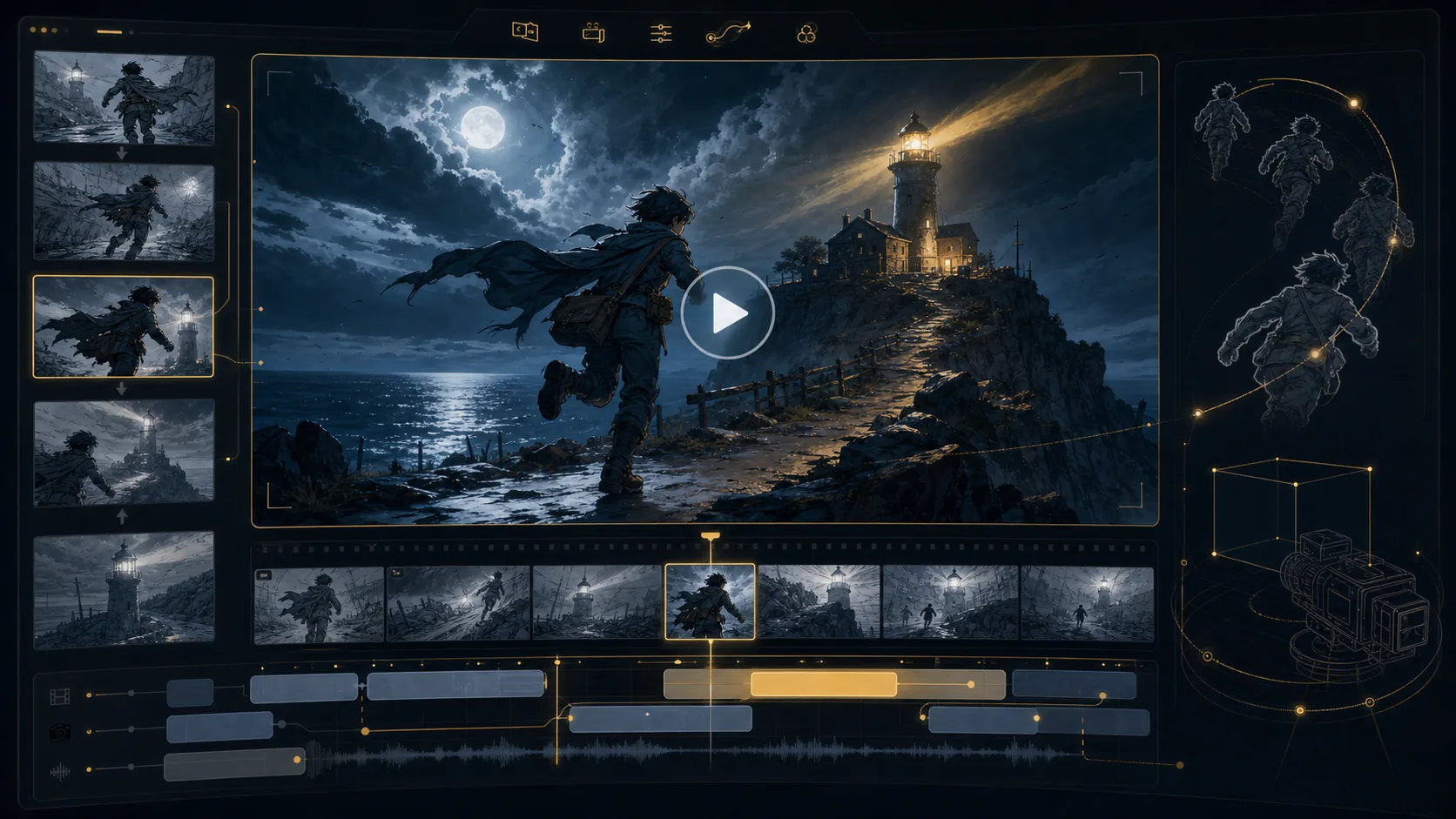
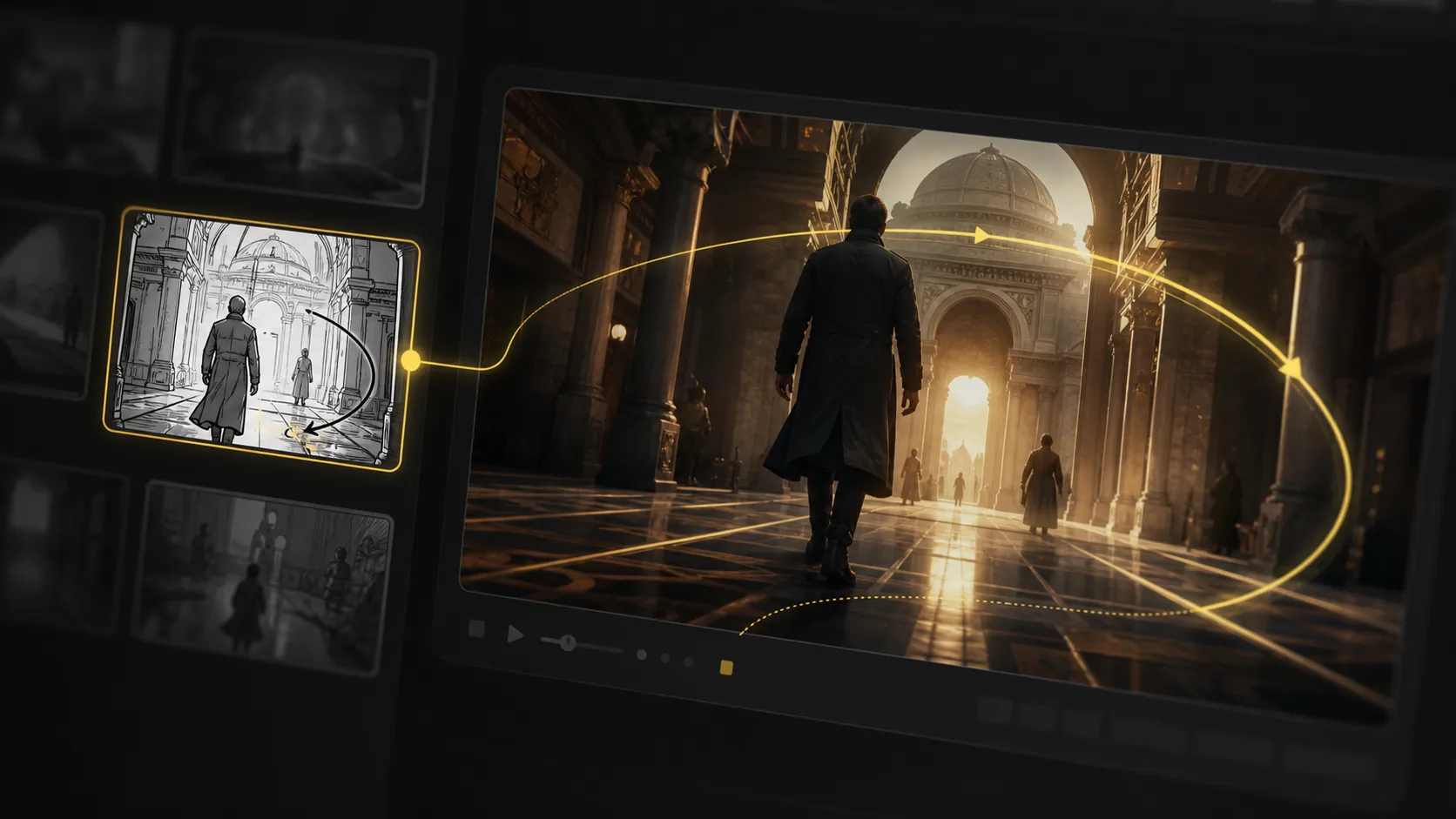
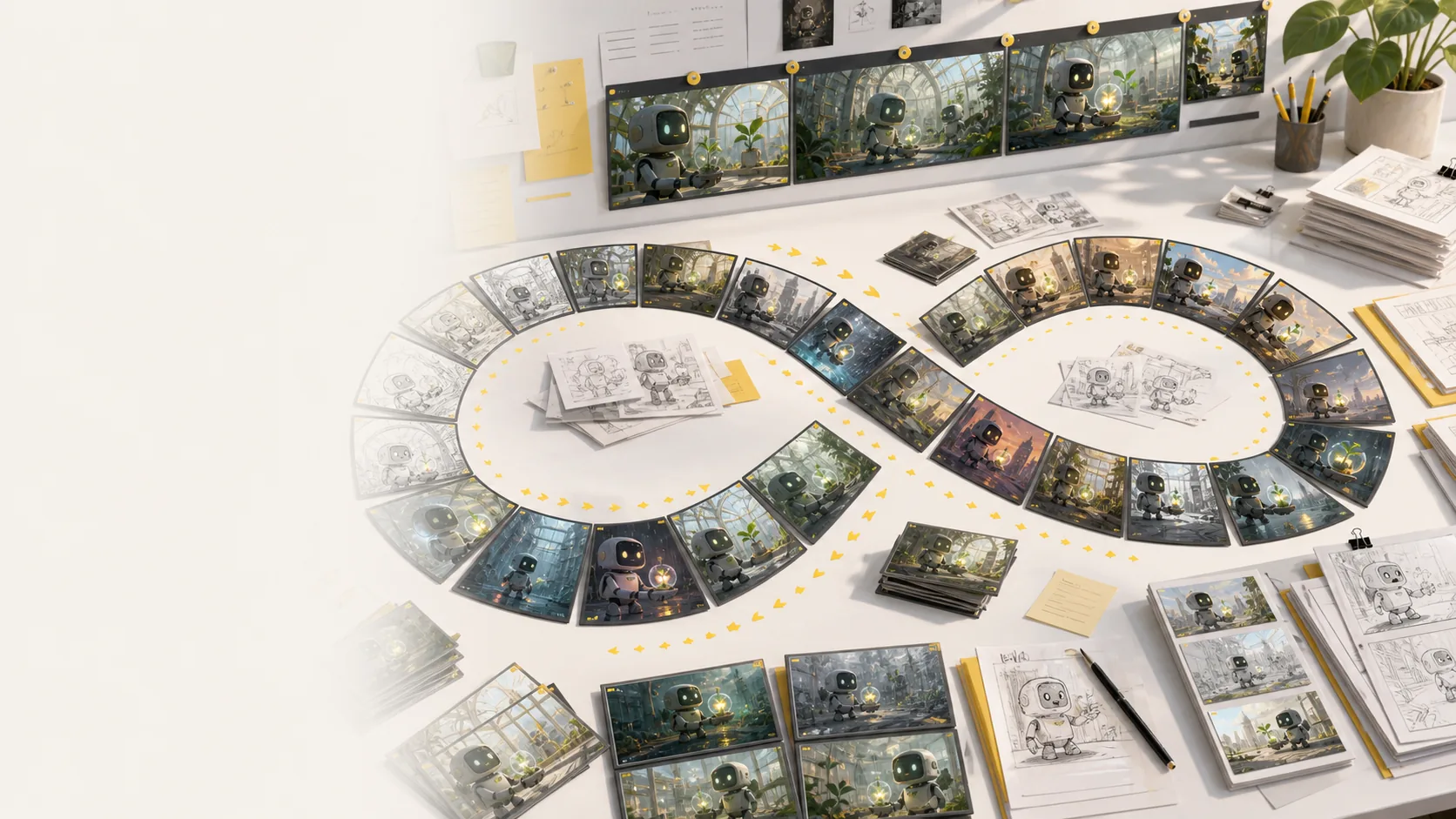
Refine AI storyboard images through real creative rounds: alternate angles, cleaner compositions, different moods, and stronger visual continuity without treating every frame like a scarce credit.
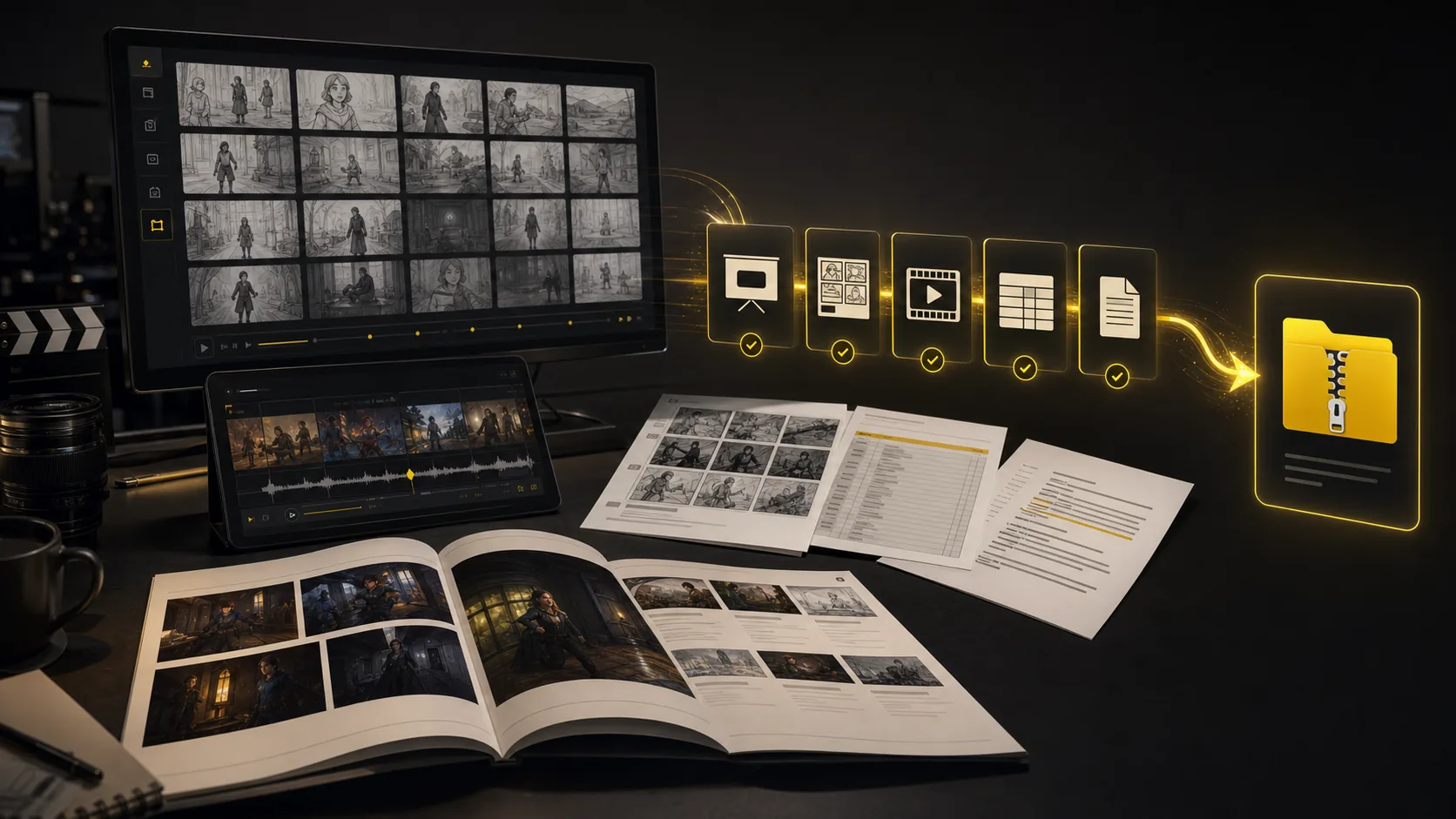
Turn a finished storyboard project into files a production team can use immediately: screenplay, shot-list, and storyboard PDFs; XLSX shot lists; image ZIPs; MP4 animatics; and XML handoff packages.
The core sections show the main workflow. This bento grid covers the supporting AI storyboard tools around it: inputs, styles, continuity, video, variations, camera planning, and production handoff.
Generate AI animatics from approved storyboard frames with camera motion and timing notes.
Storyboard-to-animatic clips
Turn rough boards, loose thumbnails, and scene notes into cleaner visual panels.
Sketch cleanup
Compare visual routes for tone, genre, lighting, and brand style before the board locks.
Style direction
Regenerate shots, moods, angles, and layouts without managing per-image credits.
Unlimited variations
Keep characters, props, wardrobe, and locations recognizable across generated shots.
Continuity lock
Plan tracking, push-in, orbit, and reveal moves before turning frames into video.
Camera move planning
Start from a screenplay, treatment, PDF, scene note, or loose prompt and build the board from there.
Script, prompt, and PDF input
Export storyboard PDFs, shot list tables, animatic files, and review packages from one project.
Production handoff
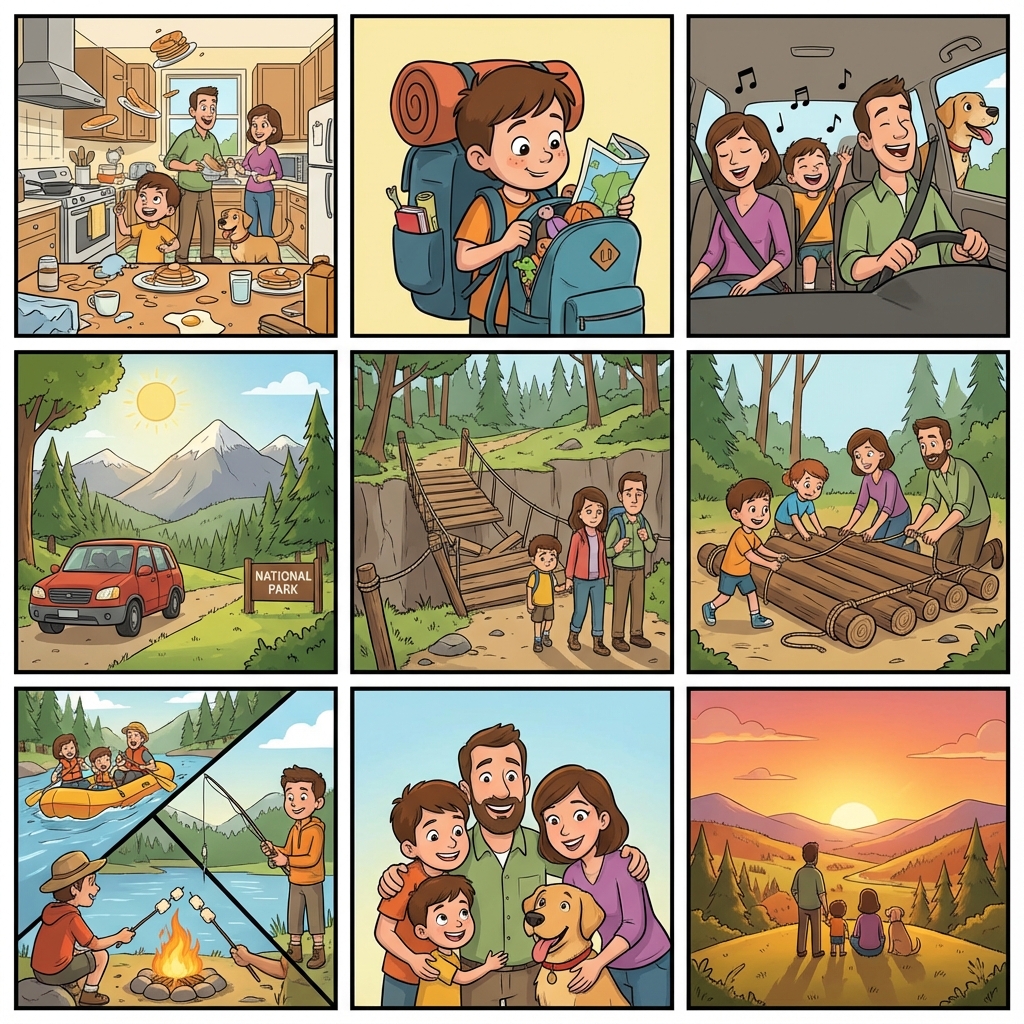
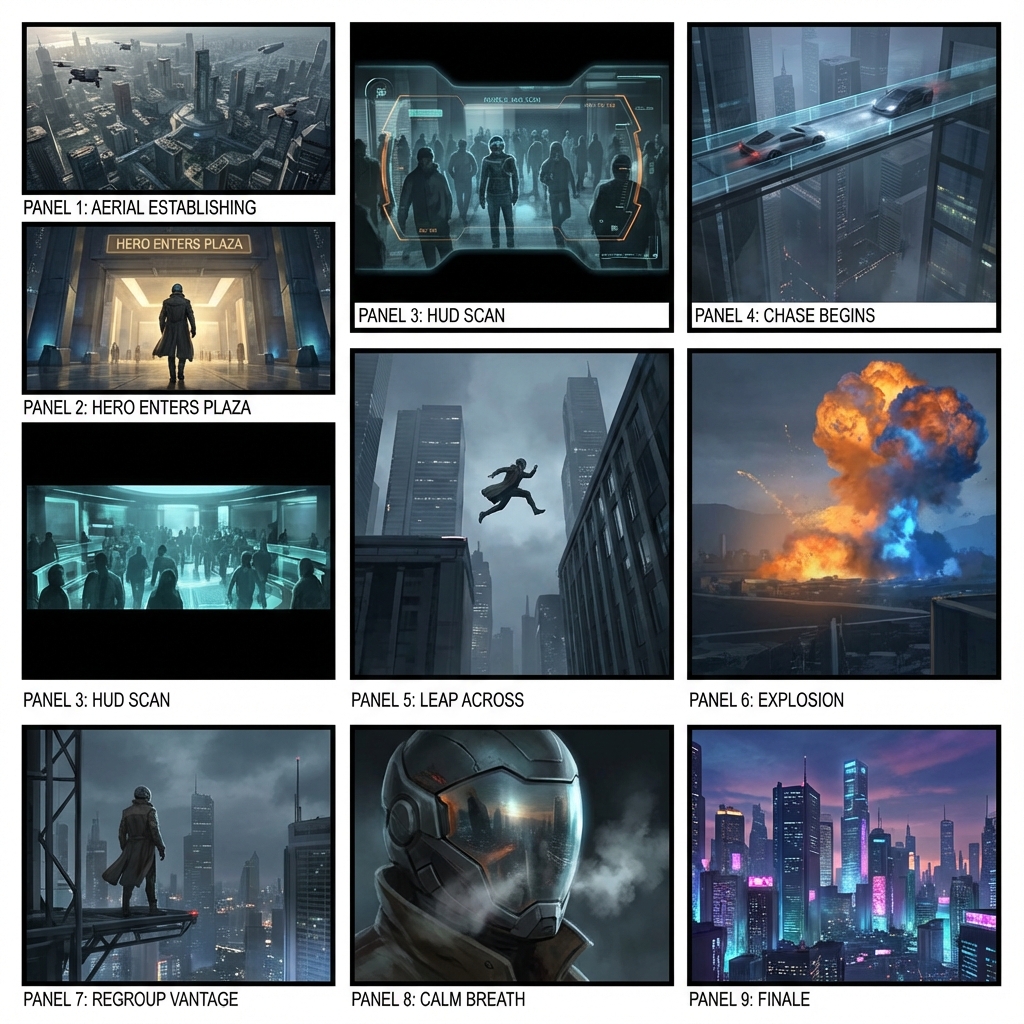
Examples of scene boards for shorts, lessons, ads, and pitch reviews.
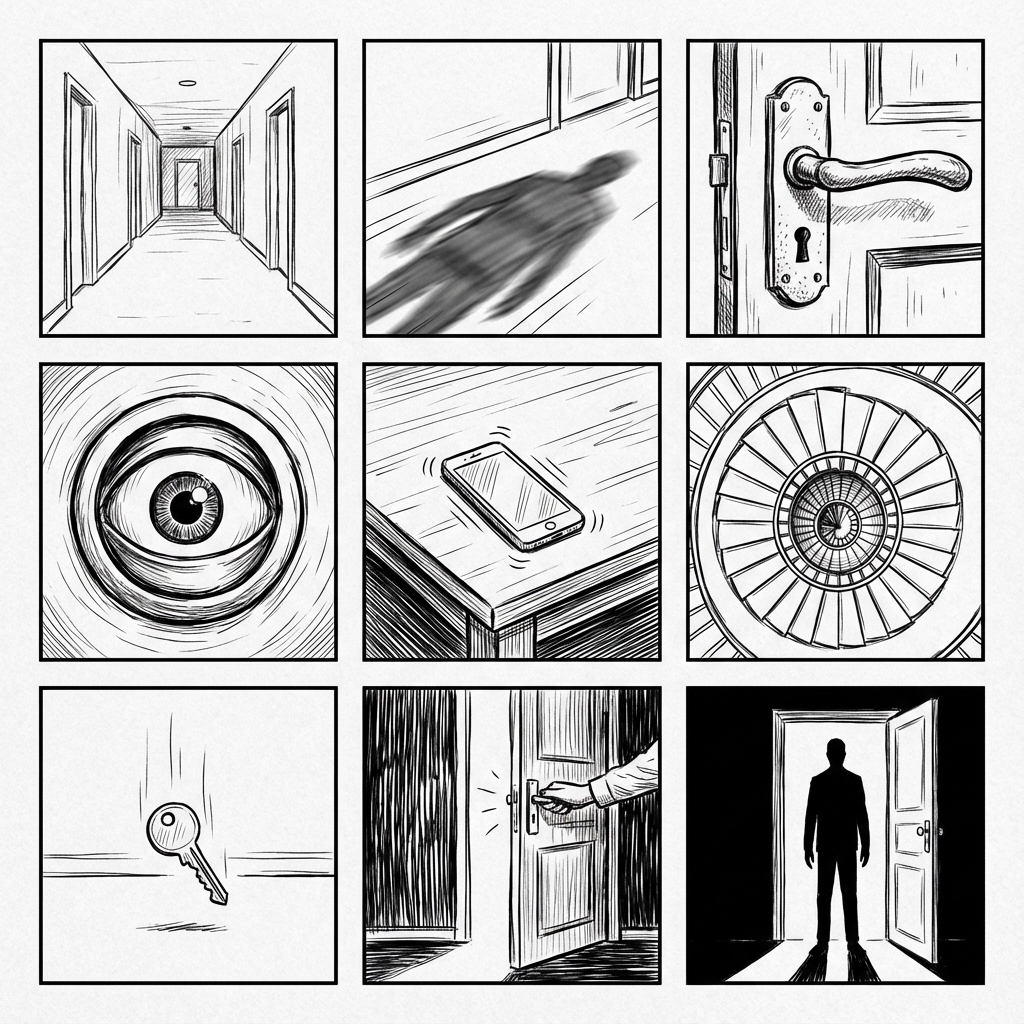
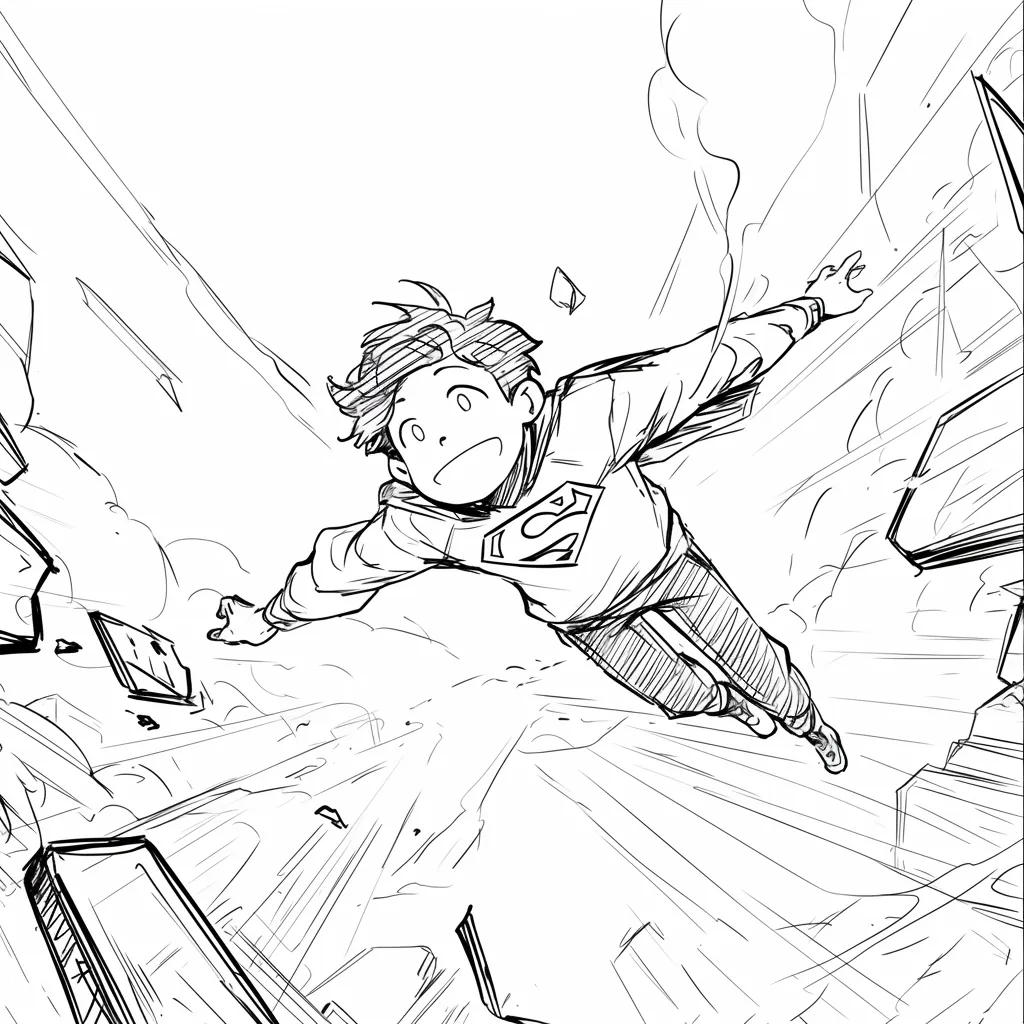
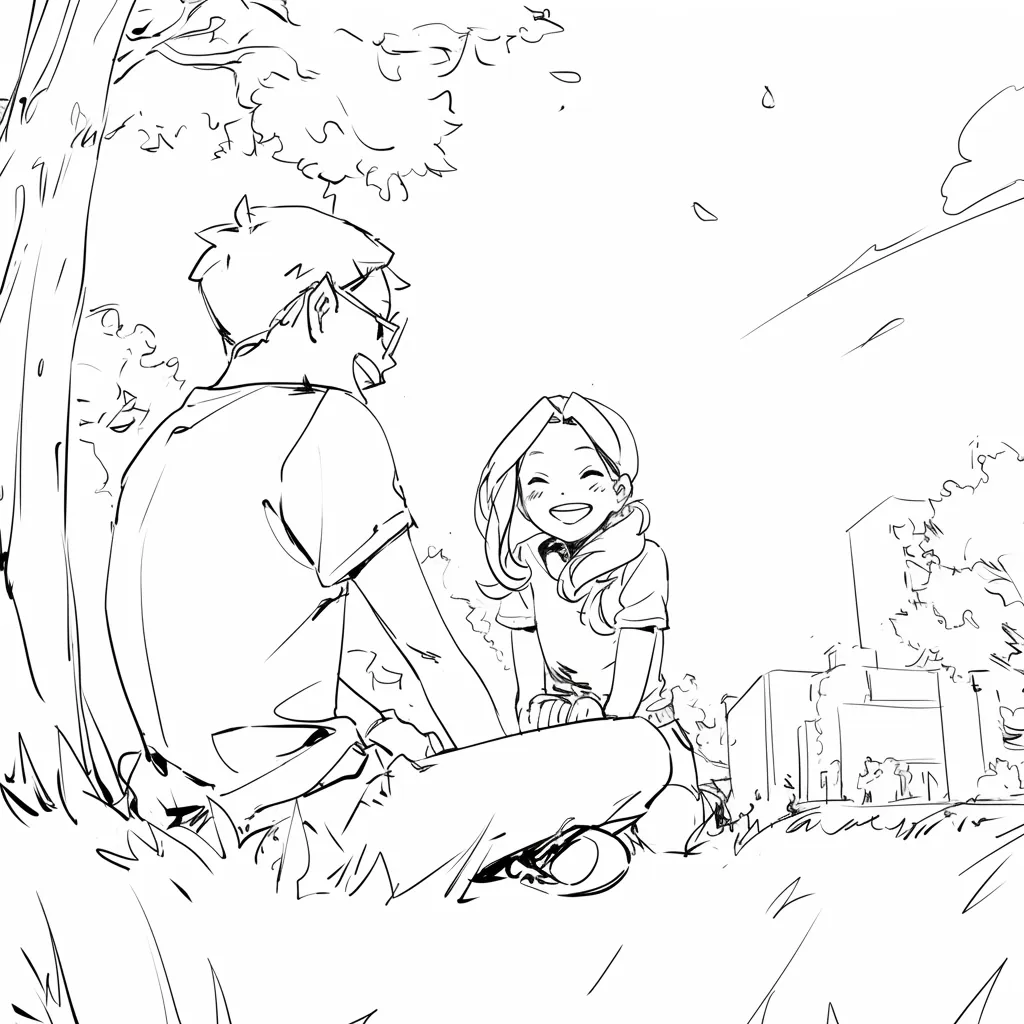
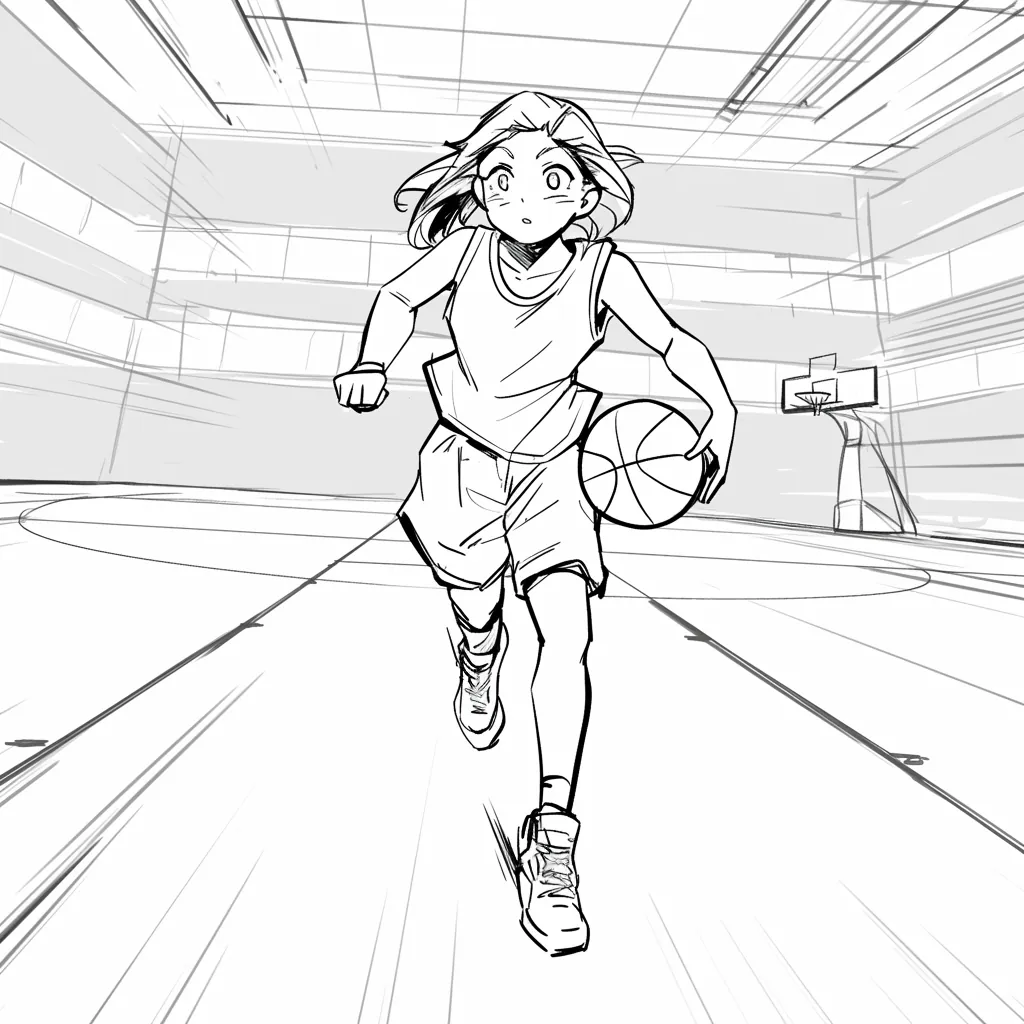
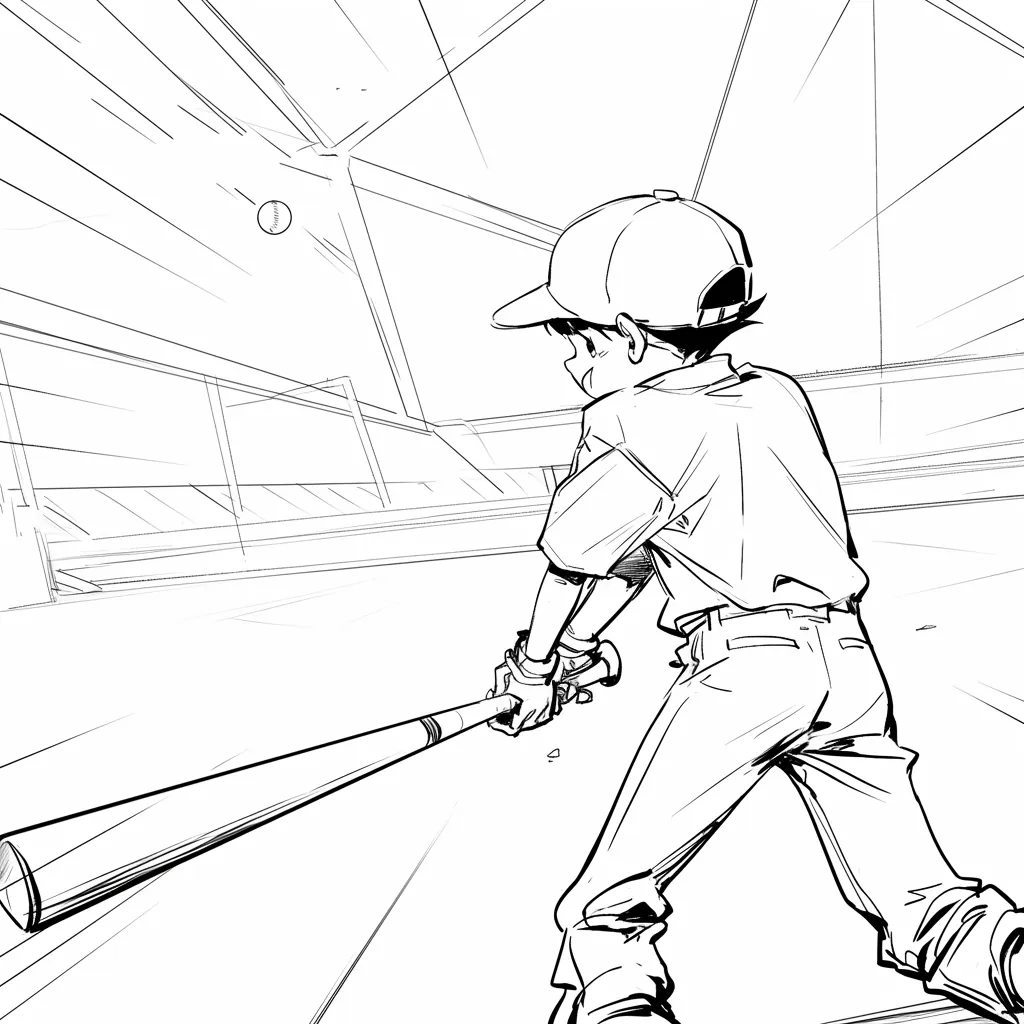
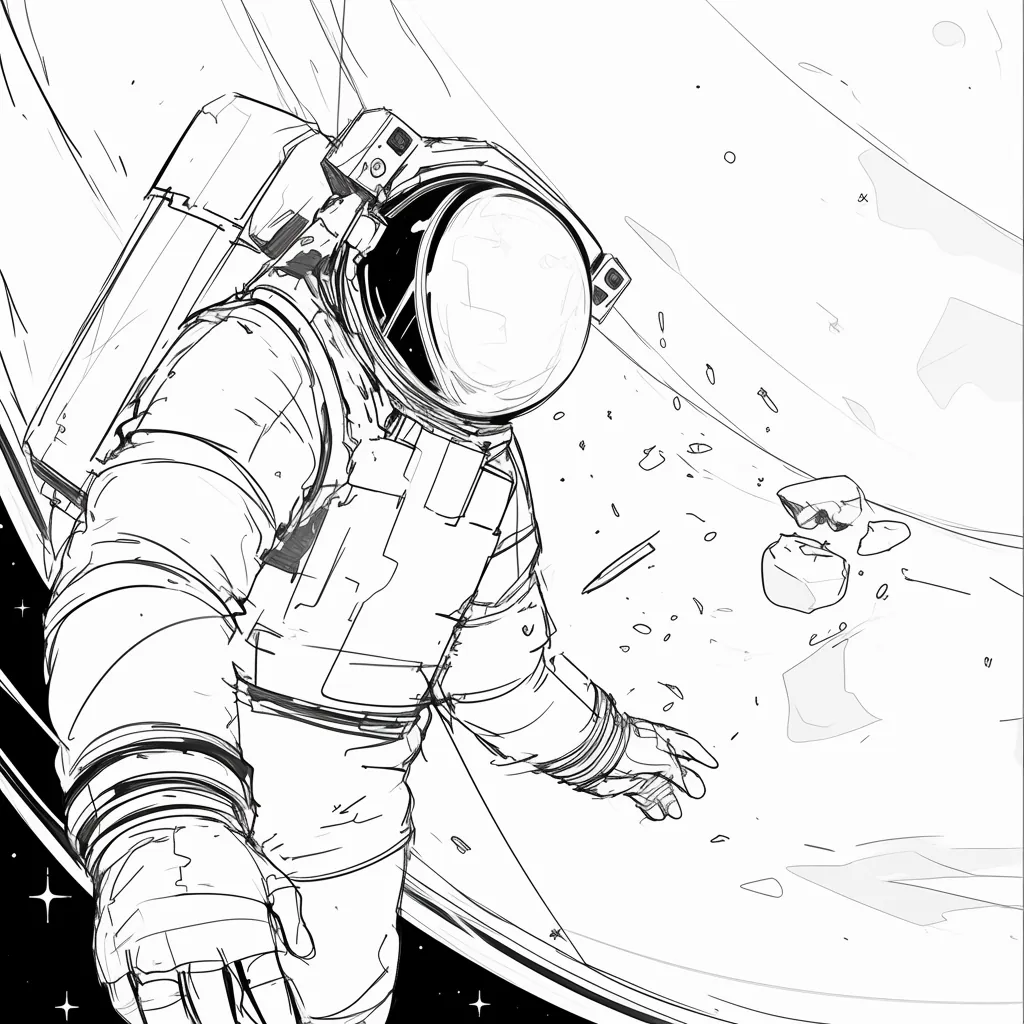
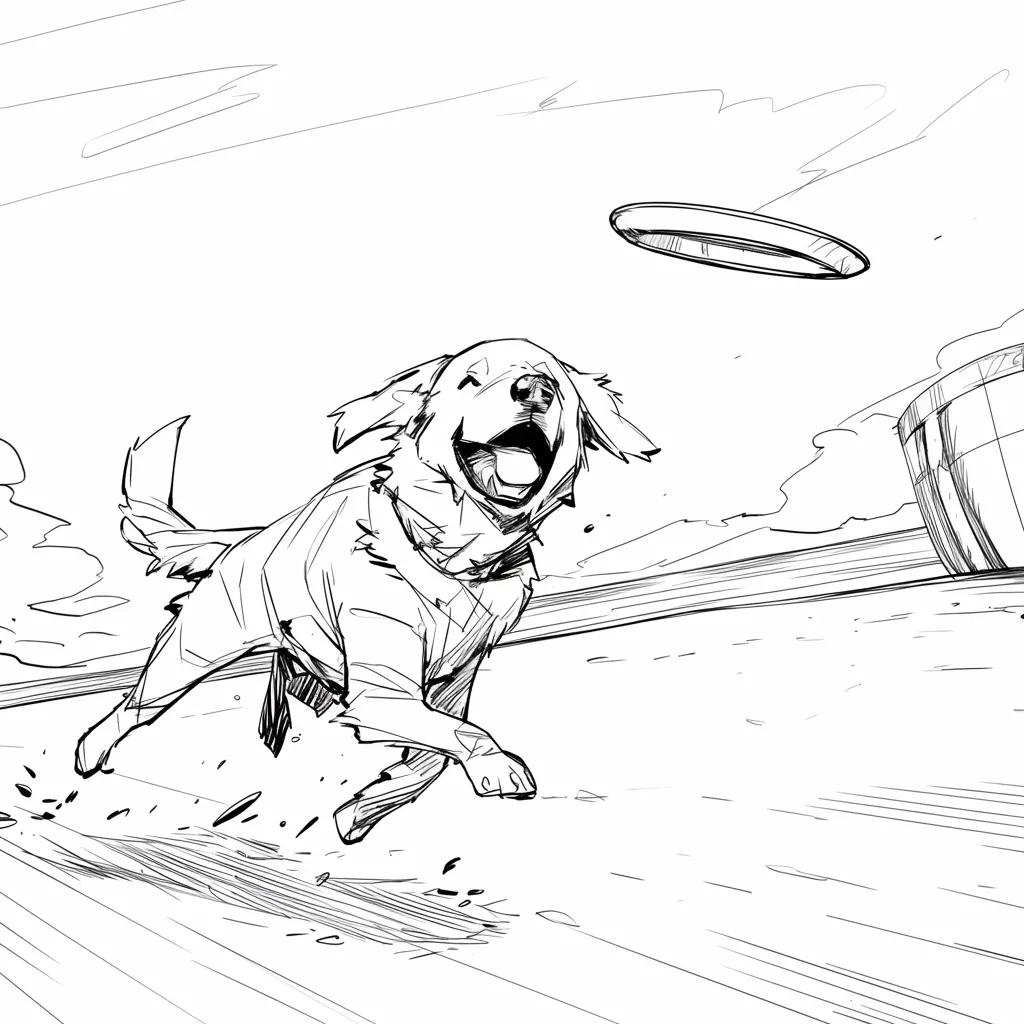
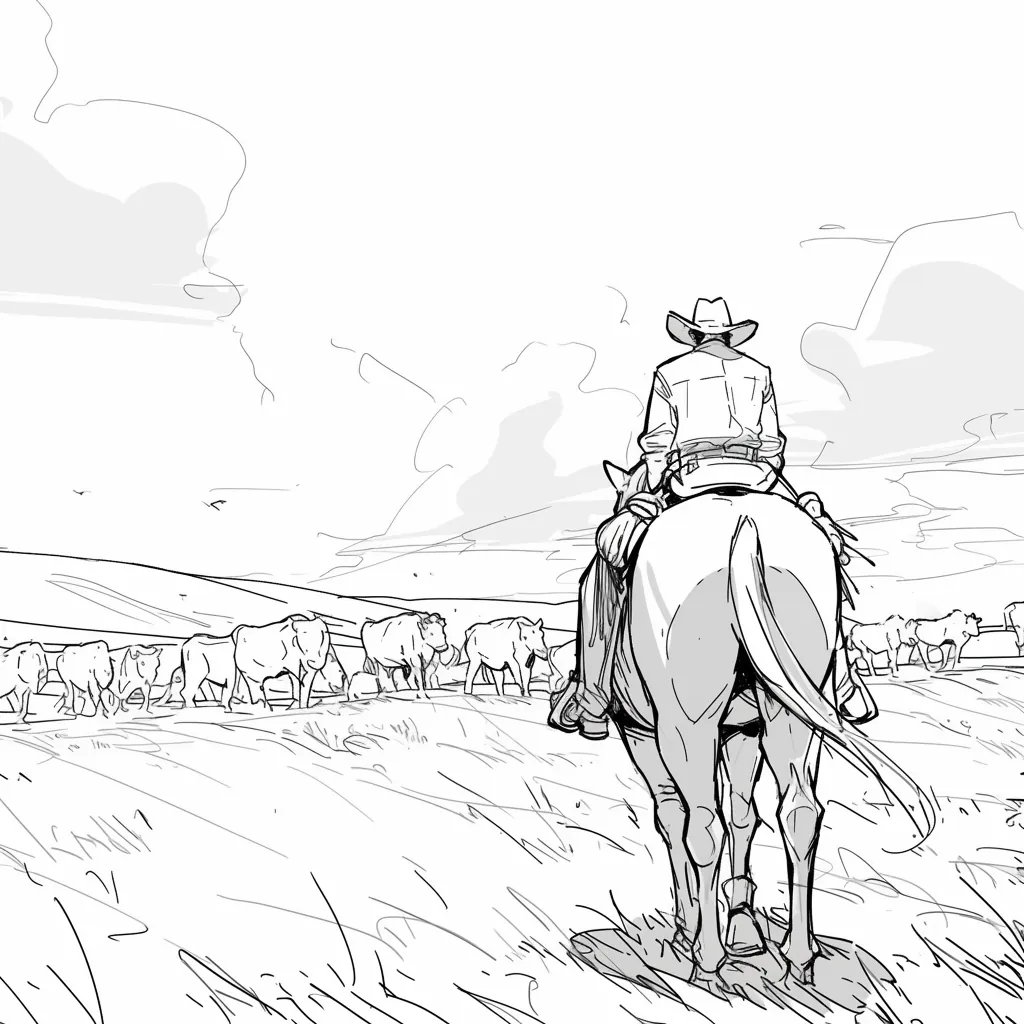
High-fidelity AI images add unintentional details (lighting, textures) that distract stakeholders. Line art keeps the focus on composition and storytelling.

@Maya_Lee

@Sky_Walker

@Cre_Luna

@juaner0211589

@rubem-didini

@refactorordie

@benoitst-laurent

@RealFeatBit

@jake-m

@michael-b

@bill
@sarah-l

@digital-marketer-suresh

@den
@velika
ไม่พบสิ่งที่ต้องการ? ส่งข้อความถึงเรา
Build an online story board your team can point at. Add scenes, move cards, and keep notes in one place before production.