

LlamaGen Visual Suite
One story. Many ways to tell it.
Create comics, manga, webtoons, storybooks, and more from one story. Reuse the same character references as you compose each version.
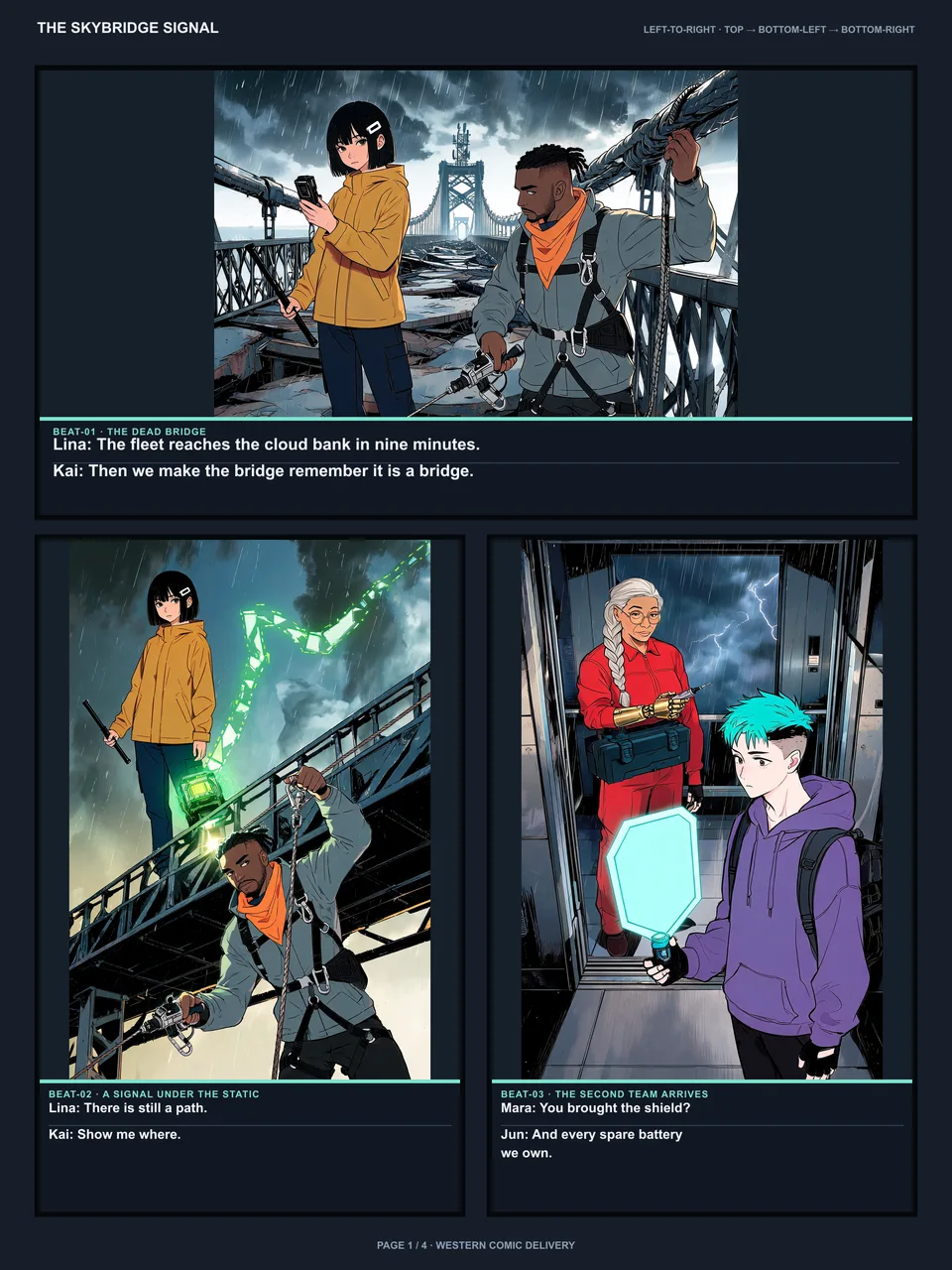
Comics
Build full-color comic pages for print or screen. Write your script, reuse character references, and edit panels and speech balloons before you export.
- Left-to-right panel layouts
- Reusable character references
- PDF and CBZ export
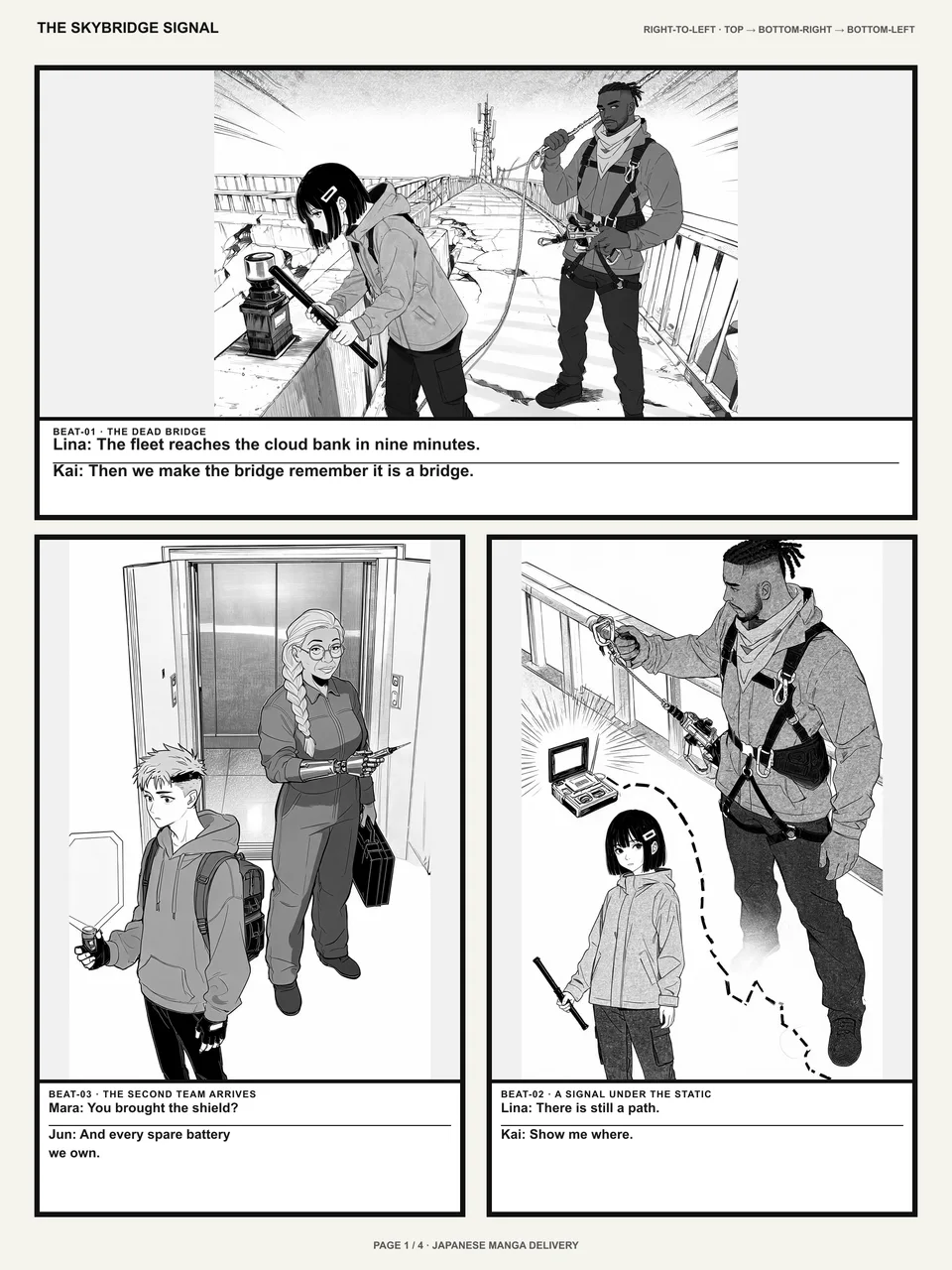
Manga
Compose right-to-left manga pages with black-and-white artwork, screentones, and panel layouts sized for the pace of your chapter.
- Right-to-left page composition
- Manga inking and screentones
- Colorization and translation tools
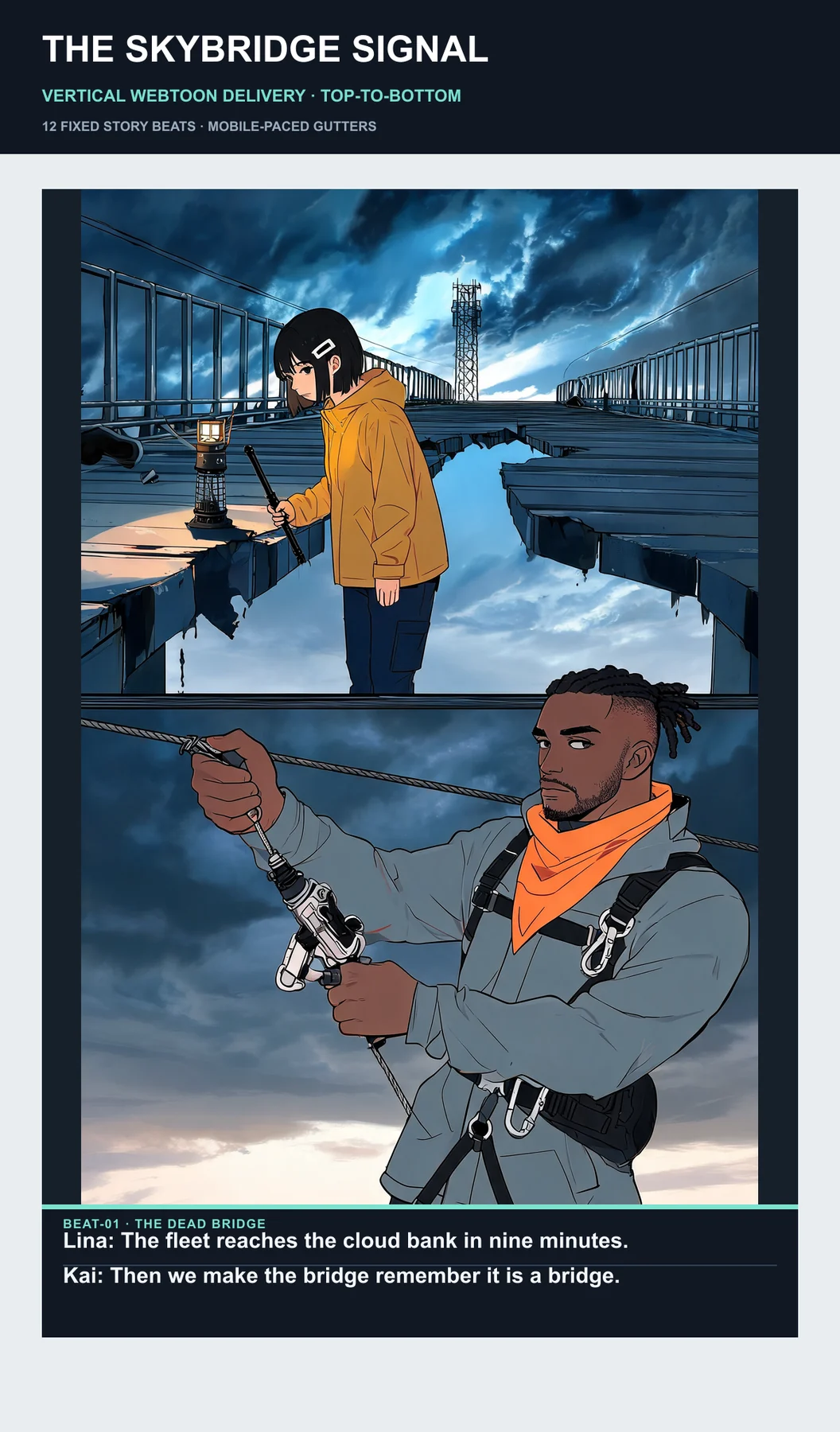
Webtoon
Compose scenes as a continuous vertical strip. Space panels and dialogue for readers scrolling on a phone.
- Vertical scroll composition
- Panel spacing for mobile reading
- Reusable cast references
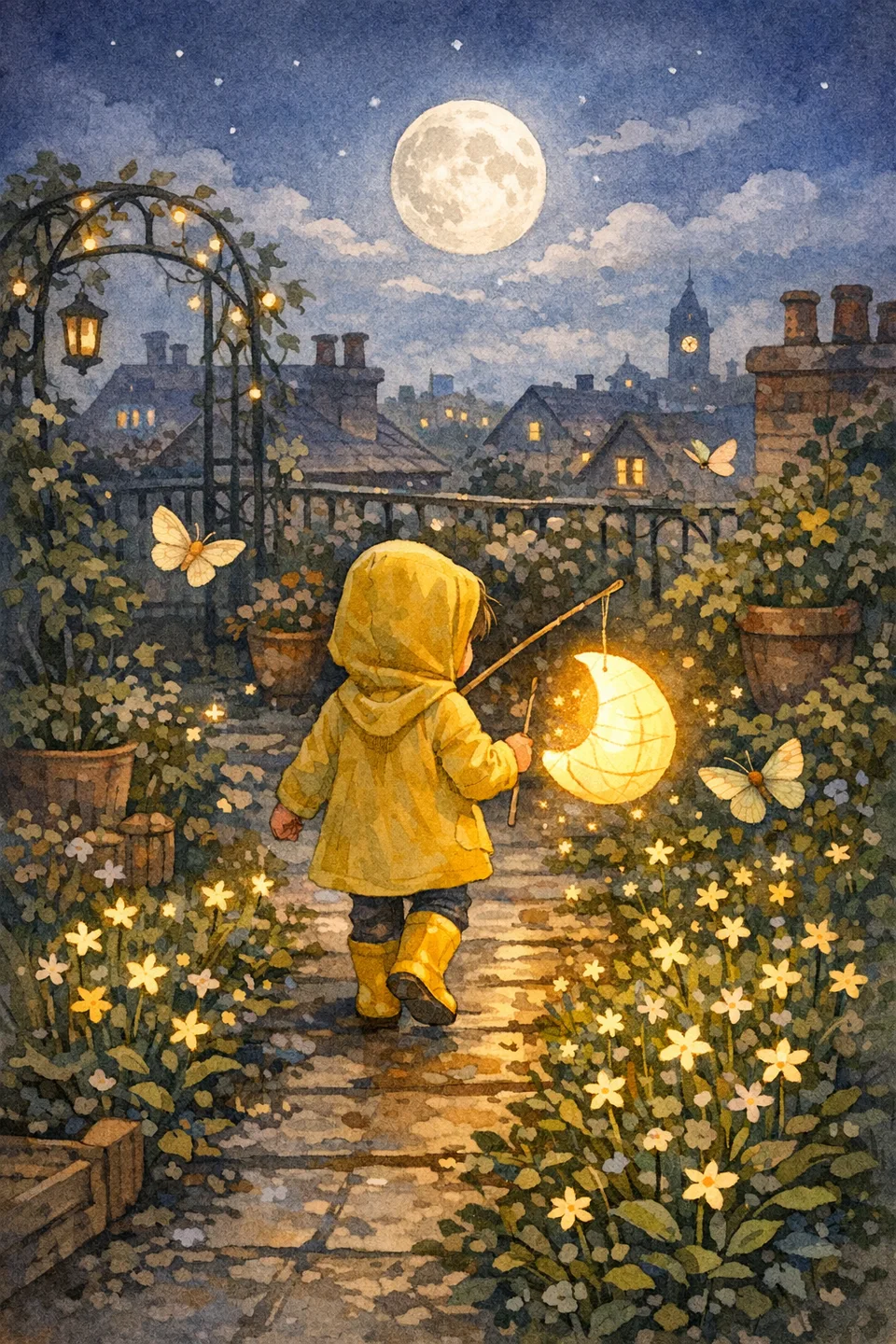
Storybooks
Turn a short story into illustrated book pages and preview the result before sharing or printing.
- Illustrated picture-book pages
- Consistent character references
- PDF export
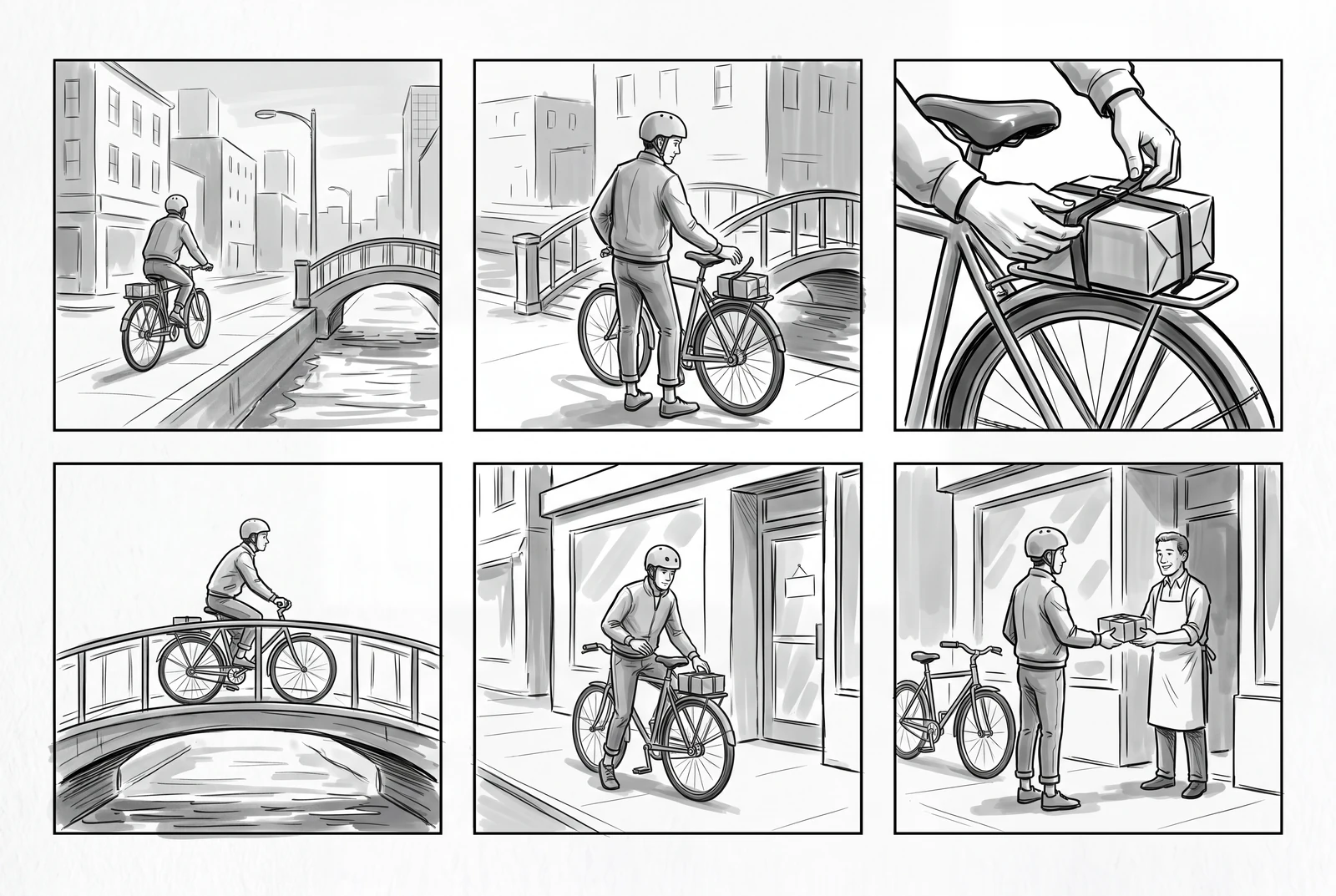
Storyboards
Break a script into sequential frames for a film, ad, or animatic. Plan framing and camera angles before production.
- Shot-by-shot planning
- Camera angle control
- Sequential frames for review
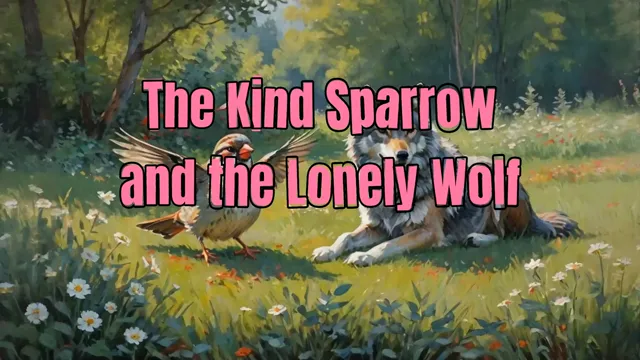
Motion
Use a finished comic or manga page as the source for a short video sequence.
- Start from existing artwork
- Animate comic and manga pages
- Export a video
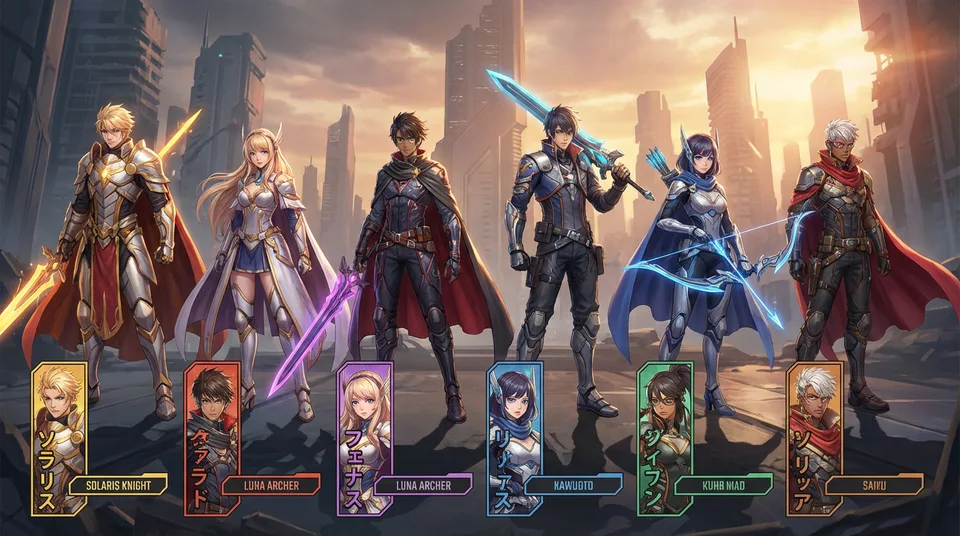
Characters
Build a cast reference library for your comics, manga, and storyboards. Use those references when you compose a new page.
- Character sheets and turnarounds
- ZIP and CSV imports
- Reference selection across formats
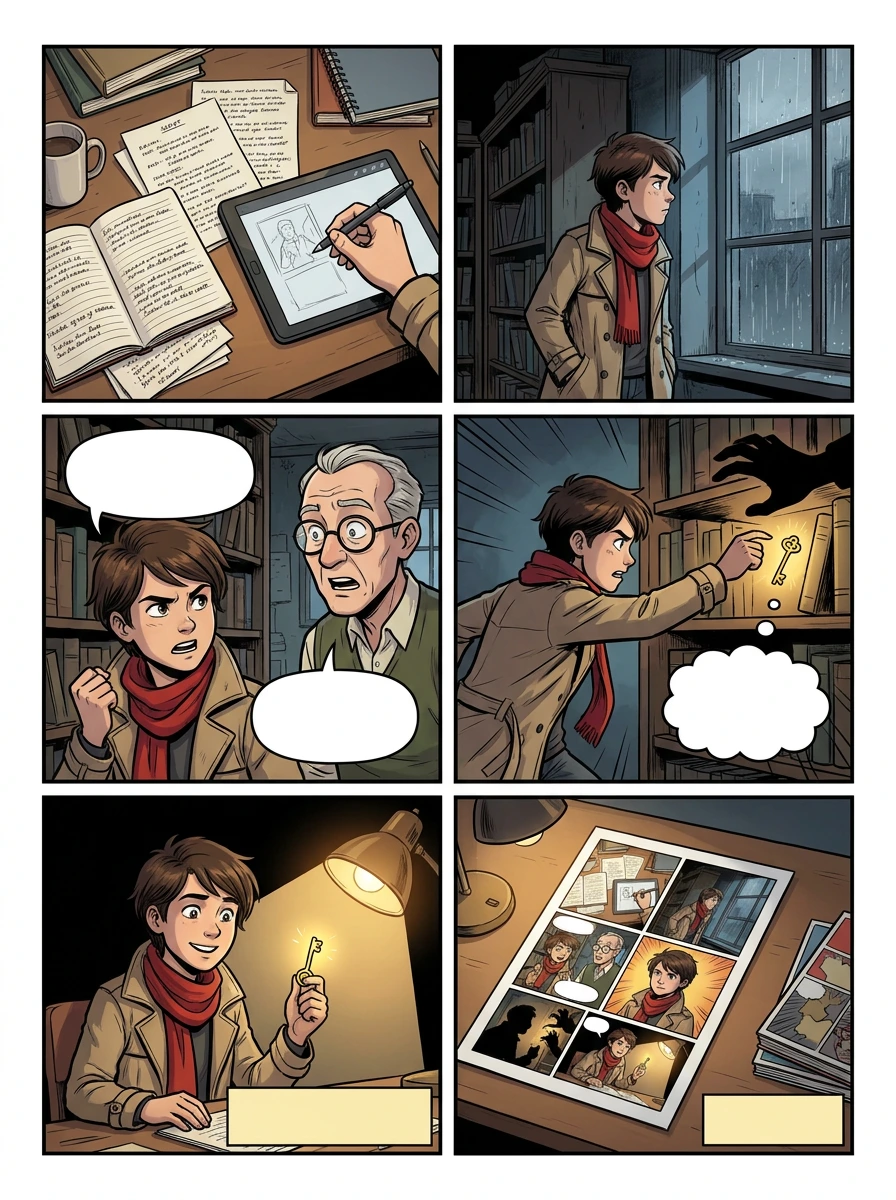
Scripts
Start from a prompt, a chapter, or a screenplay. Break the story into scenes and dialogue before you compose panels.
- Story and screenplay drafting
- Scenes and dialogue
- Editable panel scripts
One chapter, three reading formats
See how LlamaGen composed The Skybridge Signal as a comic, manga, and webtoon, using the same chapter and four recurring characters.
From script to finished pages
- 1
Write or import the story
Start from a prompt, a chapter, a script, or a finished PDF. The words stay in the same project as the pictures.
Open tool - 2
Lock the cast
Build or import character sheets so the same faces can appear in a comic page, a manga chapter, and a storyboard.
Open tool - 3
Compose the reading format
Choose comic, manga, webtoon, storybook, or storyboard. Compose the panels and reading order for each format.
Open tool - 4
Edit, then publish or animate
Fix balloons, panels, and order in the editor. Export PDF or CBZ, or send finished pages into motion.
Open tool
AI editing tools
Characters that stay put
Select the same roster when you generate a new format so the story does not recast itself.
Camera angle control
Ask for a low angle, a two-shot, or an over-the-shoulder without redrawing the scene from memory.
Layer splitter
Separate a finished illustration into editable layers when you need to move a figure or clean a background.
Manga colorizer
Add color to an inked page after the black-and-white composition is right.
Manga translator
Translate balloons and captions when the same chapter needs another language.
Story to comic
Turn prose or dialogue into an editable sequence instead of pasting a novel into a prompt box.
Layout and publishing tools
Comic editor
Import PDF, CBZ, ZIP, EPUB, or project JSON and keep editing the ordered book.
Templates
Start from a layout instead of a blank page when you already know the beat.
Color tools
Use a color wheel or build a palette for your pages.
Font pairing
Test display and balloon type so titles and captions stay readable on a colored panel.
Make stories for your audience
Independent creators
Finish a chapter as manga, then compose the same story as a webtoon without rebuilding the cast.
Educators and families
Turn a lesson or a bedtime story into a comic strip or a picture book you can print.
Studios and brands
Keep a mascot or IP consistent from storyboard to social comic to a short motion cut.
Frequently asked questions
What is LlamaGen Visual Suite?
Visual Suite is LlamaGen's connected studio for sequential stories. Comics, manga, webtoon, storybooks, storyboards, characters, scripts, and motion share one cast and one project instead of living in separate tools.
Can I convert a comic into manga or webtoon automatically?
No. Each reading format is a separate composition. A documented case study held the same 993-word chapter, 12 story moments, and four characters constant, then composed manga, Western comic, and webtoon in three runs. That is continuity testing, not a one-click converter.
Do characters stay consistent across formats?
You lock a roster in Character Editor and select those people when you generate. Consistency still needs review—especially across very different styles—but you are not starting every format with a new cast.
Is Visual Suite free to try?
Yes. LlamaGen includes a free tier so you can create a first comic or manga chapter in the browser. Higher-resolution export, longer books, and team features sit on paid plans.
What can I export?
Finished stories can leave as PNG pages, PDF, or CBZ. Motion tools export video from pages you already approved. Import works in the other direction: PDF, CBZ, ZIP, EPUB, and project JSON can come back into the editor.
How is this different from a design suite like Canva?
Canva's Visual Suite is built for work documents, slides, sheets, and social graphics. LlamaGen Visual Suite is built for sequential art: reading direction, panel rhythm, locked characters, and story-length export.
Start with a comic
Bring a script or a story idea into the studio and compose your first page.