1
Choose the real intent
Start from what the user is trying to do: generate from text, edit an image, restyle a reference, compare options, or make a specific asset.


Find the right LlamaGen workflow for text-to-image prompts, image-to-image transformations, AI image editing, character assets, covers, collectibles, and social-ready visuals.
Start from text, transform a reference image, edit an existing result, compare generators, or turn an image into video.
For creators comparing text-to-image, image-to-image, editing, and image-to-video workflows.
For creators comparing editors by identity preservation, prompt control, edit boundaries, and reusable output quality.
For creators who already have a reference image and want to restyle it, preserve identity, or turn it into a specific asset.
For users who want to refine an existing image: change outfit, fix composition, adjust style, or prepare a final shareable version.
For people comparing how AI image generation works before they choose a model, prompt, reference workflow, or output format.
For users who want a clear path from a plain idea to a finished image without learning prompt engineering first.
For users whose real goal is motion. Route them to video instead of forcing them through an image-only page.
Choose the asset you want to create, then open the workflow with the most relevant inputs and controls.
Start from what the user is trying to do: generate from text, edit an image, restyle a reference, compare options, or make a specific asset.
Each page explains the input, output, prompt examples, and quality checks for that job before sending the user into creation.
Create the first image, check identity and composition, then reuse the result across comics, product mockups, profile art, and campaign sets.
Start with the pages that represent the collection best: character presentations, physical-product mockups, cover formats, and playful object transformations.
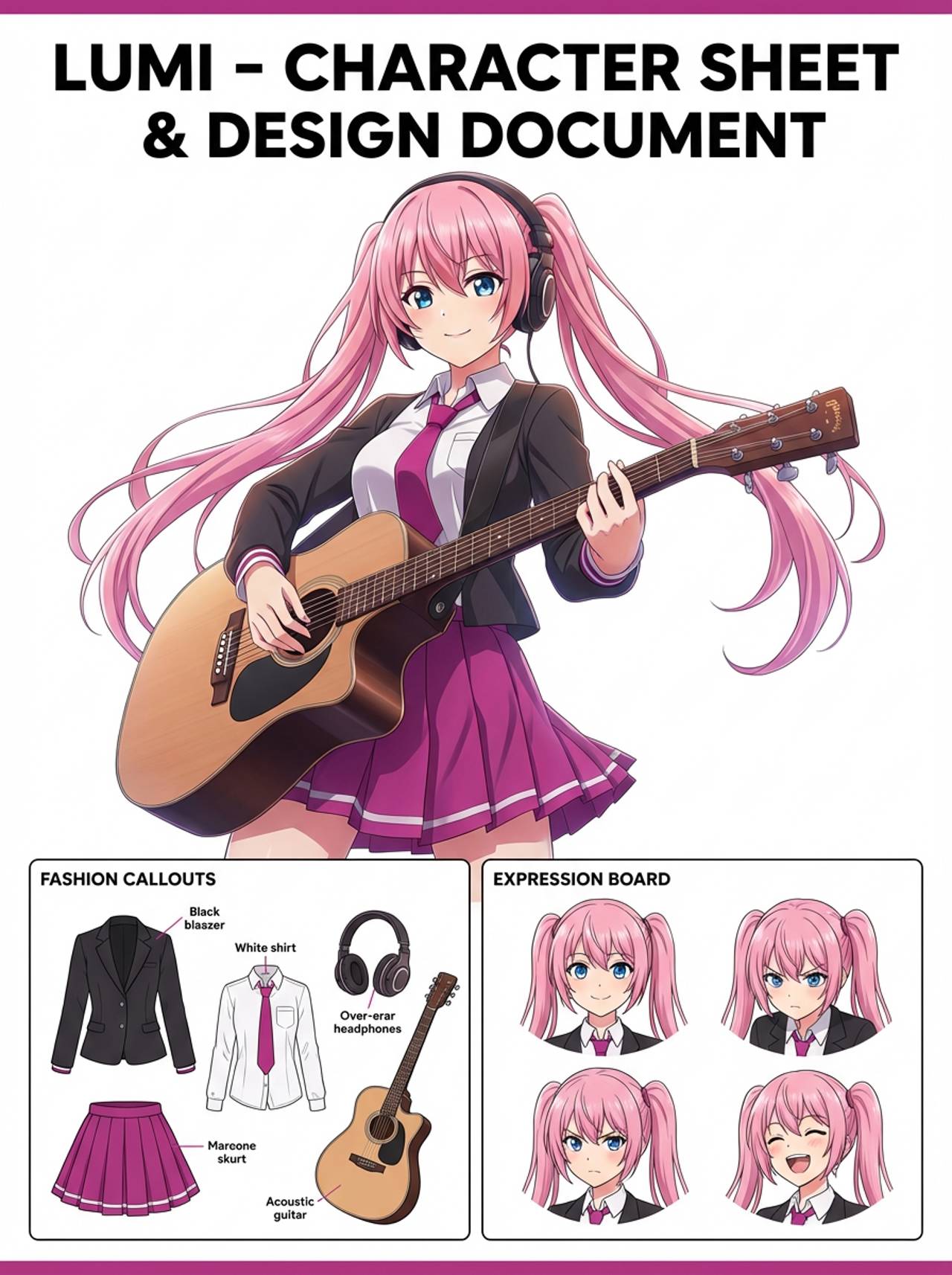
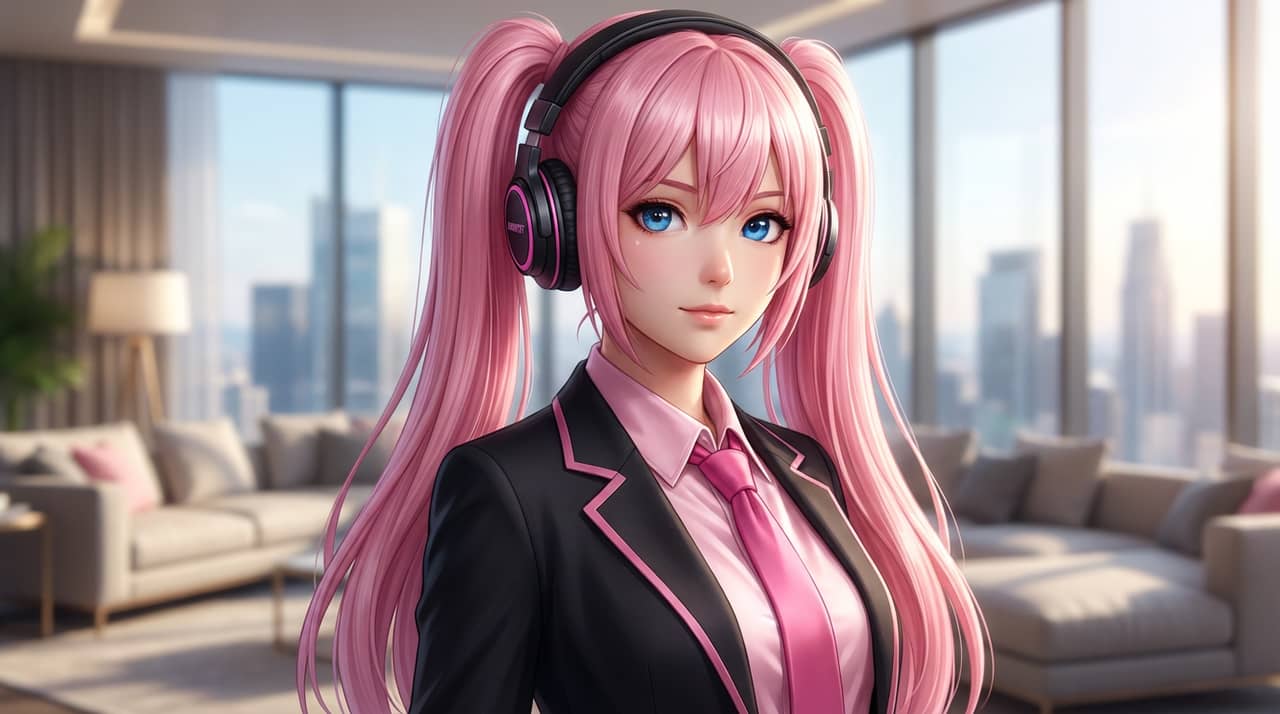
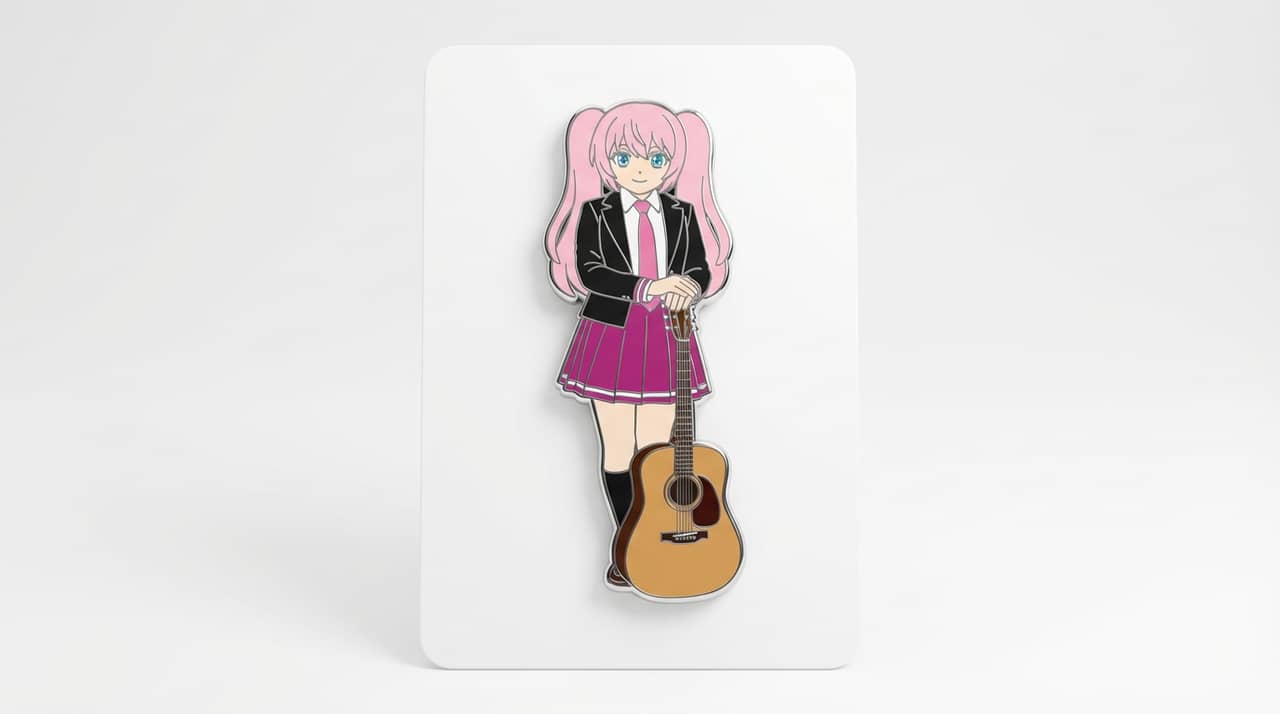
Each card includes examples, workflow guidance, practical answers, quality checks, and a direct creation path.
Compare LlamaGen image-generation workflows for text prompts, reference images, image editing, character consistency, and image-to-video handoff.
Evaluate AI image editors by control, identity preservation, prompt clarity, creative limits, and whether edited results are reusable.
Plan and create AI images with a workflow that separates text prompts, image-to-image references, editing goals, and final output checks.
Use an existing image as a reference, then turn it into a new style, asset, cover, mockup, badge, card, or character visual with AI.
Edit existing images with AI prompts for outfit changes, style fixes, composition cleanup, character variants, covers, badges, and campaign assets.

Compare what matters when choosing the best AI image generator for consistent characters, reference-based edits, comics, covers, and reusable assets.
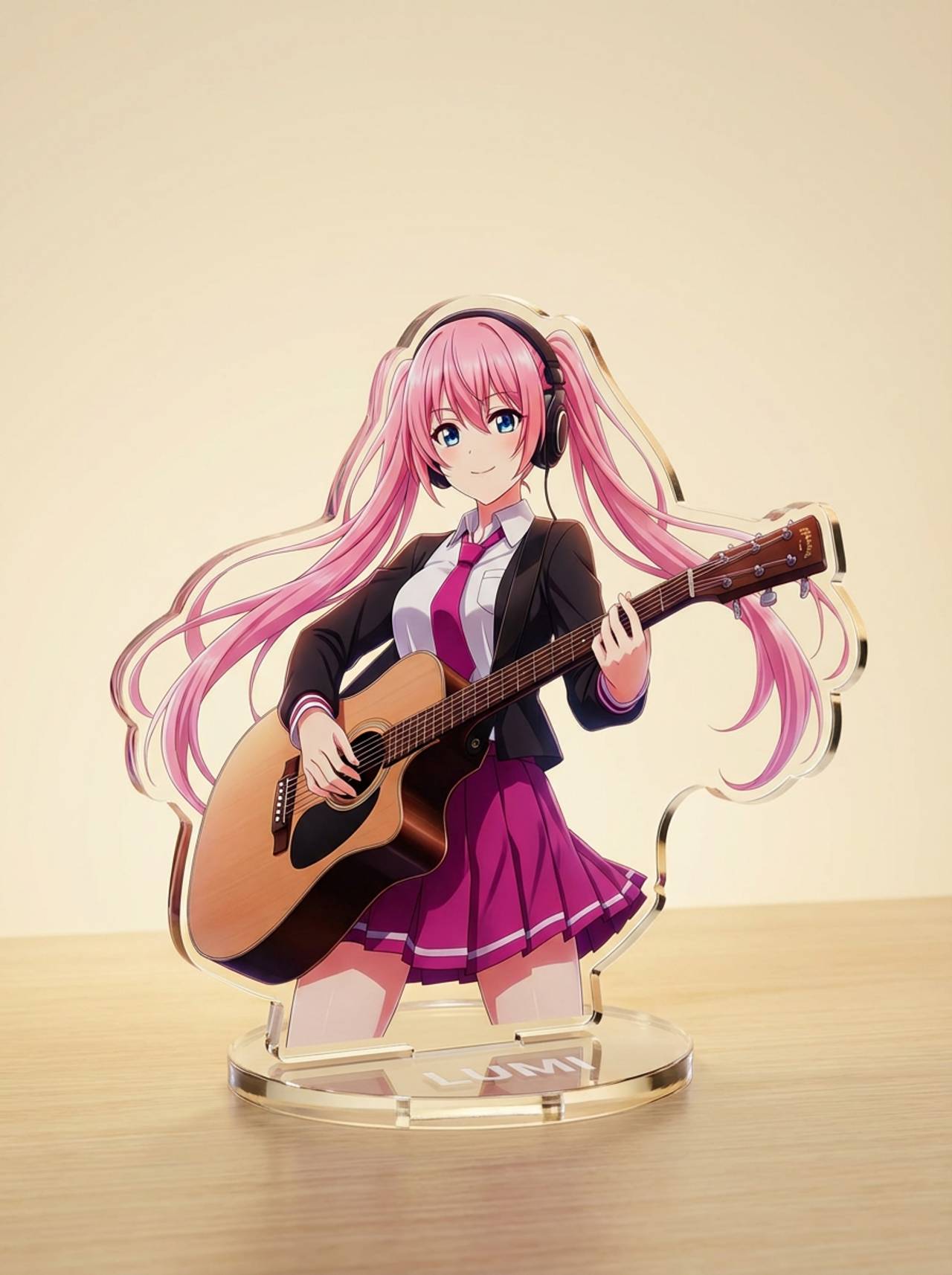
Generate images with AI from simple text prompts, then refine the subject, style, composition, and final asset format for practical creative use.
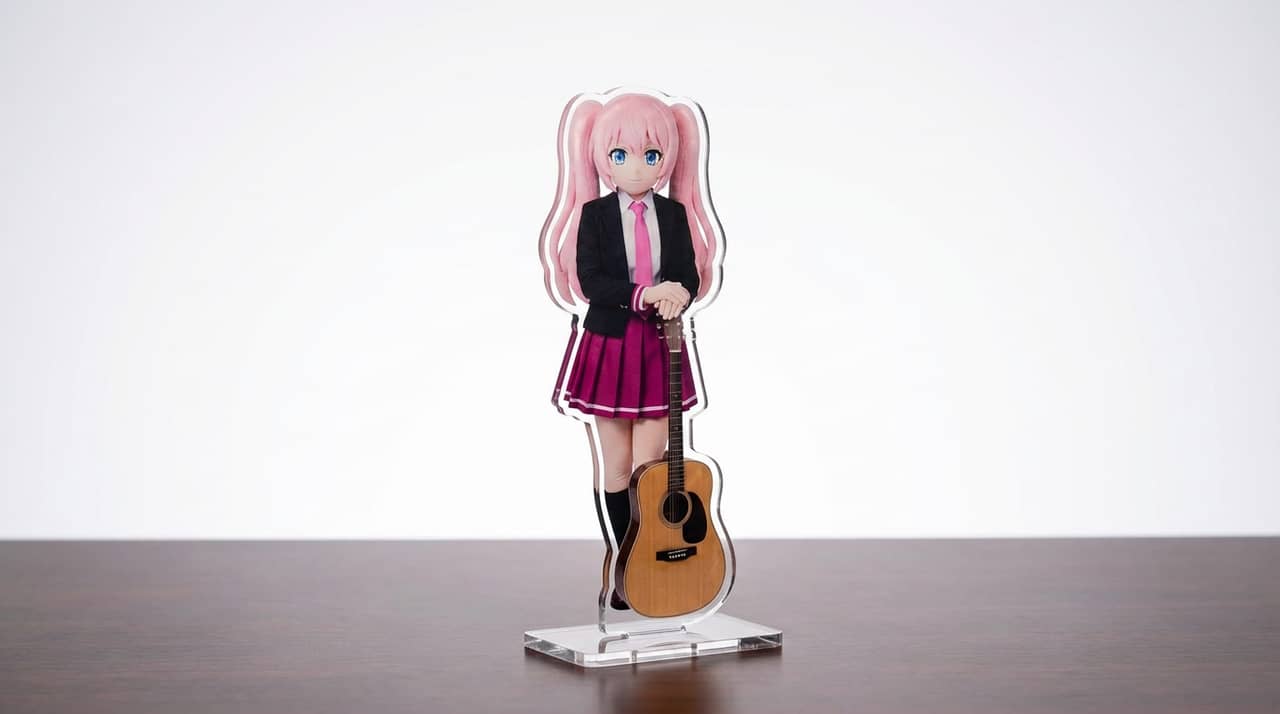
Turn character art, pets, mascots, or OCs into acrylic standee mockups with crisp outlines, base presentation, and merch-ready composition.
Turn character art, mascots, pets, or portraits into badge-style visuals with circular framing, clean edges, and icon-friendly composition.
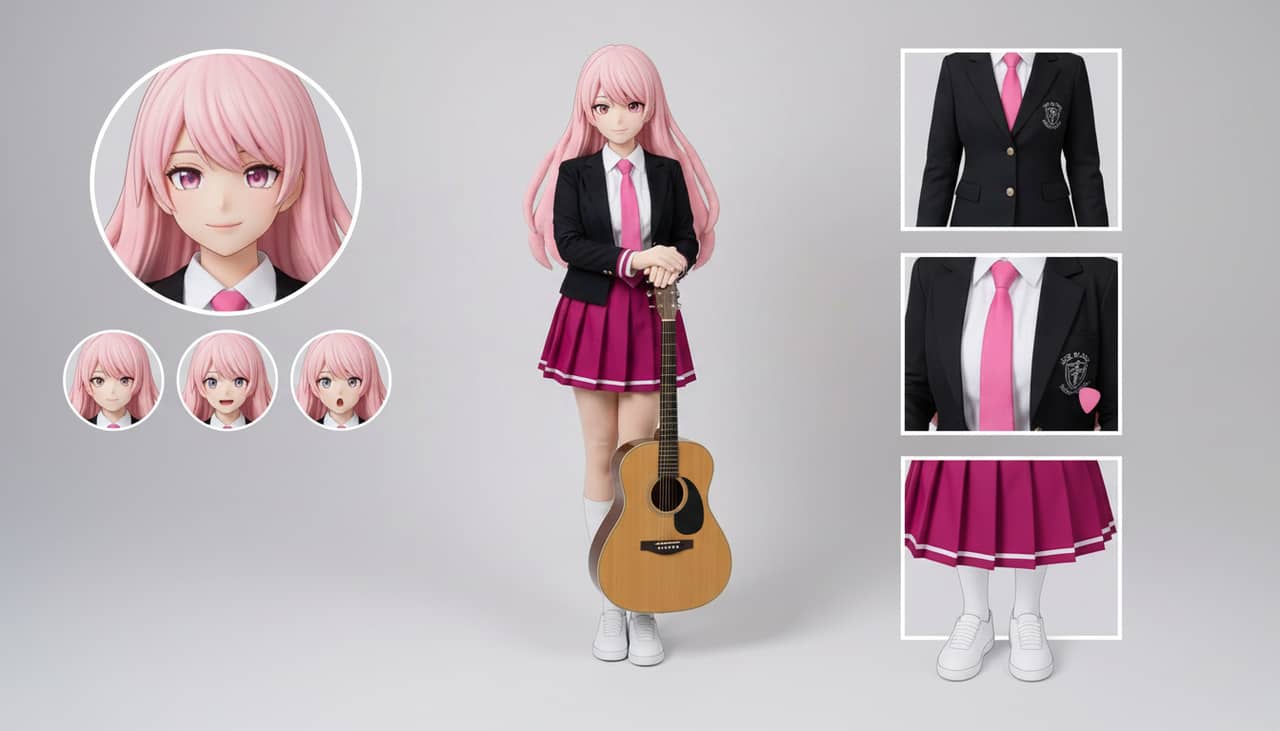
Build character sheet layouts for outfits, expressions, accessories, and pose references from a single design or text brief.
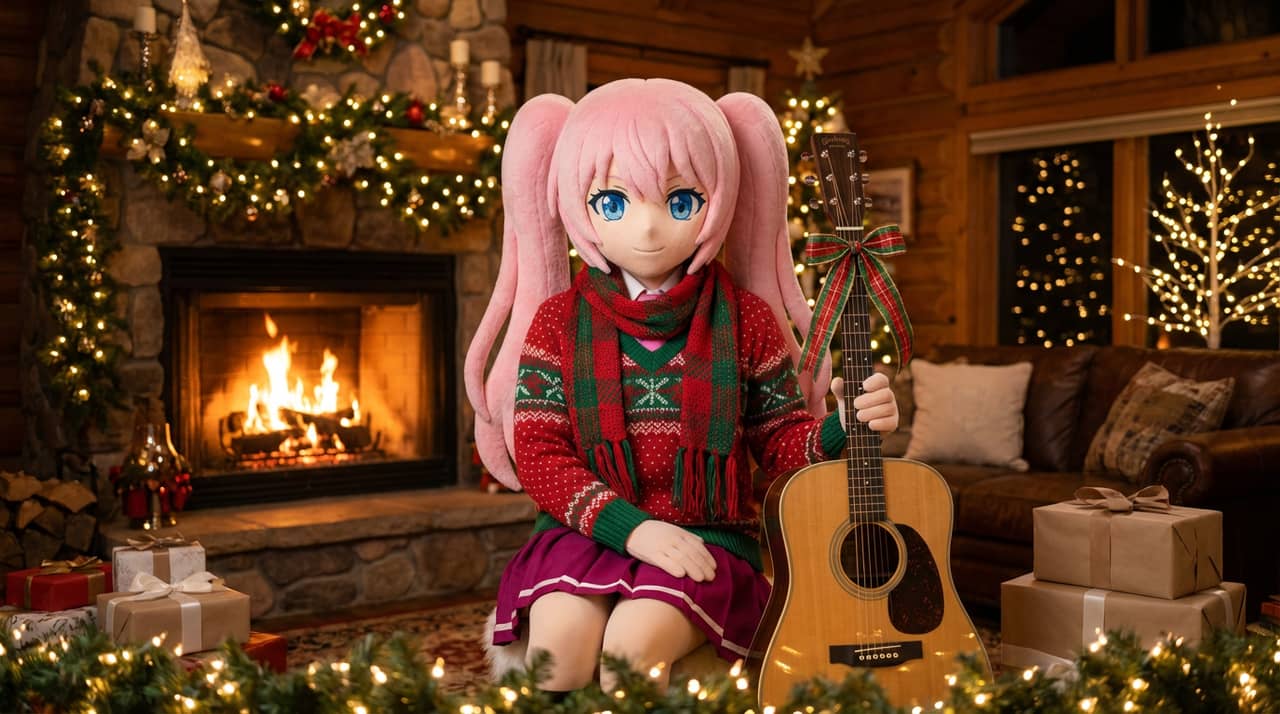
Give portraits, mascots, and character art a holiday outfit pass with scarves, hats, winter palettes, and festive presentation.
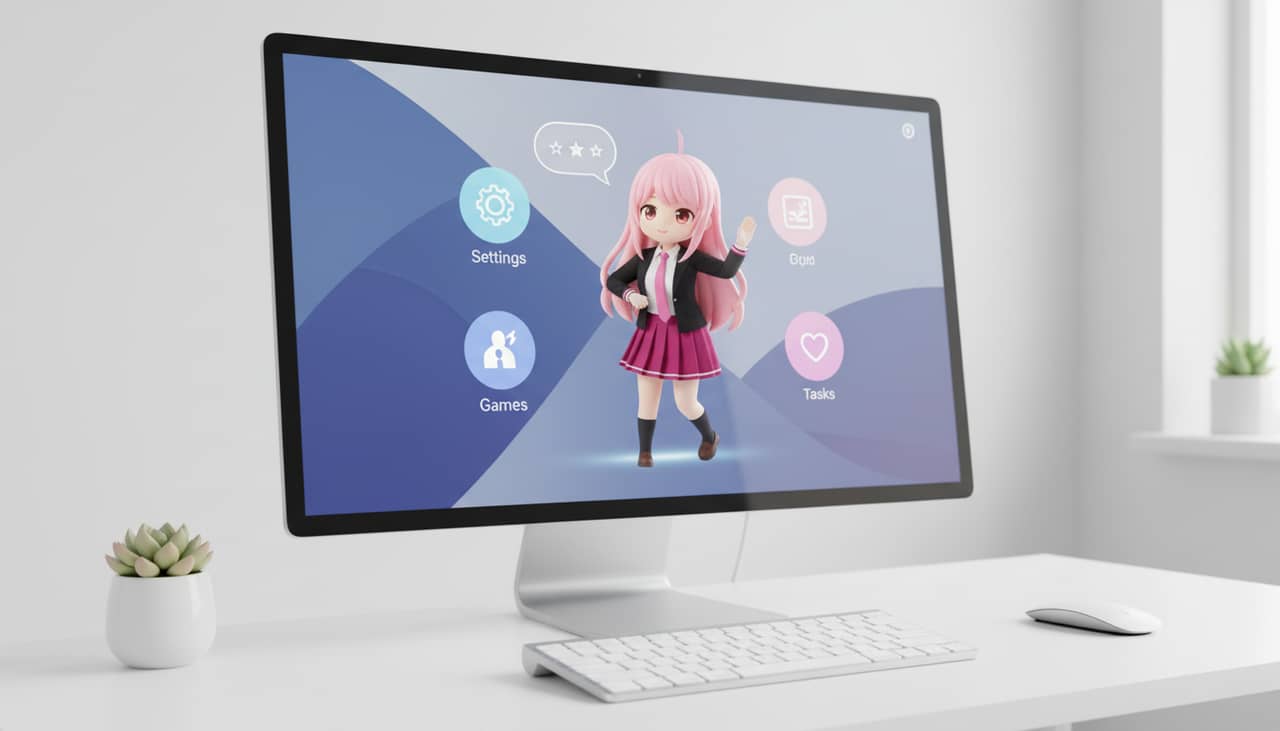
Convert characters and mascots into desktop pet styled visuals with layout-aware framing for screen companions and overlay concepts.
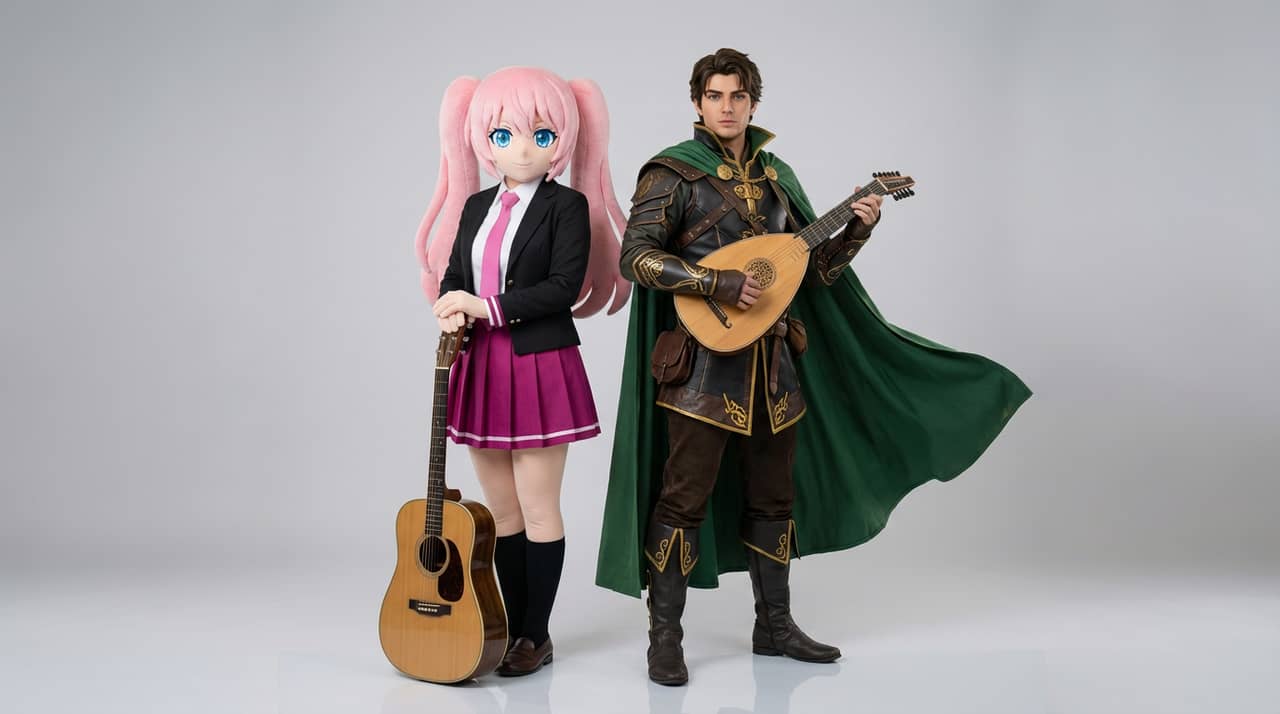
Upload two references or describe two characters, then generate interaction shots, paired compositions, and scene-ready duo framing.
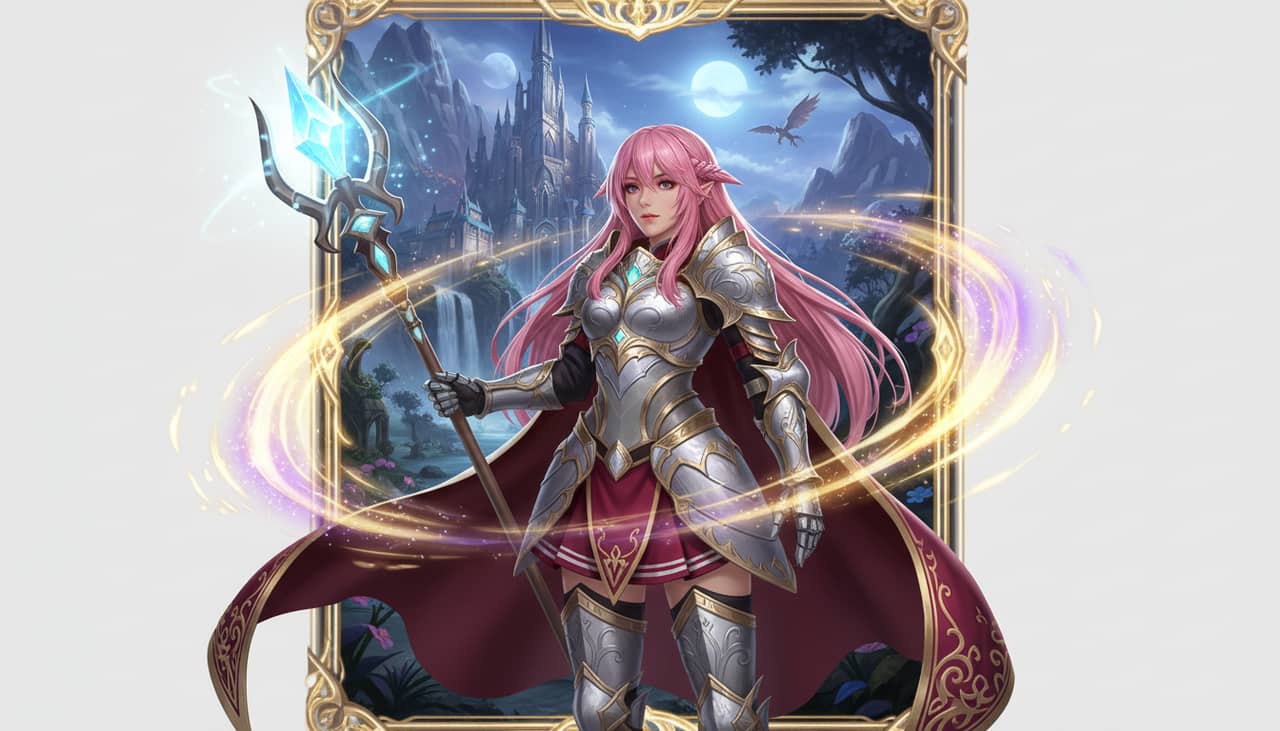
Turn a character image or text brief into a fantasy hero presentation with class styling, RPG flavor, and campaign-ready composition.
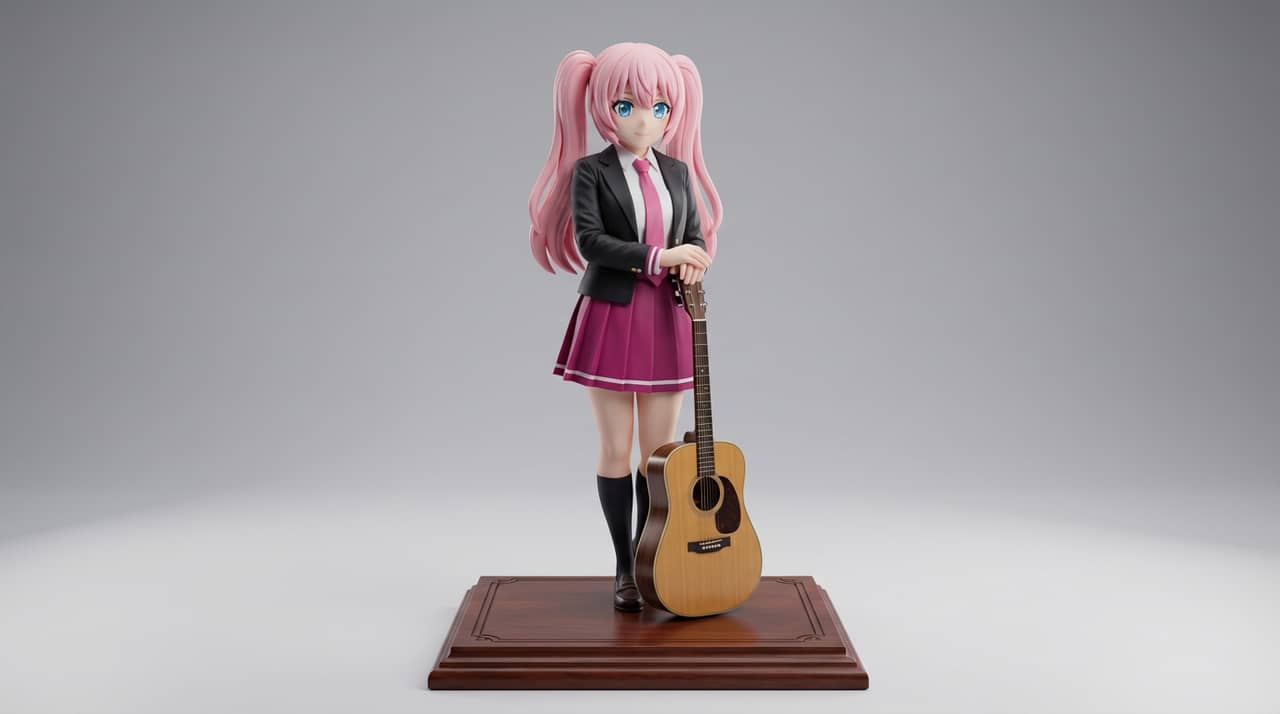
Turn flat character art into display-figure styled outputs for collectible concepts, PVC figure mockups, and product-style visuals.
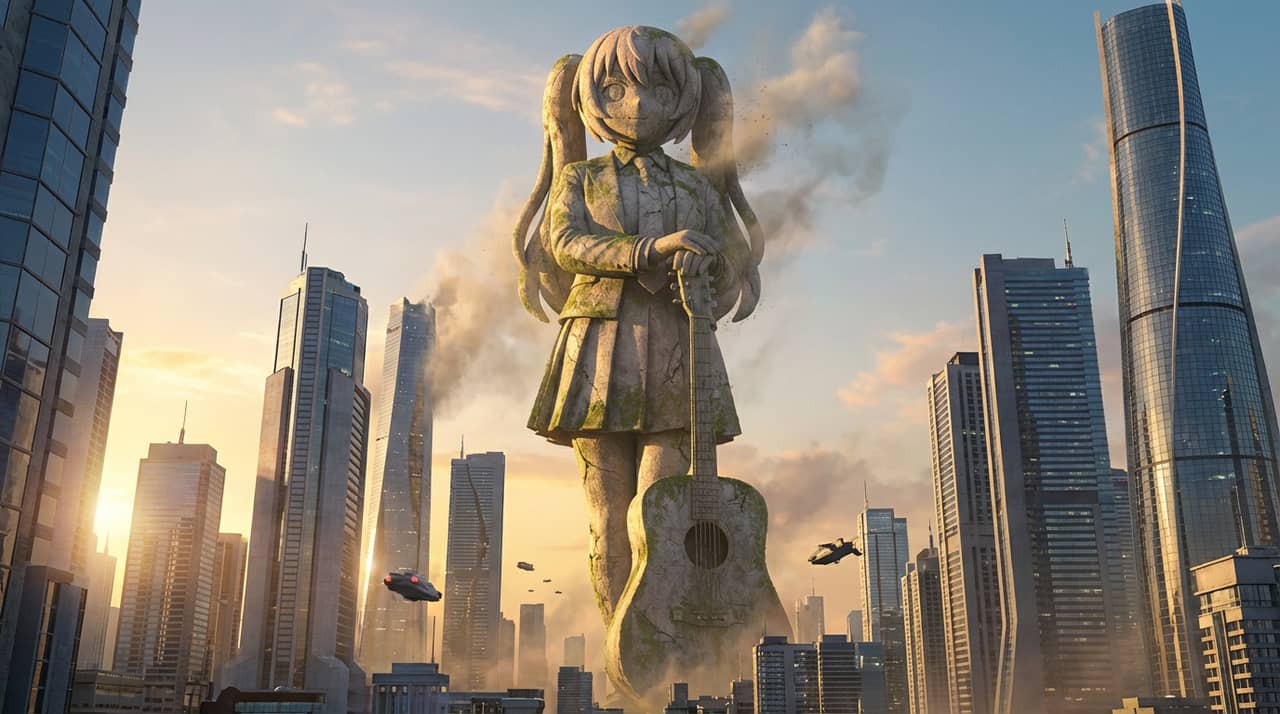
Transform characters, mascots, or heroes into giant statue visuals with skyline context, landmark-like scale, and dramatic presentation.
Turn characters, OCs, portraits, or mascots into glossy editorial cover visuals with strong framing, premium mood, and magazine-style positioning.
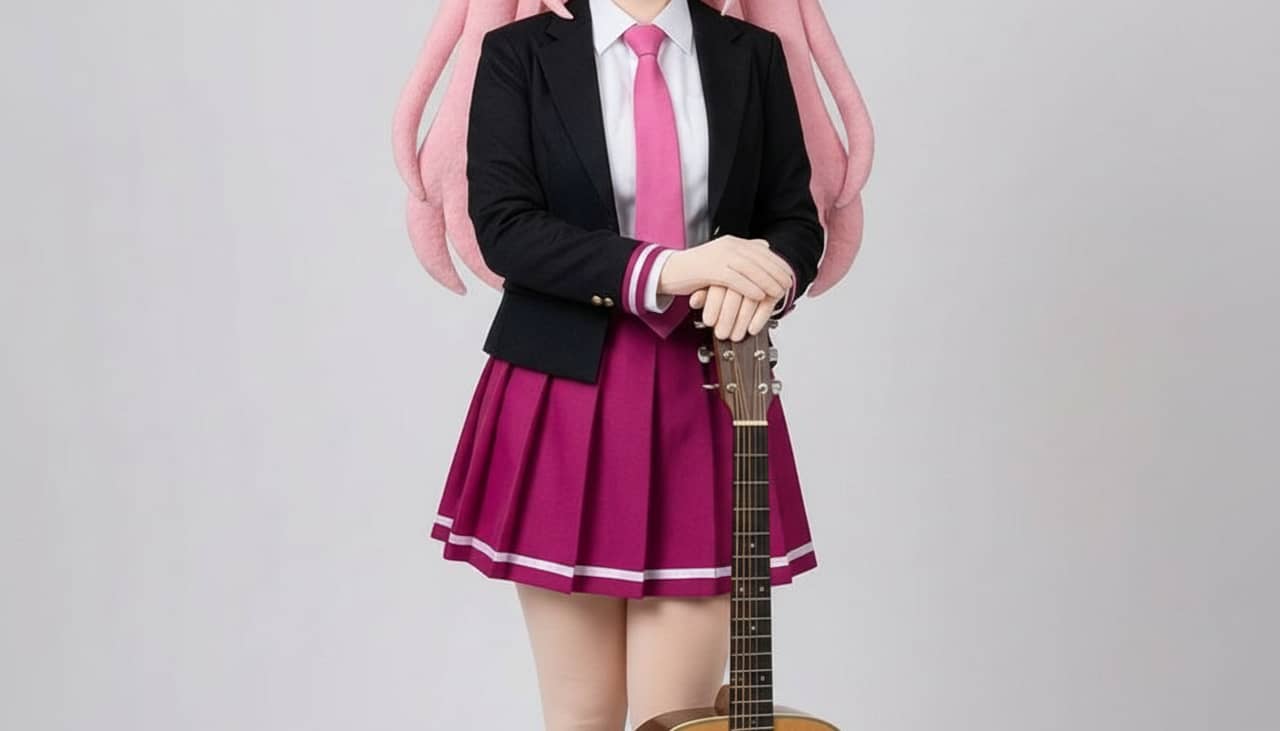
Transform characters, portraits, or scene ideas into paper-cutout style images with layered craft shapes, tactile depth, and clean silhouettes.
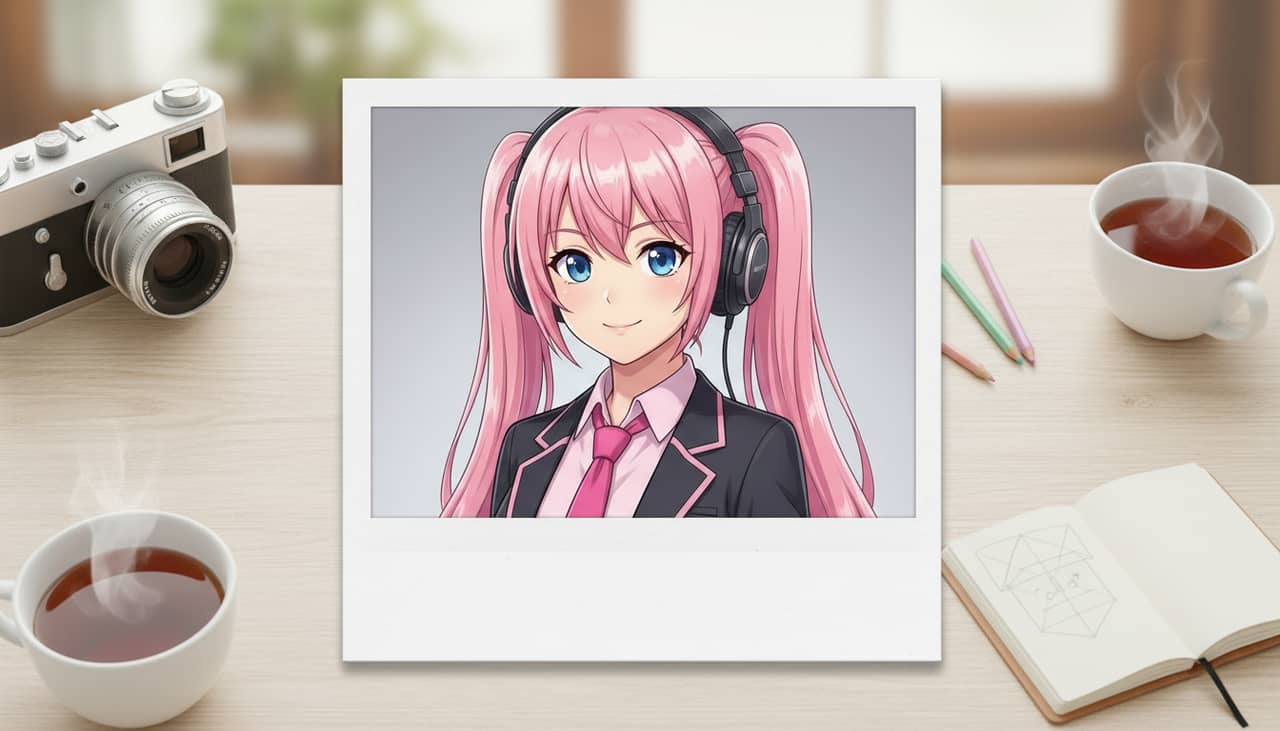
Convert character images, portraits, or scene ideas into polaroid-style outputs with nostalgic instant-photo framing and snapshot energy.
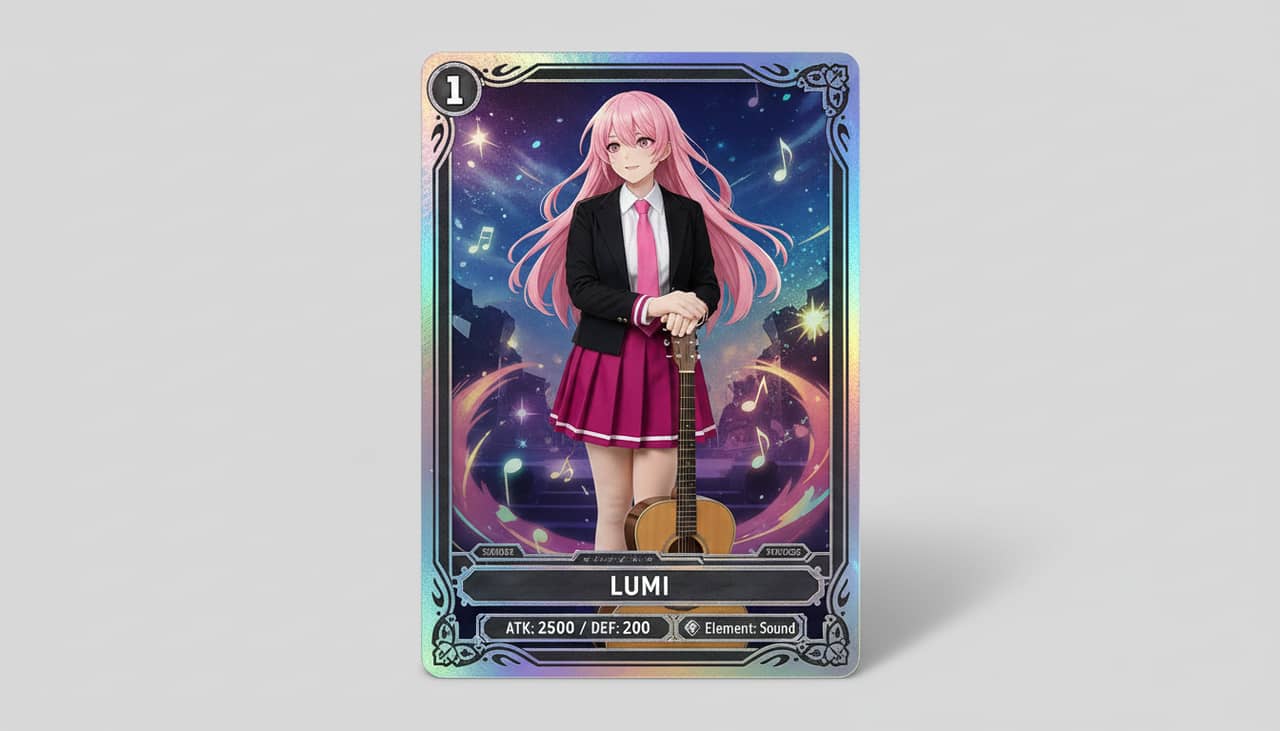
Turn character images or text ideas into collectible trading-card style outputs with framed art, rarity energy, and merch-ready composition.
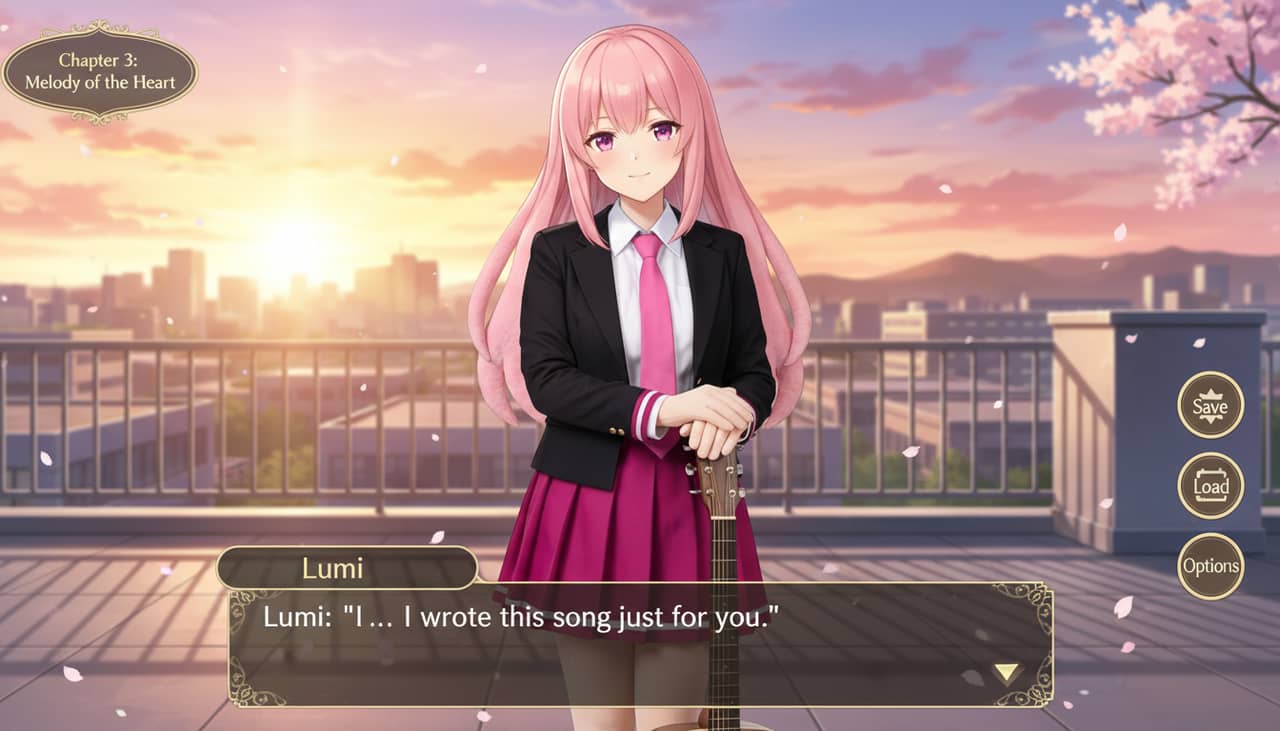
Turn a character image or scene idea into a visual novel style screen with interface framing, dialogue space, and game-ready composition.
Use this page when you know the kind of visual asset you want, but not the exact prompt or workflow yet.
Search behavior has moved beyond one broad text-to-image query. Many users now start with an existing image, ask for an editor, or compare image generation workflows before they create.
Yes. Each page is built around a specific problem, such as turning a reference image into a new style, creating a character sheet, or making a magazine-cover visual.
Pick the page that matches your starting point. Use text-to-image when you only have an idea, image-to-image when you have a reference, and AI image editor when you need controlled changes.