

Understand the difference between a generated PNG layer sheet and extracted transparent PNG parts, with checks for edges, missing detail and editable raster output.
Character and background workflow
Check character separation before replacing a background
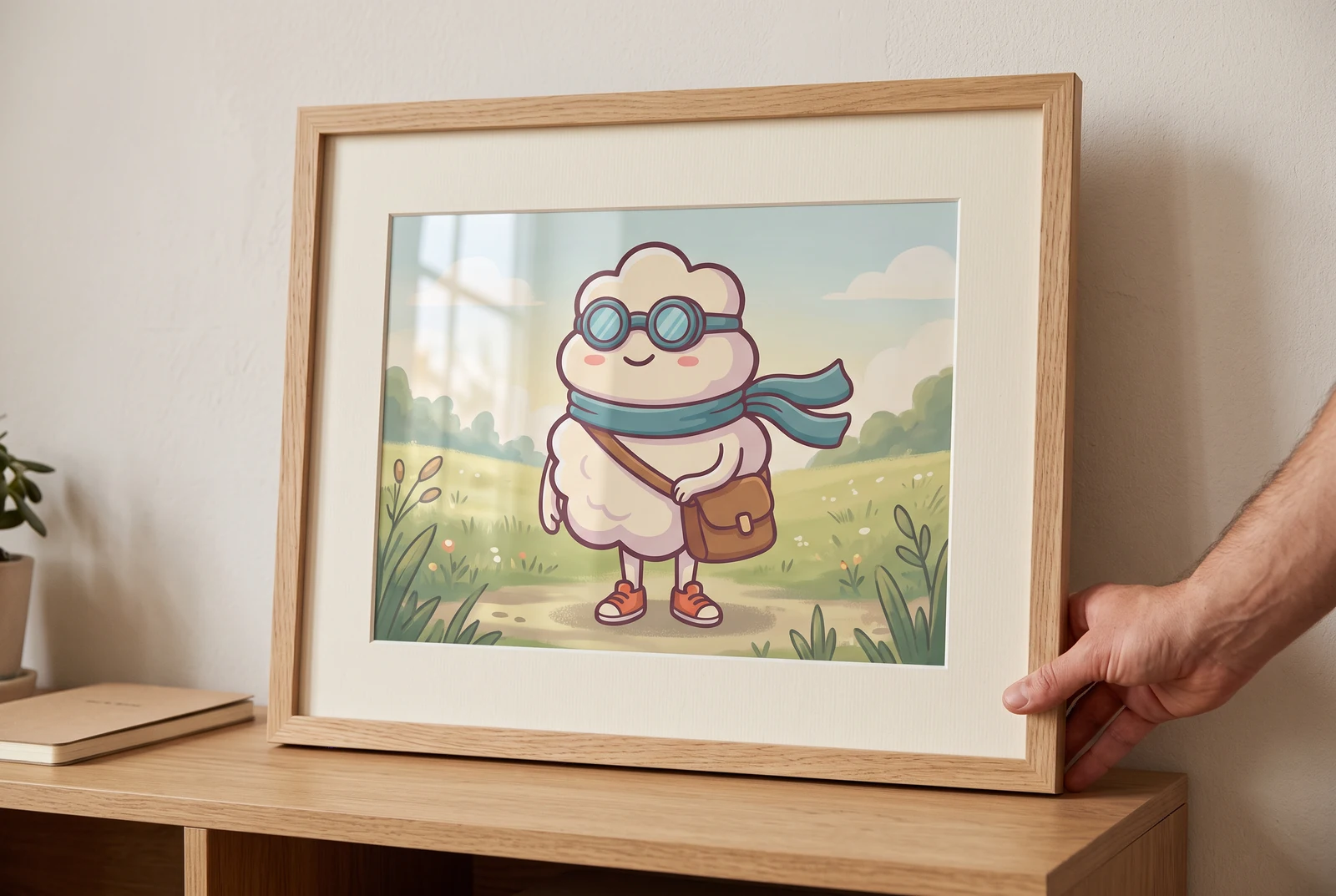
AI-generated lifestyle concepts. Printed pieces and device scenes illustrate possible downstream uses after manual preparation; they are not customer photos or verified export or rigging results.
Replacing a background requires a clean subject boundary and a composition that still looks plausible in the new scene. A part sheet can help you inspect character shapes, but generating parts is different from recovering the original scene as editable layers. Check the subject, its ground shadow and any semitransparent edges separately before you build a replacement composition.
For creators moving an illustrated character into a new composition and checking where manual masking or reconstruction is needed.
← Back to all layer splitting guidesSee the finished artwork in everyday life
Explore how prepared character artwork could appear on personal prints, devices and coordinated creative sets.
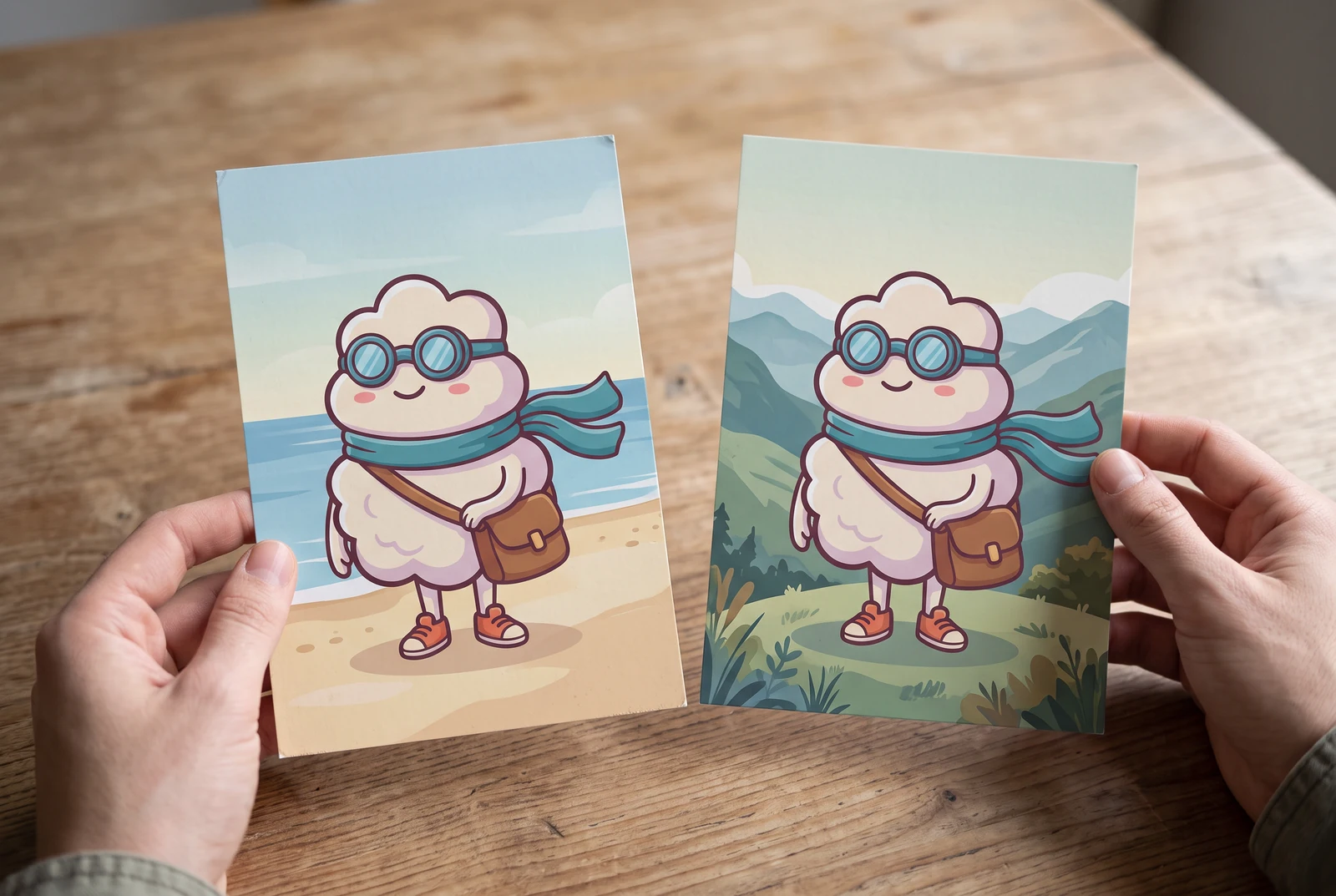
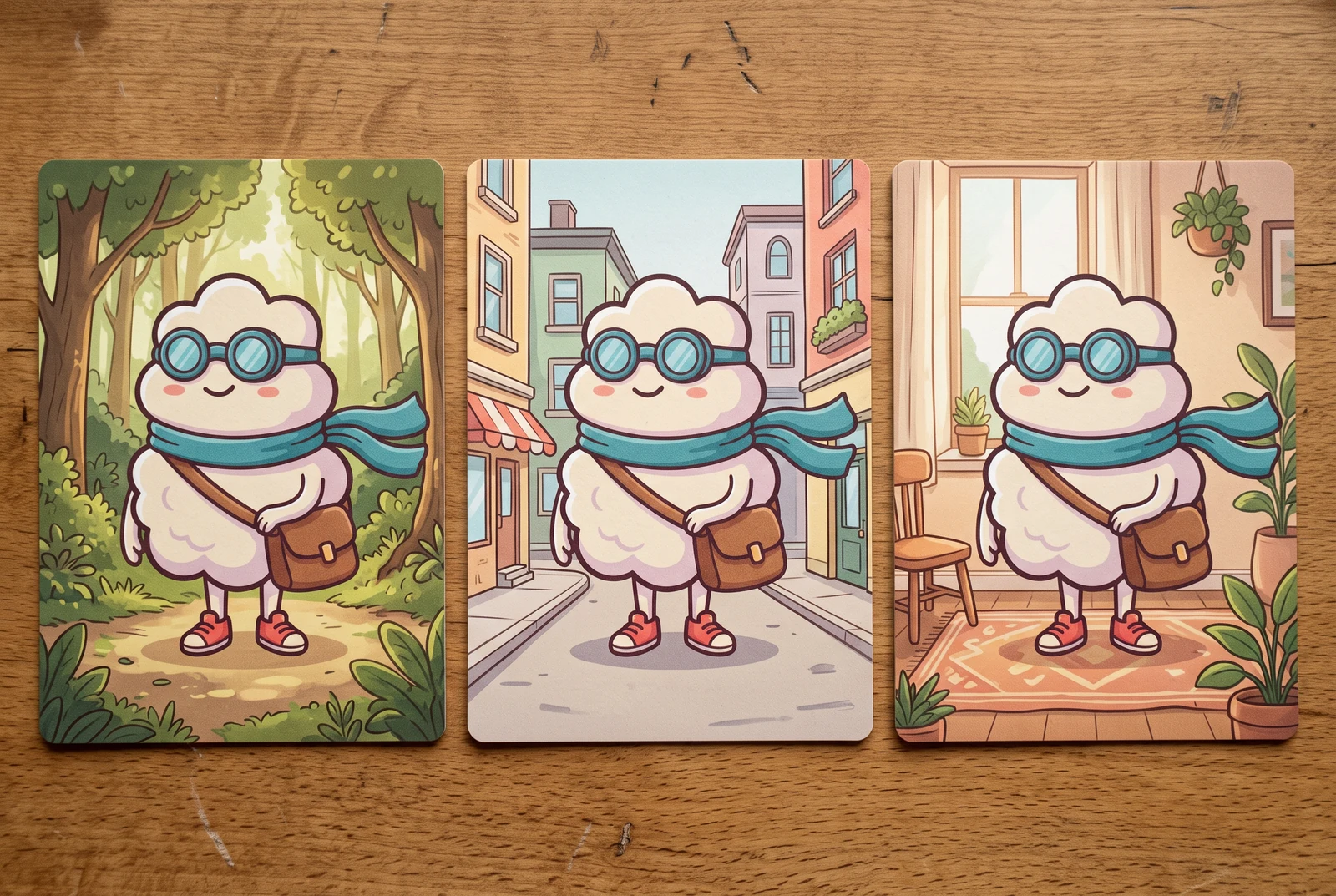
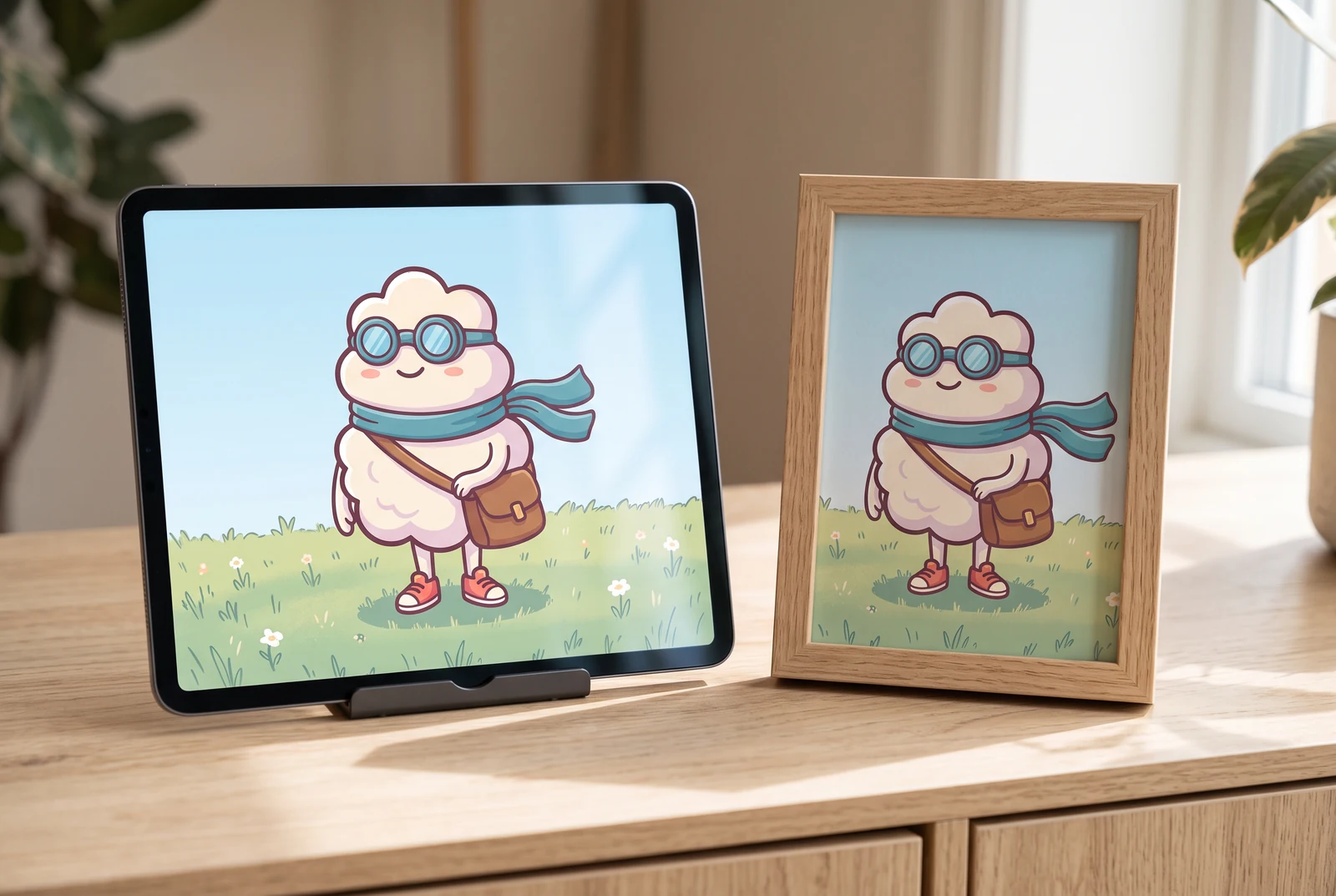
AI-generated lifestyle concepts. Printed pieces and device scenes illustrate possible downstream uses after manual preparation; they are not customer photos or verified export or rigging results.
Inspect the published layer-sheet example
Gallery example: this comparison shows a source image and one generated PNG sheet. It does not demonstrate individual extracted PNG files, a ZIP, or a PSD.

Original character image
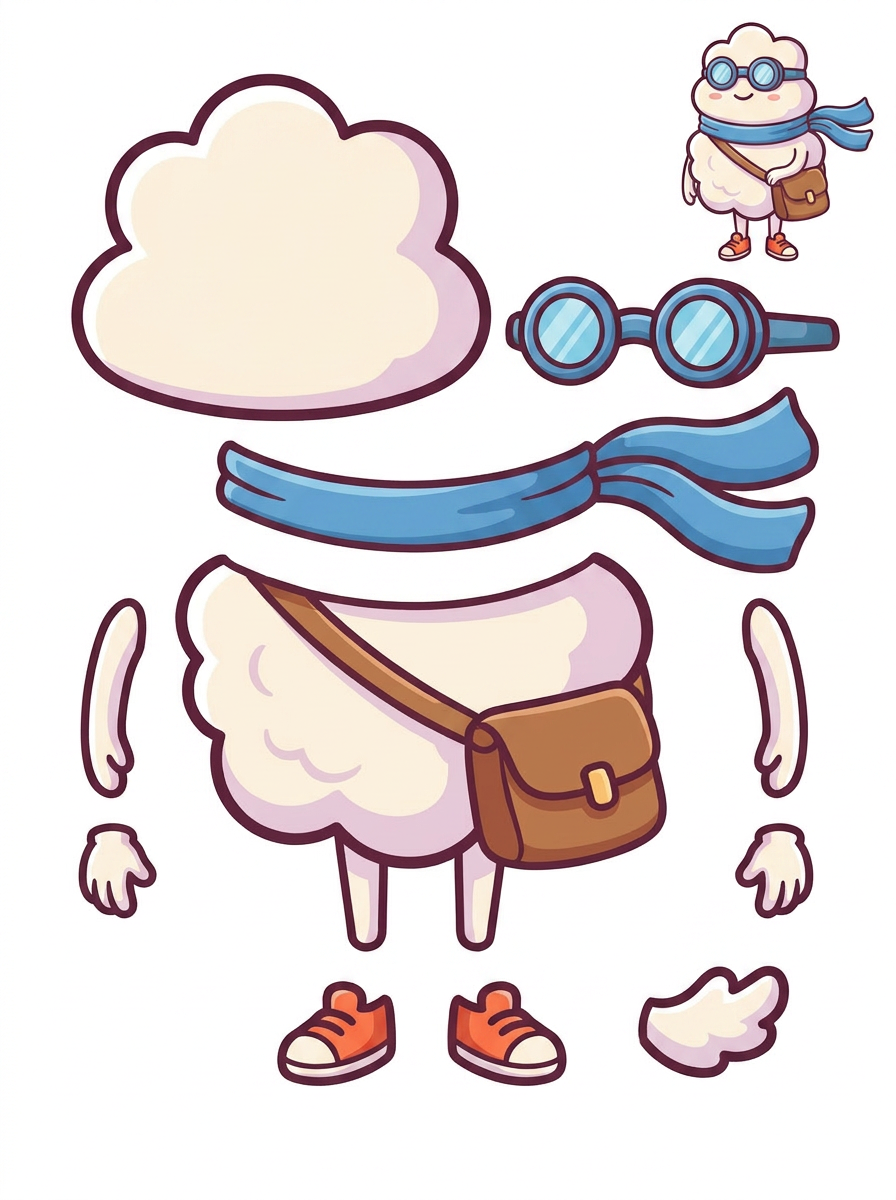
Generated single PNG layer sheet
A practical workflow
Separate the goals of subject and background editing
Decide whether you need the whole character as a cutout, its individual parts, or an empty version of the original scene. These are different outputs. The cloud sample lets you inspect outlined parts; it does not show the scene behind the character reconstructed as a complete image.
Review boundaries before paying for extraction
Inspect the generated single PNG sheet around the scarf tips, thin legs and shoe soles. Compare these with the source and decide how to handle the oval ground shadow. A visually light sheet background does not establish that every part has transparent pixels or clean edges.
Composite the extracted subject and match the scene
An eligible paid extraction pass can supply transparent raster PNGs, ZIP and a starter PSD. Inspect the actual files over contrasting colors, clean edge residue and rebuild the character if needed. Add or adjust a contact shadow to suit the replacement scene's lighting and scale.
What to inspect
- Blue edge residue from the original background is absent or cleaned up around the outline.
- Thin legs, scarf tips and spaces between limbs remain intact at the intended output size.
- The original ground shadow is handled deliberately rather than accidentally kept as a pale patch.
- The new composition has believable scale, contact with the ground and a consistent light direction.
Know the limits
- This character illustration does not demonstrate performance on product photos, glass, hair photography or other difficult transparent subjects.
- Generation does not guarantee an empty recovered background or complete hidden regions. Manual masking, inpainting or drawing may still be necessary.
Related workflows
Prepare character artwork for a game asset workflow. Inspect equipment, fused limbs, overlap and alignment before exporting raster parts to your preferred tools.
Review AI-separated character artwork for a Live2D workflow. Check facial parts, hair overlap, fused clothing and PSD structure before manual material preparation.
Plan simple mascot motion using separated raster parts. Inspect scarf, arms, shoes and body overlap before extraction, cleanup and animation in your editor.
Questions before you start
Will splitting the image restore the background behind the character?
Do not assume so. The source only shows visible pixels, and the gallery sheet does not demonstrate a complete background recovery. Inspect your result and plan reconstruction if you need an empty scene.
How do I know whether the exported background is transparent?
Inspect the extracted PNG in an editor using a transparency grid and contrasting solid backgrounds. A white preview alone cannot confirm alpha transparency or show every light-colored edge defect.