

LlamaGen product tutorial · manuscripts to comics
How to Turn a PDF or EPUB Manuscript into a Comic with LlamaGen Comic Copilot
A practical LlamaGen Comic Copilot walkthrough: upload a manuscript, set storyboard density and page settings, review character consistency, generate a draft, and edit in Studio.
This is a hands-on guide to the existing app, not a promise of automatic complete-book conversion. UI and plan limits may change. Revised October 12, 2026.
What you need before you start
Prepare a manuscript or short chapter excerpt you have permission to adapt, a short list of recurring characters, and any source-specific dialogue or facts that must be preserved. For a first test, choose one scene or chapter rather than asking the model to interpret an entire book in one shot.
Source document
PDF, EPUB or another format currently accepted in Comic Copilot
Character references
Faces, outfits, distinctive props and relationships
Review budget
Time to verify panel accuracy, continuity and lettering
Walkthrough: from document to editable comic
Step 01
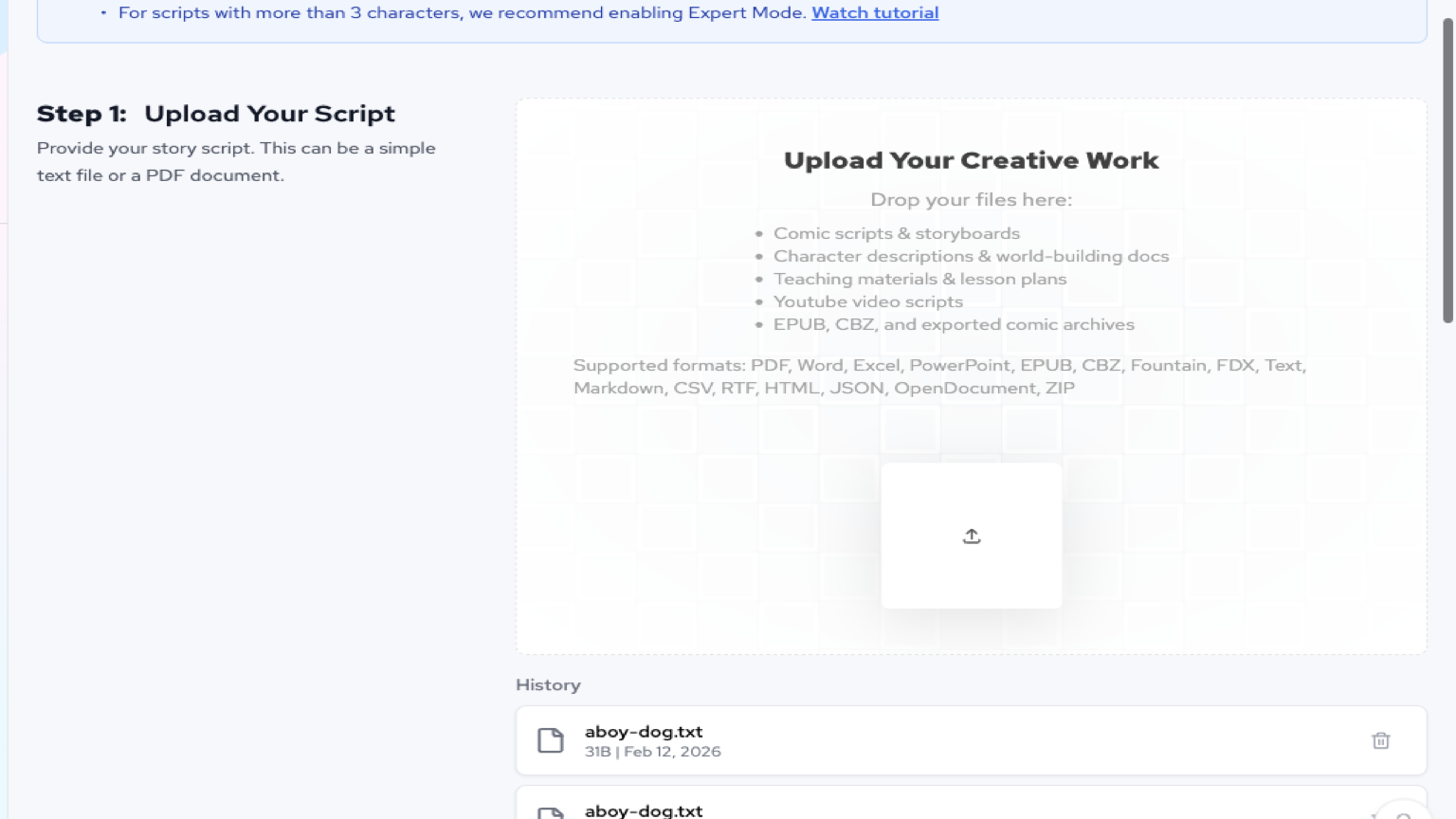
Open Comic Copilot and upload your source
Use the Uploading Script workspace at /app/upload. Select an original or properly licensed PDF, EPUB, Word document, or another format offered by the actual file picker. The file becomes your source reference for the existing comic workflow. Formats and size limits are enforced by the current product—check the picker instead of assuming every document is supported.
Step 02
Choose storyboard density and comic length
Comic Copilot exposes a Storyboard Density control and settings for total pages and panels per page. Begin with a small chapter excerpt and a reasonable page count. Do not assume a 200-page novel will turn into 200 finished comic pages in a single generation.
Step 03
Use existing character consistency settings
If your plan offers character-consistency options, select or configure recurring characters in Comic Copilot. Bring explicit character references and describe details that must not drift: face, age, outfit, recurring props and relationships. Character consistency and some later steps may depend on the subscription plan.
Step 04
Select the level of production you need
The existing staged workflow includes Story Script, Storyboard, Refined Sketches, Line Art, Base Colors, Post-Production and Text Insertion where supported. Select a practical stopping stage for your project. The interface controls eligibility and generation cost—this guide does not bypass them.
Step 05
Generate, then continue in Comic Studio
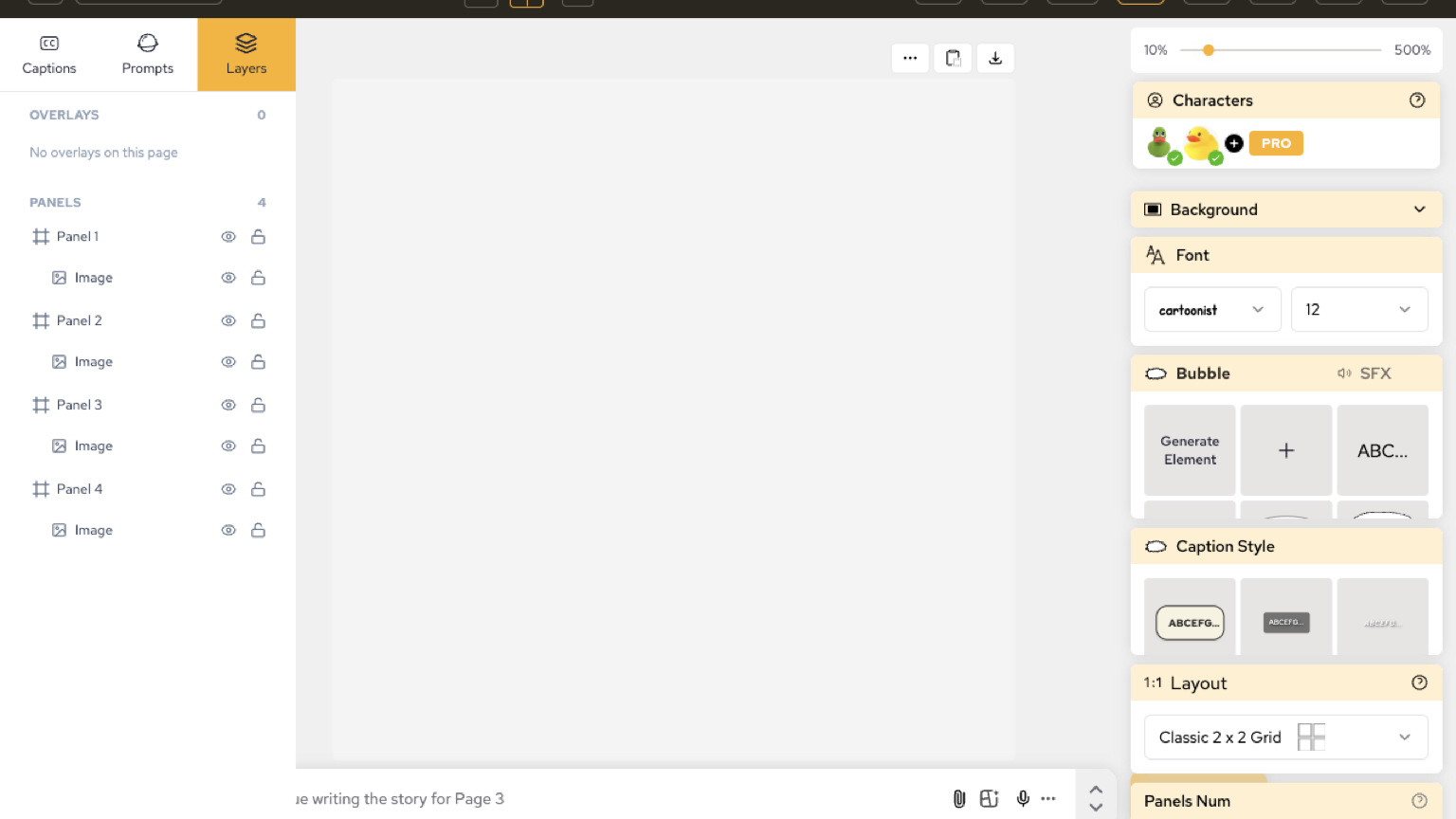
Start generation inside Comic Copilot. On success the existing app opens the generated artwork in /new/ai-comic-strips, where you can review and edit the result. The first generation is a draft: revise broken lettering, panel order, incorrect objects and character inconsistencies before proceeding.
Source-fidelity checklist for long manuscripts
Before publishing each chapter, compare the panels with the actual source material, not merely with an AI-generated summary. Preserve the selected source excerpt, check the comic against that passage, and carry any necessary story-so-far notes between chapters. The existing Comic Copilot is a staged creation tool; this guide does not claim it automatically reads, maps and approves every chapter of a full book. For the editorial method, see Novel to Comic Adaptation.
| What to inspect | Pass condition |
|---|---|
| Plot beats | The chapter's core events appear in the correct order. |
| Dialogue | Names, meaning and quoted lines match your source. |
| Recurring cast | Face, clothing, props and relationships remain recognizable. |
| Continuity | Earlier events and unresolved plot threads are not contradicted. |
| Copyright and accuracy | You have adaptation rights and have verified sourced or instructional claims. |
| Lettering | Dialogue and captions are legible and assigned to the right speaker. |
For deeper preparation, see Novel to Comic Adaptation, Character Continuity and Story Bible to Visual Bible.
When a manuscript-to-comic draft goes wrong
Make one change at a time and rerun a small sample. This reduces wasted work and makes it easier to tell which source or setting caused a problem.
The upload is present, but generation says to select a file
Check that the file is selected in Comic Copilot, not merely shown in upload history. Retry the supported format and check account access if upload fails.
A subscription or plan restriction appears
Comic Copilot gates creation and some finishing or character features by plan. Review the live plan/credit explanation. Avoid repeating a paid request before checking the entitlement.
The draft skips important book details
Start with a smaller chapter excerpt. Compare the script and first storyboard to that assigned source before finishing pages. Never assume the full uploaded book has been adapted.
A character or dialogue changes unexpectedly
Use existing character references and consistency settings where available, then correct the affected panels and lettering in Studio. Verify against your source before publication.
Common manuscript-to-comic questions
Can I upload a PDF or EPUB into LlamaGen?
The main app's Comic Copilot accepts PDF and EPUB among its supported source formats, with Word and other script formats also available. The current file selector and upload service determine actual format and size eligibility.
Will one upload automatically convert my entire novel into a finished graphic novel?
No such guarantee is made. Comic Copilot can use a source document in a staged comic-creation workflow, but chapter planning, coverage, source accuracy, review and page-level revisions are still the creator's responsibility.
Does LlamaGen charge for manuscript-to-comic creation?
Comic Copilot includes a subscription gate for its creation flow, and some production stages and character options are plan-restricted. Review the current pricing and credit details inside the app before generating.
What is the difference between the PDF to Comic tool and Comic Copilot?
The specialized PDF to Comic tool is for short, source-guided comic adaptations. Comic Copilot at /app/upload is the existing multi-stage document-upload and comic-production workflow; choose it when you want storyboard and finishing settings plus a Studio editing handoff.