Problem
Users often know what they want to see but do not know how to turn a plain idea into a prompt with useful visual constraints.


Generate images with AI from simple text prompts, then refine the subject, style, composition, and final asset format for practical creative use.
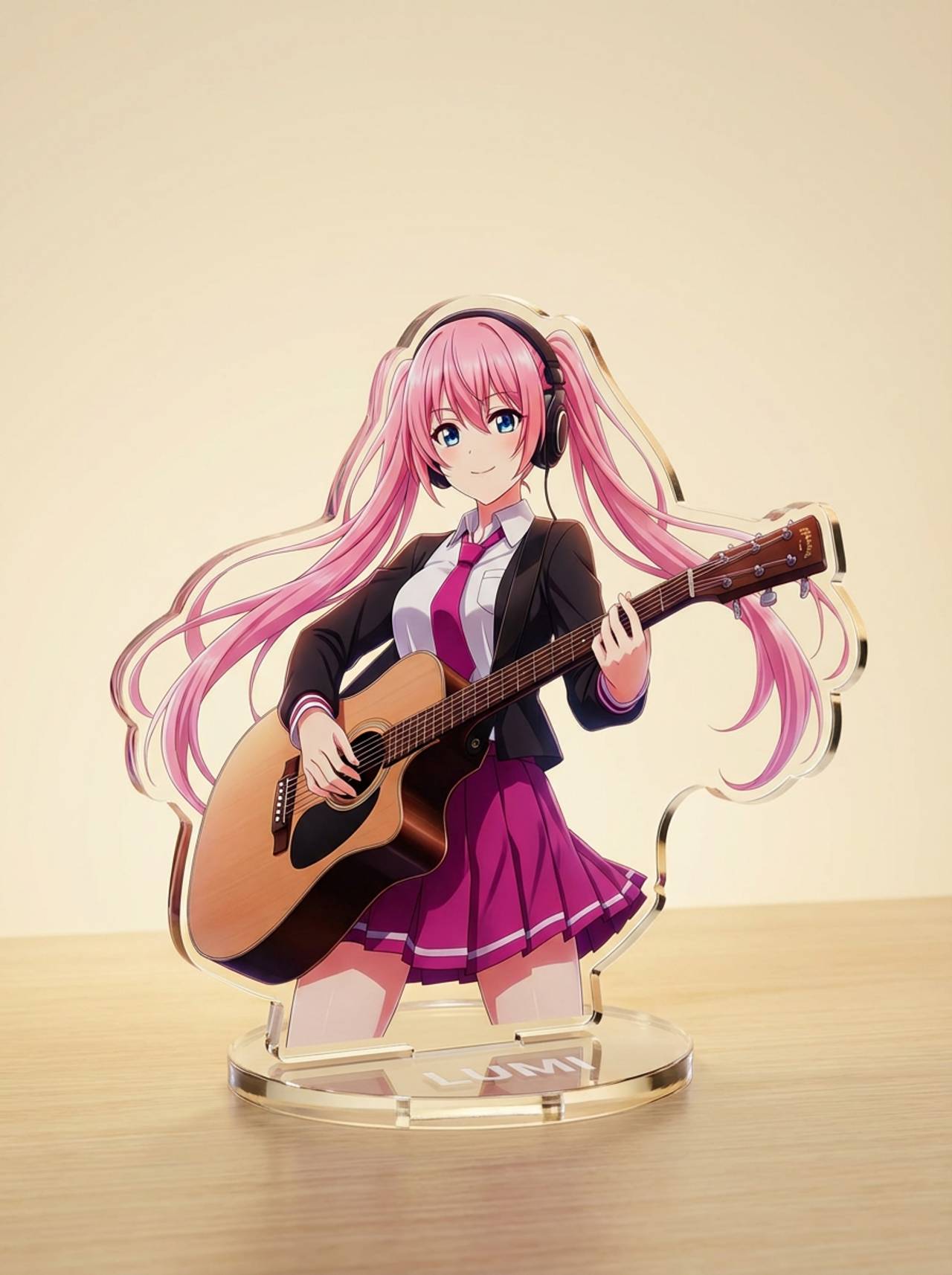
Match your starting point to a clear output, workflow, and quality bar before opening the generator.
Users often know what they want to see but do not know how to turn a plain idea into a prompt with useful visual constraints.
New image ideas, quick concepts, thumbnails, character assets, covers, classroom visuals, social posts, and first-pass campaign art.
A finished image created from a plain-language idea, with enough prompt structure to make the result usable on the first few tries.
Start with the right input, define the text-to-image creation output, and check the result before using it in a real project.
Use a text prompt for new ideas or upload a reference image when identity, pose, product shape, or character continuity matters.
Ask for clear subject, output format, visual style, composition, lighting, and one practical destination for the result. Name what must stay unchanged and what can be redesigned.
Create the image, then check subject clarity, composition, style match, unwanted text, hands, edges, and whether the image fits the final use before downloading or using the result elsewhere.
Example directions for turning prompts or references into text-to-image creation outputs.
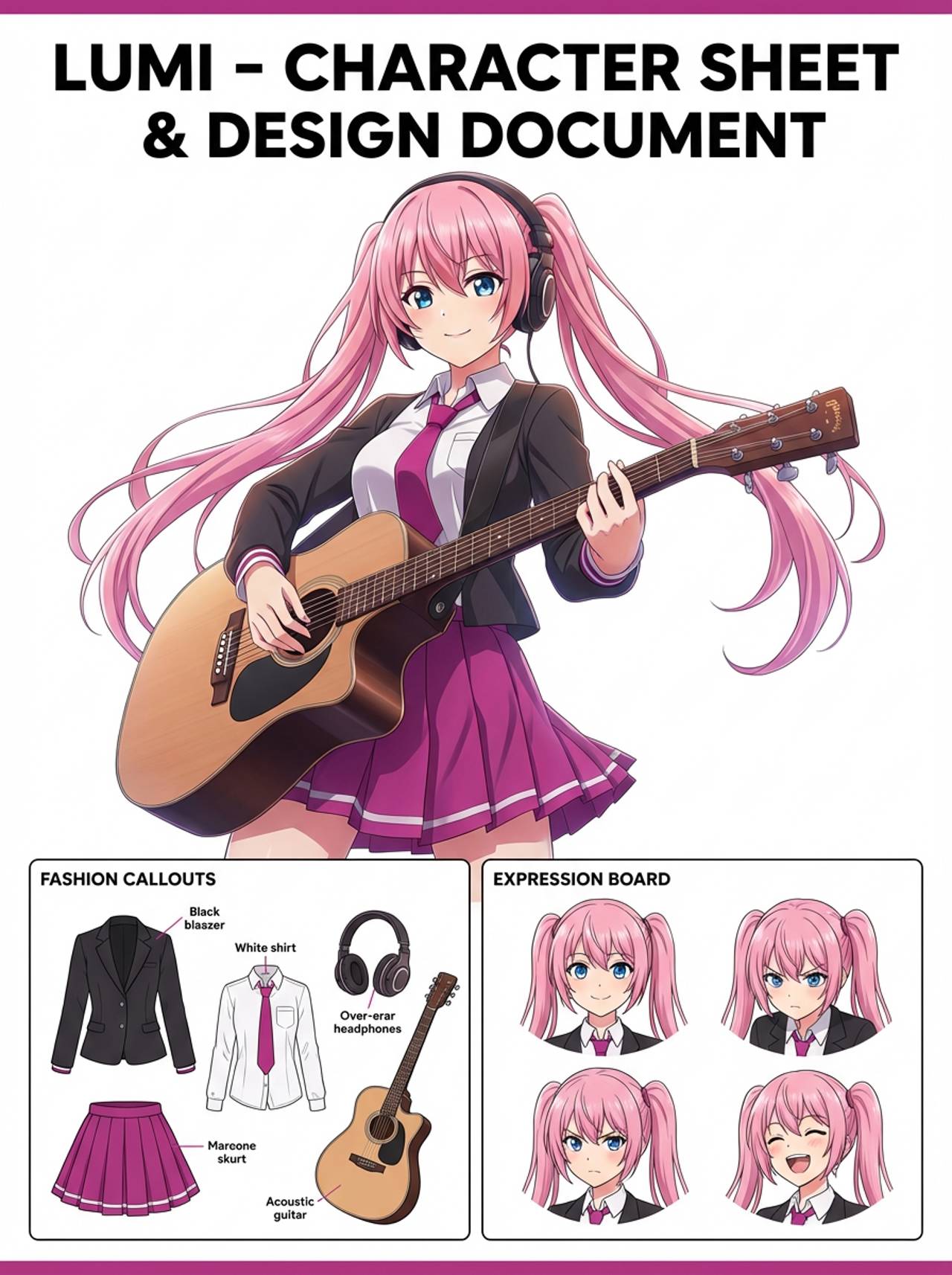
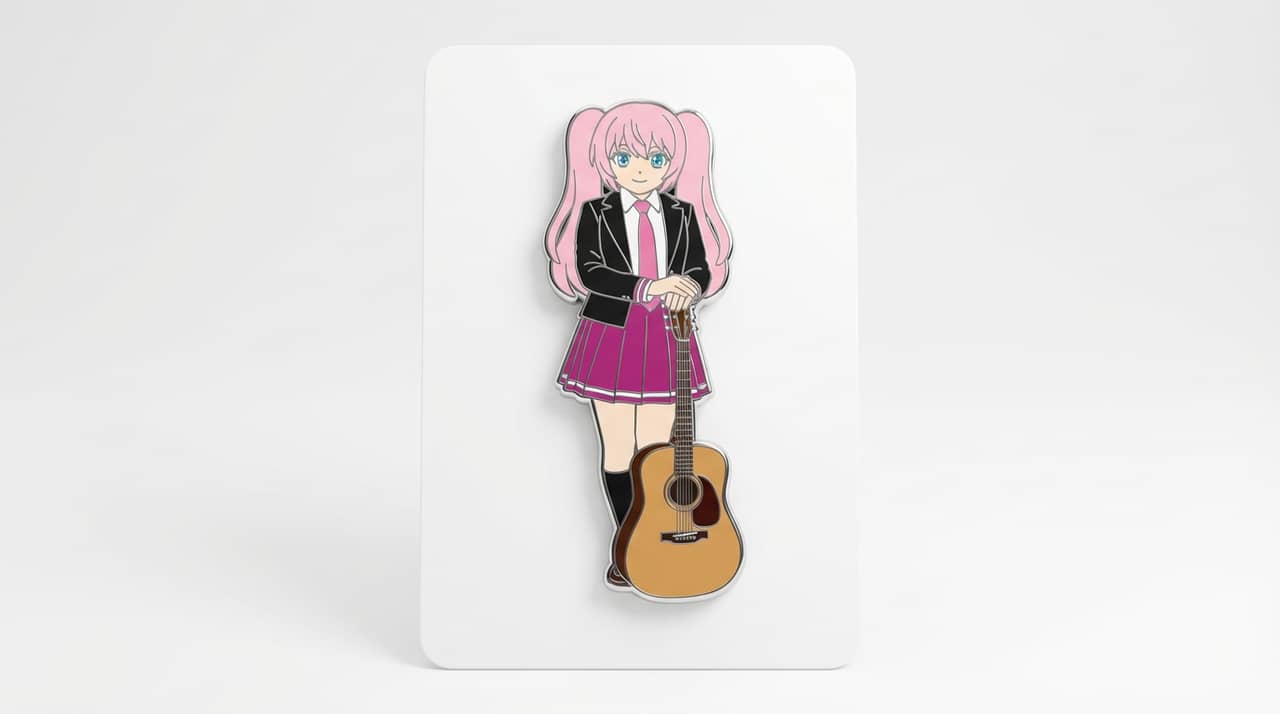
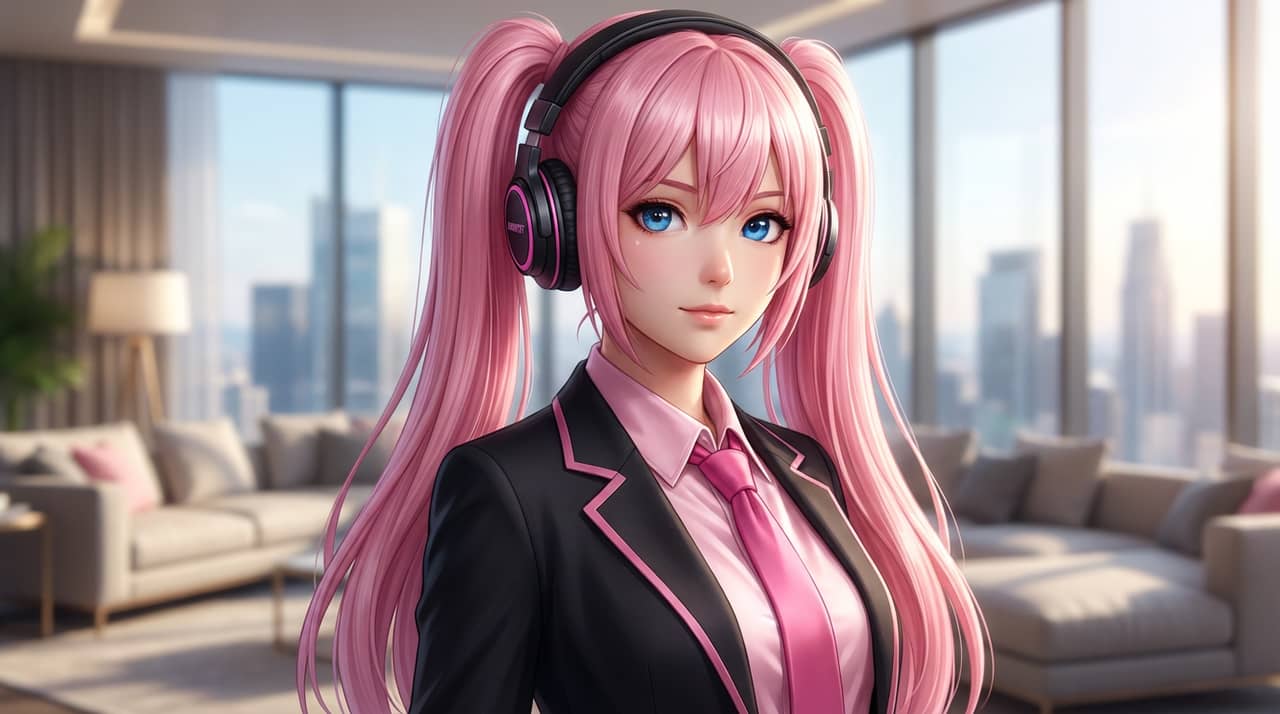

The page focuses on the decisions that make text-to-image creation outputs usable: input clarity, format constraints, and a practical quality check.
Start with the idea you already have, then add subject, style, composition, and output constraints.
Use the page examples to move from vague requests to prompts that describe a usable asset.
A good generated image is not just pretty; it fits the crop, context, and purpose you need.
Use these prompts as starting points. Replace the subject, source image, style, and destination with your own project details.
Use my uploaded image as the identity reference. Create text-to-image creation with clear subject, output format, visual style, composition, lighting, and one practical destination for the result. Keep the key face, color, outfit, and silhouette details recognizable.
This tells the model what must stay stable before asking it to change the presentation.
Create text-to-image creation for a text-to-image concept that becomes a reusable visual asset. Use a clear main subject, strong composition, and clear subject, output format, visual style, composition, lighting, and one practical destination for the result.
This works when you do not have a reference image yet but still need a practical output format.
Refine this result into a polished text-to-image creation. Prioritize subject clarity, composition, style match, unwanted text, hands, edges, and whether the image fits the final use. Remove distracting artifacts and keep the final image easy to reuse.
This turns a first draft into a more useful asset by naming the quality checks directly.
Before treating an AI result as finished, review whether it solves the real creative job and survives practical reuse.
Compare the result with the source or brief. The face, silhouette, palette, and signature details should still feel intentional.
The image should clearly read as text-to-image creation, not as a generic portrait with a light style change.
Check crop, negative space, subject scale, and whether the image will work as a cover, icon, card, mockup, or scene.
Inspect hands, edges, fake text, small accessories, background clutter, and repeated patterns before publishing.
A useful image should be easy to crop, edit, reference, or hand off to a collaborator without explaining hidden context.
Describe the subject, visual style, composition, mood, and final use, then generate and refine the result.
Move to the neighboring workflow when your starting point changes from text, to a reference image, to editing, to video.
These nearby intents help users choose the right workflow instead of landing on a page that only half-matches their need.