
AI Coloring Page Generator

Describe a subject or upload a permitted photo. Request black outlines, choose a detail level, and review the generated draft in Studio before printing.

Upload a photo to make a coloring page

Sign in to upload · PNG, JPG, WebP or PDF · up to 20 MB

Choose a page style
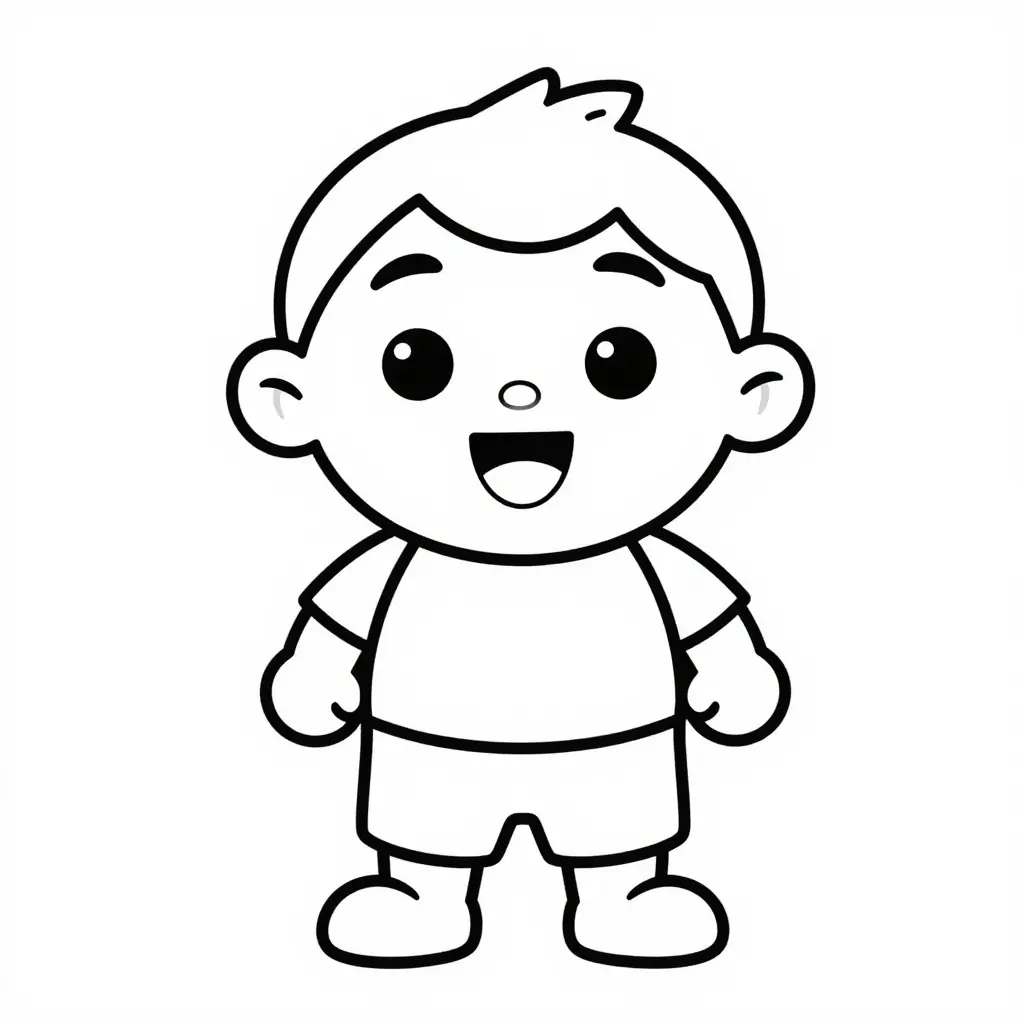
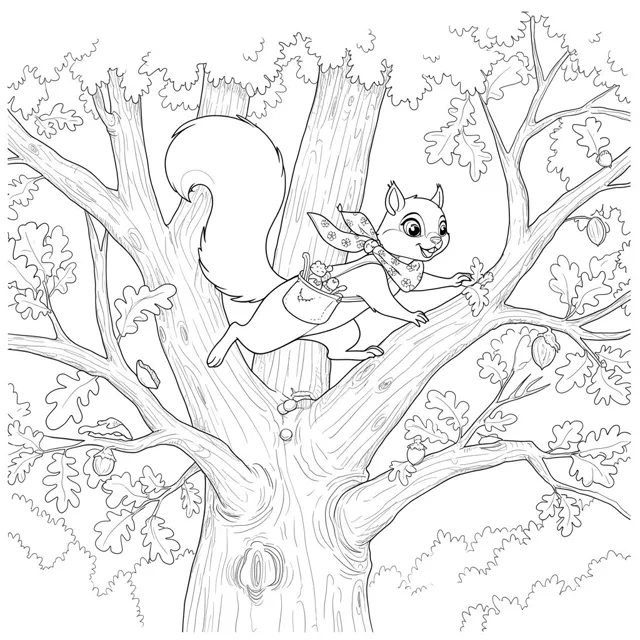
Bold outline coloring-page example with one child and open coloring areasDetailed woodland coloring-page example
From simple to detailed. Choose a line-art style that leaves room to color.

From an idea to a page you can actually color

Compare finished artwork, inspect a documented photo-to-line-art conversion, and plan a four-page set. The published examples below are existing assets, not a recording of the current web generator or a promise of identical output.

AI generation uses account credits; review the current account balance and plan before submitting. The prepared coloring library has free-account PNG downloads, while its PDF/SVG and complete Coloring Book Maker PDF exports require a paid plan. Studio generation and its available page-image exports are separate from the prepared-library download controls.

View current plans and credits
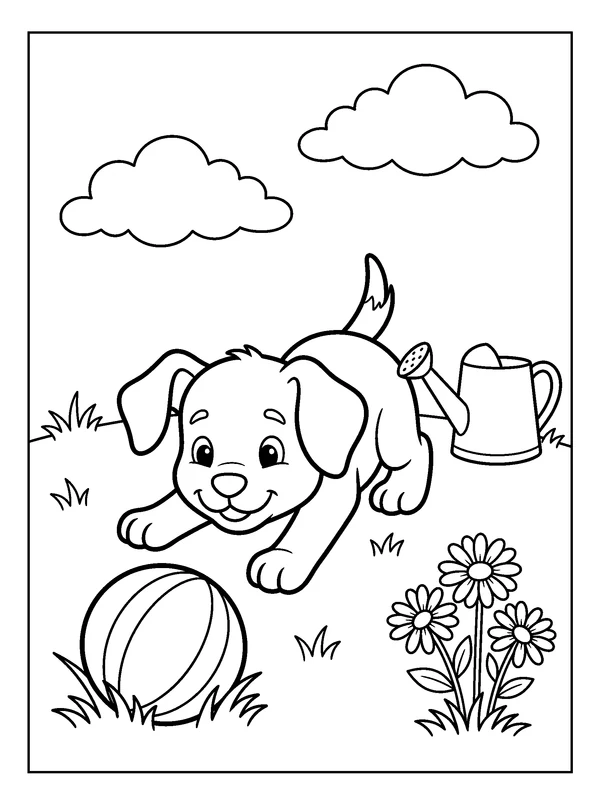
Published puppy coloring sheet with a striped ball and outlined garden details
Open the original sheet

Start with a large, recognizable subject

Example brief

One happy floppy-eared puppy in a playful bow, front paws extended, a large striped ball on the grass, a watering can and three daisies at the side, two fluffy clouds above.

Input and direction
This published puppy illustration is paired with a scene excerpt from its archived library-generation brief. Use it to judge shape size and outline clarity, rather than as a measured result of the current web preset.
Settings and intended use
For a new draft, choose Bold and Easy: one page, one illustration, 1024 × 1325 requested pixels. The existing library original shown here is a separate 1792 × 2400 image intended for ages 3–6.
What the example shows
Look at the spaces inside the puppy and ball. For a child who needs even larger shapes, ask for fewer background objects and compare the result before using it.
What to check
Age labels are selection guidance. Check the actual page with the child’s motor skills and crayons in mind; neither a prompt nor an age label guarantees suitable detail.
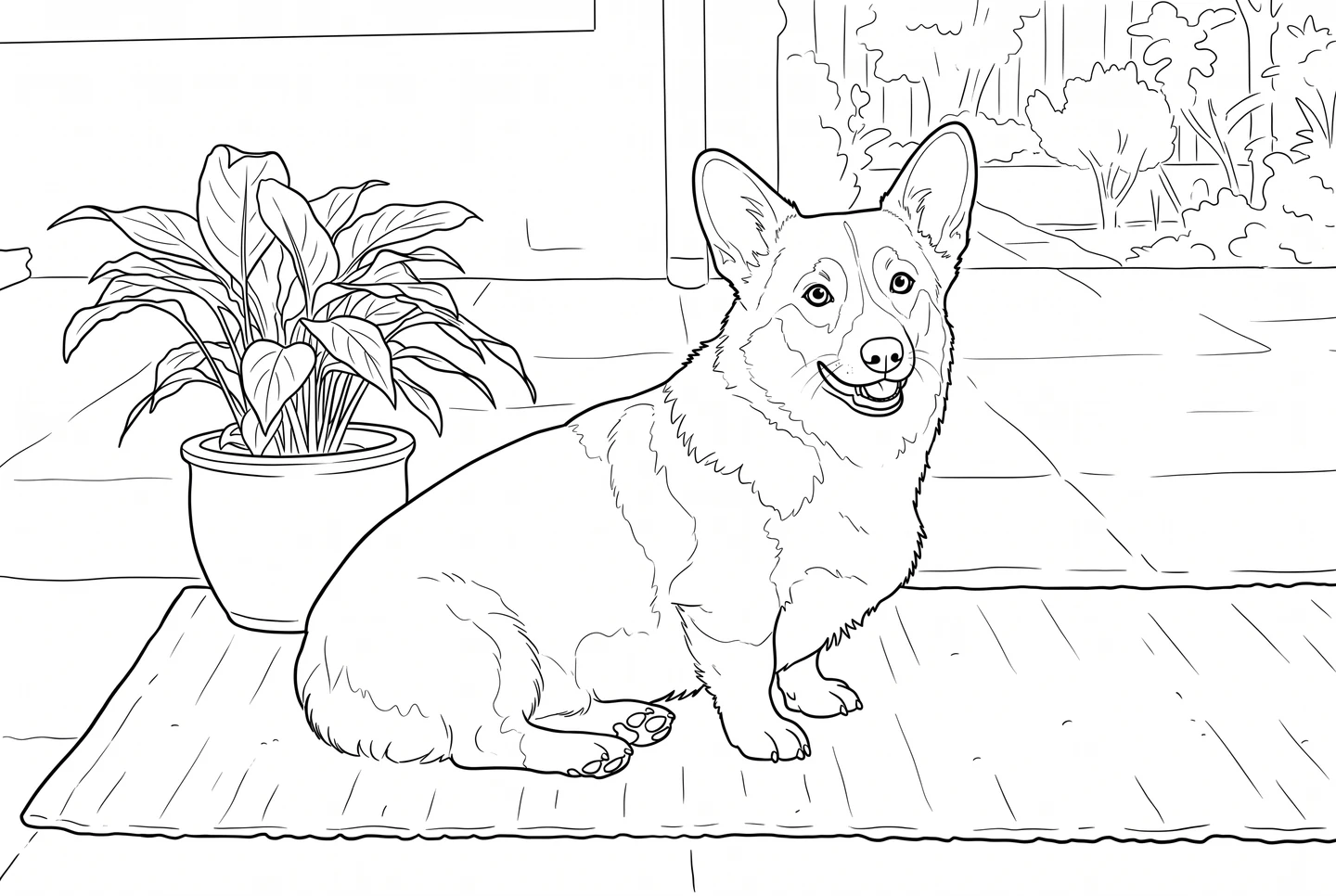
Inspect a genuine reference-to-line-art pair

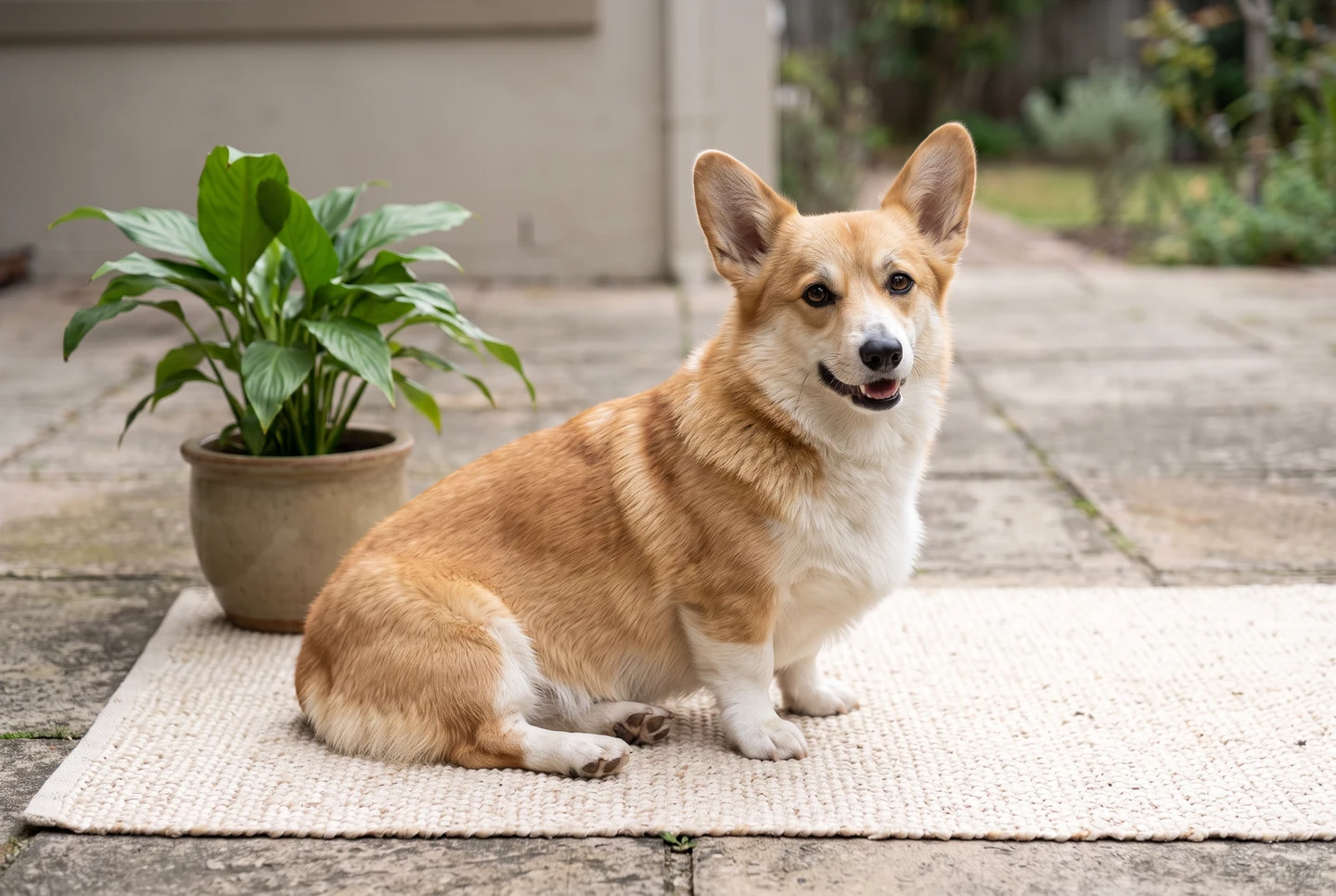
Synthetic pet reference used as the input of the documented line-art conversion
Reference image
Actual reference-guided line-art output from the synthetic pet reference
Line-art result
Settings and intended use
The pair was created with Google Vertex AI. In the web generator, upload a photo you own or have permission to use; supported files are PNG, JPEG, WebP or PDF, up to 20 MB. Upload availability depends on your account.
What the example shows
Compare the pose, subject placement, outline gaps, and simplified fur between the two images. Fine details can change during conversion.
What to check
These are not customer photos or application screenshots. Another model or prompt can produce a different result; likeness and clean closed outlines are not guaranteed.
Photo to Coloring Page

Build a four-page set from reviewed pages

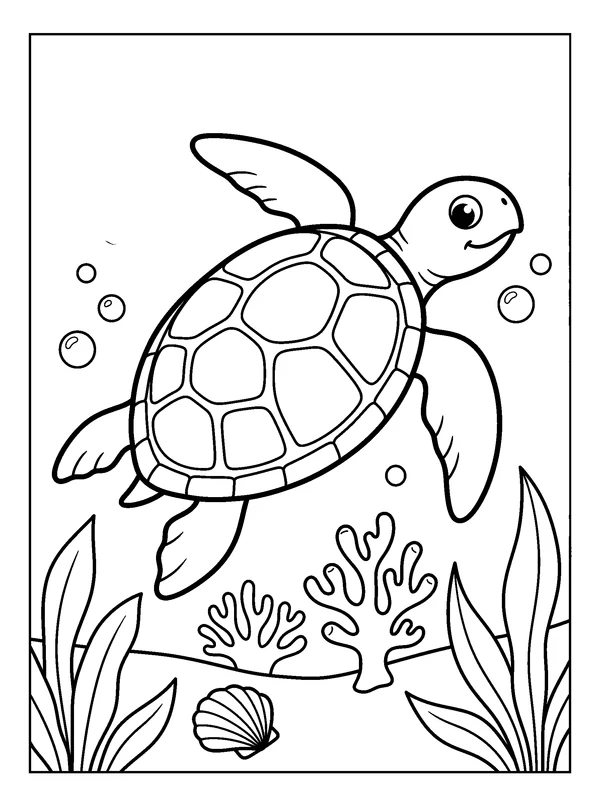
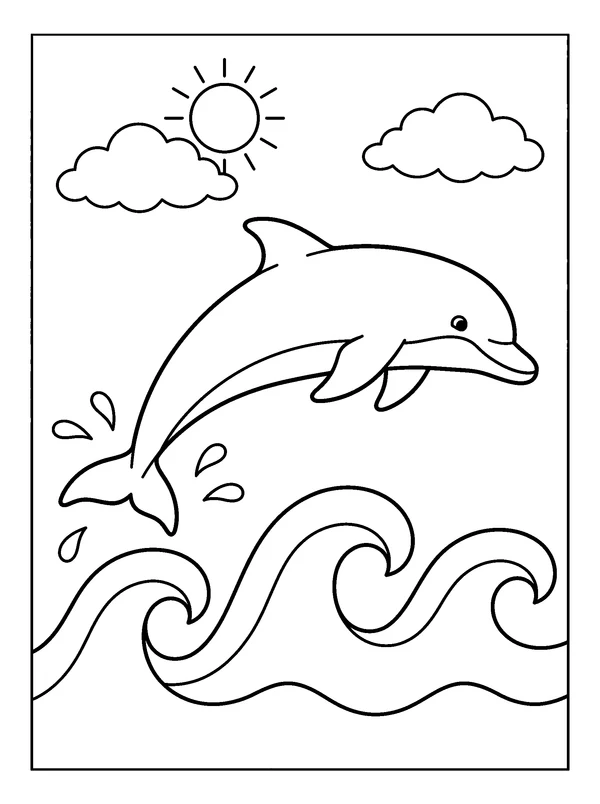
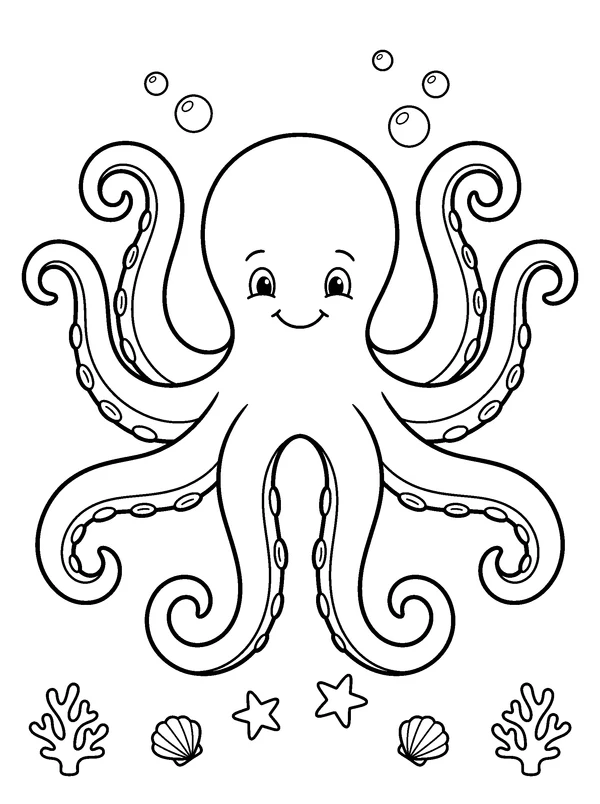
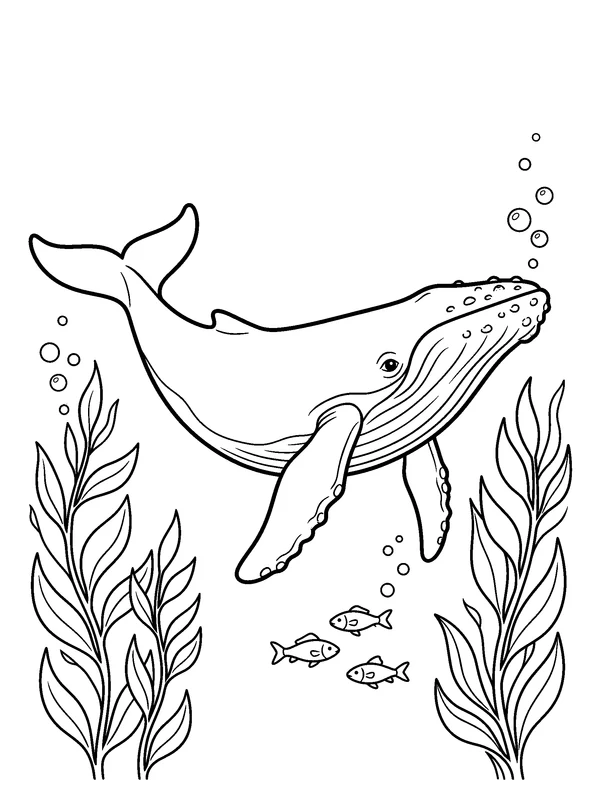
Four separate published ocean coloring sheets for reviewing a themed selection 1Four separate published ocean coloring sheets for reviewing a themed selection 2Four separate published ocean coloring sheets for reviewing a themed selection 3Four separate published ocean coloring sheets for reviewing a themed selection 4
Example brief

Request four ocean-animal pages with the same age level, bold closed outlines, white background, and generous margins. Give each page a different subject and review each result separately.

Input and direction
These four ocean illustrations are separate published library originals. They show a set you can inspect and select now, not a claimed single-run mini-pack result.
Settings and intended use
The mini-pack option requests four pages with one illustration per page at 1024 × 1325 requested pixels. Compare line weight, detail level, page count, and repeated or missing subjects in the returned project.
What the example shows
Choose the pages to keep, then use Coloring Book Maker to order them, add a cover, and select A4 or US Letter. A paid account is required for that complete PDF export.
What to check
Generation does not guarantee four consistent standalone files or a print-ready PDF. If a page is missing, duplicated, clipped, or too detailed, revise it before assembling the book.
Coloring Book Maker

Check the draft before you print

  • Gray fills or muddy outlines

    Ask for a white background with black closed outlines and no gray shading. Check the next draft instead of assuming the instruction was followed.

  • Too many tiny spaces

    Reduce background objects and decorative patterns. Use the bold preset for larger coloring areas; switch to detailed pages only when the intended user wants smaller shapes.

  • Changed photo details or anatomy

    Inspect faces, hands, legs, fur, and overlapping objects against the reference. Use only references you have permission to upload and review the result before sharing.

  • Clipped edges or a soft print

    Check image dimensions and leave a generous blank margin. Choose the correct paper size, turn off browser headers and footers, and test one page before a larger print run.

How to create an AI coloring page

  1. 01

    Describe a subject or upload a reference

    State the subject, intended user, line weight, and objects to avoid. Use only a photo or sketch you own or have permission to use.

  2. 02

    Choose the page direction

    Select Bold and Easy, Standard Kids, Detailed, or a four-page request. These options submit instructions and page settings, not a guarantee of clean or consistent artwork.

  3. 03

    Check credits and generate a draft

    Generation uses account credits. Inspect the returned project in Studio before deciding which pages to keep.

  4. 04

    Correct line-art failures

    Look for open shapes, gray fills, unwanted text, altered reference details, repeated pages, or clipped edges. Refine or regenerate pages that fail the check.

  5. 05

    Export, size, and print

    Use the page-image export available to your Studio account. For a book, arrange reviewed images in Coloring Book Maker; its complete PDF export requires a paid plan. Check A4 or US Letter and a sample print.

Your questions, answered

What does the AI coloring page generator make?

It requests coloring-page drafts from a text idea or a permitted reference image, then opens successful results in Studio for review. It does not guarantee closed outlines, exact photo likeness, consistent page sets, or a print-ready PDF.

Can I use text without uploading a photo?

Yes. Describe the subject, age or intended user, outline weight, background detail, and elements to avoid. Choose a page direction, generate, and inspect the resulting draft.

Are these examples outputs from the current web generator?

The puppy and ocean pages are published library artwork. The pet comparison is a documented reference-guided Vertex conversion with a synthetic input. They are labeled separately and do not claim to record the current web generator, customer work, or identical results from another model.

Does the mini-pack option guarantee four finished printable files?

No. It requests four pages with one illustration per page in a project. Check page count, repeated subjects, line weight, detail level, and margins. Keep or revise pages individually, then assemble the pages you want into a book.

Is AI generation free?

Generation uses account credits. Any included credits, upload access, and available Studio export options depend on your account and current plan. Review plans and your available balance before submitting.

Which uploads are supported?

The current upload accepts PNG, JPEG, WebP, or PDF files up to 20 MB. Sign in to upload and use only a reference you own or have permission to use. File acceptance does not guarantee a faithful conversion.

Can I download a PNG or a PDF?

Use the page-image export available to your Studio account for generated drafts. The prepared coloring library offers PNG downloads to free accounts; prepared PDF/SVG files and the complete Coloring Book Maker PDF export require a paid plan. Generating a draft does not automatically produce a print-ready PDF.

Why does the result still contain gray areas or tiny shapes?

Presets are generation instructions, not image cleanup guarantees. Ask for fewer objects, larger coloring areas, closed black outlines, and a white background. Reinspect the next draft before printing.

How should I print the selected pages?

Choose A4 or US Letter for the final document, preserve margins, disable browser headers and footers, and check a sample page for clipping and line quality. Follow the print guide for paper-size and scaling checks.

Can I publish or sell the pages?

Check the rights to your input and subjects, the applicable LlamaGen terms, and the final artwork. Generated results may resemble existing work and are not guaranteed exclusive. The example gallery does not establish permission for your own project.