

PDF first · Check the paper · Inspect one print
How to print coloring pages on A4 and US Letter
A clean printable starts with the original artwork file and a quick look at the print preview. Use the prepared PDF when you want an already arranged page. Choose the PNG when you need to place the picture yourself in a separate document.
Browse free printable sheets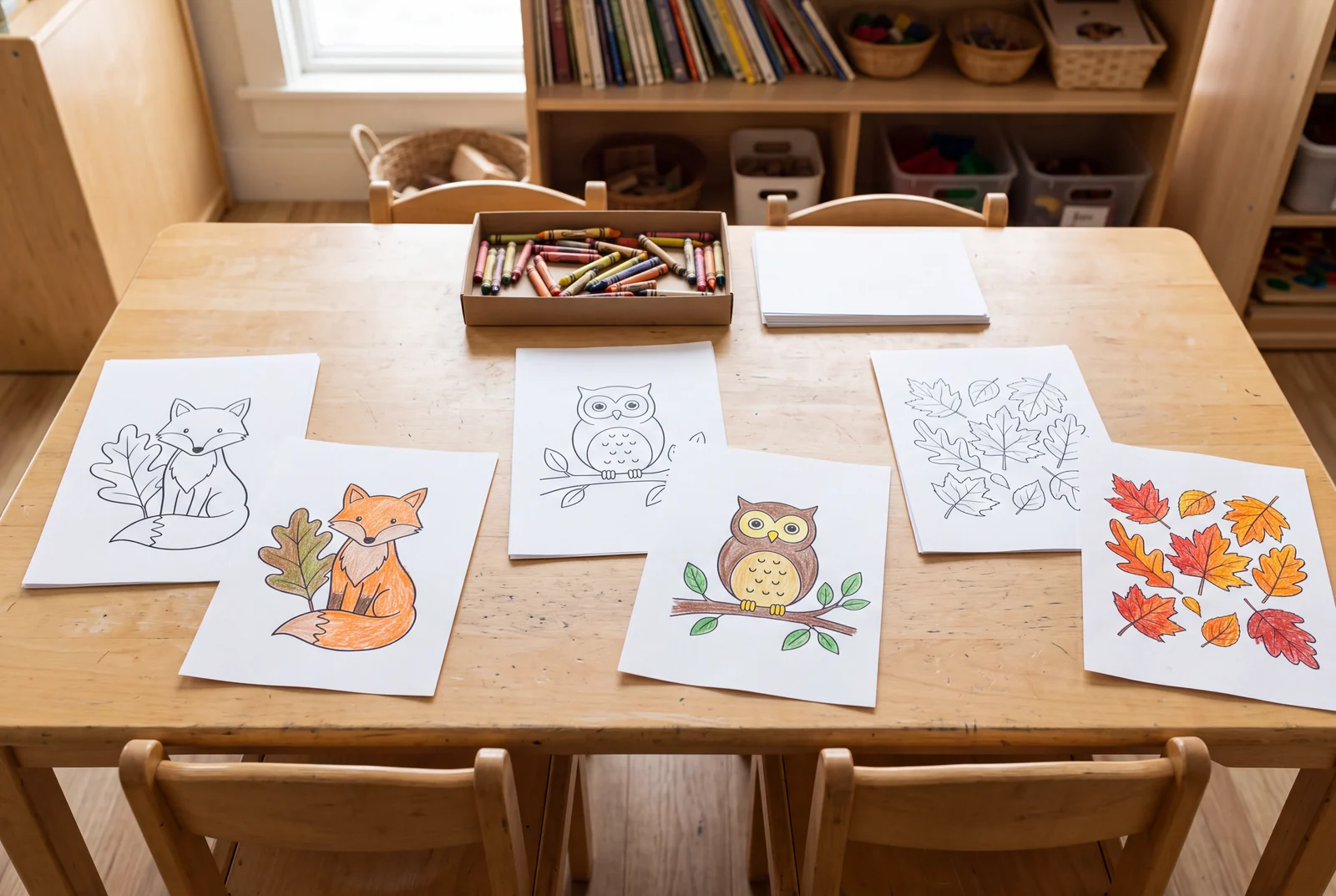
A useful place to start
Open the matching PDF, select the paper loaded in your printer and check portrait orientation. The library PDFs use US Letter; for A4, choose Fit to page. If any outline is clipped, fit to the printable area and check the preview before printing one sample.
Start with a real printable
These existing sheets have matching full-page previews and prepared downloads.
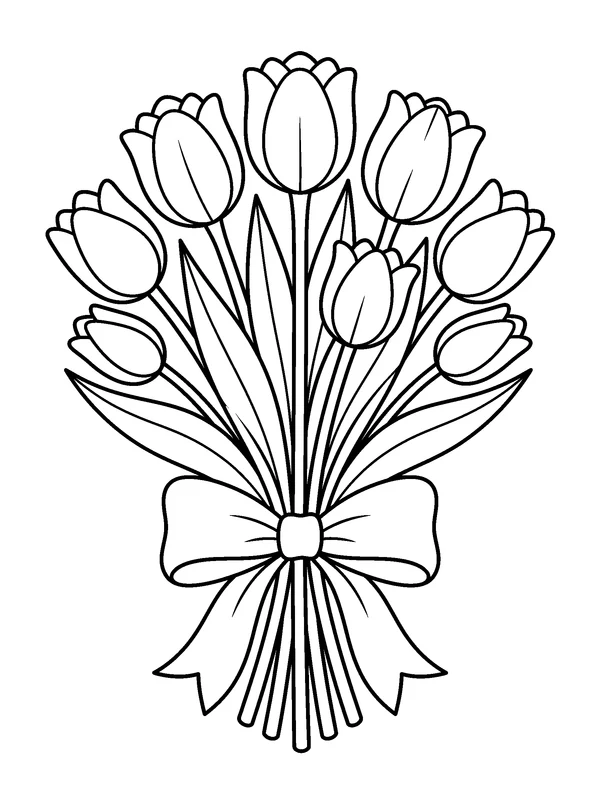
Tulip bouquet print check
The broad petals make it easy to inspect the line quality of a first sample print.
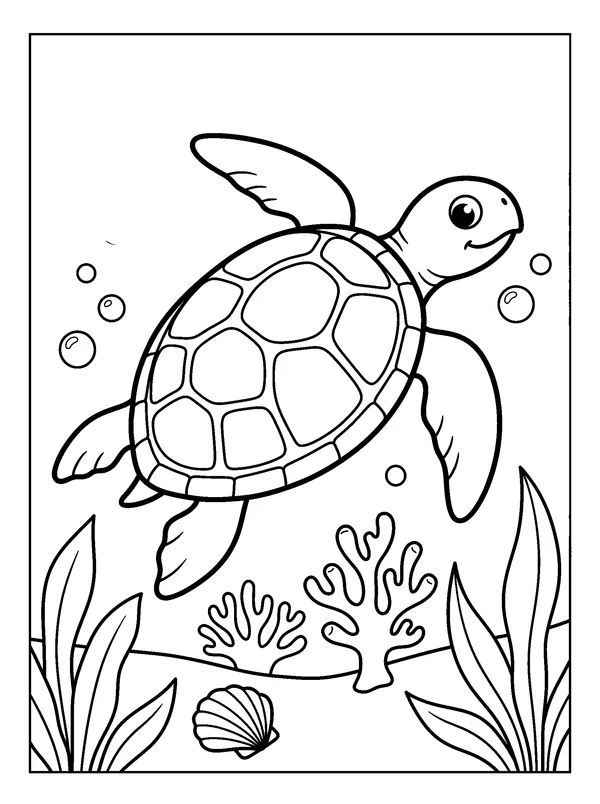
Sea turtle reef print check
Check that the complete turtle and surrounding outlines remain within the visible page margins.
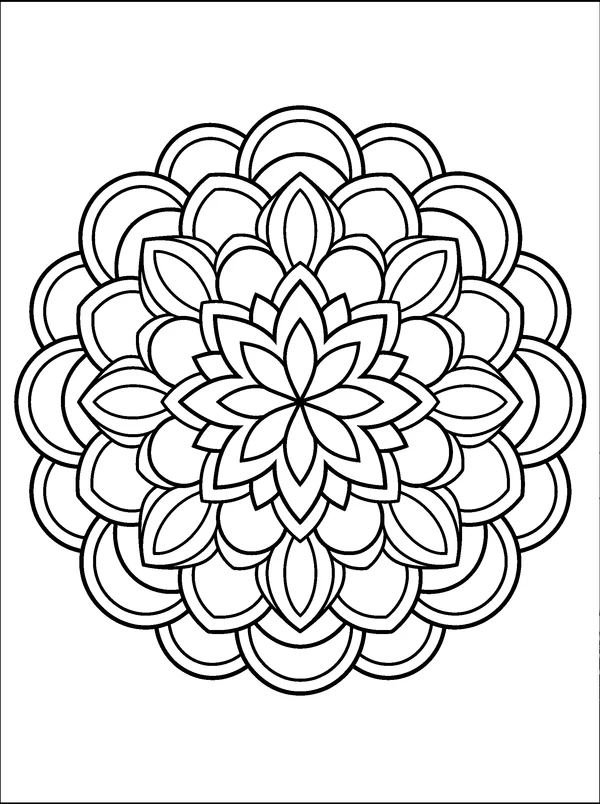
Mandala print check
Look at the outer ring in the preview so a scaling or cropping choice does not cut off the design.
Put it into practice
Start with the matching original file
Open a sheet page and choose its PDF download or PDF print link. A screenshot can include interface elements and a thumbnail may contain fewer pixels than the original PNG. Keep the file name recognizable if you are preparing several different designs.
- Use the PDF for an existing one-page arrangement.
- Use the high-resolution PNG when making your own document layout.
- Check that the file contains the design you selected before making copies.
Match the document to the loaded paper
US Letter measures 8.5 × 11 inches; A4 measures 210 × 297 millimeters. They have different proportions. The prepared library PDFs are US Letter pages. Select the actual loaded paper in your printer settings rather than assuming the application has chosen it.
- Keep portrait orientation for these portrait sheet PDFs.
- For A4, use Fit to page and inspect the resulting margins.
- For Letter, start with actual size and use Fit if your printer preview clips the outlines.
Inspect the first physical page
The screen preview does not show every paper or printer effect. Print one sheet, then look at the outermost contours and the smallest details. Keep the page flat while checking it. If the outline is too faint, inspect the source file and your printer’s quality settings before making a batch.
- If edges are cut off, recheck paper size and page fitting.
- If the sheet is unexpectedly small, check for multiple-pages-per-sheet settings.
- If the wrong side or orientation prints, correct that setting before retrying.
Choose paper for the way you will color
Use paper that your printer supports. A plain sheet can be a practical start for crayons or pencils; other media may call for a different supported stock. Try the coloring tool on a spare piece before committing to several copies.
- Place a spare sheet beneath artwork when using a medium that may show through.
- Choose single-sided printing if marks could affect the next picture.
- For a new AI-generated image, prepare its layout separately; generation does not automatically create a print-ready PDF.
Questions about this activity
Should I choose actual size or Fit to page?
For a library US Letter PDF on Letter paper, start with actual size and inspect the preview. For A4, choose Fit. If your printer’s non-printable margins clip the design, fit it to the printable area.
Why is part of the outline missing?
The document, paper selection or scaling may not match. Reopen the original file, check the loaded paper size and switch to a fitting option while watching the preview.
Can I print from a phone or tablet?
That depends on the device, PDF viewer and printer. Open the original PDF with an available print option, then inspect paper size and scaling before confirming the job.
Is an AI image already a printable PDF?
No. The existing library sheets have prepared PDF files. A new generated image must be reviewed and arranged for printing with a separate export or document workflow.