LAYER EXPORT GUIDE
PNG, ZIP or PSD: choose and inspect your layer export
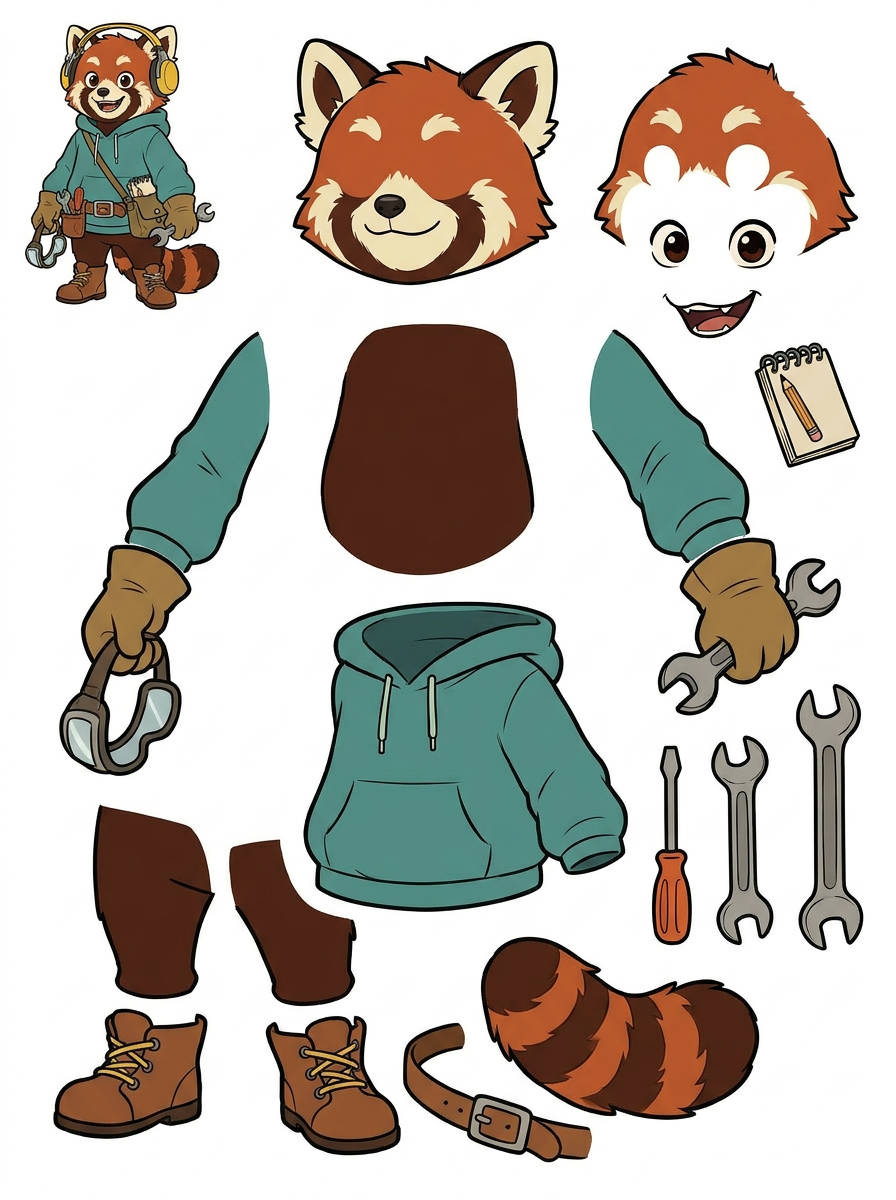
A picture of separated parts and a document containing separate layers are different deliverables. Use this workflow to decide what you need, inspect the result and describe the handoff accurately.
Published by LlamaGen · Updated
1. Define the deliverable before uploading
Start with one illustration you own or may modify. Save the original and note which visible parts must remain independent: for example, a mascot, a hat and a handheld sign. A complex poster with overlapping lettering is a different problem from an isolated character.
Decide whether the next person needs a visual reference or movable files. Writing this requirement first prevents a sheet preview from being mistaken for an editable production document.
2. Review the Quick or PRO sheet
Quick and PRO each generate one PNG sheet. Quick is available on the free plan and uses credits; PRO requires the applicable paid entitlement and credits. Check current access and costs in the tool.
Compare the sheet with the source at full view and close zoom. Look for missing fingertips, fused accessories, altered facial details and cropped outlines. Record corrections before proceeding. A neat arrangement of parts does not prove their transparent edges are clean.
3. Run separate extraction and choose a format
On an eligible paid plan, the additional extraction step creates separate transparent raster assets. It is distinct from generating the sheet and uses credits. Select the format according to the handoff:
- Individual transparent PNG: use when you only need one isolated part or want to replace a single asset.
- ZIP: download the extracted PNG collection together; the archive is a delivery container, not a layered image document.
- Starter PSD: use for reviewing separate raster layers in an editor. It does not recreate the source artist's original layer structure.
4. Inspect the actual downloaded assets
Open a PNG over both a pale and a dark background to reveal halos and leftover pixels. In the PSD, hide and show layers individually, then move a duplicate of one part to expose gaps. Compare scale and detail with the original; repair edges or missing regions in your editor.
Keep the source, sheet, extracted files and correction notes together. State which parts were checked and which still need work so the next editor can judge readiness without guessing.
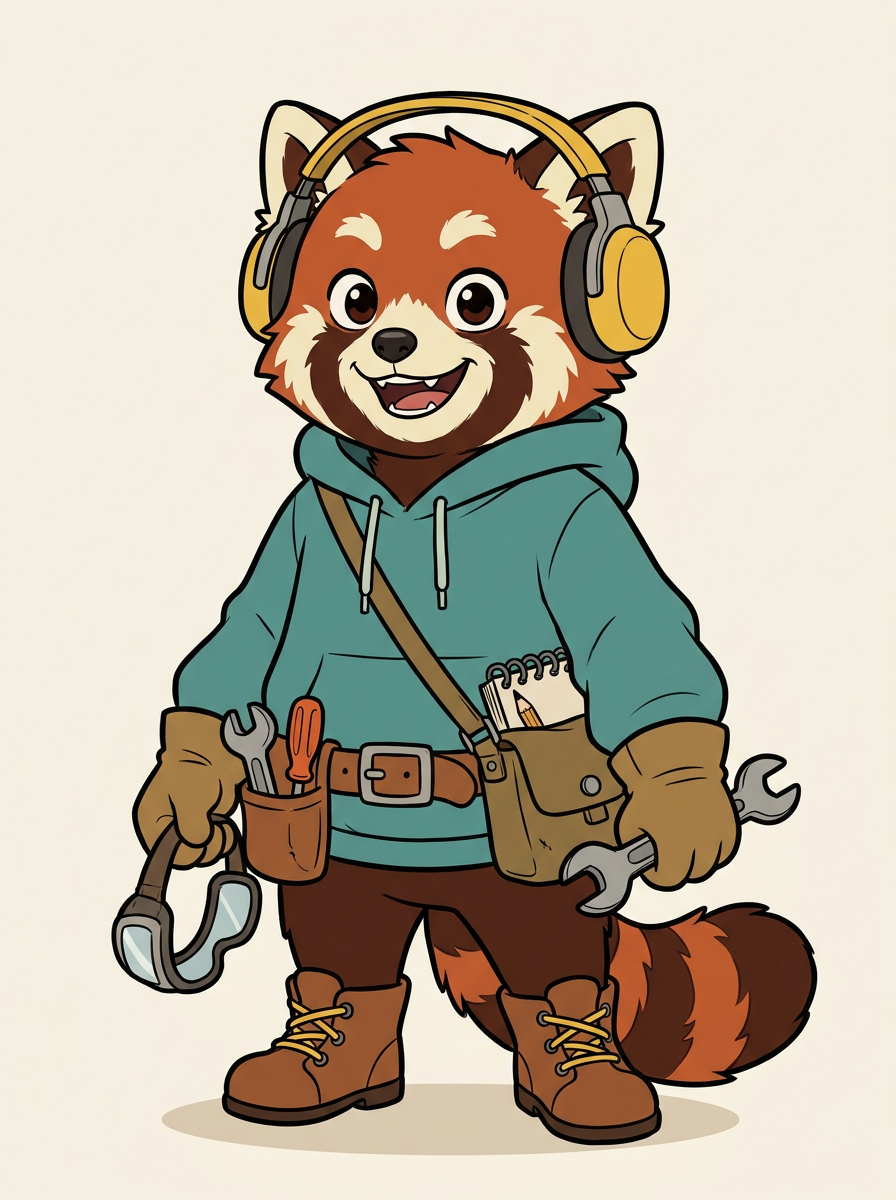
Illustrative handoff: a mascot holding a sign
Suppose the sign needs a new position. First inspect whether its border and the mascot's hand remain distinguishable in the sheet. After eligible extraction, open the sign PNG against a dark background. If the fingers are fused to it, correct that boundary before repositioning. Deliver the cleaned PNG or a PSD with named raster layers and a note about any unfinished repair.
Example scope: Hypothetical workflow example, not a performed test or a claim about the pictured export quality.
Check before handoff
- Source rights and the required independent parts are documented.
- The sheet was compared with the original before extraction.
- Downloaded transparency was checked on light and dark backgrounds.
- PSD layers were inspected separately, rather than only as a composite.
- The handoff identifies unresolved repairs and the chosen file format.
Limits and costs
- A starter PSD contains raster layers; native editable text and vector paths are not guaranteed.
- AI cannot guarantee accurate recovery of hidden backgrounds or occluded anatomy.
- The layer sheet alone does not contain independently editable layers; separate extraction requires eligible paid access.
Questions before you start
Can I rename the sheet to .psd to get layers?
No. Changing a filename does not create separate layers. Request eligible extraction, then choose the starter PSD export.
Is a ZIP different from individual PNG downloads?
It packages the extracted PNG collection for convenient delivery. Inspect the images inside; the archive itself adds no editability.
Will poster lettering become editable text?
Do not assume that. Plan to recreate important lettering as text in your editor and check spelling and placement yourself.
Sources and scope
Based on published product documentation, labeled example artwork and newly generated lifestyle concepts. Sample tasks illustrate a workflow; they are not benchmark results or customer case studies.
- Adobe Photoshop: layers overview
Official background on layer types; explains why pixel layers differ from text and vector layers. Documentation, not an endorsement of LlamaGen.
- Adobe Photoshop: saving PNG images
Official reference for PNG transparency and keeping an editable working file. It does not certify any LlamaGen export.
External documentation explains formats and production methods. It is not an endorsement or an independent evaluation of LlamaGen.
Finished ideas in everyday life
Picture a completed comic or character design in someone's hands, on a familiar desk, or as a coordinated collection of personal projects.
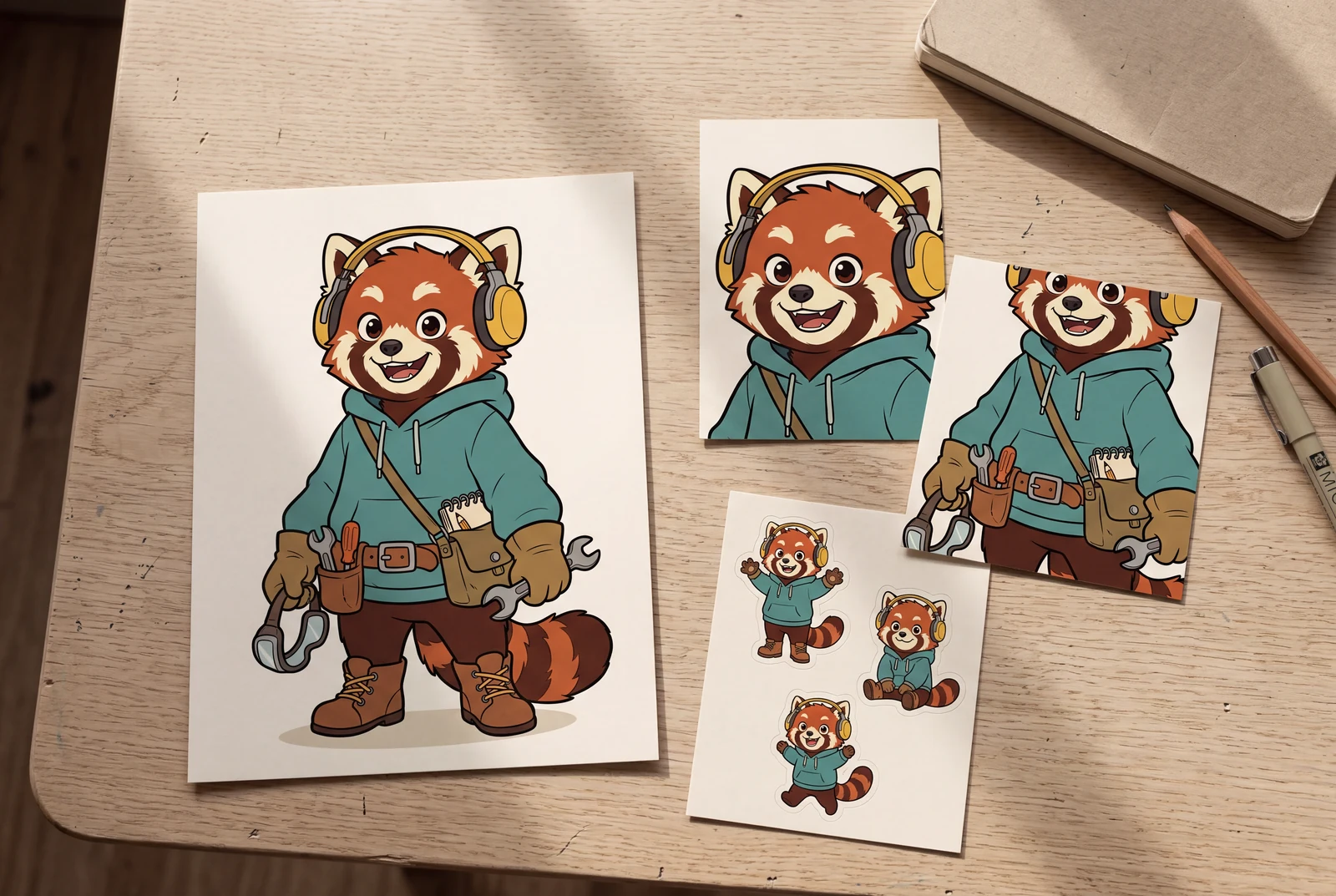
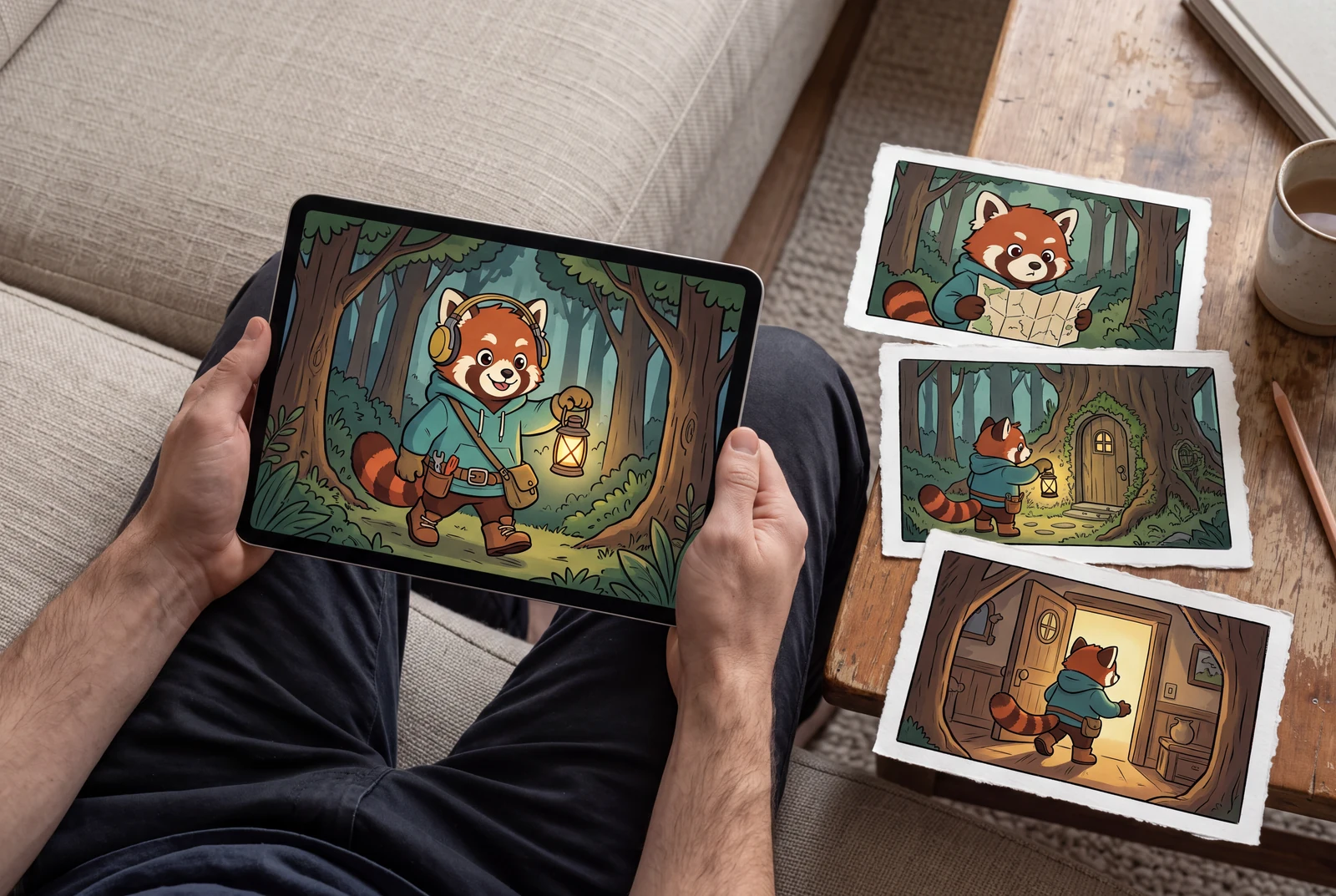
These fictional scenes are AI-generated lifestyle concepts, not customer photos or documented product test results. Printed cards, stickers, and display arrangements suggest optional uses for finished artwork; printing, production, and any animation work require a separate workflow.
Reference artwork and example scope