A disappointing result may come from the photo, instructions, or requested scene. Start with the visible symptom and change one variable at a time. These diagnostic suggestions establish neither measured success rates nor guaranteed corrections.
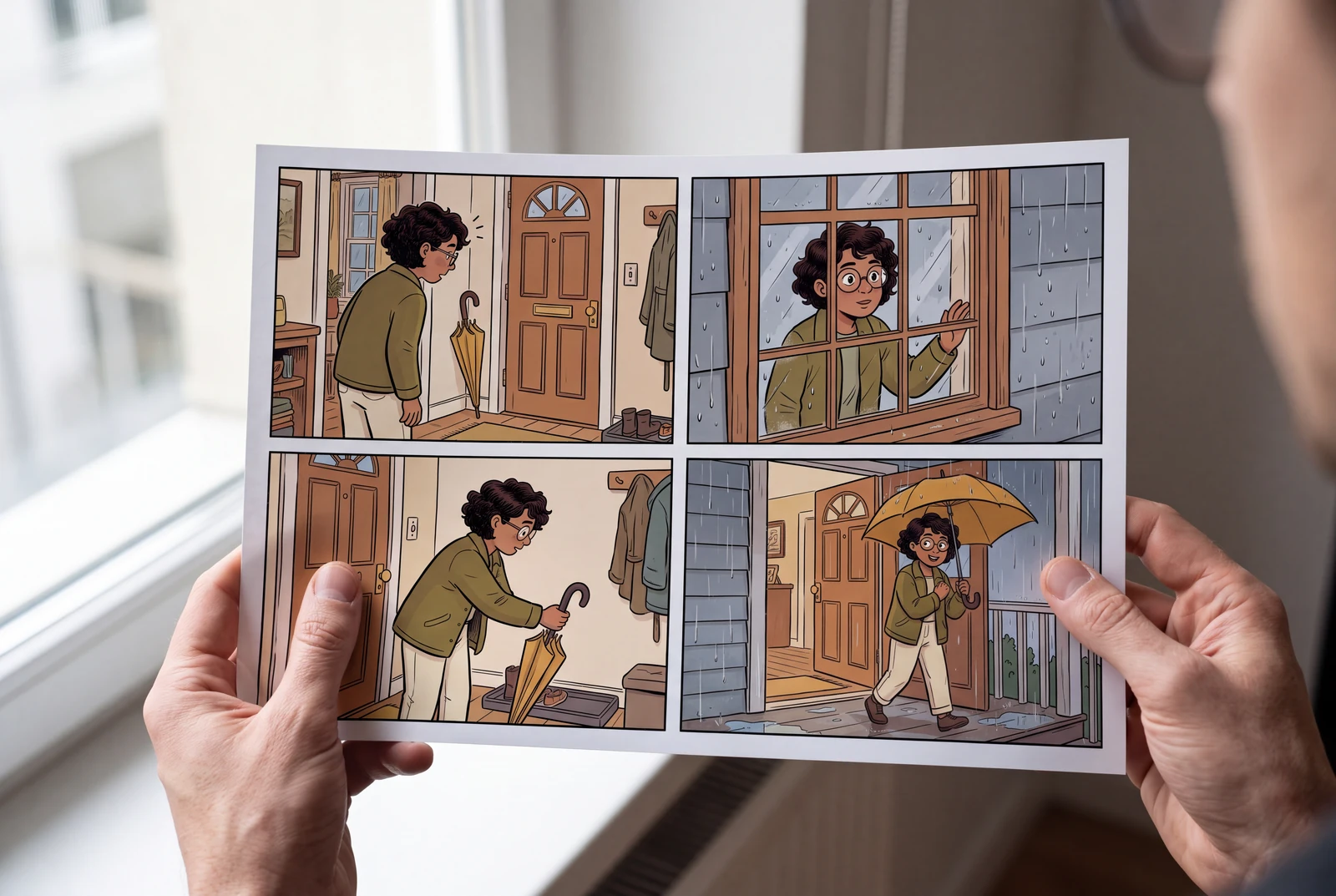
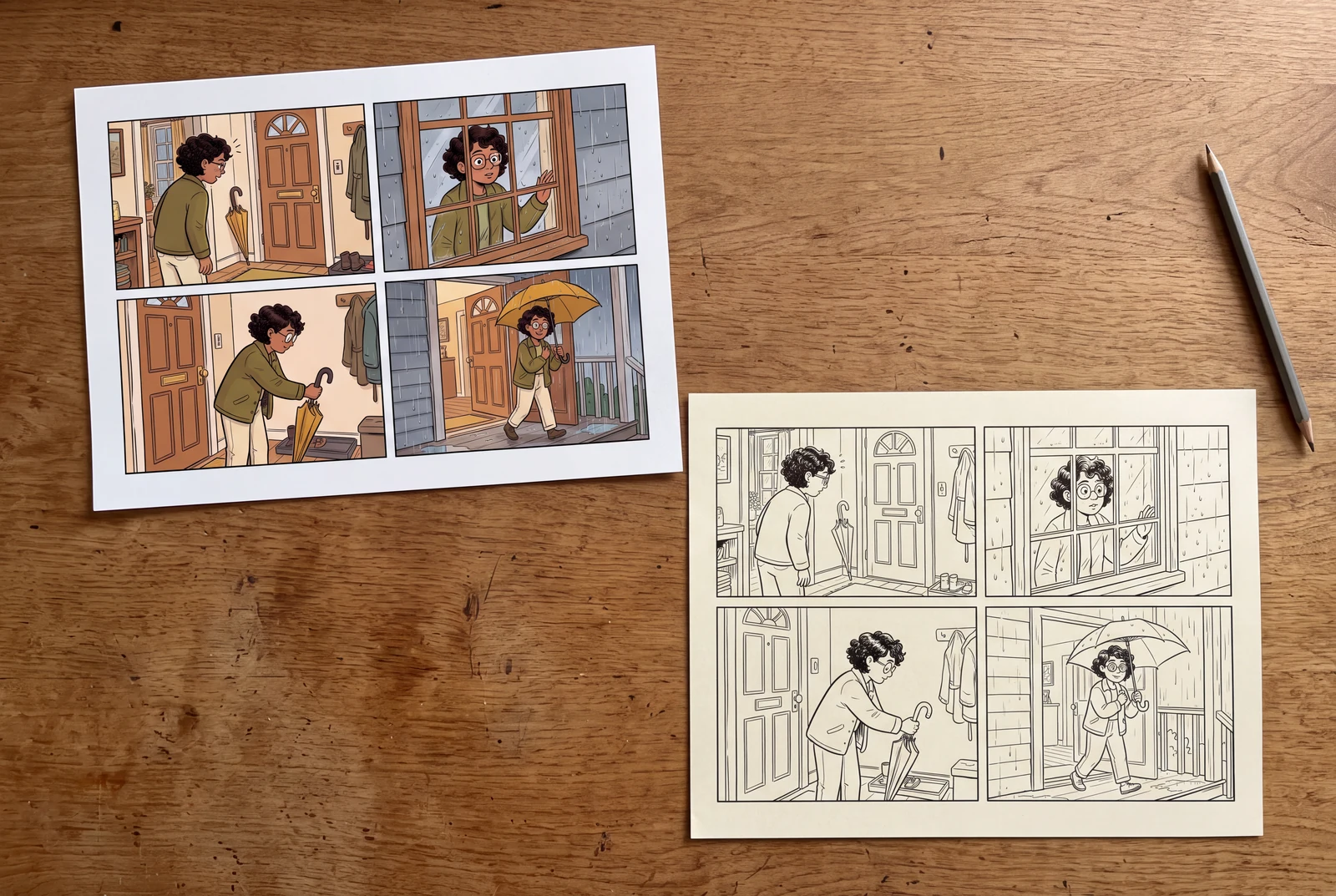
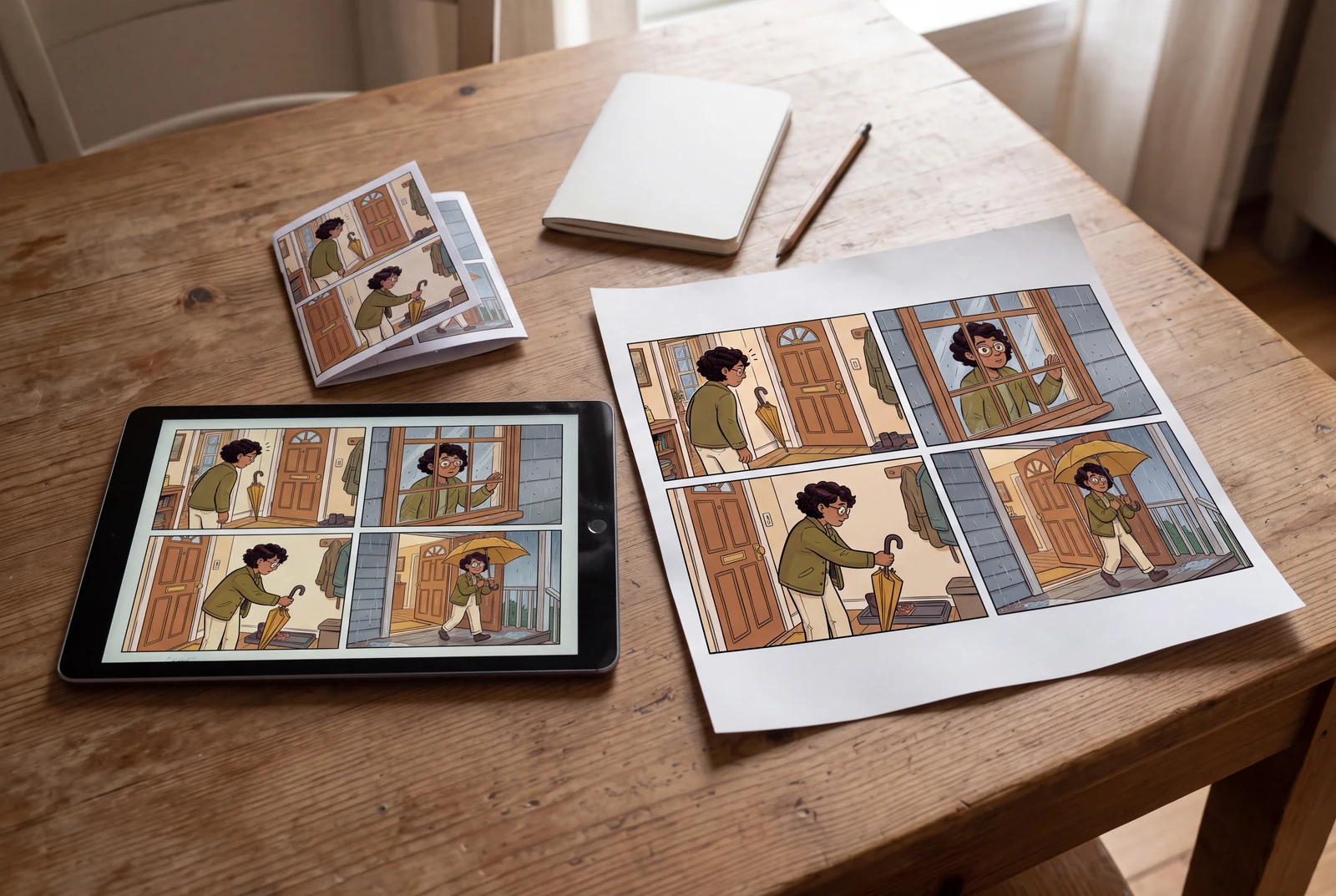
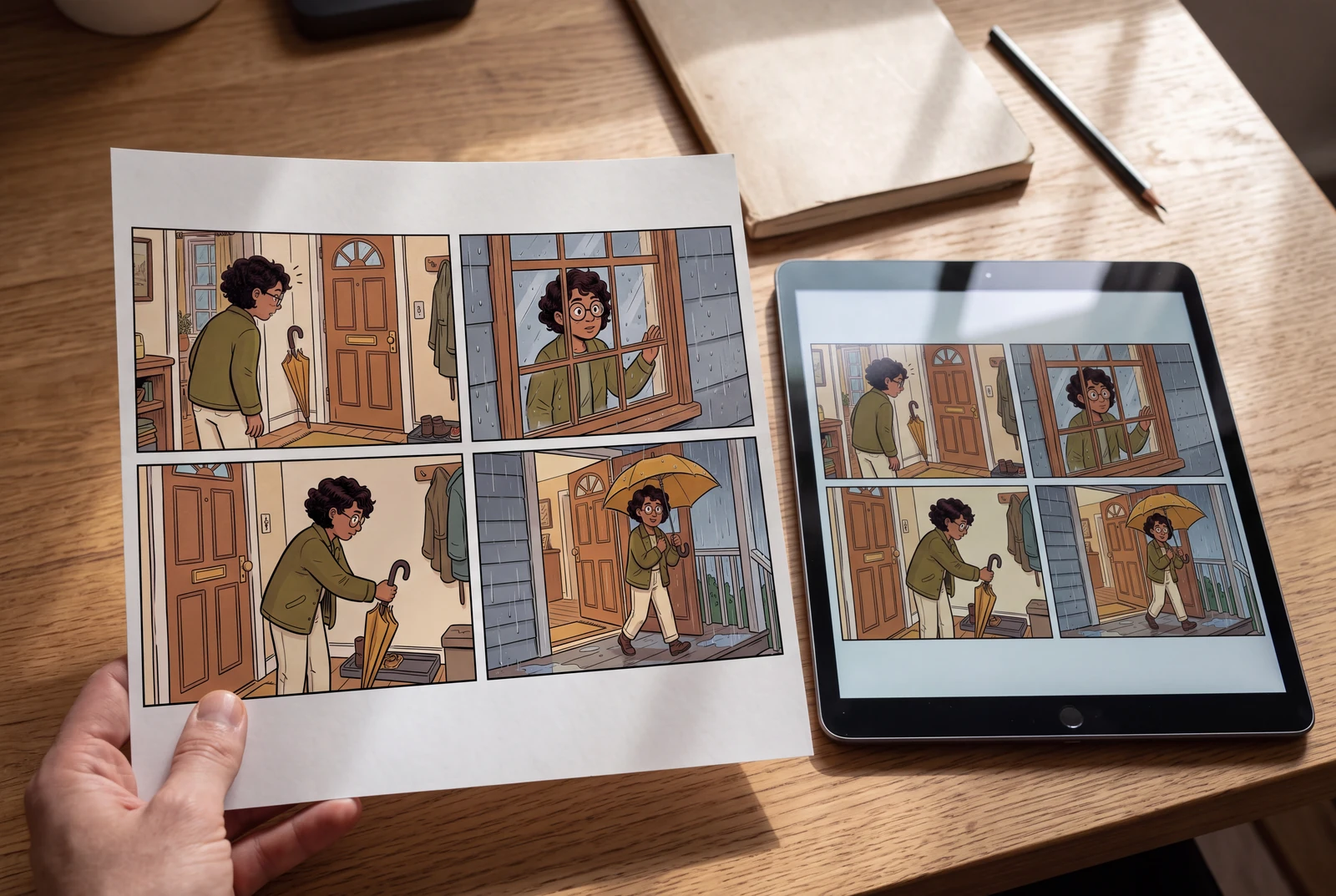
Editorial workflow guide. Prompts are worked examples to try, not measured product results. The lifestyle scenes show ways to read and display a finished comic; see actual input/output comparisons on the product page.
1. Save a baseline you can compare
Keep the original file, the full prompt, and a note describing the mismatch. Separate an upload failure from an artistic mismatch: a photo that never uploads needs a different investigation from a result with the wrong jacket color.
For the main picture-to-comic uploader, confirm JPG, PNG, or WebP and a size of 10 MB or less. Generation requires sign-in. Do not assume the requirements of a different Studio upload screen are identical. If a message appears, keep its exact wording without sharing private account details.
2. Match the symptom to a first adjustment
The causes below are possibilities. Use the smallest relevant change first and compare against the baseline before changing another setting.
| Symptom | Possible cause | Change one variable |
|---|---|---|
| File is rejected | Unsupported format or size | Export one JPG, PNG, or WebP file at 10 MB or less. |
| Face loses distinctive details | Small, obscured, or blurred face | Use a clearer crop of the same subject. |
| Clothes or fur markings drift | Identity instructions are vague | Add one precise visible anchor to the prompt. |
| Panels repeat or merge actions | Too many beats in the requested layout | Reduce the number of actions. |
| Lettering is unreadable | Generated text is inaccurate | Request the same scene without text. |
3. Distinguish reference problems from style choices
If the face is too small, try a crop that keeps the hair, chin, and ears visible. Compare that result with the original reference using the same prompt. Brightening a hidden detail cannot recover information the photo never captured; prefer another authorized image when available.
If the reference is clear but likeness drifts, name two or three visible anchors and simplify the style description. Judge face shape, hair, and accessories separately. A flattering illustration can still miss the reference. Do not add biographical or identity claims inferred from appearance.
Example prompt
Use the uploaded photo as the reference. Preserve [hair shape], [round glasses], and [green jacket]. Show one waist-up character in clean ink and flat colors against a plain background. No extra people, text, or accessories. Prioritize those visible reference details over decorative effects.
4. Reduce story and lettering complexity
When the reading order is unclear, assign one action to each panel and request visible borders. First remove a secondary character or a location change; do not change the photo, style, and story together. Count panels and describe the actual mismatch before the next attempt.
For unreadable bubbles, request a version without lettering and review the artwork first. Add or correct the final wording in an editor you use. Inspect hands, repeated props, and background signs at full size; a small preview can conceal these problems.
5. Check access and policy questions separately
If generation is unavailable, confirm your sign-in state and read the displayed message before starting again. Check current Plans for credits and Terms for commercial use and privacy. A prompt change cannot resolve an account restriction. If the issue persists, contact support with the time, upload format and size, and exact error message; exclude passwords, payment details, and private photos unless needed through an appropriate support channel.
After generation
Edit one panel, save it, then check the exported comic
A multi-panel photo comic is a useful starting point. Correct one panel and check that the change survives saving, reopening and export.
This is an editorial acceptance checklist, not a completed account-based product test. The examples describe what to inspect; they do not establish that every generated image opens as an editable comic project.
First, check what is actually editable
Select the item in your editor. A visible speech bubble may be a separate object, or it may already be part of the picture. Those need different repairs.
| What you have | How to approach the change | What to verify |
|---|---|---|
| Separate Studio text or bubble | When the editor exposes a real text or bubble object, edit its wording and placement there. Keep the panel artwork unchanged for this first check. | After reopening the project, select that object again and confirm that its text can still be changed. |
| Lettering burned into the image | The words are image pixels, not editable text. Start from a no-lettering version or clean the old lettering in an image editor before adding a separate text object. An overlay alone does not remove the old words. | Zoom in to look for leftover letters, damaged faces or an unwanted box behind the replacement text. |
| A delivery file | PNG and JPG flatten the visible page. A PDF or layered PSD does not by itself prove that text remains editable; separate PSD layers can still contain rasterized lettering. Keep the original Studio project for later text changes. | Open the exported file in its destination app. Check the appearance there and inspect any editing properties you actually need. |
A small workflow for a multi-panel page
Use a photo you own or have permission to use. Choose a single correction, such as the wording in panel two. Compare the other panels before and after.
Keep a baseline and change one panel
Save a reference image of the current page and keep its project link. Work on a copy if your editor offers one. Select only the intended panel or text object; a prompt asking for one-panel changes is not proof that other panels stayed the same.
Check: The character, background, crop and reading order in the other panels still match your baseline.
Correct the actual text object
If the wording is a separate object, replace it and adjust wrapping, size and bubble placement. If it is burned into the picture, use the image repair path above. Do not assume image regeneration will preserve a face or background exactly.
Check: The replacement wording is complete, the bubble tail points to the right speaker and the text stays inside the panel.
Save, then reopen the same project
Wait for the editor to confirm that the change is saved before leaving. Keep the project link, close the page and reopen that project. If saving reports an error, resolve it before continuing. A downloaded image or a browser draft is not confirmation of a cloud-saved project.
Check: The changed panel loads correctly and any separate text or bubble object remains selectable and editable.
Export and inspect the file itself
Choose a format actually offered for your project and account. Download it, then open the resulting file outside the editor. Review the full page and the corrected panel at a readable size; pressing Export is only the start of this check.
Check: The file opens, the expected panels are present, the latest wording appears and nothing is clipped or unexpectedly rearranged.
Before calling the comic finished
These are checks to perform, not results already recorded for this guide.
- Only the intended panel or object changed; the other panels match the baseline.
- The saved project reopens with the latest correction and the expected editable objects.
- Names, punctuation and accented or non-Latin characters display correctly.
- The exported file opens with the right page order, panel count, crop and legible lettering.
Picture-to-comic generation requires sign-in. Available editing, saving and export controls can depend on the project and account; check the current interface and plan before relying on a format. If generation returns only an image, do not treat it as a saved Studio project.
Questions before you start
How many retries should I expect?
There is no fixed number. Use each comparison to learn whether a specific change addresses the symptom, and check current credit conditions before generating again.
Will a sharper photo guarantee a matching face?
No. Clarity provides a better reference, but generation and stylization can still alter details. The lifestyle scenes on this page show presentation ideas, not a likeness benchmark.
Why does changing only one variable help?
It makes the comparison easier to interpret. Results may still vary, so a single improved result does not establish a reliable success rate.
Sources and product information
These are first-party product and policy sources. This guide does not include an independent review or a performance benchmark.