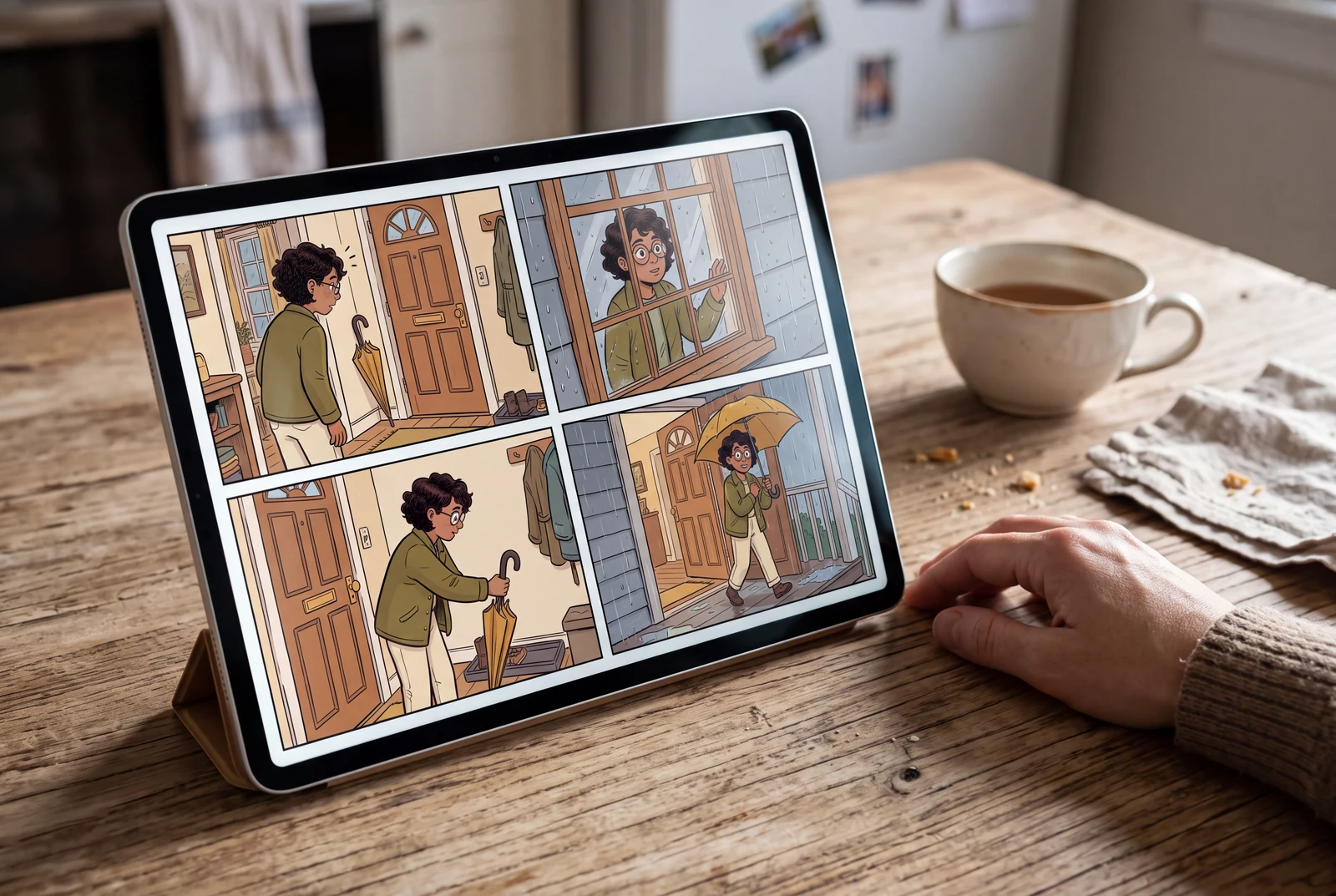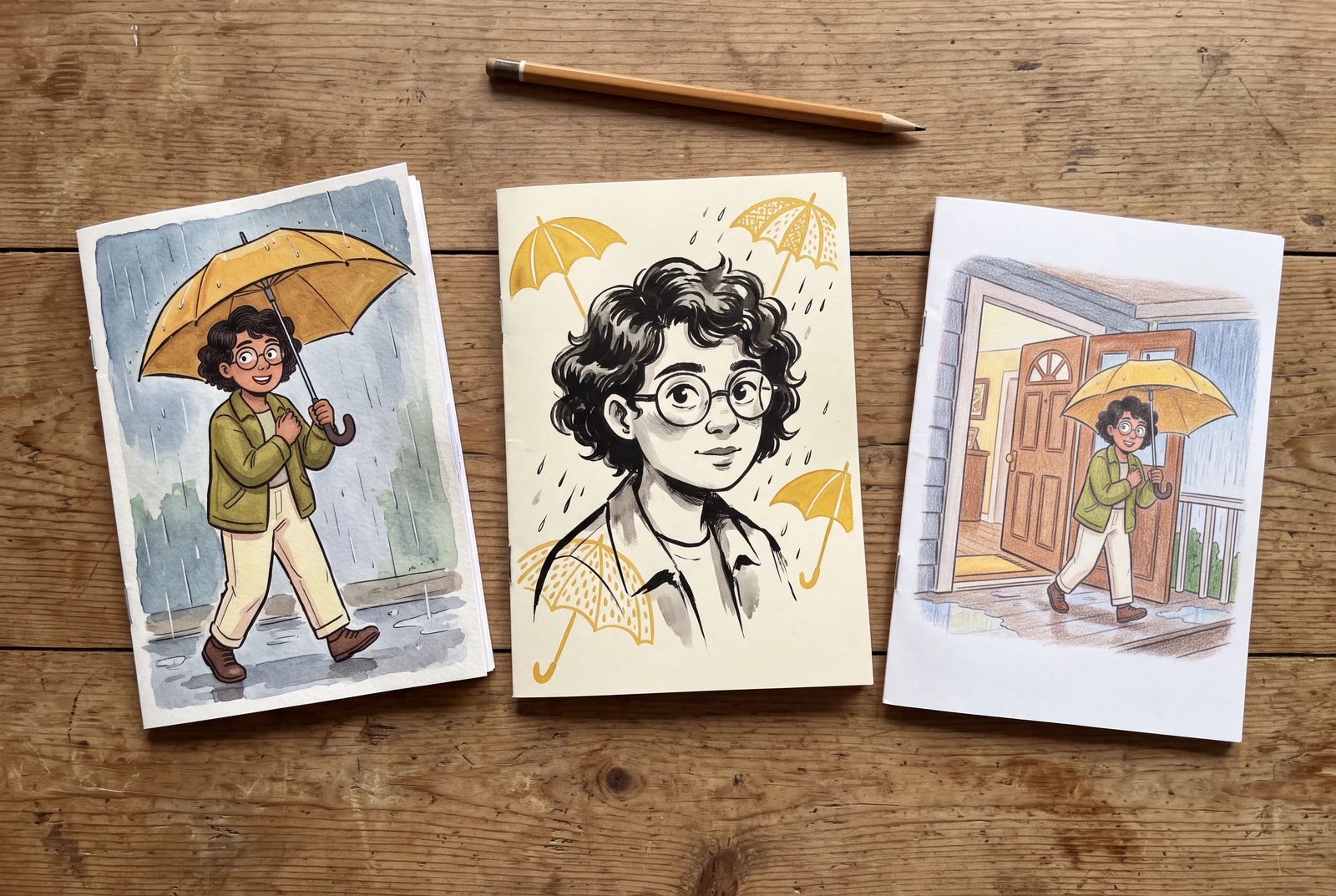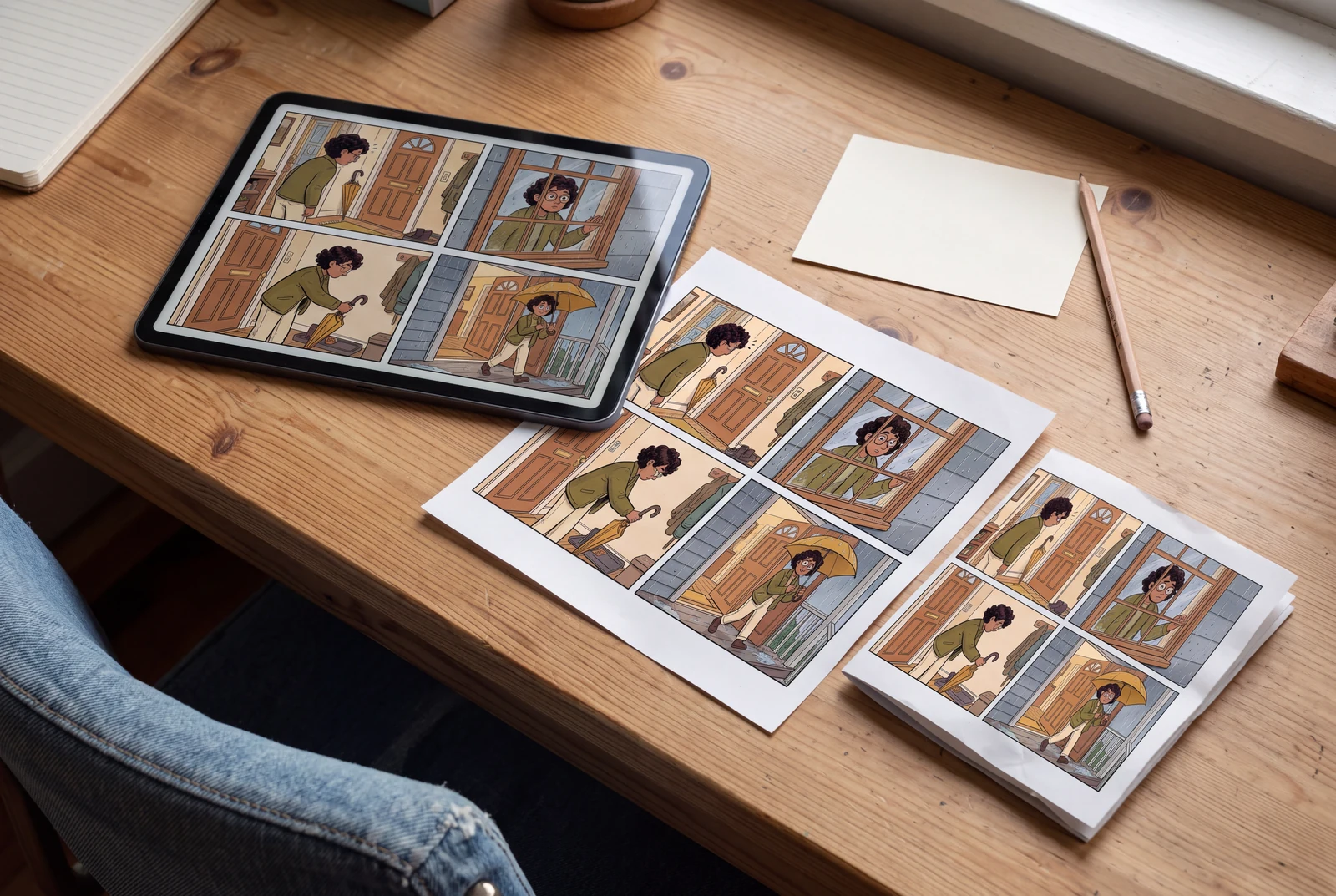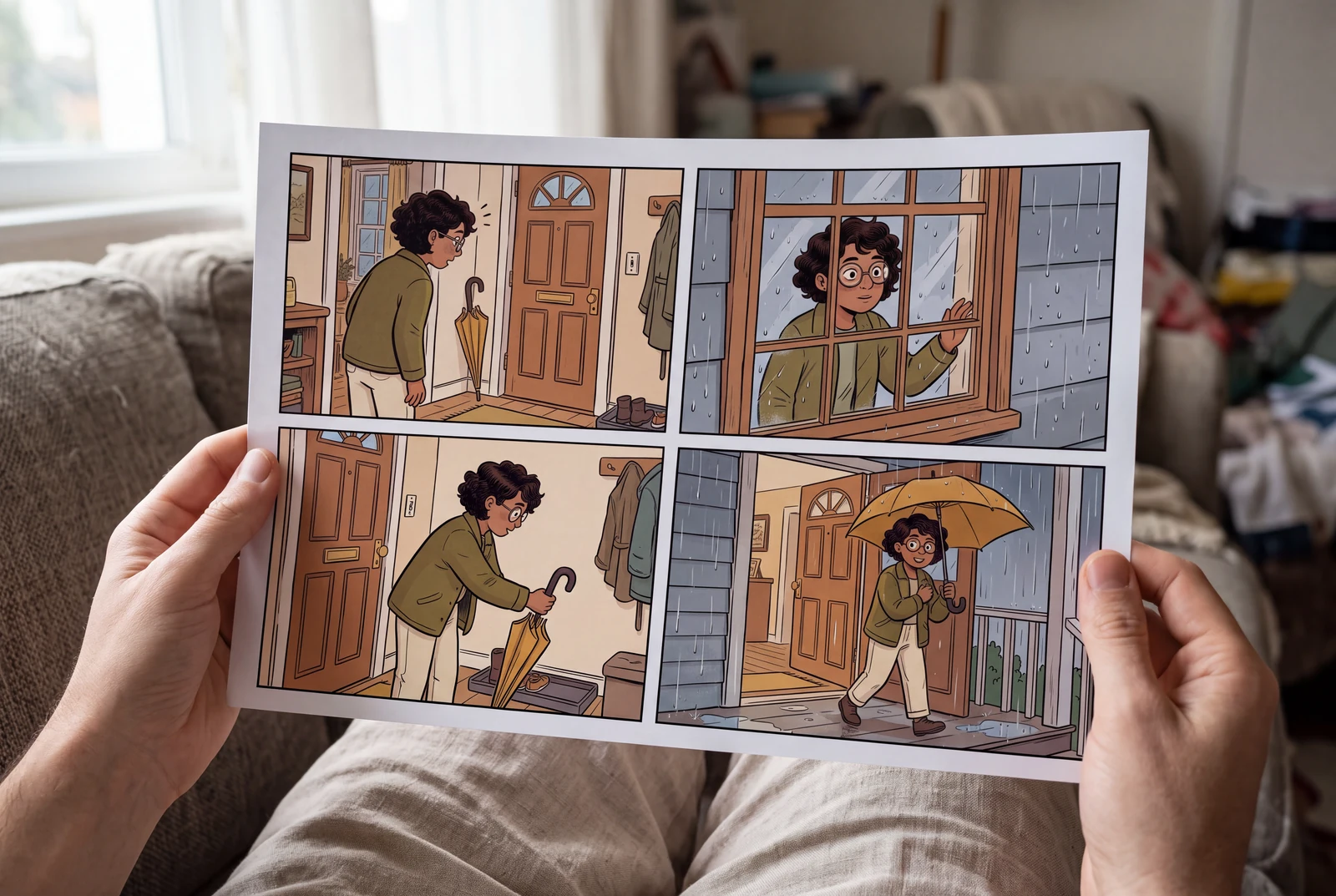
Separate the reference details to preserve from the story you may invent. These reproducible examples are adaptable briefs, not tested results. Panel counts and visual details are requests; inspect the actual output.
Editorial workflow guide. Prompts are worked examples to try, not measured product results. The lifestyle scenes show ways to read and display a finished comic; see actual input/output comparisons on the product page.
1. Define the reference before the style
Start with one clearly visible subject. The main picture-to-comic uploader accepts JPG, PNG, and WebP files up to 10 MB; generation requires sign-in. Other Studio upload flows may have different requirements. Use a photo you are authorized to upload and remove private details before sharing it.
List two or three visible anchors: hair shape, jacket color, an object silhouette, or a landmark. Choose the story length and one style so revisions remain easy to judge.
2. Portrait to a four-panel everyday story
Keep the person recognizable as actions change. Replace bracketed details with observations from your photo.
- Accept when all four actions read in order and the three reference anchors stay consistent. Check glasses, hands, and the umbrella separately.
Example prompt
Use the uploaded portrait as the character reference. Preserve [short curly hair], [round glasses], and [green jacket]. Create a four-panel, left-to-right comic in clean ink with flat colors. Panel 1: the character notices a forgotten umbrella by the door. Panel 2: they look at the rain outside. Panel 3: they pick up the umbrella. Panel 4: they step outside smiling. Keep clothing consistent and show one main action per panel. No speech bubbles, captions, or extra people.
3. Travel photo to a six-panel memory story
One photograph cannot document a whole trip. This imagined sequence uses the visible location as an anchor; revise it for a factual account.
- Accept when there are six distinct beats, the backpack stays blue, and the bridge remains recognizable. Reject invented geographic details that could mislead a viewer.
Example prompt
Use the uploaded travel photo for the traveler and the visible [red bridge] only. Make a six-panel illustrated travel story with soft watercolor and clear panel borders. In order: arrive at the bridge; unfold a paper map; notice the river; pause for a sketch; pack the sketchbook; leave at sunset. Preserve [blue backpack] and the bridge silhouette throughout. Do not invent readable signs or claim an exact location. No dialogue. Keep the journey easy to follow.
4. Product photo to a demonstration storyboard
Describe only visible features. An illustrated demonstration is a communication draft, not verification of product performance.
- Accept when the shape and compartment count match the reference in every appearance. Reject added functions or any misleading before-and-after claim.
Example prompt
Use the uploaded photo of [a desk organizer] as the product reference. Create four panels in a simple editorial comic style: a cluttered desk; the organizer placed on the desk; pens and paper arranged in its visible compartments; the tidy desk. Preserve its [yellow color], shape, and compartment count. Keep the same viewing angle where possible. Add no logos, dimensions, performance claims, or features absent from the photo. No text inside the image.
5. Change one instruction at a time
Keep the reference and story fixed while adjusting one variable, such as line style or background complexity. Record the prompt and what changed so comparisons stay meaningful. Inspect the full-size result for duplicated objects and unintended text before publishing. Check current Plans and Terms for credits, commercial use, and privacy conditions.
After generation
Edit one panel, save it, then check the exported comic
A multi-panel photo comic is a useful starting point. Correct one panel and check that the change survives saving, reopening and export.
This is an editorial acceptance checklist, not a completed account-based product test. The examples describe what to inspect; they do not establish that every generated image opens as an editable comic project.
First, check what is actually editable
Select the item in your editor. A visible speech bubble may be a separate object, or it may already be part of the picture. Those need different repairs.
| What you have | How to approach the change | What to verify |
|---|---|---|
| Separate Studio text or bubble | When the editor exposes a real text or bubble object, edit its wording and placement there. Keep the panel artwork unchanged for this first check. | After reopening the project, select that object again and confirm that its text can still be changed. |
| Lettering burned into the image | The words are image pixels, not editable text. Start from a no-lettering version or clean the old lettering in an image editor before adding a separate text object. An overlay alone does not remove the old words. | Zoom in to look for leftover letters, damaged faces or an unwanted box behind the replacement text. |
| A delivery file | PNG and JPG flatten the visible page. A PDF or layered PSD does not by itself prove that text remains editable; separate PSD layers can still contain rasterized lettering. Keep the original Studio project for later text changes. | Open the exported file in its destination app. Check the appearance there and inspect any editing properties you actually need. |
A small workflow for a multi-panel page
Use a photo you own or have permission to use. Choose a single correction, such as the wording in panel two. Compare the other panels before and after.
Keep a baseline and change one panel
Save a reference image of the current page and keep its project link. Work on a copy if your editor offers one. Select only the intended panel or text object; a prompt asking for one-panel changes is not proof that other panels stayed the same.
Check: The character, background, crop and reading order in the other panels still match your baseline.
Correct the actual text object
If the wording is a separate object, replace it and adjust wrapping, size and bubble placement. If it is burned into the picture, use the image repair path above. Do not assume image regeneration will preserve a face or background exactly.
Check: The replacement wording is complete, the bubble tail points to the right speaker and the text stays inside the panel.
Save, then reopen the same project
Wait for the editor to confirm that the change is saved before leaving. Keep the project link, close the page and reopen that project. If saving reports an error, resolve it before continuing. A downloaded image or a browser draft is not confirmation of a cloud-saved project.
Check: The changed panel loads correctly and any separate text or bubble object remains selectable and editable.
Export and inspect the file itself
Choose a format actually offered for your project and account. Download it, then open the resulting file outside the editor. Review the full page and the corrected panel at a readable size; pressing Export is only the start of this check.
Check: The file opens, the expected panels are present, the latest wording appears and nothing is clipped or unexpectedly rearranged.
Before calling the comic finished
These are checks to perform, not results already recorded for this guide.
- Only the intended panel or object changed; the other panels match the baseline.
- The saved project reopens with the latest correction and the expected editable objects.
- Names, punctuation and accented or non-Latin characters display correctly.
- The exported file opens with the right page order, panel count, crop and legible lettering.
Picture-to-comic generation requires sign-in. Available editing, saving and export controls can depend on the project and account; check the current interface and plan before relying on a format. If generation returns only an image, do not treat it as a saved Studio project.
Questions before you start
Will the prompt guarantee the exact panel count?
No. Panel count is a requested structure, not a guarantee. Count the panels in the result and simplify the brief if actions merge or repeat.
Can I include dialogue?
You can request it, but generated lettering needs careful review. Start without text to assess the artwork, then add or correct wording in an editor you use.
Should I copy the bracketed details literally?
No. Replace them with details visible in your reference. Leaving unrelated details in the prompt can conflict with the photo.
Sources and product information
These are first-party product and policy sources. This guide does not include an independent review or a performance benchmark.