

AI Christmas Video Generator

Turn a Christmas moment into a moving greeting.

Start with a festive image, then add gentle snowfall, twinkling lights or a single cinematic camera move. Keep the shot short, readable and ready for your chosen sharing format.

Content reviewed:

Generation uses the account credits, models and export options shown in the studio. Check the current cost before you generate. Plans and credits

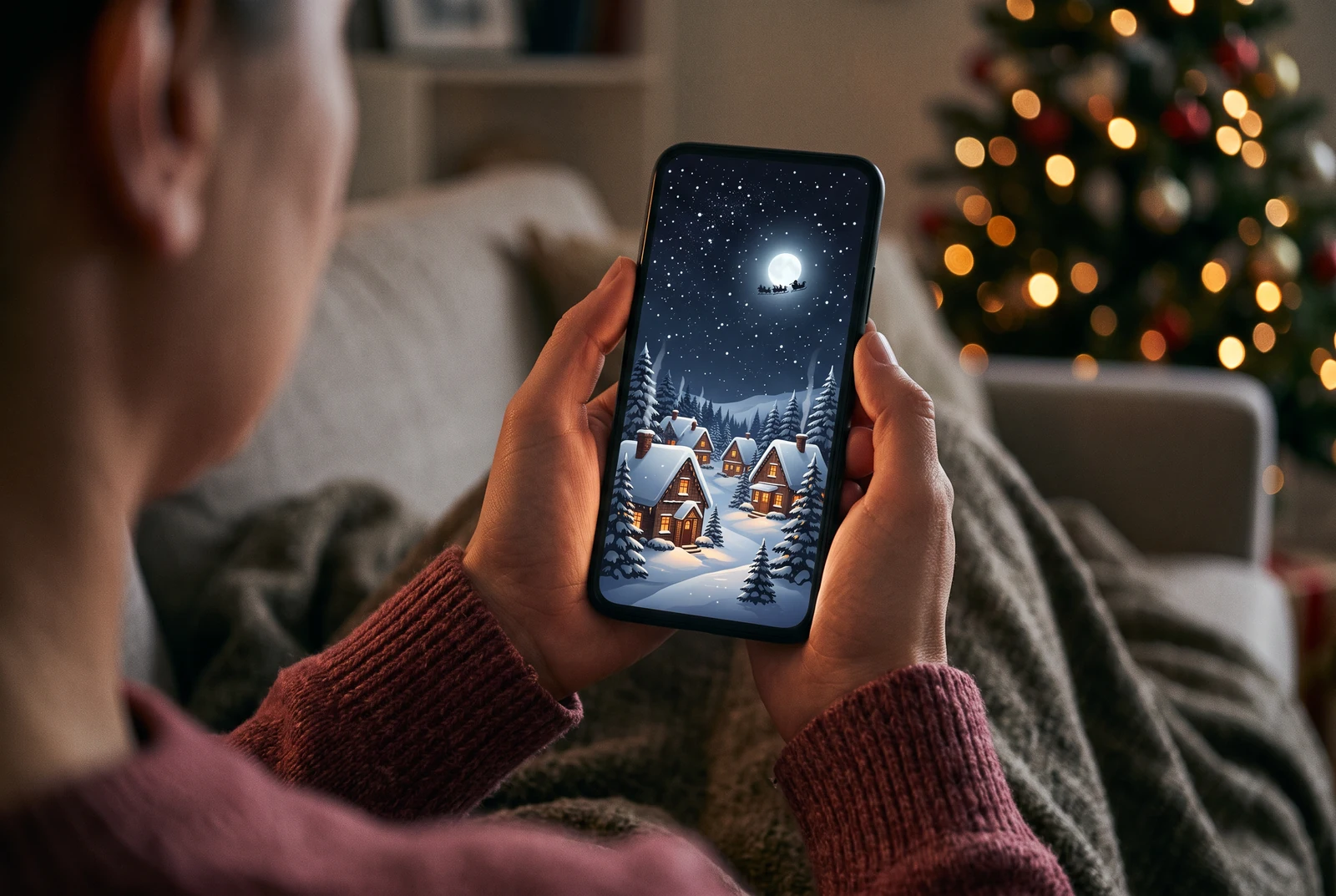
A phone displaying a static illustrated snowy Christmas scene in a cozy home
A static AI concept for a phone-sized Christmas greeting. The screen is not a playable clip or a captured animation-studio result.

The short answer

The most reliable starting point for a Christmas AI video is a single source frame plus a short motion brief. Specify one action, one camera move, and an approximate duration your chosen video model actually supports. Review the rendered clip for face stability and unwanted scene changes.

A workable process

From a clear brief to a reviewed result.

  1. 1

    Prepare the first frame

    Choose a Christmas portrait or illustration and crop it for vertical 9:16 stories or horizontal 16:9 sharing before starting the video workflow.

  2. 2

    Write a small motion brief

    Ask for snowfall, a subtle wave, warm lights or a slow dolly move. Do not cram multiple scene changes into a few seconds.

  3. 3

    Check the rendered clip

    Watch from start to finish for warped faces, shifting letters, camera cuts and unexpected characters. Add any final greeting or audio with appropriate editing tools.

The finished design in everyday life

Plan the motion before you spend video credits.

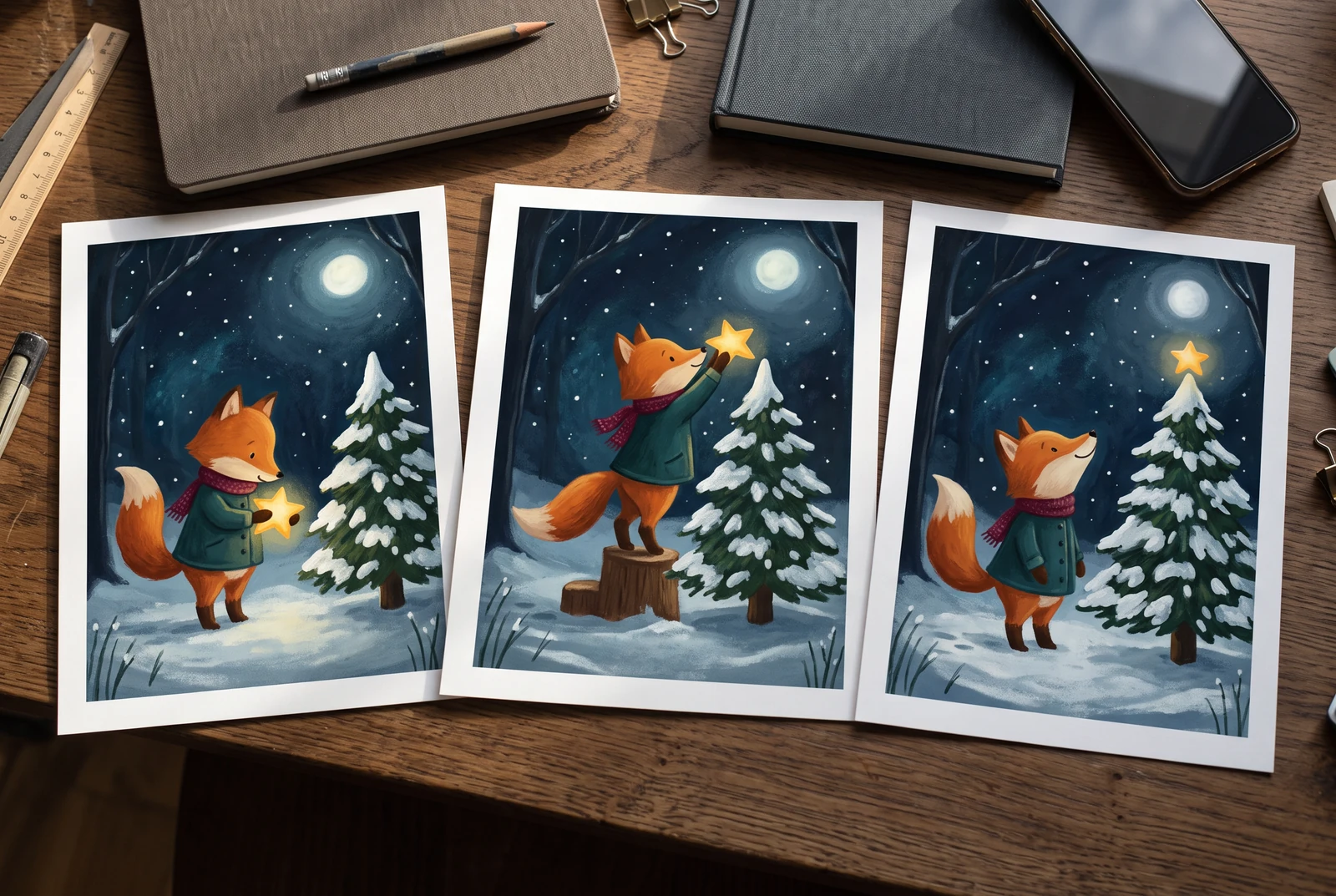
Three distinct winter storyboard cards arranged beside a phone to plan a Christmas greeting
A static storyboard presentation concept. These pictures do not demonstrate frame continuity, video duration, sound or a successful render.

Write a start, middle and end for one shot. A printed storyboard can help you notice a face leaving the frame or a greeting area becoming busy before you generate a clip.

AI-generated presentation concepts made with fictional people and original designs. They show possible uses, not customer photographs, application screenshots or evidence of a physical printing service.

Editable recipes

Three prompts with a specific purpose.

Copy a prompt and replace the example with your own subject. These are suggested briefs, not records of successful studio runs. Choose a supported aspect ratio and duration in the studio.

Snowfall photo animation

A calm animated family greeting.

Prepare this input
A reviewed portrait with space around each face.
Intended result
A continuous motion draft; select a duration the chosen studio model actually supports.
Use this Christmas portrait as the first frame. Create an 8-second continuous vertical shot with soft snowfall outside the window, gentle warm tree-light flicker and a very slow camera push-in. Keep every person and face stable. No cuts, no new people, no generated text.

Check before sharing

Compare the first, middle and last frames. Reject changed faces, extra limbs or a crop that removes someone.

Santa arrives in the village

A whimsical illustrated seasonal clip.

Prepare this input
An original village illustration with a clear foreground and distant sky.
Intended result
One planned sleigh movement within the shot; the prompt does not establish that every model can render it.
Animate the supplied illustrated Christmas village. In one 8-second wide shot, Santa's sleigh crosses the distant sky, a few windows glow and snow falls slowly. Keep the village layout and camera direction consistent. No spoken dialogue, no extra transitions.

Check before sharing

Follow the sleigh from entry to exit; reject sudden jumps, scale changes or an unintended camera cut.

Animated Christmas card

Motion background for a short personal message.

Prepare this input
A card illustration with an empty greeting area.
Intended result
A motion background for a message added later; verify the empty area throughout the clip.
Animate this holiday card illustration with gentle paper-texture parallax, soft glowing ornaments and a slow upward camera drift over 6–8 seconds. Preserve a clean empty space for a greeting to be added later. No text generation and no sudden camera cuts.

Check before sharing

Pause the first, middle and last frames to ensure the greeting area stays clear.

Useful quality checks

Details to check in your own output.

Use the right frame size

For phone stories use 9:16; for a TV or presentation consider 16:9. Avoid cropping people at the edge.

Keep movement modest

One clear motion tends to be easier to review than multiple characters, complex actions and fast transitions.

Confirm model and costs

Available models, duration and credits can vary in the animation studio. Review its current options rather than assuming an unlimited free video.

Keep creating for Christmas.

Choose a separate workflow when the next project needs a different format.

Frequently asked questions.

Can I animate an existing Christmas photo?

Open the animation studio and select an available image-to-video workflow. Provide your source image, a short motion prompt and the duration supported by the chosen model.

Can I make an AI Santa video?

You can use an original Santa scene as a visual concept and animate it where the selected model supports the required motion. Avoid implying a real person's message or voice without consent.

Does a Christmas video automatically include music or a spoken greeting?

Not necessarily. Audio and lip-sync features depend on the selected workflow and model. The prompts here focus on visual motion; verify music, voice and export options in the studio.

Ready when you are

Start with a specific creative task.

Open the studio, review its models and credits, then adapt a prompt and inspect the result.

Open the animation studio