

Choose a reference · Simplify the scene · Review the outline
Turn a photo into a coloring-page idea you can finish
A photo can provide the subject for a personal coloring page: a pet, a plant or a familiar object with a clear silhouette. Treat the first generated outline as a draft. The useful part of the process is deciding what to keep, what to remove and whether the remaining shapes are comfortable to color.
Browse free printable sheets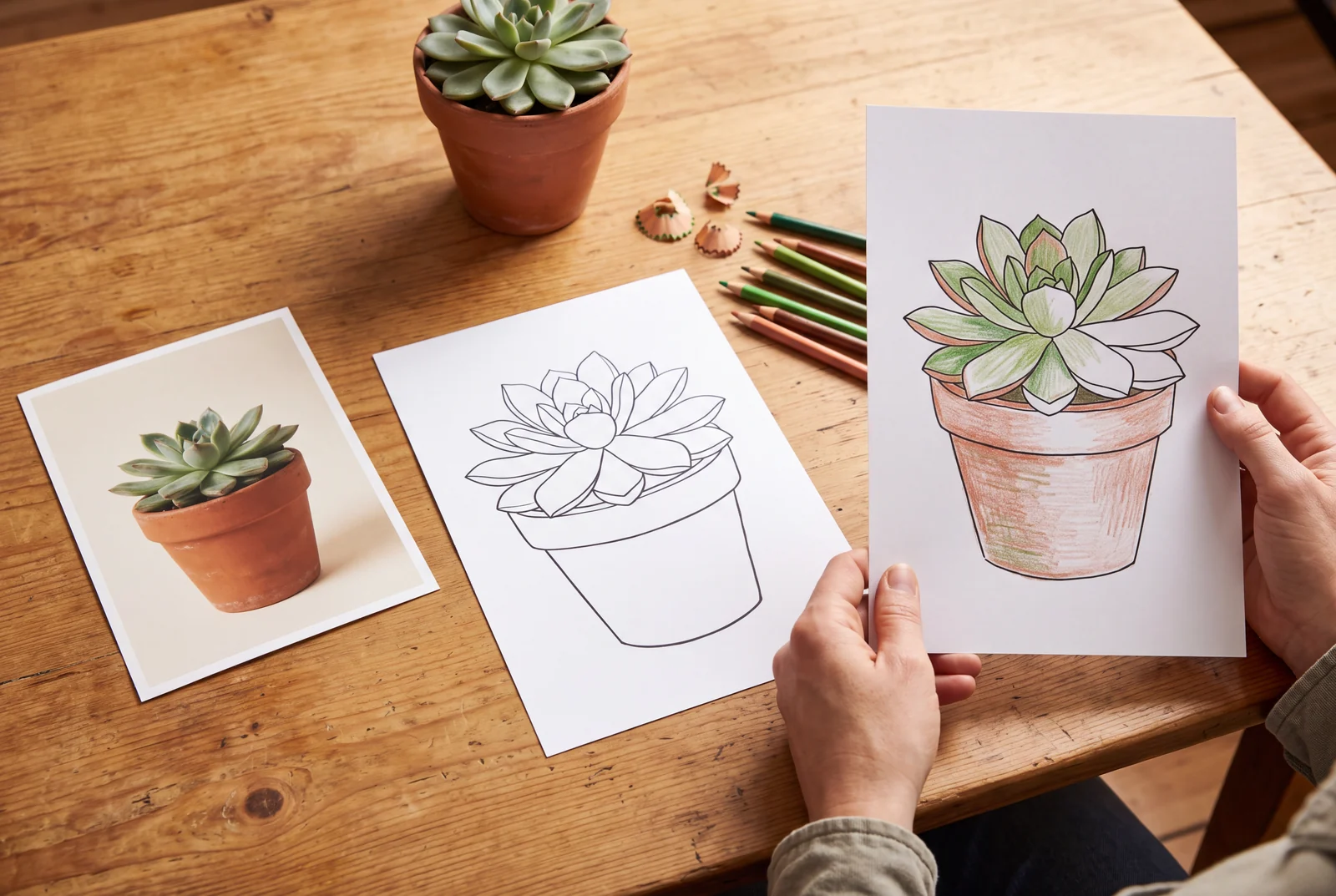
A useful place to start
Use a photo you have permission to upload, add it as a reference in the coloring studio and request black outlines with open white areas. Generation requires an account and uses the displayed credits. Compare the draft with the reference; it is not an exact tracing or an automatically prepared PDF.
Start with a real printable
These existing sheets have matching full-page previews and prepared downloads.
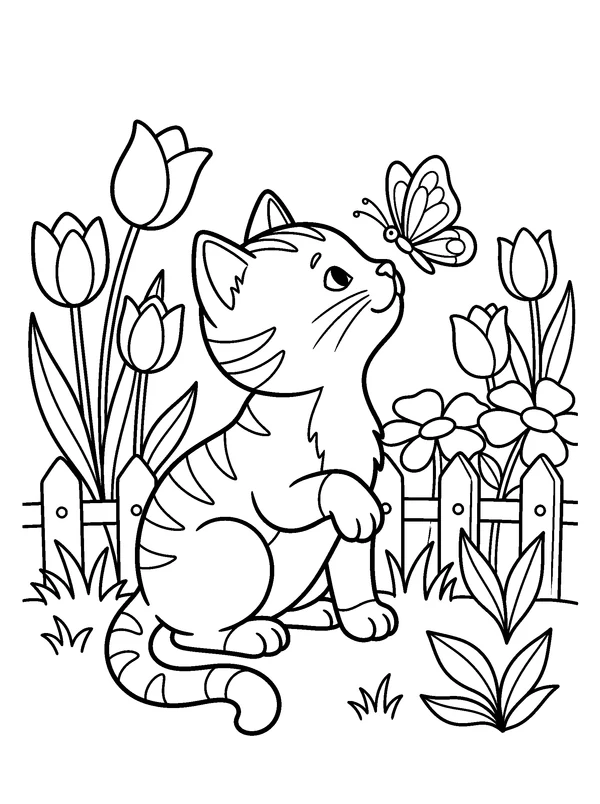
Compare a clear subject
This existing kitten sheet is an outline example to inspect, not the result of converting a supplied photo.

Compare open shapes
Study the broad flower sections when deciding how much texture to remove from your own reference.
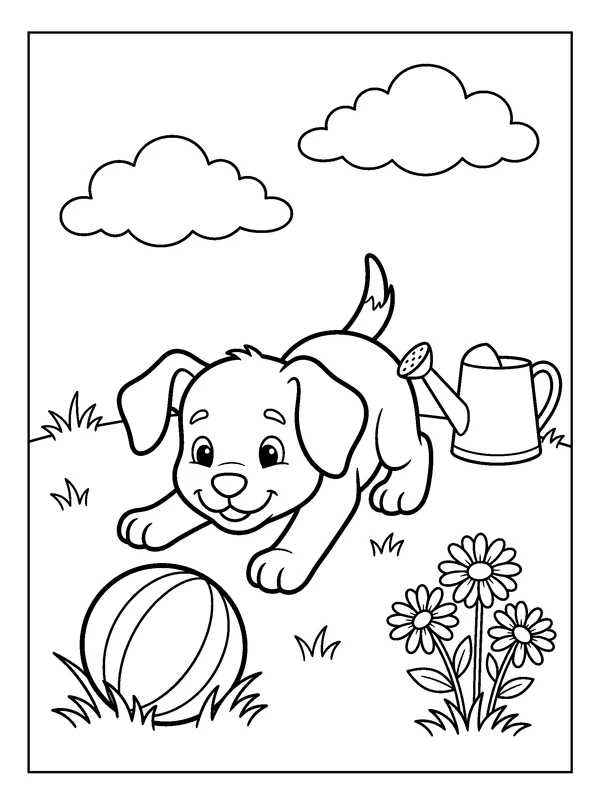
Compare background detail
The existing puppy sheet shows a central subject with supporting objects. It is a ready-made printable, separate from your photo project.
Put it into practice
Choose a reference you can simplify
Start with one clearly visible subject and a background that does not hide its edges. A side view of a plant or a well-lit pet can be easier to describe than a crowded group scene. Crop unrelated objects before uploading if your own image editor makes that useful.
- Use a photo you own or have permission to upload and edit.
- Keep personal information and unwanted background details out of the reference.
- Choose the features you want preserved, such as a pet’s ears or a pot’s shape.
Describe the coloring page, not just the photo
In the coloring studio, add the supported reference and explain the new picture you want. For a plant, try: “Keep the main plant and pot. Use clean black contours on white, broad closed leaf shapes, no gray shading, no text and a simple blank background.”
- Name the subject and the details that matter most.
- Specify broad or detailed areas to suit the intended coloring tools.
- Request clear page margins and fewer overlapping objects.
Compare the draft before choosing it
Open the result at a useful size and compare the main silhouette, face or object structure with the reference. Look for merged leaves, extra limbs, broken contours, stray text and large dark regions. Image generation may change details even when the prompt asks to preserve them.
- Keep the original reference so you can spot changes.
- Revise one concrete issue at a time rather than only asking for a better result.
- Reject or correct a draft whose important subject details have changed.
Prepare the print as a separate step
Save the reviewed image using the export options available to your account, then arrange it in a separate document if you need a page layout or PDF. Check orientation, resolution and margins in the print preview. Make one sample before printing a set.
- Do not use a screenshot of a small result preview as the print master.
- Try the coloring materials on a spare sheet of the same paper.
- Use an existing library PDF when you want a ready-made activity immediately.
Questions about this activity
Where do I upload my reference photo?
Open the coloring studio from the action on this page, sign in as needed and use its Add a reference control. Available input types and options depend on the selected model.
Will the result preserve the photo exactly?
No exact match is guaranteed. The studio creates a new image guided by the reference and prompt; compare the result and correct or reject unwanted changes.
Is converting a photo free?
The free printable library is separate from generation. The coloring studio uses account credits at the cost shown for the selected model; check that amount before submitting.
Can I sell a coloring page made from a photo?
That depends on rights in the source image, the generated content and the applicable product terms. Check those conditions for your intended use; uploading an image alone does not establish resale permission.