

Read this guide in another language
- English
- Spanish
- Spanish (Argentina)
- Spanish (Colombia)
- Mexican Spanish
- French
- Italian
- Japanese
- Korean
- German
- Arabic
- Arabic (Egypt)
- Chinese (Taiwan)
- Chinese (Hong Kong)
- Chinese (China)
- Portuguese
- Brazilian Portuguese
- European Portuguese
- Thai
- Dutch
- Indonesian
- Polish
- Turkish
- Russian
- Danish
- Bulgarian
- Bangla
- Bosnian
- Czech
- Greek
- Estonian
- Persian
- Finnish
- Filipino
- Hebrew
- Hindi
- Croatian
- Hungarian
- Kannada
- Lithuanian
- Latvian
- Malay
- Maltese
- Norwegian
- Romanian
- Slovak
- Slovenian
- Albanian
- Serbian
- Swedish
- Filipino
- Ukrainian
- Urdu
- Uzbek
- Vietnamese
Family tree guides
Make a family tree chart that is easy to print and read
A chart can look clear on a zoomable screen and turn tiny on paper. Decide who the print is for, keep the branch readable, and inspect the exported file at the intended paper size before sending it to a printer.

What you will make
A one-page family tree PDF or a shareable PNG with names and connections you can actually read.
Product information checked:
The finished chart in everyday life
Compare a chart at home, in your hands, and alongside other finished layouts. Use these presentation ideas to decide what your own family needs to read and share.
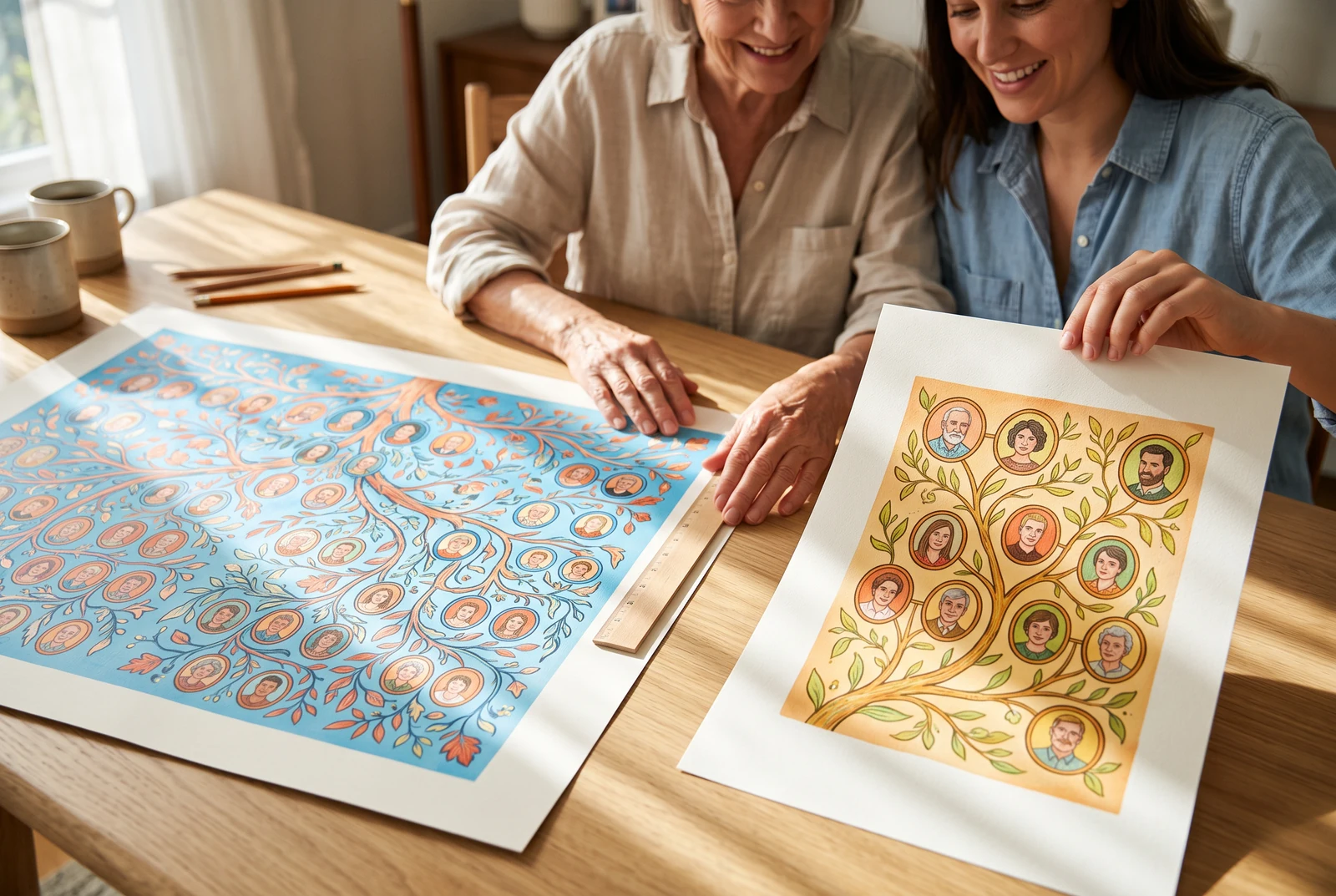

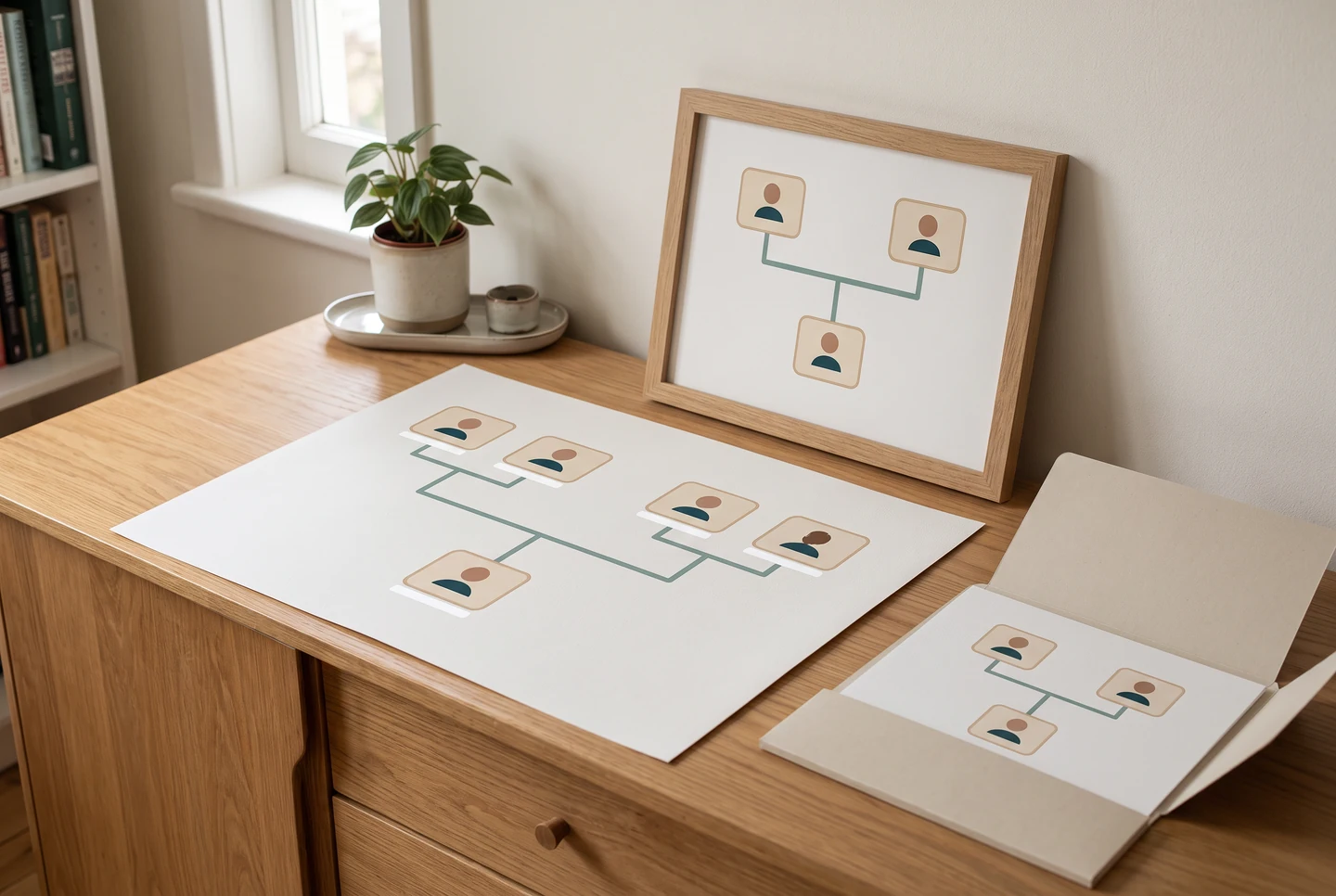
AI-generated presentation scenes made with fictional example artwork. They are illustrative concepts, not customer photographs, product screenshots, verified exports, or printing-service guarantees.
Choose a branch that fits the page
Start with the people the audience needs to see. For a classroom handout, a short three-generation branch is often clearer than every cousin. For a reunion display, a wider chart may suit a larger sheet. The editor lays out relationships automatically, but it cannot make unlimited people legible on one small page.
- Decide whether the chart is a handout, framed keepsake, or digital share.
- Use short, accurate display names where the family agrees.
- Review the longest names and densest branch before exporting.
Choose a file format for the next step
The current Download menu offers PNG and PDF. Use a PNG for convenient sharing or a PDF for a paper proof. The PDF is a single page sized from the rendered tree, not a preset A4 or letter template. Check the paper size, orientation, margins, and scaling in your own print dialog.
- Open the downloaded file instead of judging only the editor preview.
- If a fit-to-page setting makes names too small, try a more focused branch or larger paper.
- Print one proof before making several copies; the guide does not promise a printer, delivery date, or print quality.
Proof names, edges, and privacy
On a proof sheet, read the smallest date, inspect the portraits, and follow each crowded line to its endpoint. Ask a family member to review spellings. If the chart will be displayed, use copies of original photos and agree on which details about living relatives may be included.
- Check names and date qualifiers against your notes.
- Make sure no connection looks attached to the wrong person.
- Keep the editable tree or local backup so you can correct a later discovery.
Keep the editable data apart from the finished file
A downloaded PNG or PDF is a finished view of the chart. It is not a substitute for the editable tree, the relationship backup, or the original portraits. The current menu does not offer JPEG, transparent PNG, or SVG downloads; do not promise those formats to another person.
- Keep the editable draft or account copy for correcting later discoveries.
- Download a separate JSON backup for people and relationships.
- Store portraits separately because a JSON restore does not restore them.
Study the original explanatory diagram


A worked example
From a reunion draft to a print proof
Suppose a fictional reunion branch contains 24 people across four generations. Treat a small first proof as a readability check, not as evidence that every family will fit the same sheet.
- 1Download the PDF and choose the intended sheet and orientation in the print dialog. Inspect the smallest name at the proposed scale.
- 2If the labels are too small, narrow the working branch or use a larger sheet. Do not assume switching file formats creates more readable detail.
- 3Print one proof and ask two relatives to review spelling and connections before making copies. Keep the editable draft for corrections.
Before you finish
Common questions
Can I download a PDF?
Yes. The current Download menu offers a single-page PDF sized from the rendered family tree, along with a PNG option.
Are JPEG, transparent PNG, and SVG downloads available?
Those formats are not exposed in the current family tree Download menu. Use the available PNG or PDF output, and check the current controls before promising a format.
Will a very large family always fit one sheet?
No. Readability depends on the branch, text length, paper and print settings. Make a proof, then choose a more focused branch or a larger sheet if needed.
Does a PDF replace my editable backup?
No. Keep the editable tree and a separate JSON relationship backup. Preserve the original photo files separately.
Continue with another family tree task
- How to make a family tree, starting with what you know
- Make family tree relationships easy to read
- Add family photos to a tree without losing their story
- Choose a family tree template that fits the occasion