

Read this guide in another language
- English
- Spanish
- Spanish (Argentina)
- Spanish (Colombia)
- Mexican Spanish
- French
- Italian
- Japanese
- Korean
- German
- Arabic
- Arabic (Egypt)
- Chinese (Taiwan)
- Chinese (Hong Kong)
- Chinese (China)
- Portuguese
- Brazilian Portuguese
- European Portuguese
- Thai
- Dutch
- Indonesian
- Polish
- Turkish
- Russian
- Danish
- Bulgarian
- Bangla
- Bosnian
- Czech
- Greek
- Estonian
- Persian
- Finnish
- Filipino
- Hebrew
- Hindi
- Croatian
- Hungarian
- Kannada
- Lithuanian
- Latvian
- Malay
- Maltese
- Norwegian
- Romanian
- Slovak
- Slovenian
- Albanian
- Serbian
- Swedish
- Filipino
- Ukrainian
- Urdu
- Uzbek
- Vietnamese
Family tree guides
Choose a family tree template that fits the occasion
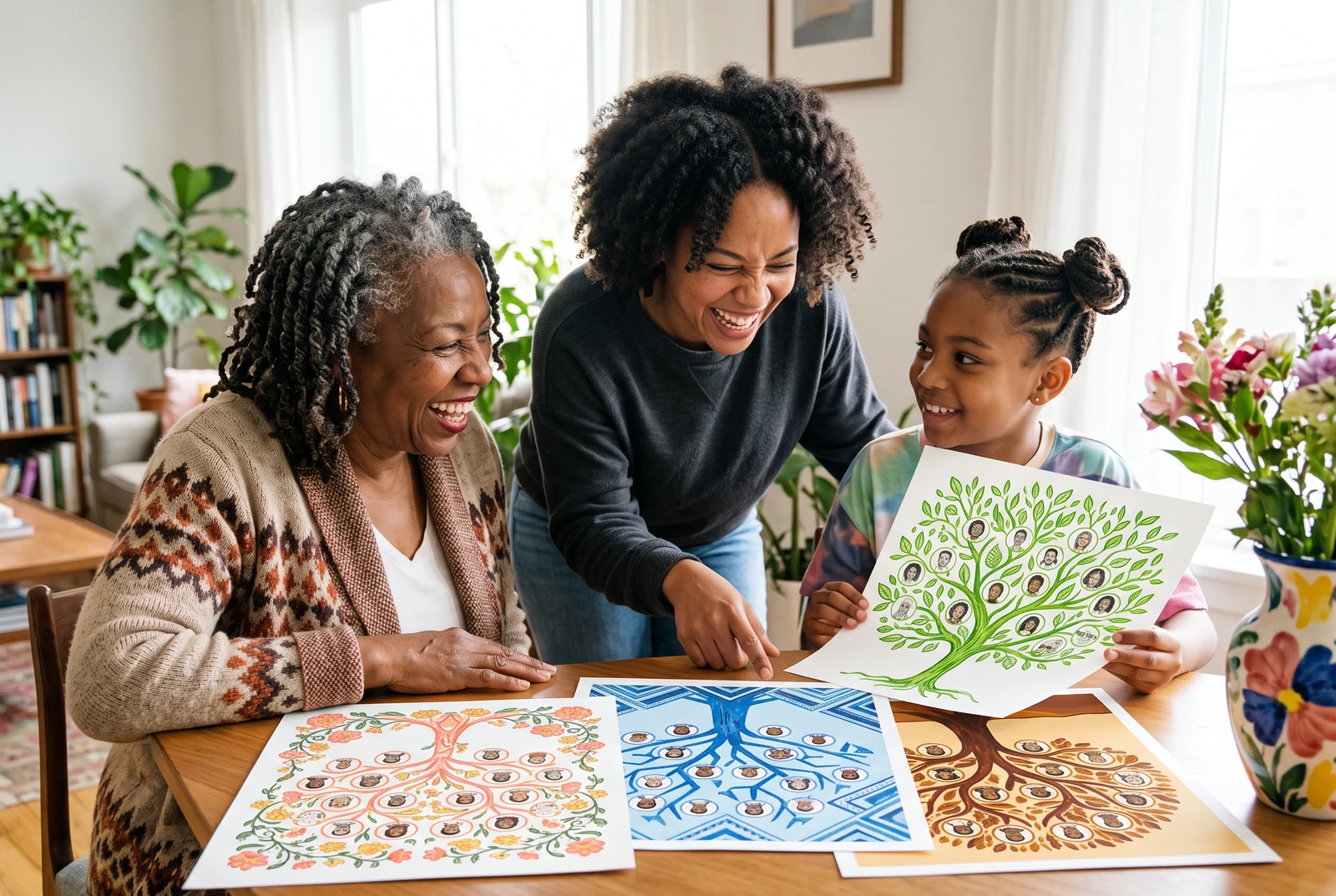
The best chart style depends on what the viewer needs to notice first. A research draft should make names and relationships easy to scan. A gift may give portraits and atmosphere more space. LlamaGen lets you switch among six looks without re-entering the people.
What you will make
One accurate family tree presented in a style that suits its audience and final format.
Product information checked:
The finished chart in everyday life
Compare a chart at home, in your hands, and alongside other finished layouts. Use these presentation ideas to decide what your own family needs to read and share.
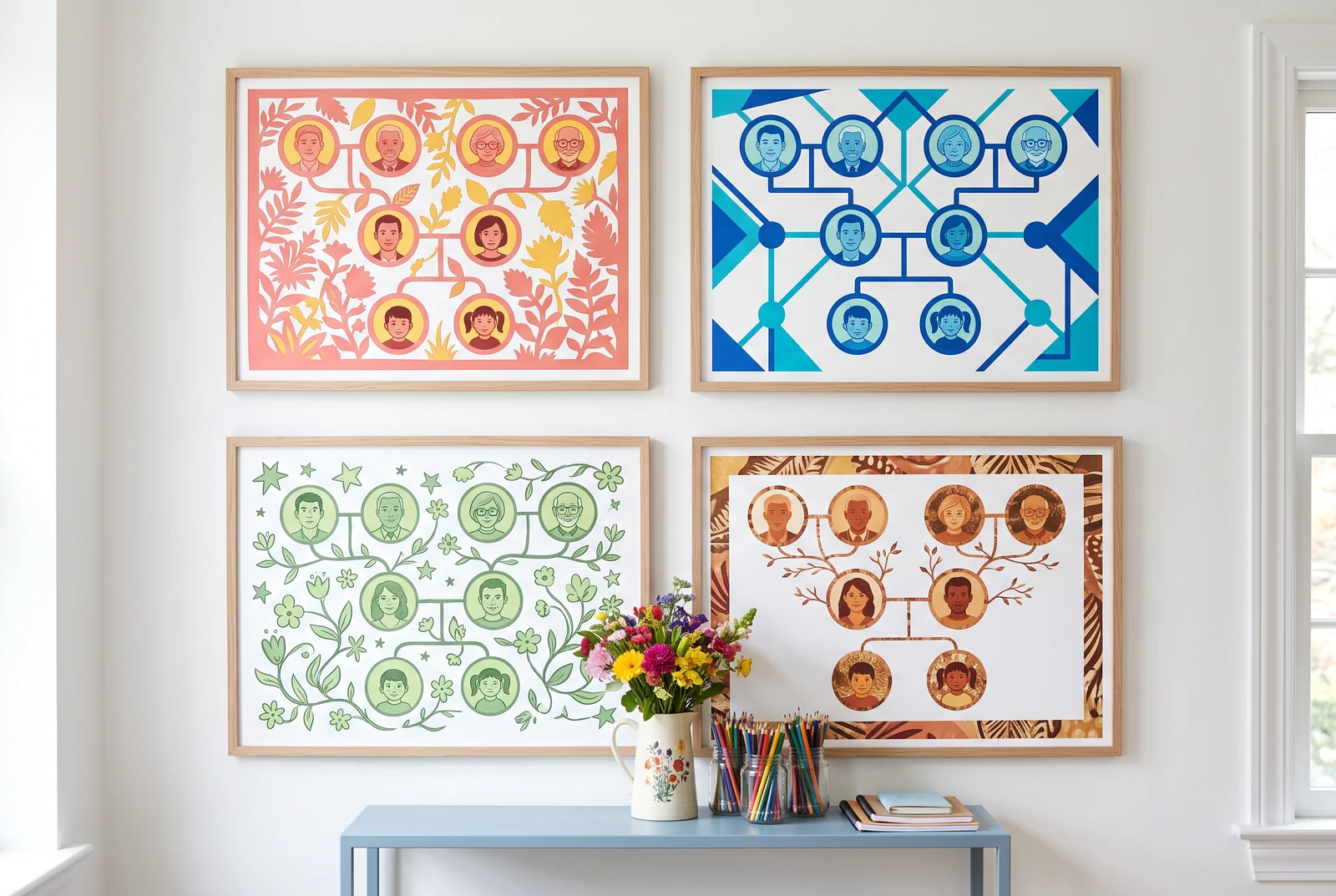
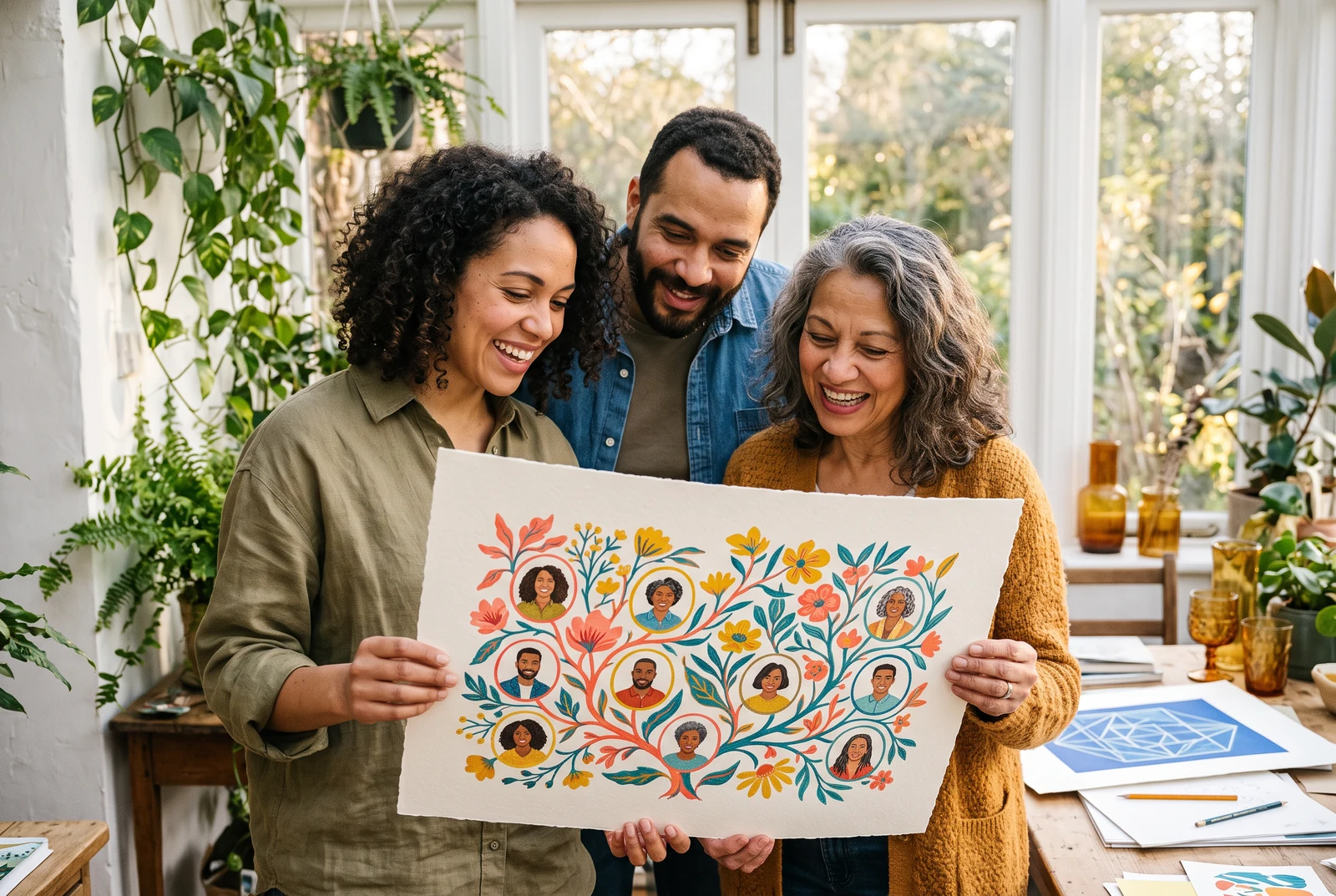
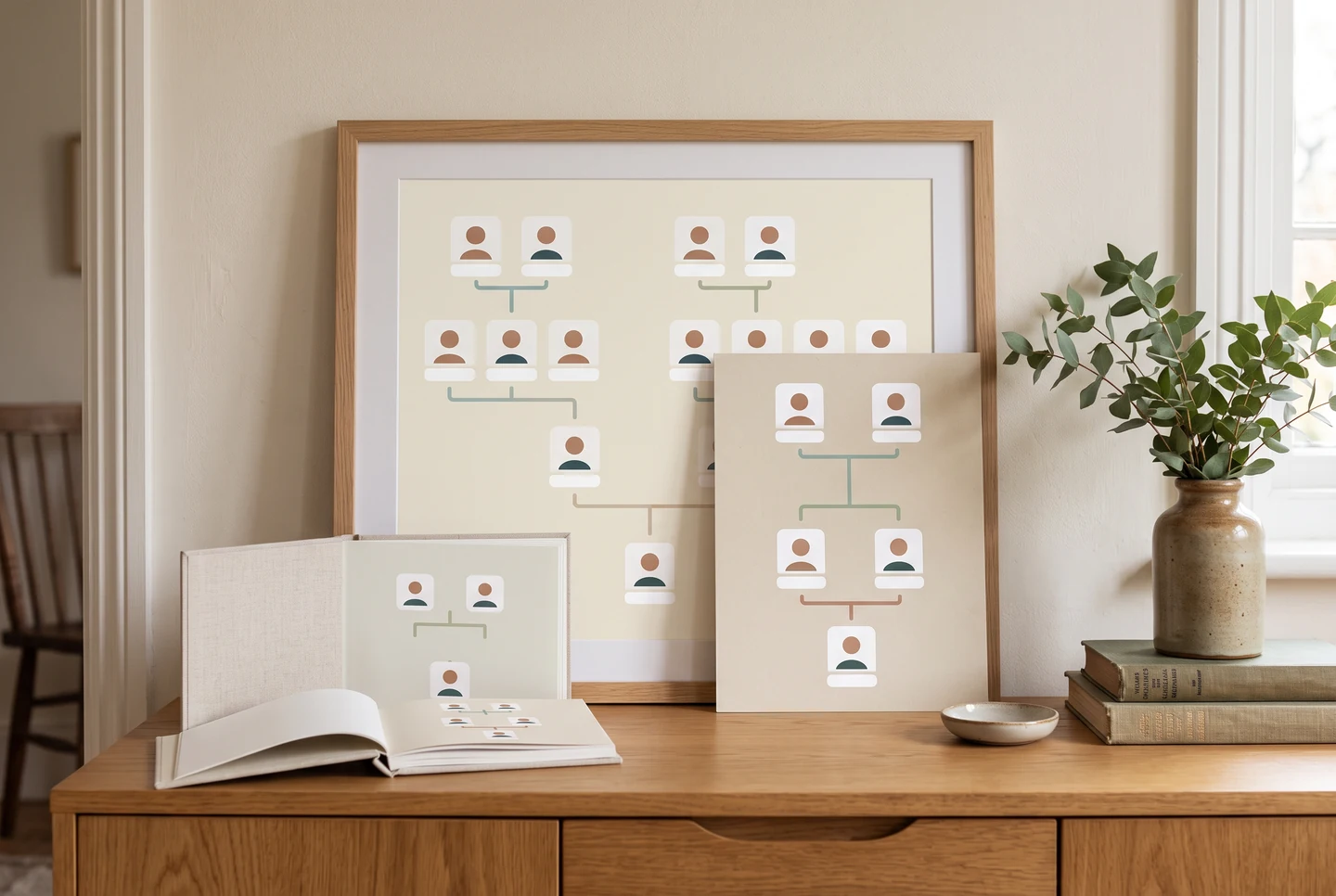
AI-generated presentation scenes made with fictional example artwork. They are illustrative concepts, not customer photographs, product screenshots, verified exports, or printing-service guarantees.
Compare the six real editor looks
The six current Print look options are Simple, Keepsake, Botanical, Classroom, Formal, and Photo. Compare the same names and connections in two looks before choosing. These are six presentations of the editor's structured chart, not a marketplace of independently illustrated templates.
- Choose Simple when names and connections need the clearest emphasis.
- Compare Photo when the featured people have usable portraits.
- Check Classroom for a school handout and Keepsake or Formal for the intended family occasion.
Change appearance without rebuilding the family
Build a few real connections first, then try a second theme in the editor. The theme changes visual presentation; the names, portraits, and relationships remain in the same tree. Review spacing after every switch because a portrait-heavy layout can give people a different visual weight.
- Compare the same branch in two themes.
- Check contrast and readability on a phone and at print size.
- Keep the editable draft before downloading the final file.
Choose the final look for the output
For a school handout, prioritize readable names and a focused branch. For a gift or memorial, ask which names and portraits the family wants included. Download PNG for sharing or PDF for a print proof. Freehand drawing, a large media library, and live design collaboration are not controls in this family tree editor.
- Match the theme to the purpose rather than the trendiest preview.
- Proof long names and crowded edges in the exported file.
- Do not mistake a theme change for a correction to the underlying facts.
Compare the same branch at the same viewing size
A fair comparison keeps the people and relationships fixed. Look at the longest name, a portrait without a source photo, and a crowded connection in each version. Choose the treatment that communicates the family clearly at the size it will be read, rather than the one that looks strongest when enlarged.
- Use the same branch for both visual comparisons.
- Check the exported PNG on the phone you expect people to use.
- For a paper keepsake, compare one proof of each look before making a set.
Study the original explanatory diagram
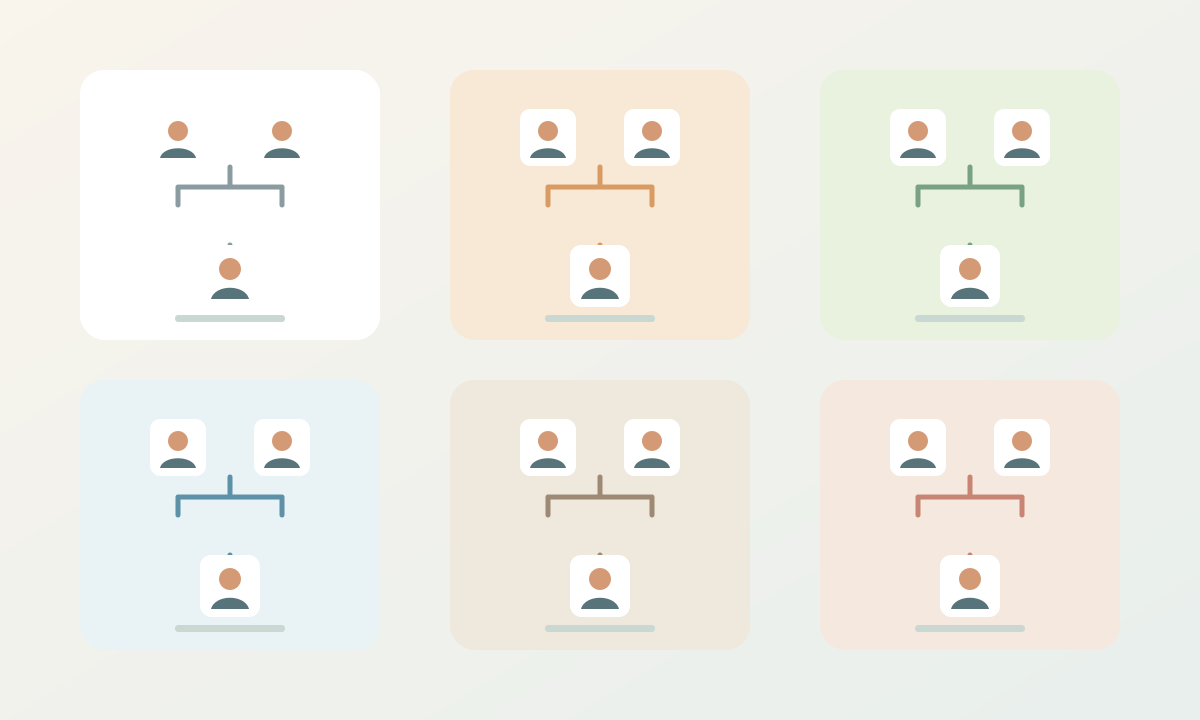
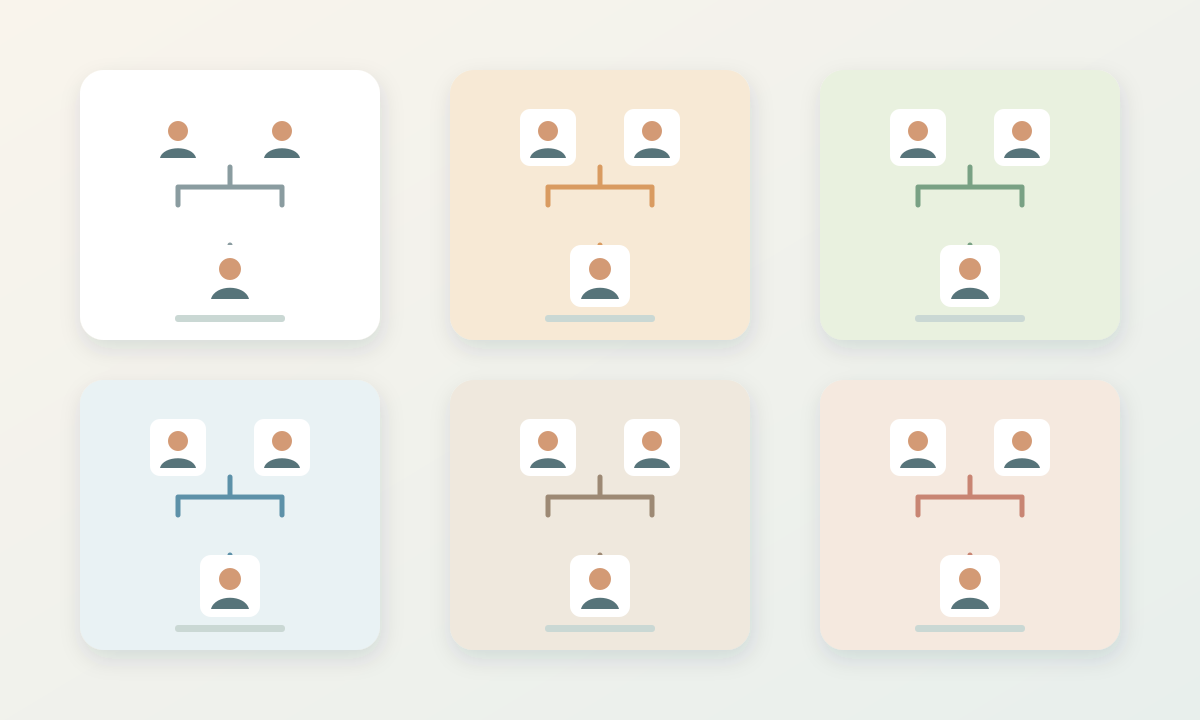
A worked example
One tree, two audiences
A fictional family uses the same ten people for a school project and a birthday keepsake.
- 1Enter and review the same ten people and parent connections once.
- 2Choose Classroom for a school PDF and check the smallest dates on a proof.
- 3Switch to Keepsake or Photo for a second export. Check portraits and consent, then compare the two files without changing the underlying relatives.
Before you finish
Common questions
How many family tree looks are currently available?
The current Print look panel has six options: Simple, Keepsake, Botanical, Classroom, Formal, and Photo.
Will switching a theme erase my relatives?
No. A theme changes the presentation of the same tree. Review the layout after switching.
Can I freely draw on the chart like a whiteboard?
The current family tree editor is a structured relationship tool. It does not offer a general freehand whiteboard.
Do these pictures show exact exports or a printing service?
No. The lifestyle images are AI-generated presentation concepts using fictional artwork. Use the current editor and your own downloaded file to judge the chart; printing and fulfillment are not included in these guide images.
Continue with another family tree task
- How to make a family tree, starting with what you know
- Make family tree relationships easy to read
- Add family photos to a tree without losing their story
- Make a family tree chart that is easy to print and read