

The short answer
Use Partial Modification when the scene and pose are already right but one small area is wrong. Brush the region to change, describe the replacement and inspect the whole panel after saving.
A concrete example
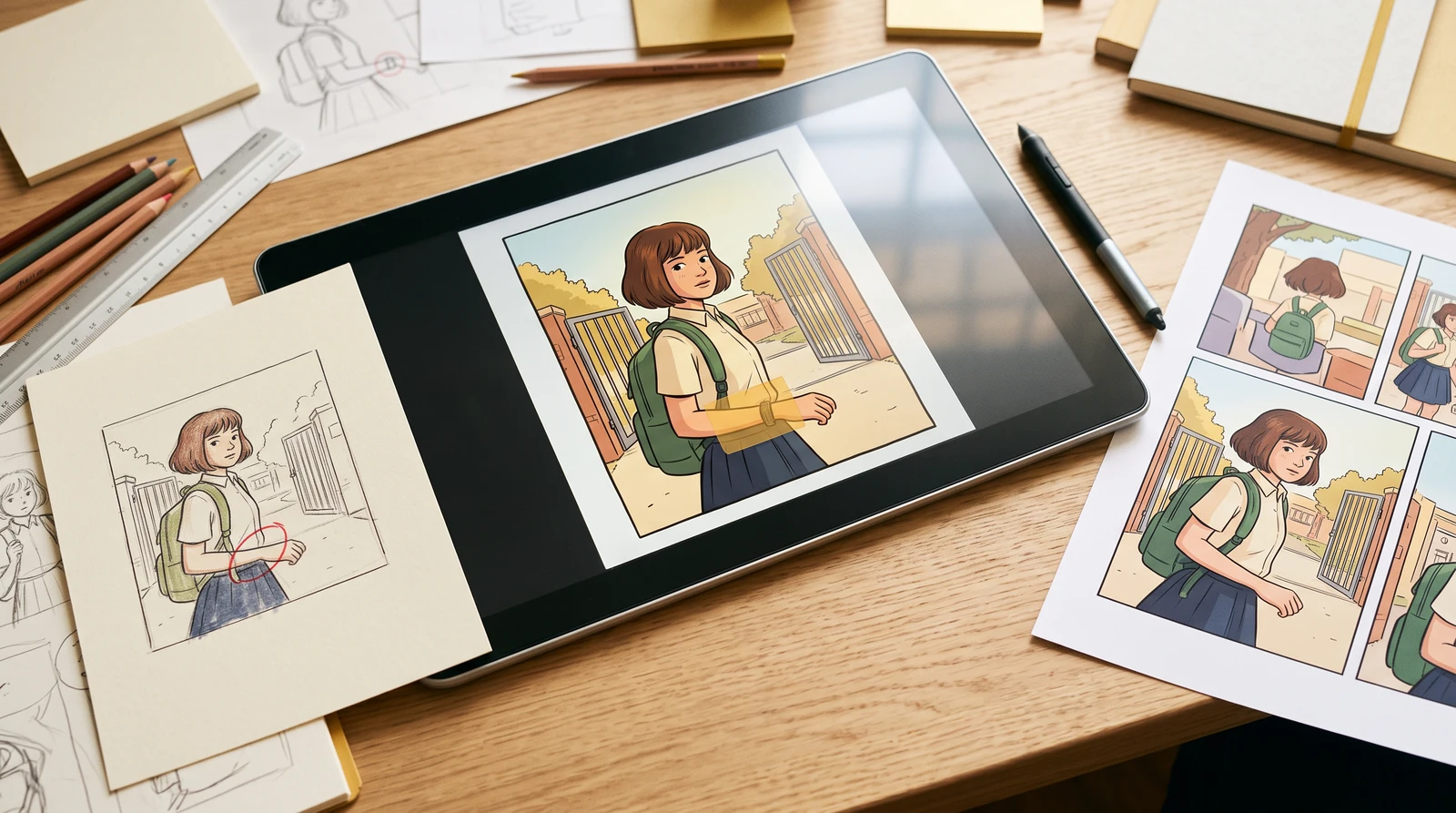
A four-panel classroom comic has a correct background and dialogue, but the third panel's backpack strap crosses a character's wrist. Keep the approved panels and edit only the strap region.
How to make the edit
- 01
Open the existing artwork and choose the affected panel. Enter Partial Modification from its editor or panel menu; this is not a separate public one-click inpainting endpoint.
- 02
Brush a modest mask over the damaged strap and wrist junction. Describe the correction and explicitly preserve the existing pose, clothing, line art and surrounding background.
- 03
Generate one candidate and compare it with the source at the same scale. Accept only if the edge joins and neighboring visual cues still match.
Review the result
- The strap connects naturally to the bag and does not pass through the wrist.
- The face, adjacent hand, dialogue and unmasked line work remain usable.
- The original image and accepted version are retained for manual comparison.
What this does not guarantee
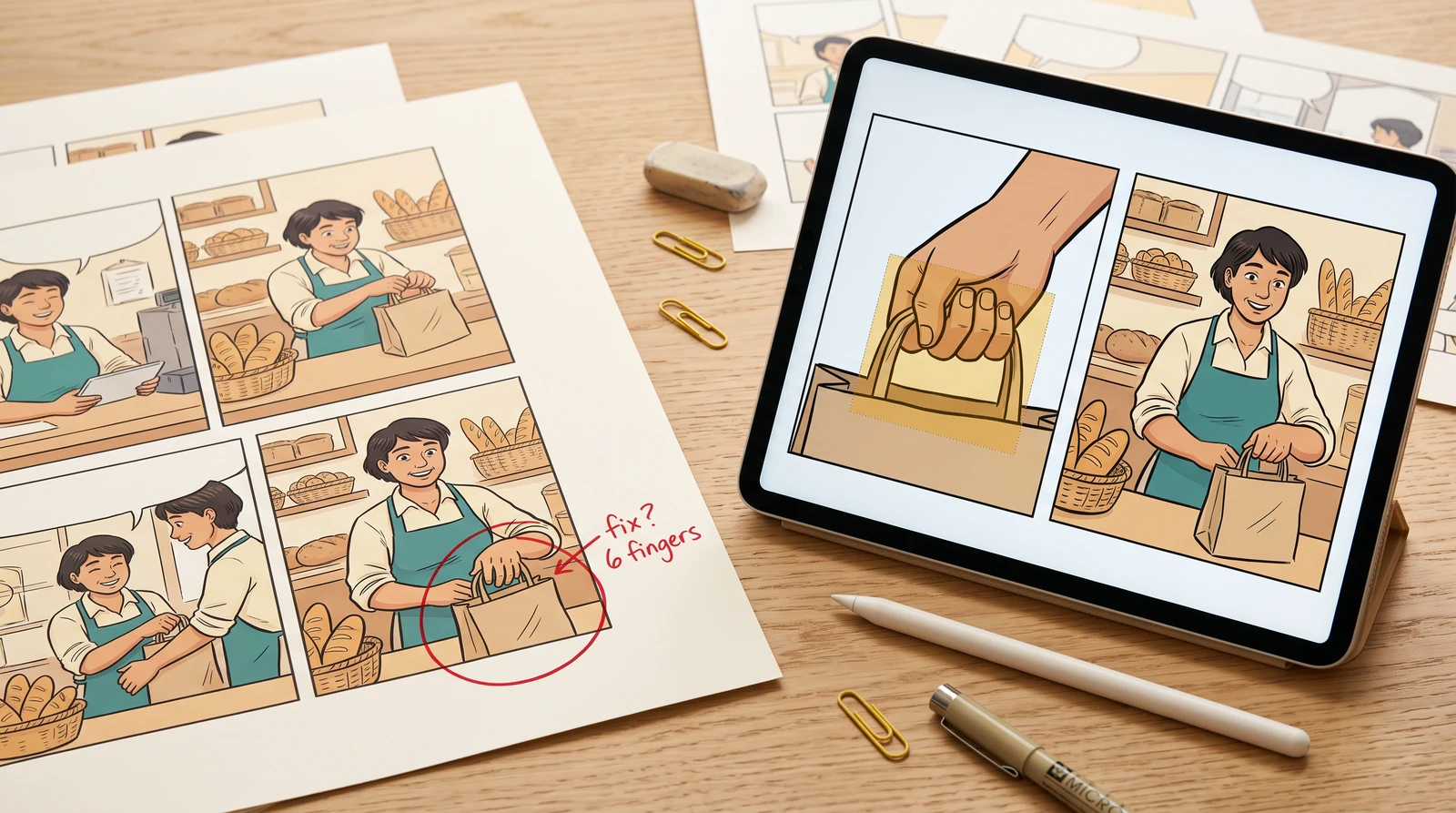
A generative inpaint may still alter detail outside the intended region. A broad mask or vague prompt increases risk. For several independent defects, switch to Annote / Fix Panels rather than covering half the picture.
Illustrated repair workflows
These scenes illustrate repair tasks. Genuine source-and-result captures from the actual tools are still awaiting review.
Common questions
Is Partial Modification the same as redraw?
No. Partial Modification uses a mask and instruction for a localized correction; redraw can regenerate the panel composition.
Can I remove balloon text this way?
The editor also has dedicated clean-up presets, but those can use whole-panel image-to-image. For editable dialogue, change the text layer first.