

MANGA COLORIZATION GUIDE
How to Colorize Manga While Protecting Line Art
Prepare manga for AI colorization, write a controlled palette prompt, and compare ink, text, and panel borders before accepting the result.
Open AI Manga Colorizer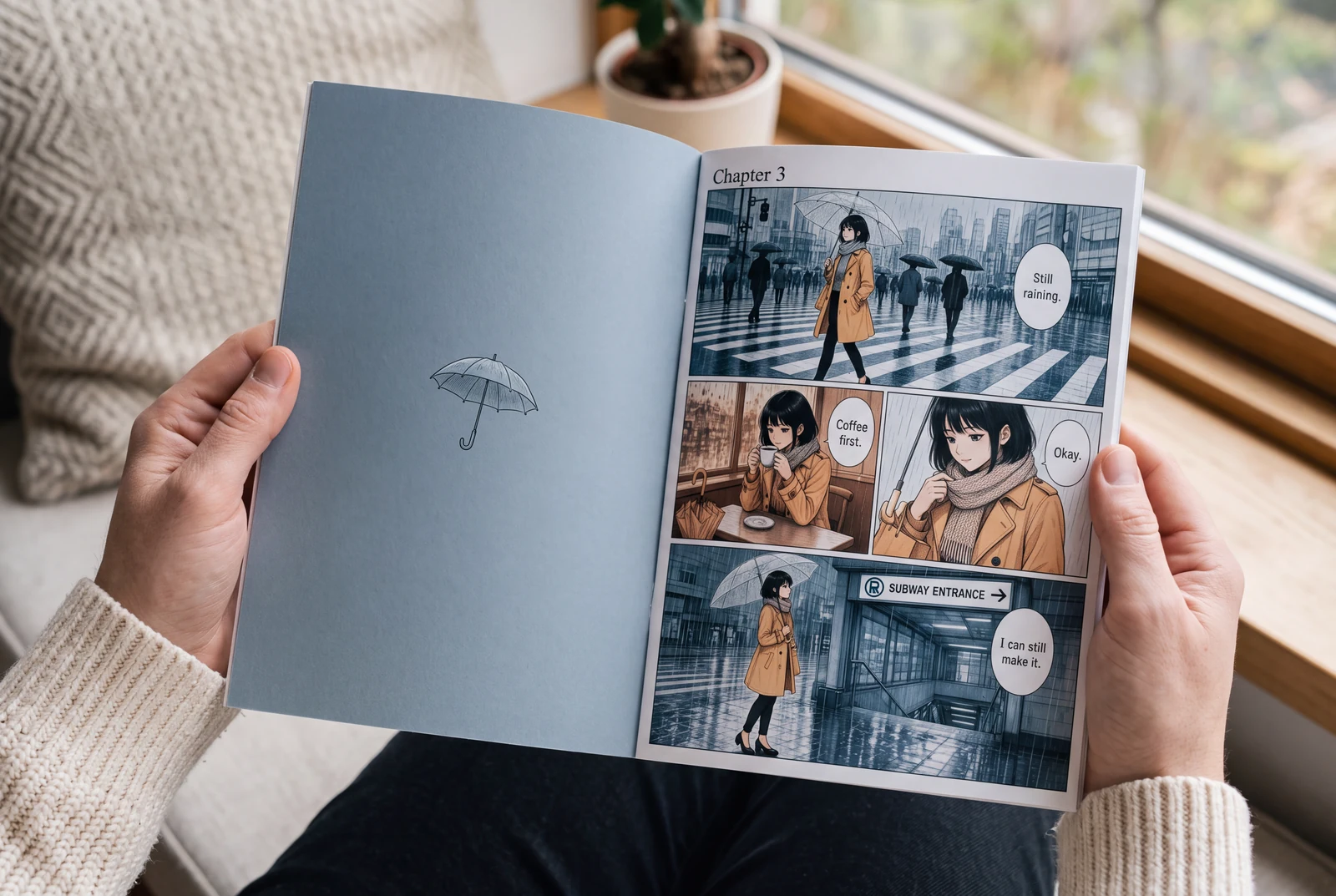
Quick answer
Keep an untouched original, prepare a clean working copy, and specify a small palette. Compare matching crops of the source and color result, especially eyes, fine hatching, text, and borders. If exact ink preservation is essential, retain the original line layer in a layered editor.
Color can strengthen a scene, but ink, screentones, and dialogue need a separate quality check. Treat AI colorization as a candidate for review. Requesting preserved line art does not guarantee unchanged contours, lettering, or geometry.
Picture the finished work in everyday life
Explore ways to read, hold, compare and present your finished manga and artwork.
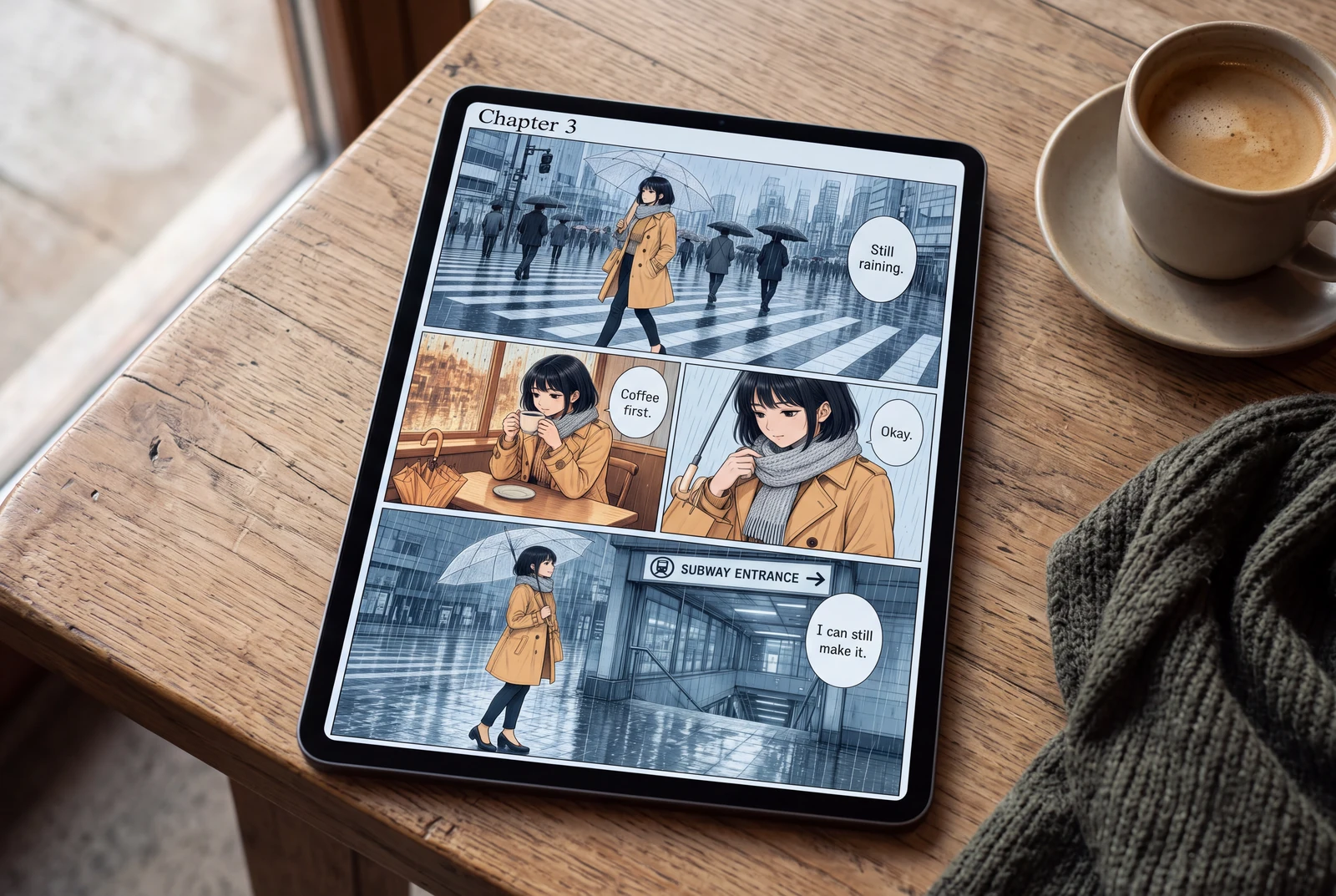
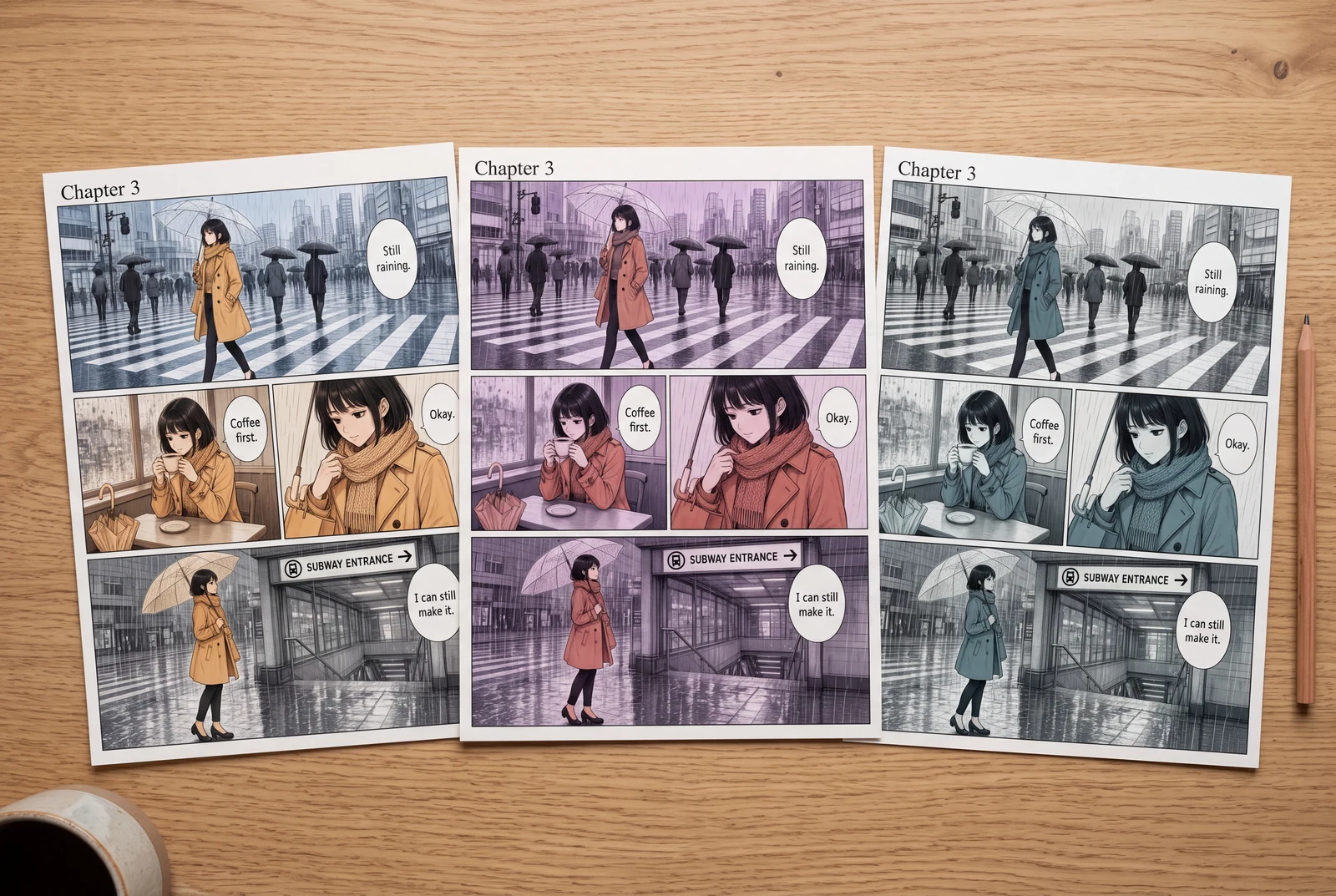
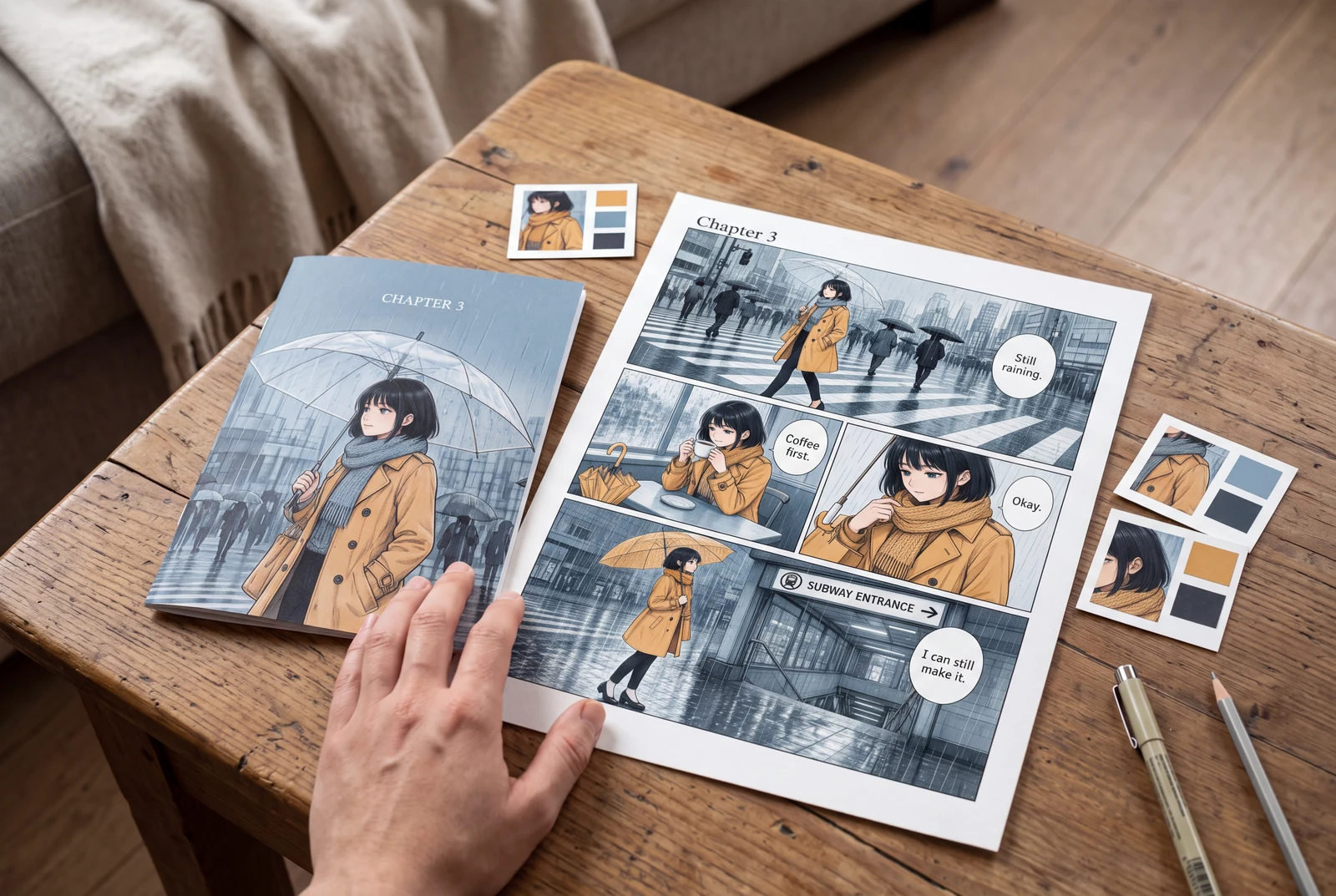
AI-generated lifestyle concepts with fictional people; not customer photos or verified product runs. Printed objects illustrate presentation ideas, not a printing service.
Worked planning example
A rainy platform with a fixed character palette
Plan black hair, an ochre coat, and a muted blue station background for a recurring character. Reuse that palette note in the next scene. Check that the coat remains identifiable in shadow and rain strokes remain distinct.
- Compare the same eye, coat seam, and thin rain stroke at matching zoom.
- Read every speech bubble against the original script.
- Compare the character palette across neighboring panels, not just one attractive result.
This example specifies an intended review process. No generated result or measured preservation rate is claimed.
Workflow
Prepare a clean copy and a reference
Keep the original unchanged and remove accidental marks on a copy. The live colorizer lists JPG, PNG, and WEBP uploads up to 10 MB; recheck the control before batching.
- Use artwork you own or may process. Retain its source filename and dialogue script.
- Inspect contours and screentones first. Repeated compression or excessive resizing can discard detail before colorization.
- Choose review locations: fine lines, a dark region, a face, and a bubble. Compare those same locations for each candidate.
Give a compact palette instruction
Specify palette, lighting, and shading, then request clear ink and unchanged lettering. Check your plan and the displayed credit charge before generation; the live widget uses credits.
- Example: “Black hair, ochre coat, muted blue station, overcast light, restrained cel shading. Keep fine ink and borders clear; preserve dialogue.”
- Reuse the character palette. Prompt guidance does not guarantee identical colors in every panel.
- Begin with one representative panel. Record the prompt and revise one instruction at a time after review.
Compare details and preserve a fallback
Display source and candidate at matching sizes. Small contour changes can alter expressions; changed letters can alter the story. Reject or repair images that change important information.
- Check borders, eyes, fingers, hatching, and text. Review normal size too; enlargement alone does not establish readability.
- If you have separate ink, retain it above color layers. Krita documents layered coloring, transparency, and Multiply, including blend-mode limitations.
- Save the accepted image separately. Use Manga Maker for composition and reapply verified dialogue if needed.
Problems and fixes
- Fine lines disappear under dark color.
- Request lighter or simpler shading, then compare the same detail again. Use retained original ink for manual compositing when precise preservation matters.
- Dialogue looks plausible but contains changed characters.
- Compare every line with the script. Rebuild the lettering from the original instead of accepting visually convincing text.
- A character's coat changes color between panels.
- Reuse a fixed palette note and review the sequence together. Correct inconsistent panels before assembling the page.
Before you export
- The untouched source and original dialogue are retained.
- Fine lines and panel borders were compared at matching size.
- Palette continuity and every text line were reviewed.
- Current credits were checked before additional generation.
Common questions
Can AI guarantee that every ink pixel stays unchanged?
No such guarantee is made here. For exact control, preserve the original line layer and edit color beneath it, then check the composite yourself.
Should I upload a full page or a panel?
A panel can make a focused review easier; a full page lets you assess overall color relationships. Start with representative artwork and compare text, borders, and detail before scaling the workflow.
Is the colorizer free to run?
The live generation widget displays a credit charge. Check the current control and pricing page for your account before generating; this guide does not promise free or unlimited processing.
Sources and further reading
Prepared from the public LlamaGen workflows and the technical references linked below. The scenarios are planning examples; they are not customer case studies or hands-on generation tests. External references explain techniques and file formats, not endorsements of LlamaGen.
- LlamaGen AI Manga Colorizer
Product reference for upload formats, size limits, palette prompts, and the credit notice.
- Krita Manual: Flat Coloring
Technical reference for ink/color layers, transparency, and Multiply limitations; not an endorsement.
AI-generated lifestyle concepts with fictional people; not customer photos or verified product runs. Printed objects illustrate presentation ideas, not a printing service.
Comic animation and layout
Plan an ordered shot sequence, choose four-panel layouts, and stage a readable manga action scene.