

Comic animation guide
Motion Comics: Examples and How to Make One
Bring comic art into a timed sequence with camera movement, selected animation and optional sound. Learn what a motion comic can do, inspect real cover-animation examples, and prepare your own first clip.
Open Animation StudioGeneration requires sign-in. Available modes, paid-plan requirements and credit costs are shown in the studio. Check pricing before generating. Plans and credits
LlamaGen Editorial TeamReviewed
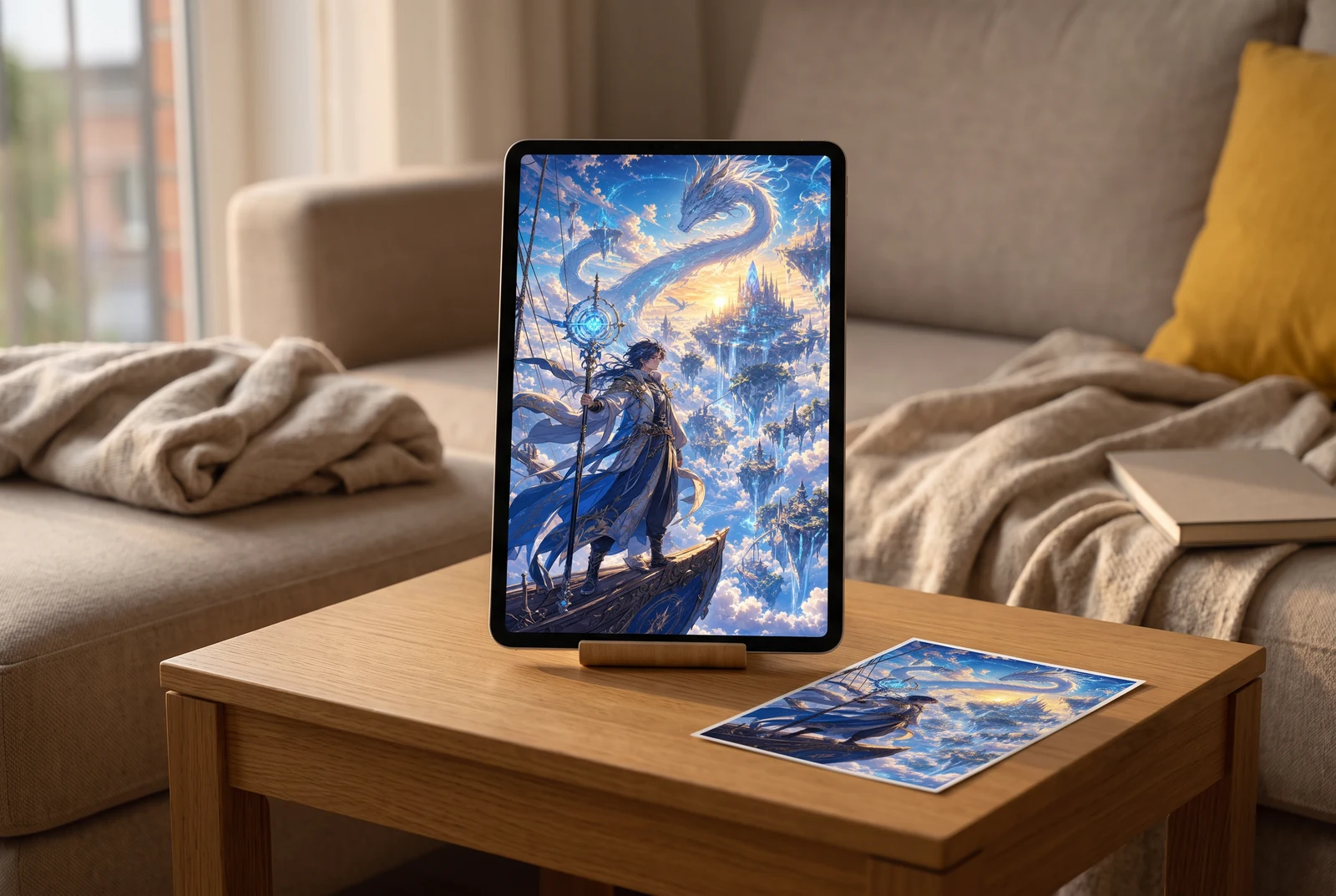{kind=fictional-lifestyle-viewing}
What is a motion comic?
A motion comic presents comic artwork on a timeline. Pans, zooms, selected character movements, cuts and sound can guide attention while the illustrated style remains visible. It can be a short promotion, a narrated scene or a preview of a longer story; it does not automatically become a fully animated episode.
- Static comic
- The reader controls the pace. Panel layout, lettering and page turns carry the sequence.
- Motion comic
- The creator controls timing. Limited movement, cuts and optional audio turn selected artwork into a clip.
- Full animation
- Movement and staging are designed across shots. It usually requires more shot planning and revision than animating a cover.
See the finished story beyond the editor
Use these viewing concepts to plan where the finished story will live: a home screen, a handheld portrait clip, a set of alternative visual treatments or a sequence of dramatic moments. They illustrate presentation choices, not an automatic product workflow.
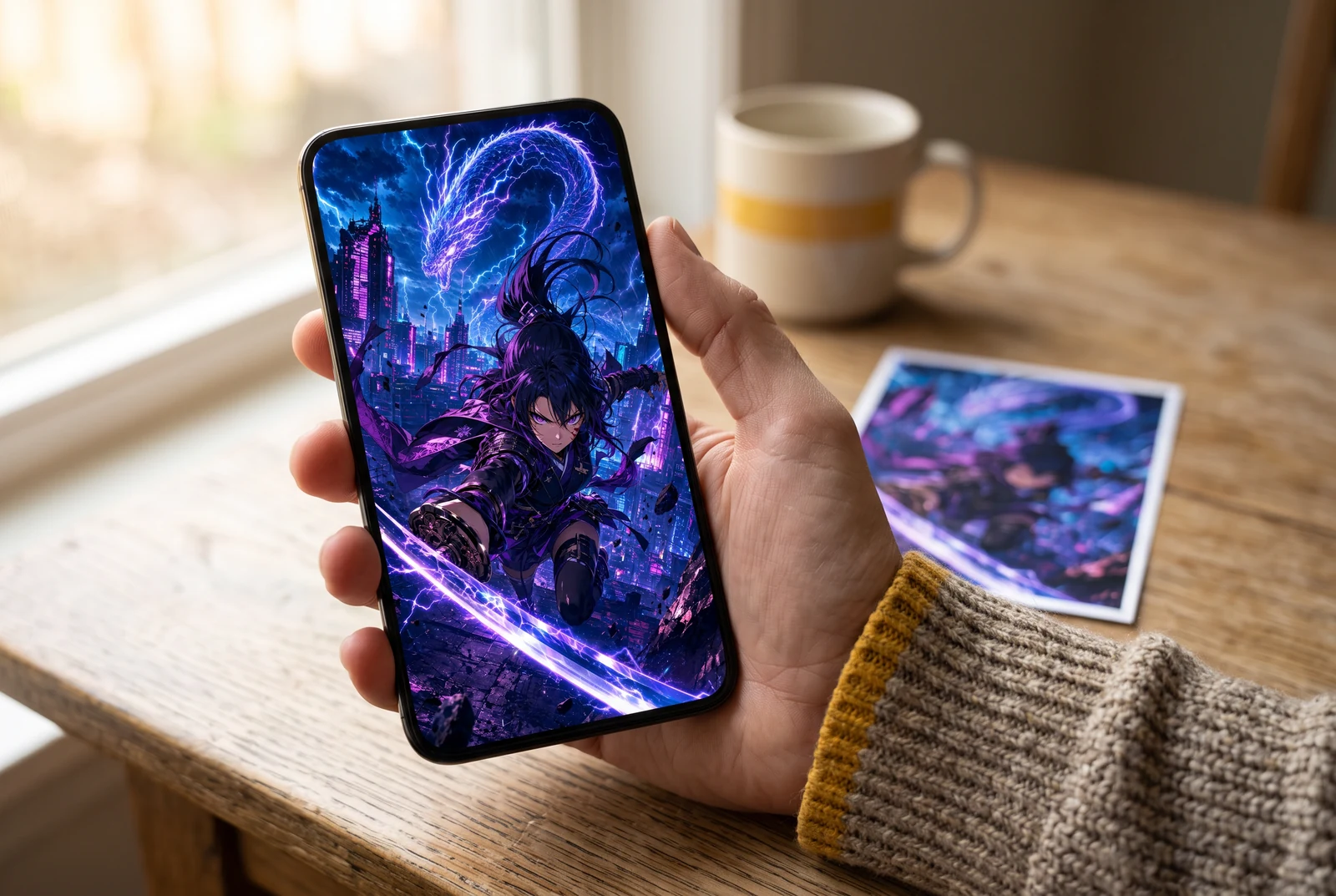{kind=fictional-handheld-viewing}
A phone-sized viewing check
Look at faces, small props and any added captions at a normal phone distance. A large editor preview can hide a framing problem that becomes clear in your hand.
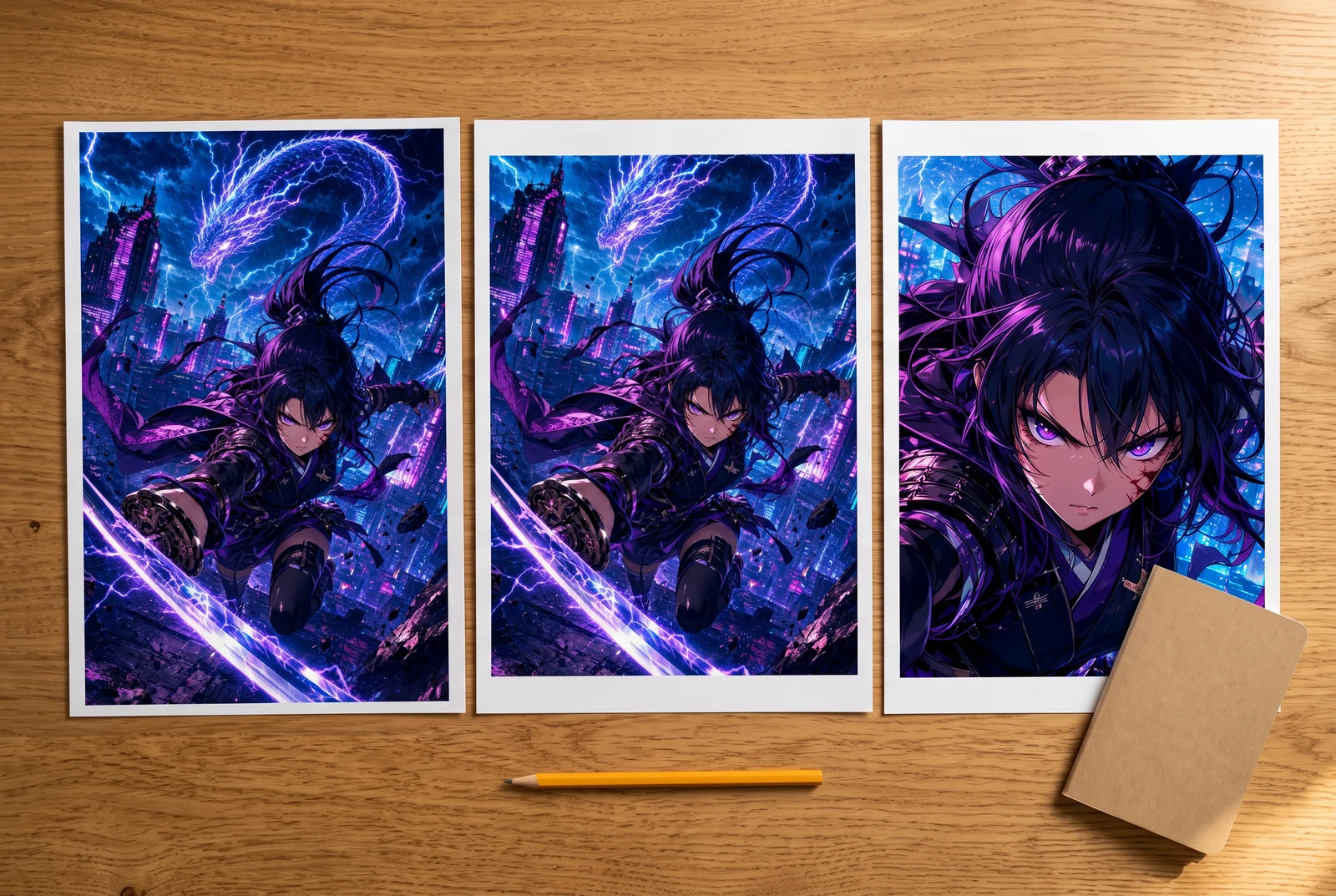{kind=fictional-storyboard-design-comparison}
Compare visual directions before committing
Place possible treatments side by side and choose the one that keeps the story readable. These are fictional design concepts, not outputs from an automatic multi-shot continuity test.
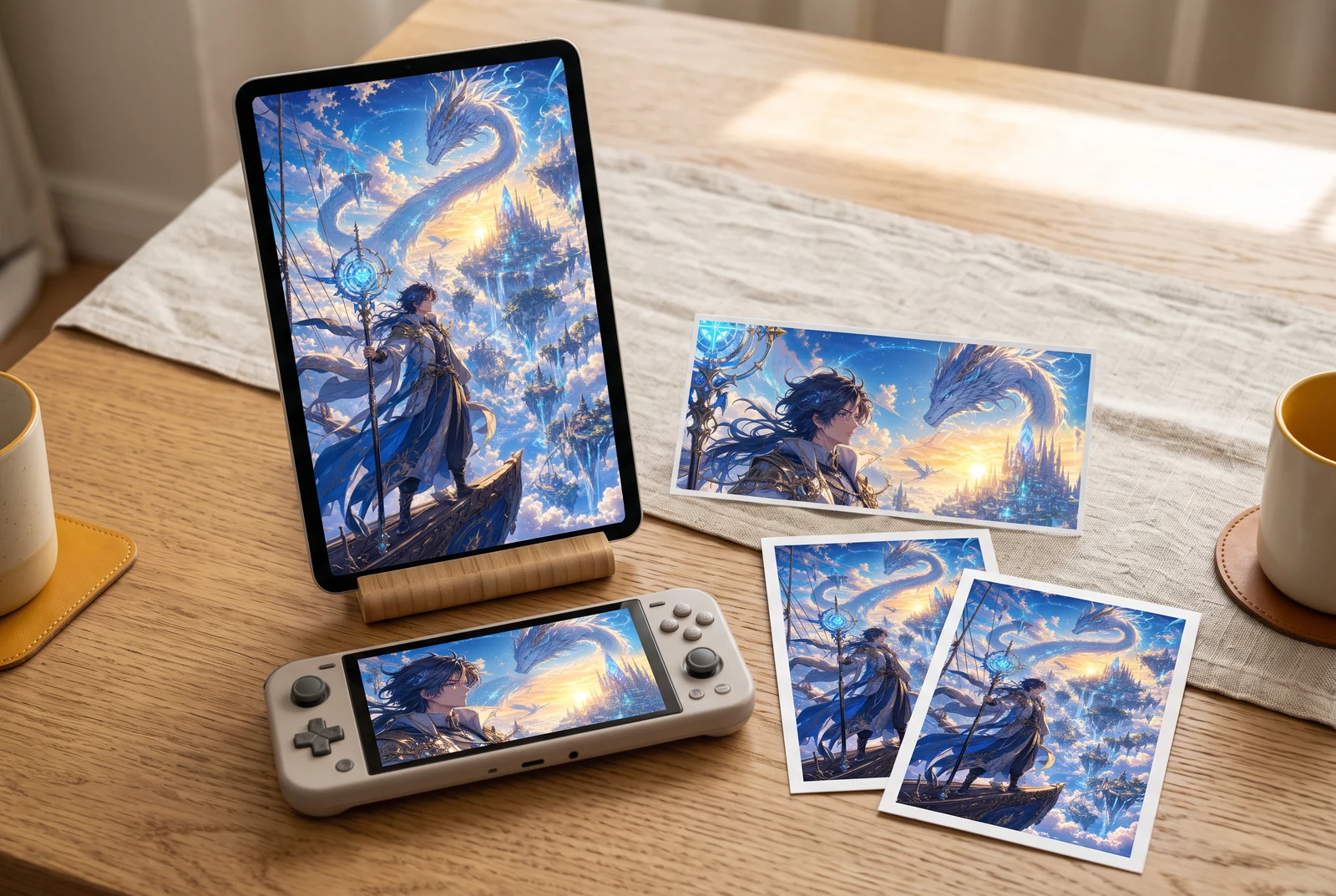{kind=fictional-story-and-game-narrative-concept}
A sequence that feels like one story
Review the opening, turning point and final reaction together. The game-like narrative framing is a visual concept; this guide does not promise interactive scenes, a game export or a finished episode.
AI-generated viewing concepts. Fictional scenes show how finished artwork could be enjoyed; they are not customer photos, product screenshots, physical print offers, or verified game exports.
Compare the source artwork with an animated result
These are two existing LlamaGen single-illustration animation examples. The displayed source artwork was the input recorded in the generation manifest. Compare each illustration with its published eight-second clip. They are not multi-panel continuity tests, customer case studies or new Studio benchmarks.
Action: compare the character and important prop
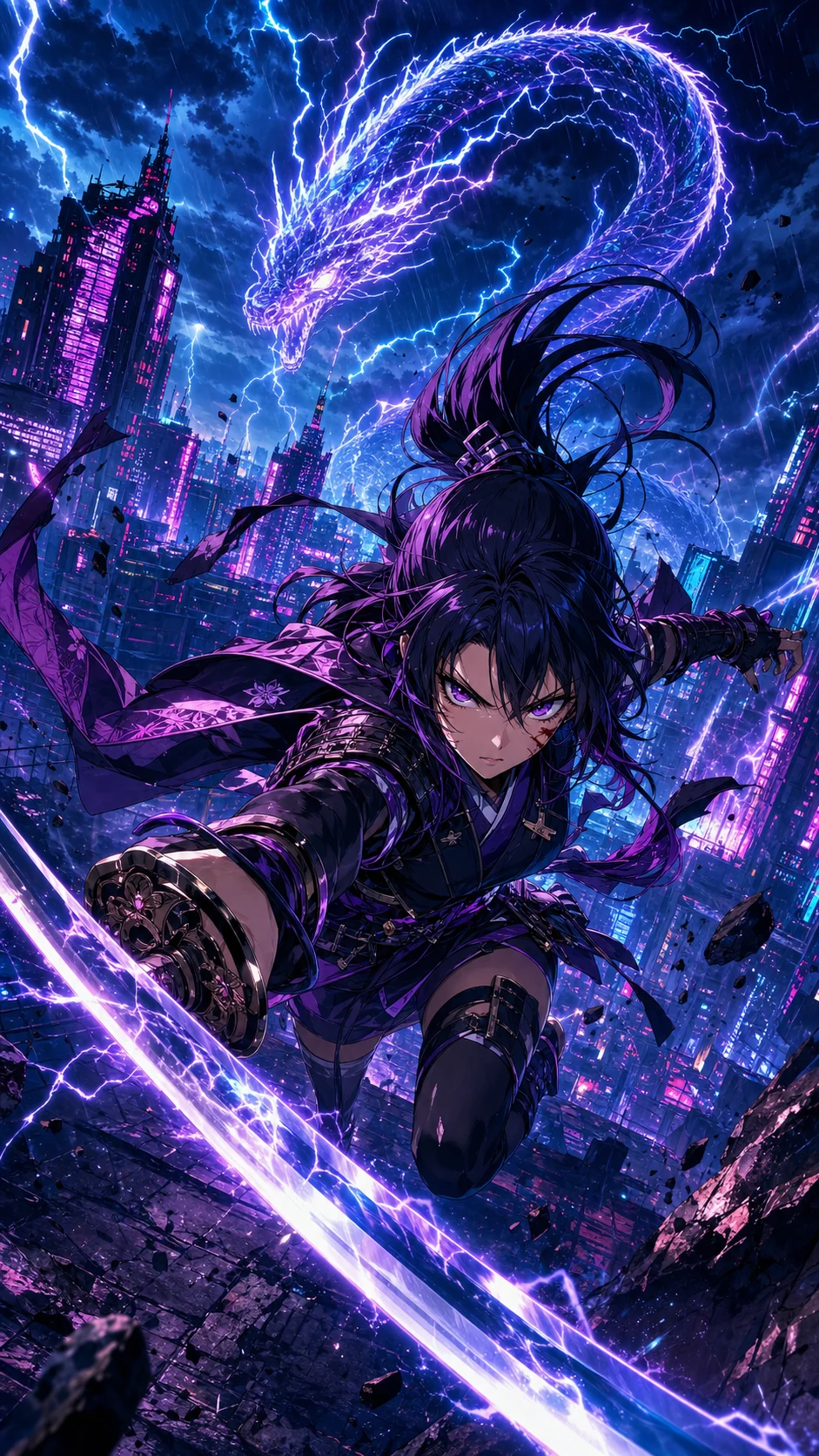
Begin with the face and sword, then compare the serpent and city. Inspect the beginning, the strongest movement and the ending. A dramatic push-in should still leave the subject and important prop understandable.
This example starts with one vertical illustration. It does not show automatic panel separation, preserved speech bubbles or a finished multi-scene story.
Fantasy: keep one visual anchor in a detailed scene
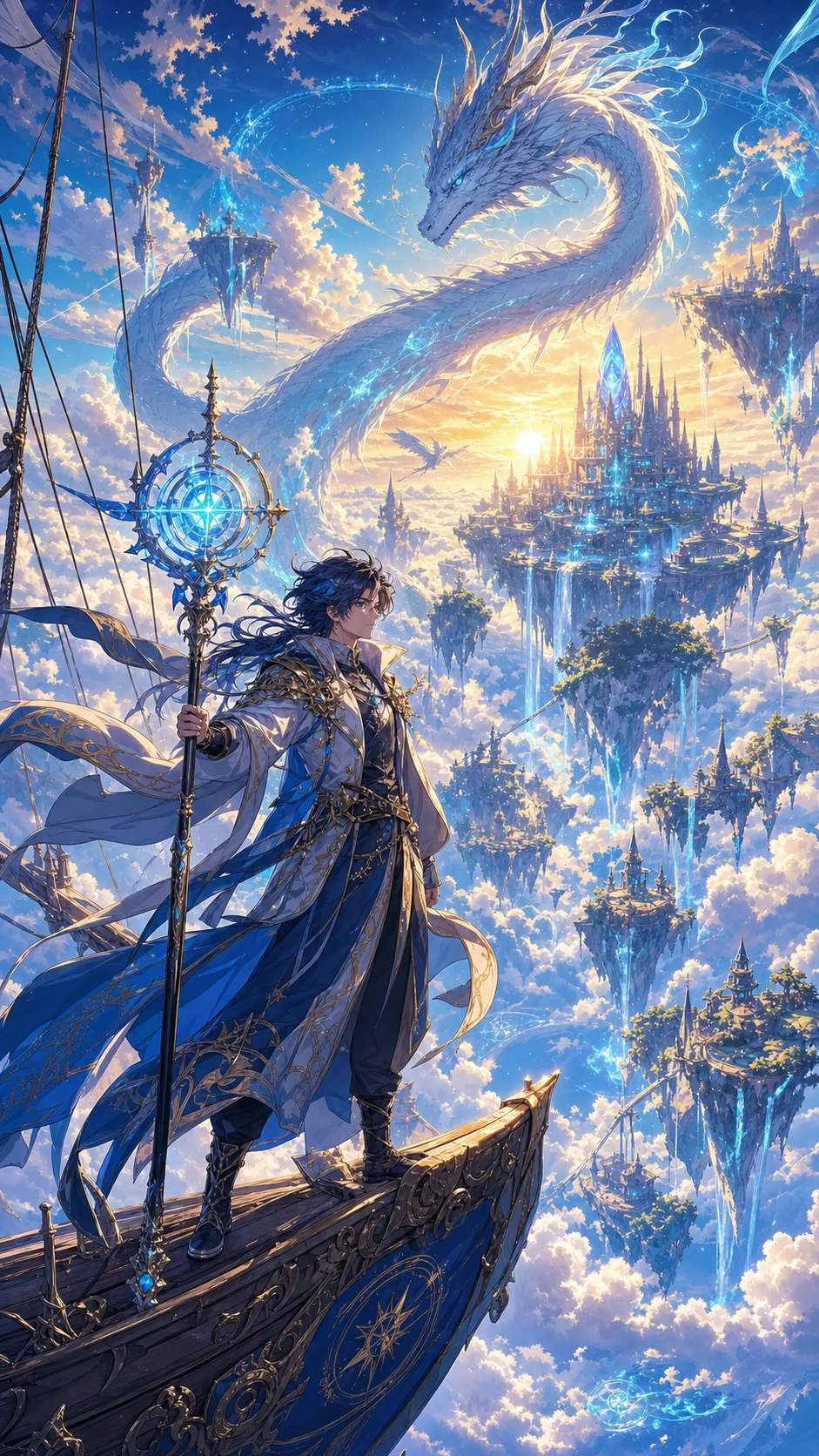
Use the mage and staff as the first comparison points, then inspect the ship, dragon and distant buildings. Work outward from the subject so background movement does not conceal a changed identity or missing object.
This is a published visual example, not a promise of exact camera movement, stable background details or a reproducible outcome.
Three checks you can make on the actual result
Compare a specific detail across the clip
Keep the original open beside the video. Pick one face and one important object, then compare them at the start, during motion and at the end. Record what changed before revising the request.
Check the story without the soundtrack
Watch the clip with sound off and describe the visible action in one sentence. If speech carries essential information, add and review captions in a finishing tool that supports them.
Open the downloaded file on a phone
Check the real export at normal viewing distance. Look for cropped hands, tiny text and a final frame that cuts off the reaction. A page preview alone cannot establish the quality of your downloaded clip.
Make a first motion comic clip
Prepare a readable scene
Choose one approved panel or illustration you may use. Decide the reading order before combining several panels. Keep faces and important props clear.
Direct one motion
Describe one subject action and one camera move. Preserve the face, costume, setting and illustrated style instead of asking the shot to redesign them.
Generate and inspect
Open Comic to Video, check the active mode and credit cost, then generate. Compare the result against the source before spending credits on another take.
Edit timing and review the export
Check pacing, readable captions and sound in the available editor or a separate video editor. Review the actual downloaded file on a phone before publishing.
What to fix before creating more clips
- The face or costume changes
- Reduce the action, use a clearer approved source and compare the opening and ending frames. Rebuild the shot if the character is no longer recognizable.
- Lettering moves or becomes unreadable
- Keep important dialogue as a separate subtitle or editing layer when your workflow allows it. Do not rely on generated movement to preserve small printed text.
- The story feels disconnected
- Check panel order and the purpose of each cut. A moving cover alone does not demonstrate a complete multi-panel narrative.
- Audio does not match the scene
- Check whether the chosen mode supports the audio you need. Review speech, pauses and levels separately; audio support does not guarantee a finished dialogue track.
Before you start
Is a motion comic the same as full animation?
No. Motion comics keep comic artwork central and often use limited movement. Full animation generally requires more movement design and shot-level control.
Can I start with a photo?
First turn the permitted photo into comic artwork, review the result, and then choose an approved image to animate. Photo conversion and video generation are separate steps.
Will every panel stay consistent automatically?
Consistency is not guaranteed. Review faces, clothing, props and reading order across the whole sequence, and revise weak shots before publication.
Can I export PNG layers or a PSD first?
The separate AI Layer Splitter workflow can provide raster layer assets on eligible plans. A layered PSD is preparation material, not a completed animation or rig.
Continue with the guide for your next step
Linked production guides currently offer English, Simplified Chinese, Japanese and Spanish. Other languages open the English edition; the guide language is identified on the link.
Prepare panels
Choose source artwork, reading order and useful crops.
Write motion prompts
Direct one camera move and one subject action.
Plan dialogue and subtitles
Keep speech timing and readable text under review.
Prepare vertical video
Check framing and important props on a phone.
Review the final clip
Check identity, text, sound and the exported file.
Start from a photo
Create and approve comic artwork before animating it.
Prepare image layers
Inspect the separate PNG and raster PSD extraction workflow.