No blur
Nearest-neighbor enlargement keeps hard pixel edges when the chosen size stays within the output limit.
Enlarge pixel art with 2×, 4×, or 8× nearest-neighbor presets. Each output dimension is capped at 8192 pixels.
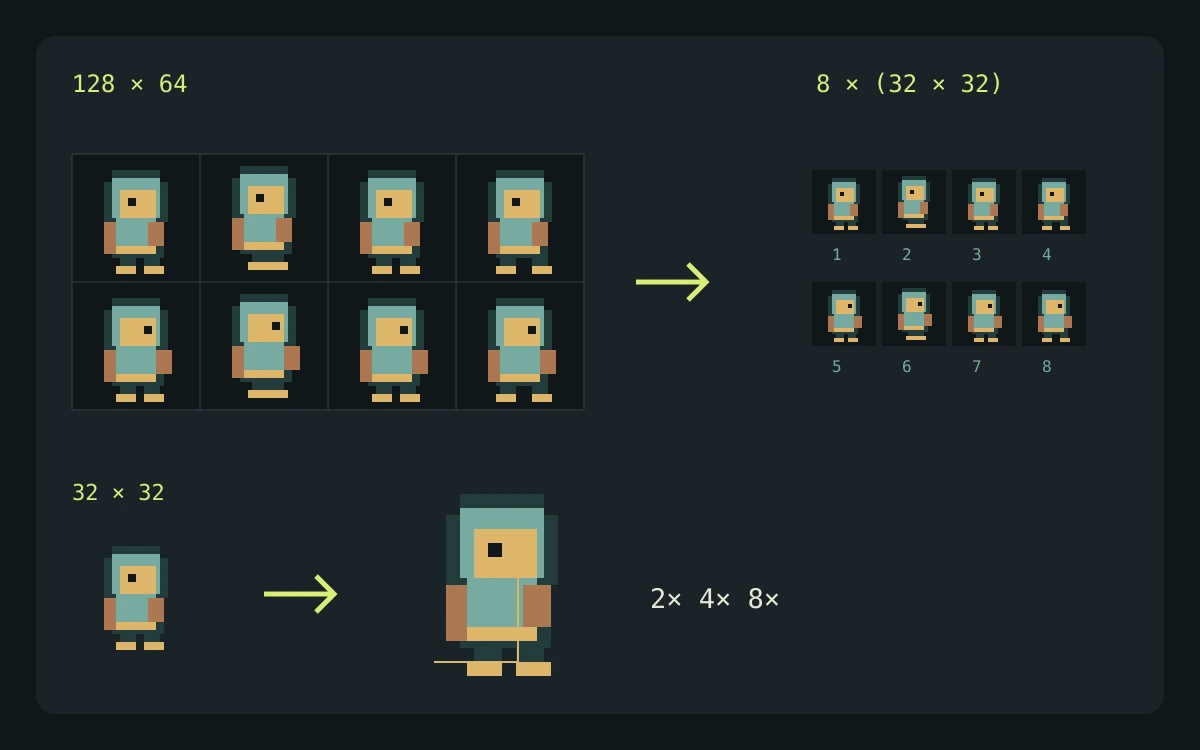
Smooth interpolation can blur pixel edges. Choose 2×, 4×, or 8× nearest-neighbor enlargement here. Keep both scaled dimensions at or below 8192 pixels: each axis is capped independently, which can change the aspect ratio and exact scaling.
This utility runs in your browser. Your files stay on your device and no generation credits are used.
The utility runs locally. Your artwork is not uploaded and no credits are used.
Explore gameplay, handheld use, and coordinated designs. These AI-generated concepts illustrate visual possibilities; review your own assets and engine imports before shipping.
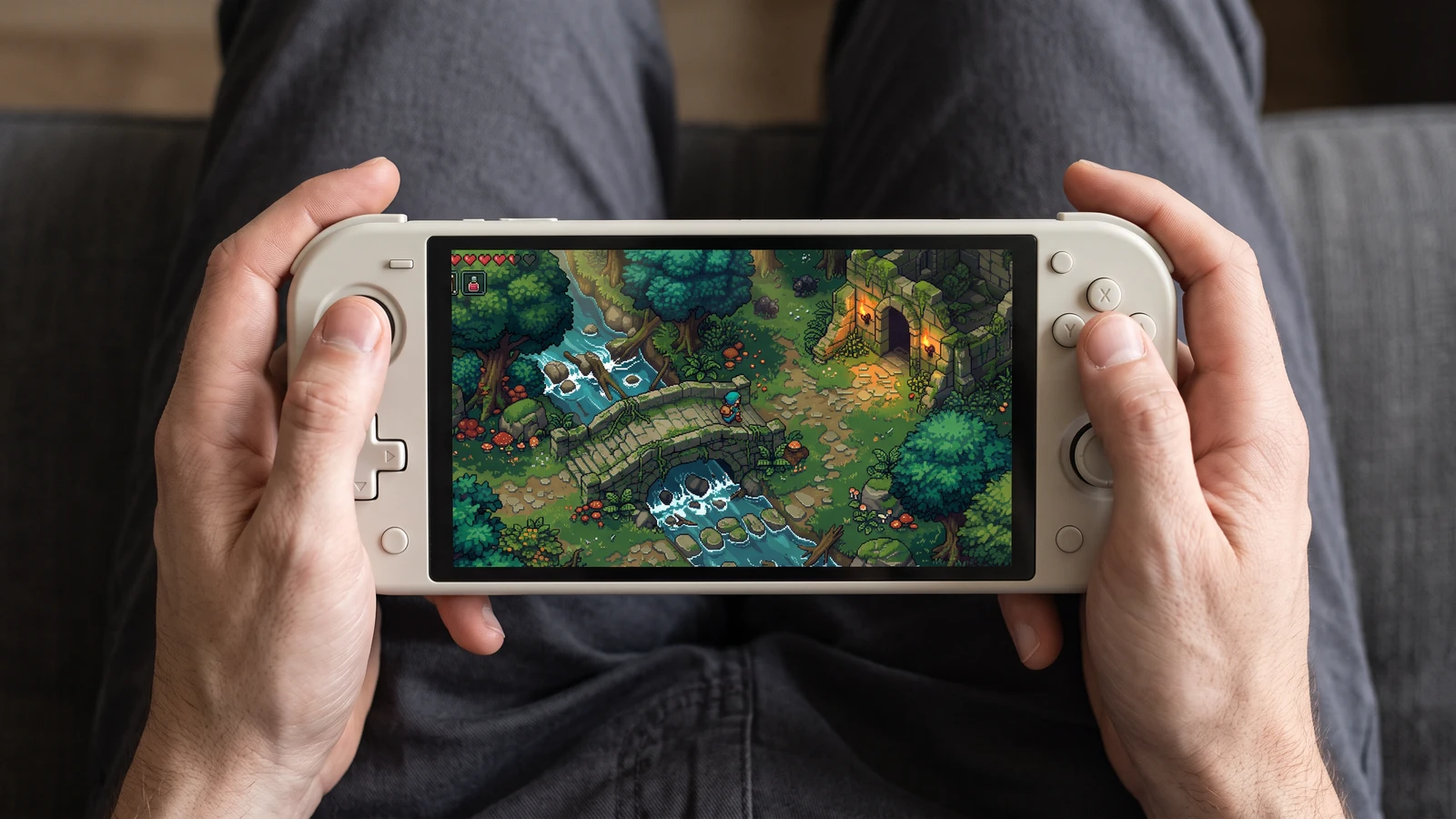
Check how the same game scene reads on a handheld screen, from the character to the smallest interface icons.
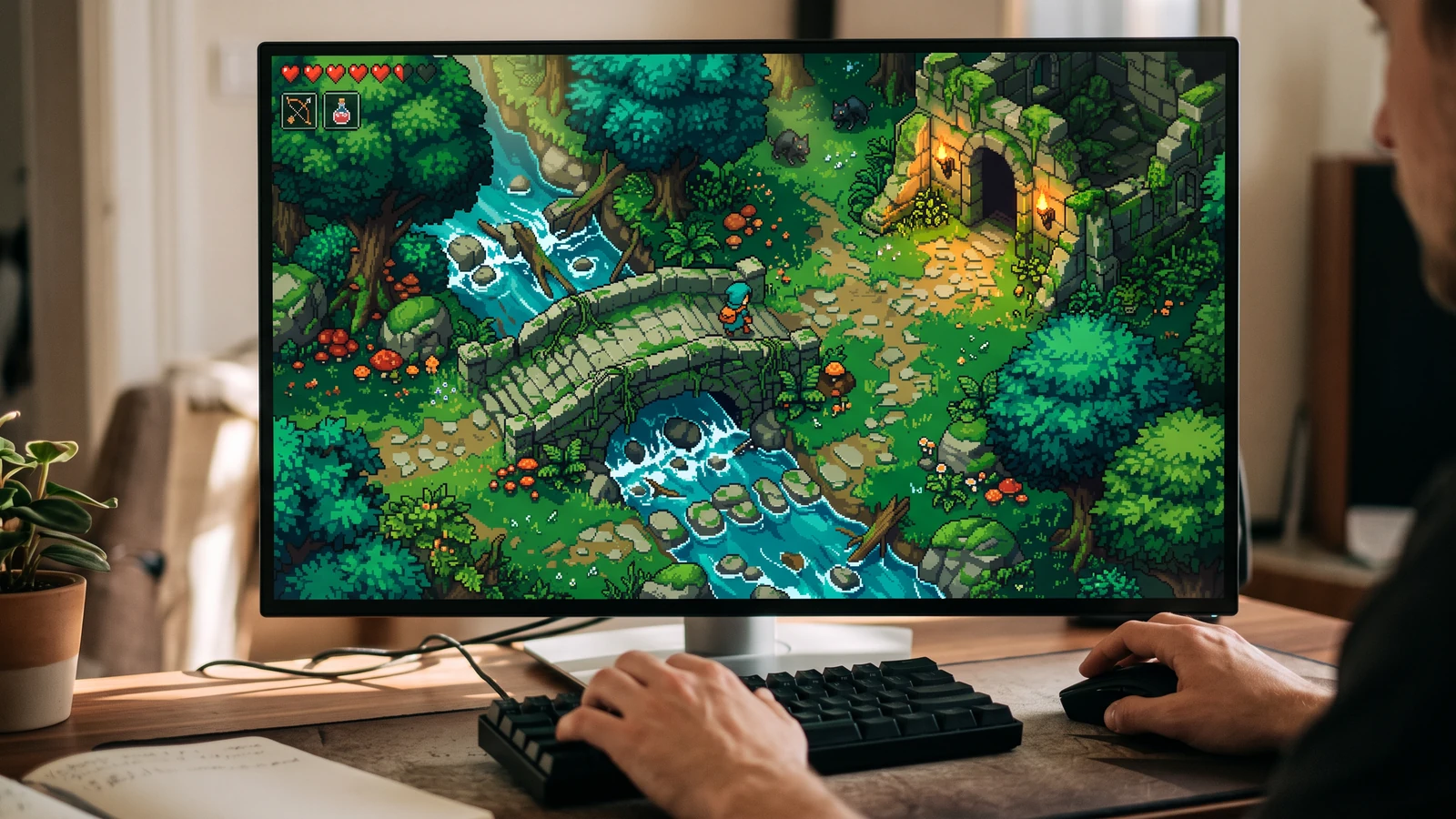
See the character, world, and interface together at desktop play size.
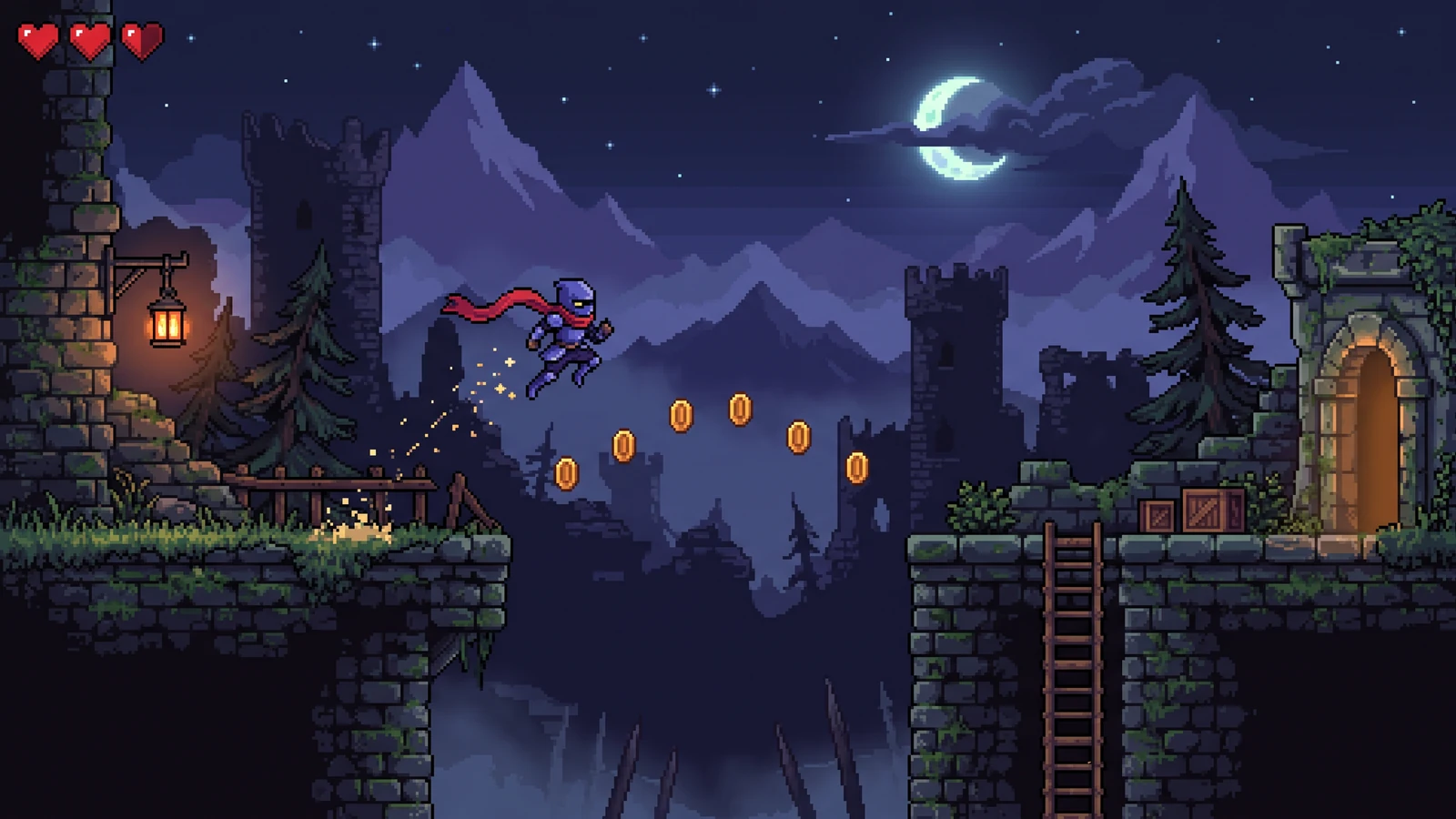
Check how animation poses, foreground obstacles, and background contrast support the action.
Use a concrete input, inspect the output, and check the current limits before choosing your next step.
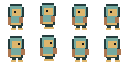
Use the transparent 128 × 64 demo PNG below as the source.
The 4× preset produces a crisp 512 × 256 copy of this 128 × 64 source.
The available presets are 2×, 4×, and 8×. Output width and height are each capped at 8192 pixels, so oversized inputs can lose the requested scale or proportions.
Check the engine or editor documentation when preparing your own import. These sources describe file and playback behavior, not an endorsement of PixelBox.
Content updated:
Published and maintained by LlamaGen. This page describes current PixelBox controls and export formats. Contact the team about incorrect information or an export problem.
Nearest-neighbor enlargement keeps hard pixel edges when the chosen size stays within the output limit.
Choose 2×, 4×, or 8×. Outputs above 8192 pixels on either axis are capped, which can change the aspect ratio.
Files stay in your browser and transparency remains intact.
Choose a PNG, WebP, or JPG sprite, icon, tile, or scene.
Pick an integer multiplier and inspect the actual output dimensions.
Export a crisp scaled copy without smoothing.
Whole-number multiples give every source pixel the same output footprint, preventing uneven edges.
Yes. Transparent PNG and WebP inputs keep their alpha channel in the PNG output.
Each output dimension is independently capped at 8192 pixels. That can change the aspect ratio and break exact integer scaling. Choose a smaller preset or a smaller source so both scaled dimensions stay within the limit.
No. Resizing runs entirely in your browser.